Browse volume files
Open a volume in the file browser to see, upload, edit, download and delete its files without a terminal.
The file browser shows what's on a volume and lets you change it from the dashboard.
Open it
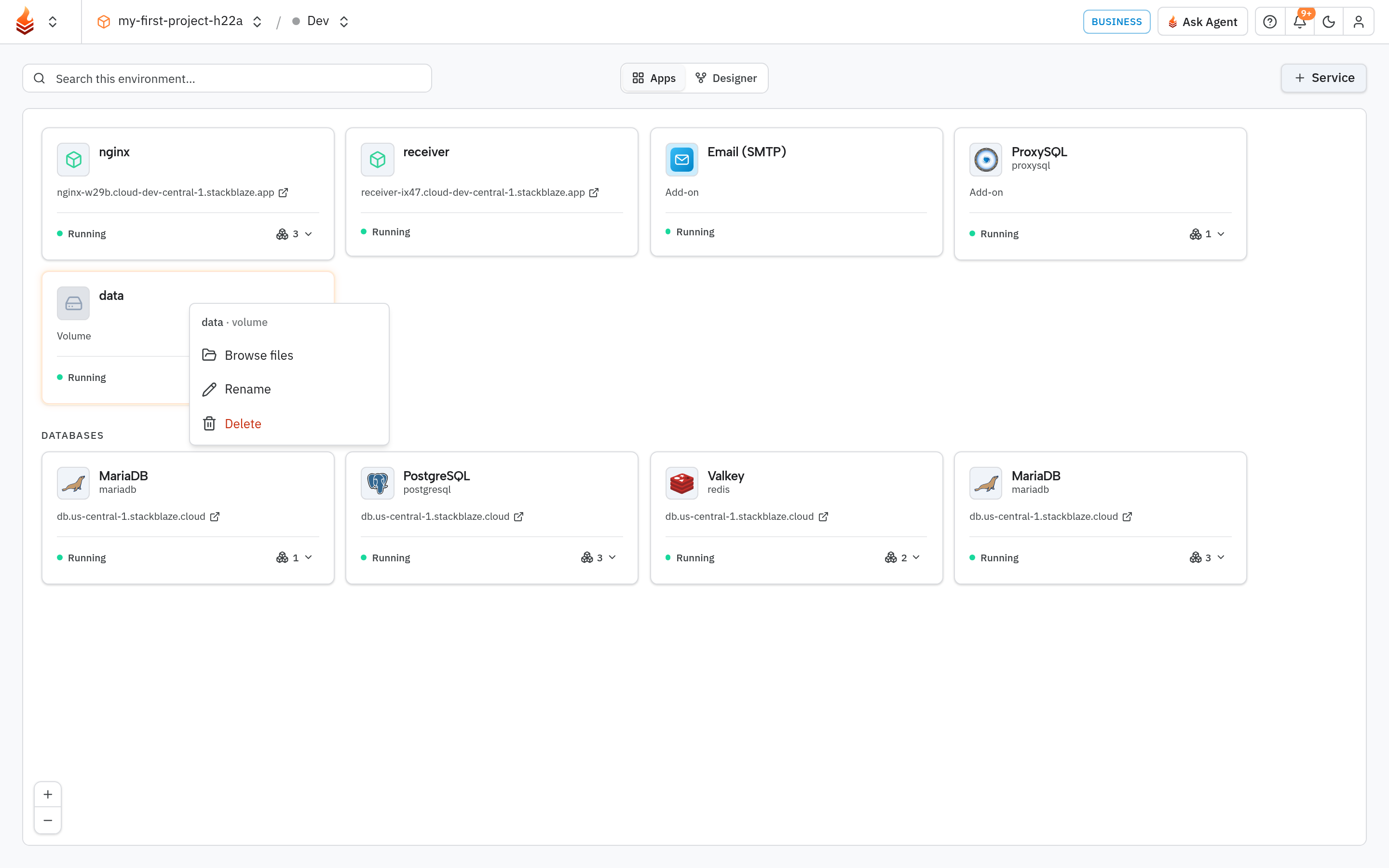
On the canvas, right-click the volume's card (here data) and choose Browse files. The card's menu also has Rename and Delete.
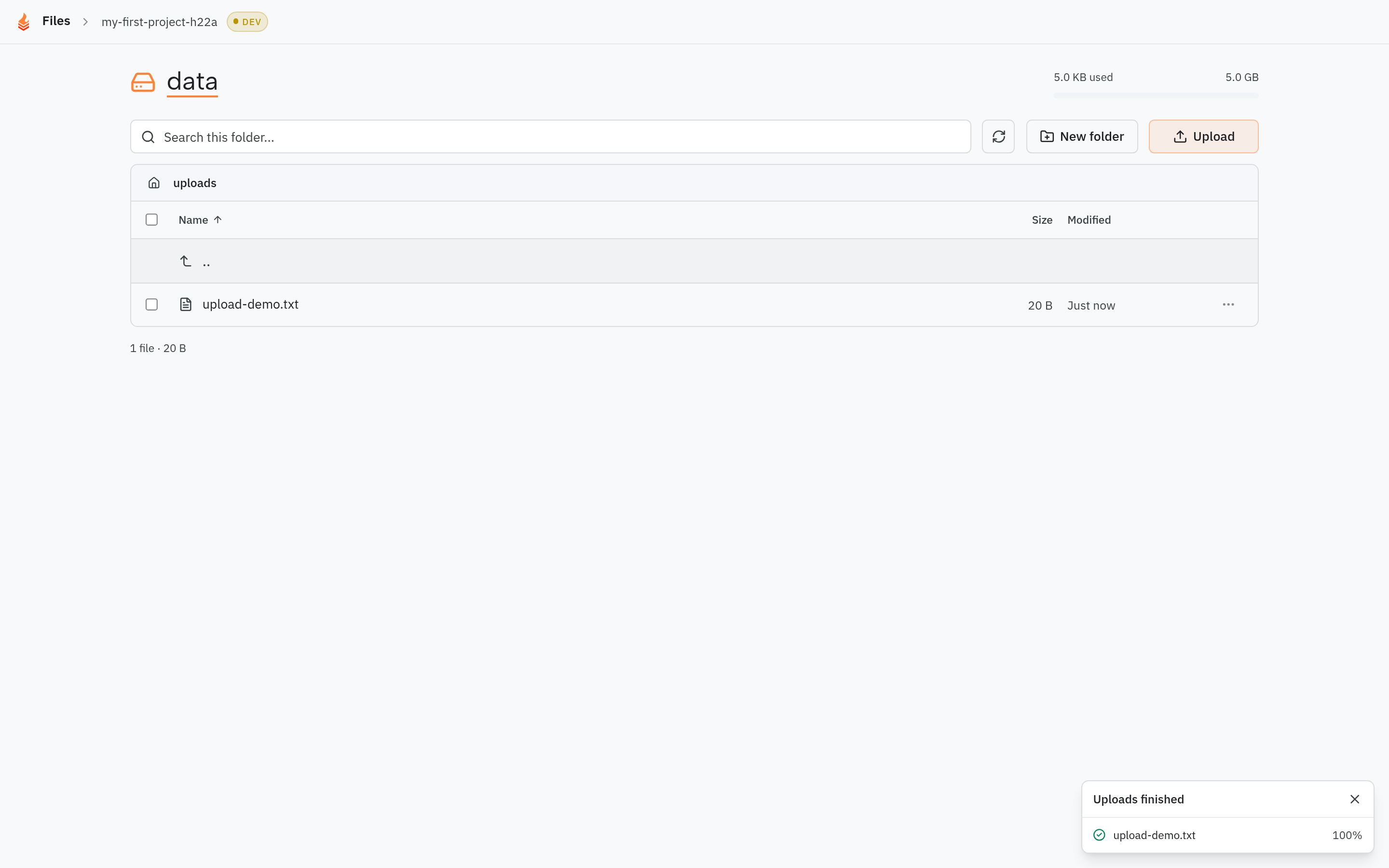
The file browser opens in a new tab. The header shows the project and environment, and the volume's name with how much of it is used, here 5.0 KB used of 5.0 GB.
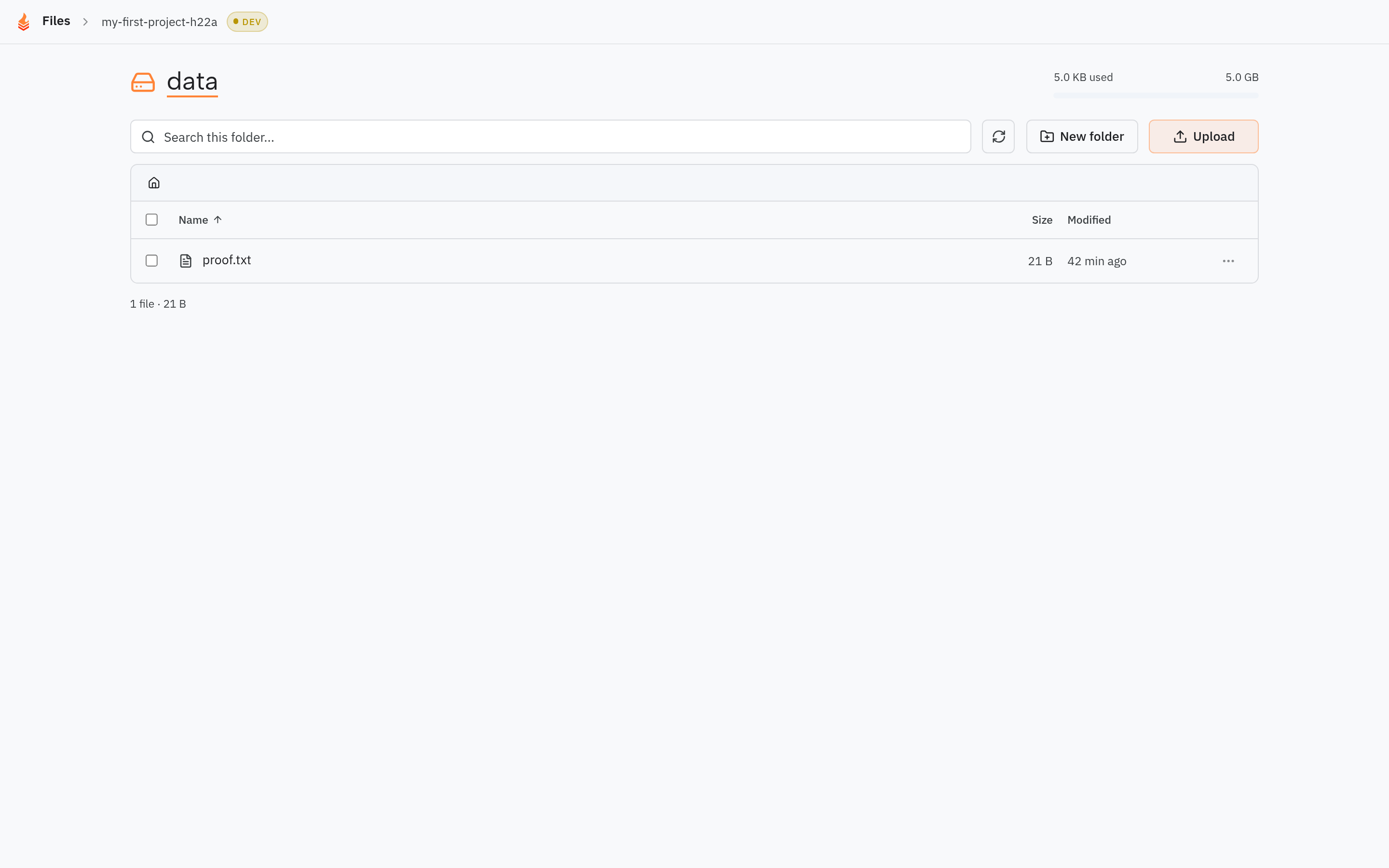
Each row has a Name, Size and Modified time. Above the list are Search this folder and Refresh.
Create a folder
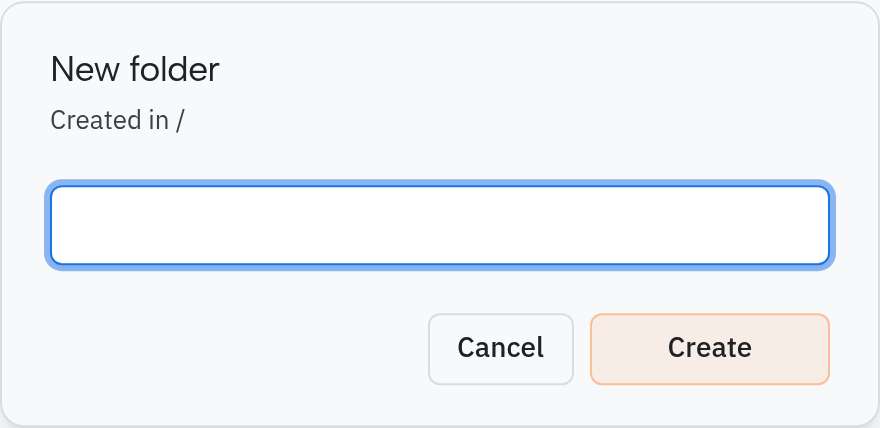
Click New folder, type a name and click Create. The dialog says where it's created, here Created in /. Click a folder to open it, and .. to go back up.
Upload files
Click Upload and pick files, or drop them on an empty folder ("Drop files here or use Upload."). A panel shows each file's progress, then Uploads finished.
Open and edit a file
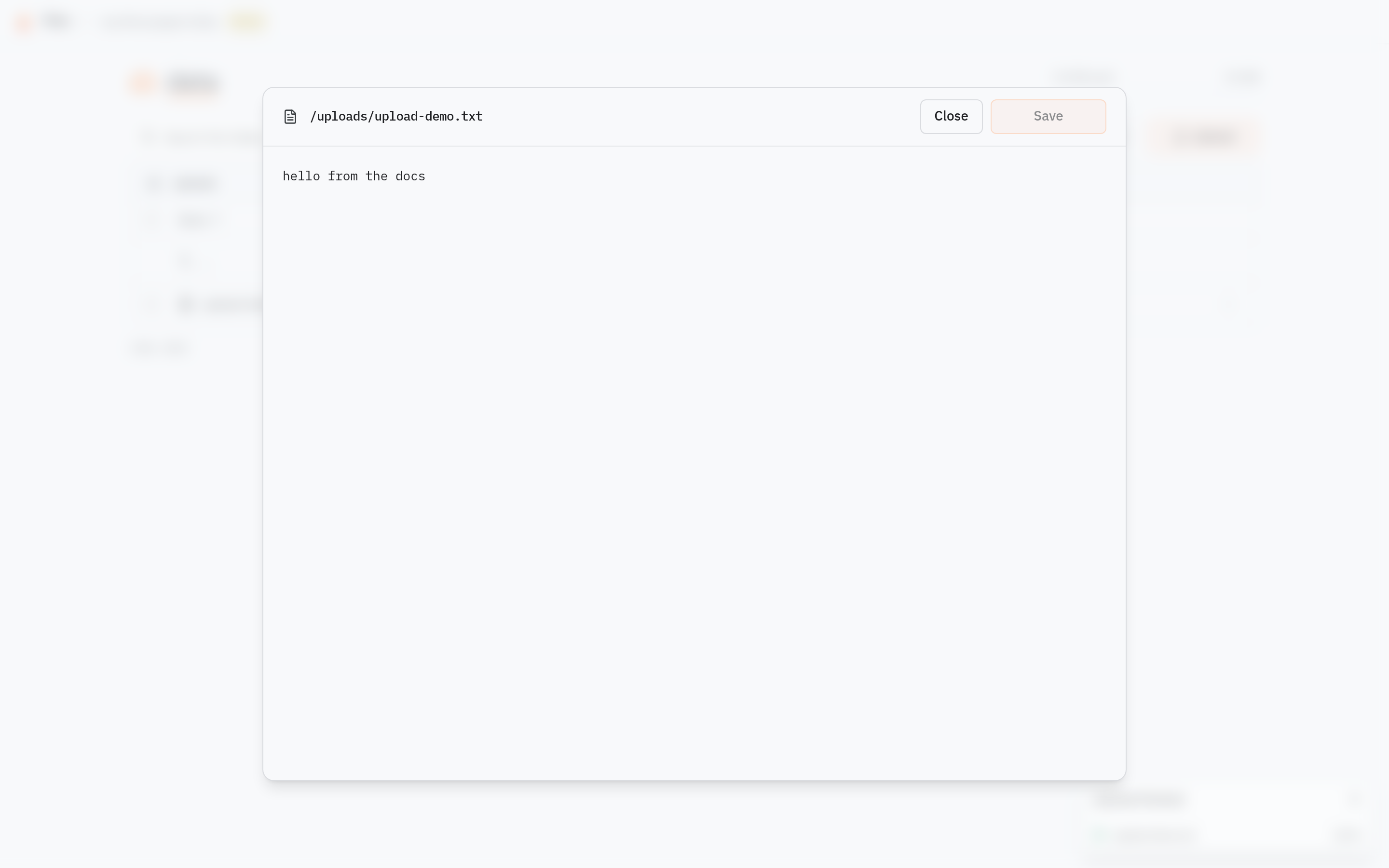
Click a text file to open it in an editor, with Save ("Edit the file and save it back to the volume.") and Close.
File actions
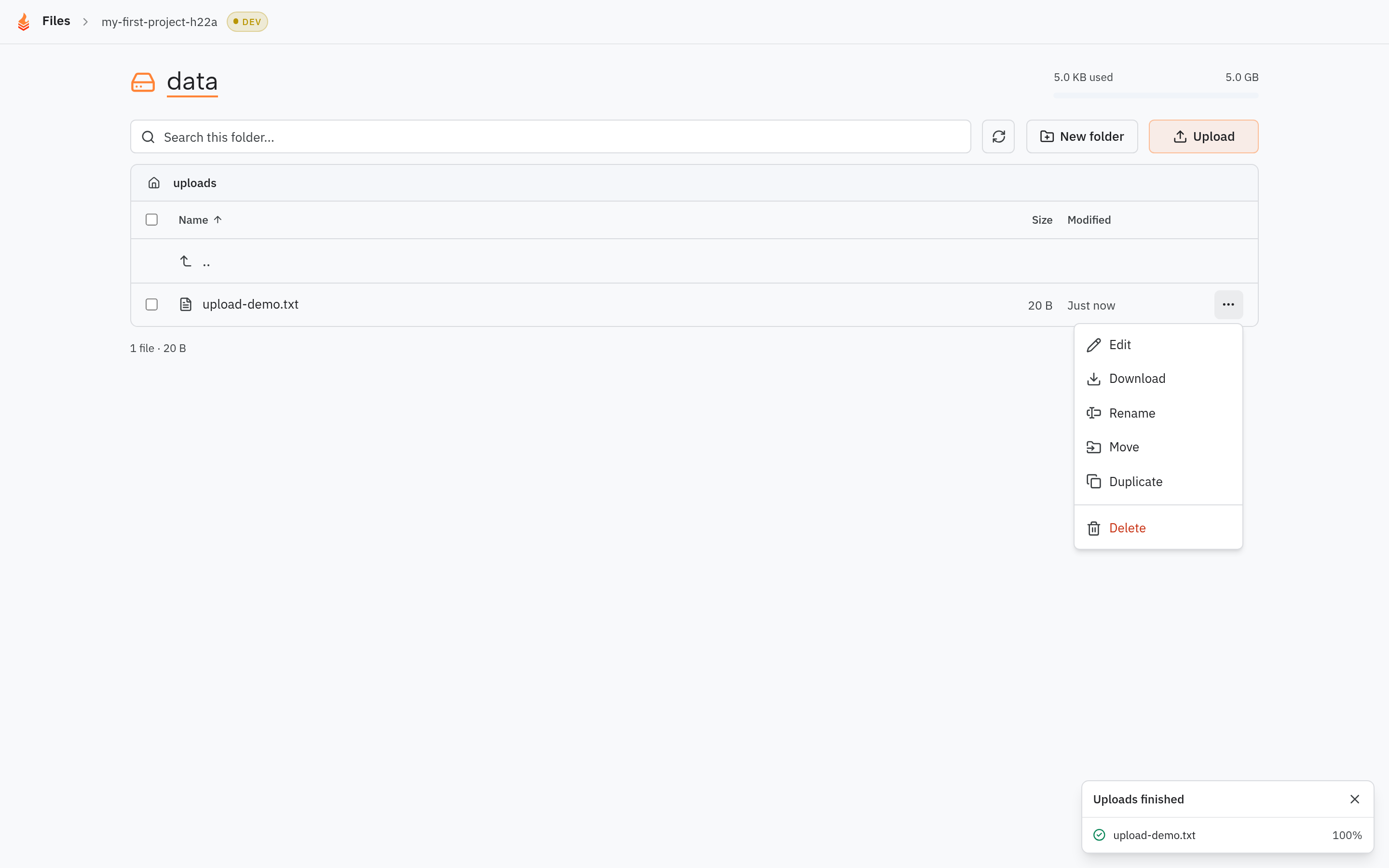
A file's ⋯ menu has Edit, Download, Rename, Move, Duplicate and Delete. A folder's menu has Rename, Move, Duplicate and Delete.
Delete
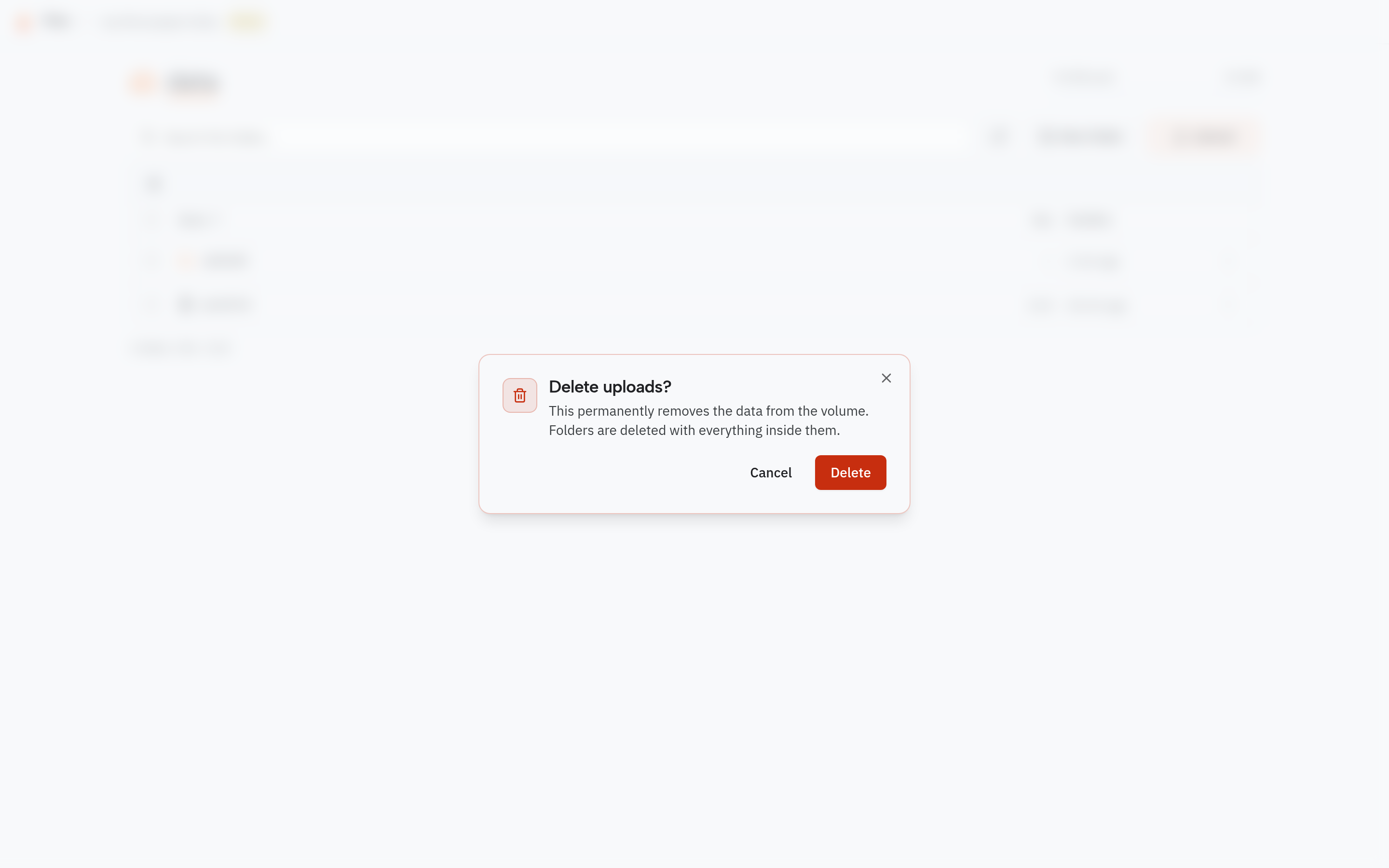
Choose Delete in the menu. The browser asks first, for example "Delete uploads? This permanently removes the data from the volume. Folders are deleted with everything inside them." Click Delete to confirm.