Volumes
Give a service a disk that keeps its files across restarts and deploys, choose its size and where it's mounted, grow it, and remove it.
A service's own filesystem starts fresh on every restart and deploy. A volume is a disk that keeps its files. Open a service, click Settings, then Storage:

A volume is a shared filesystem: if the service runs more than one instance, every instance mounts the same volume and sees the same files.
Only write to the same files from several instances if your app is built for it. A file database such as SQLite on a volume should run with one instance.
Add a volume
Fill it in
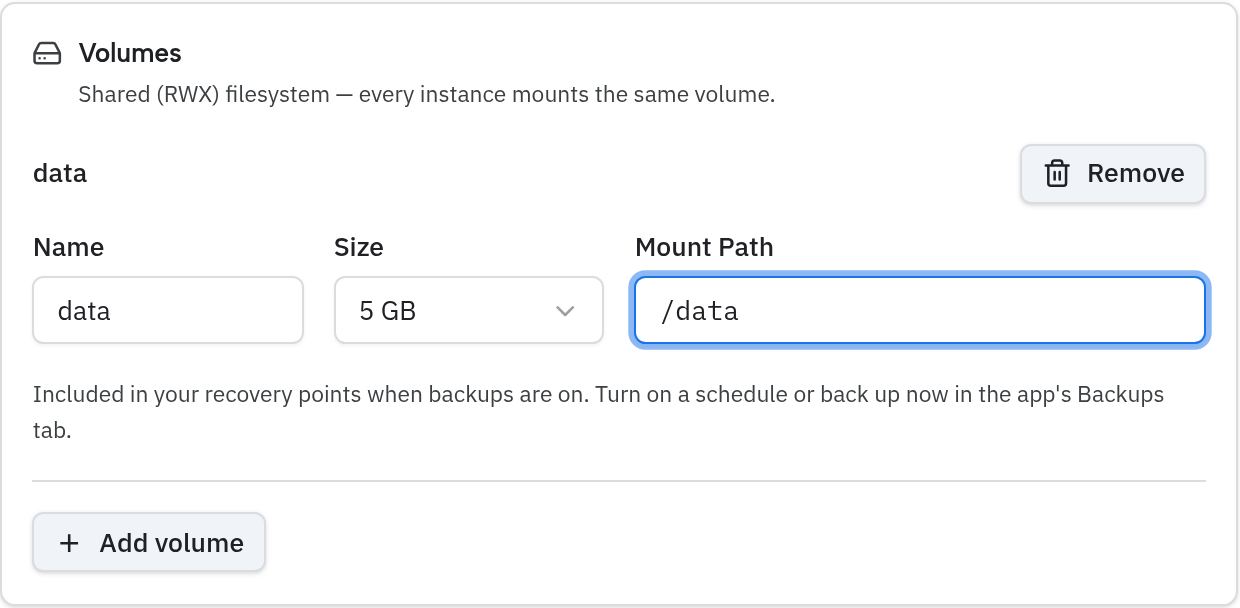
Click Add volume. Each volume has:
- Name, for example
data; - Size, 5 GB by default;
- Mount Path, the folder inside the service where it appears,
/databy default.
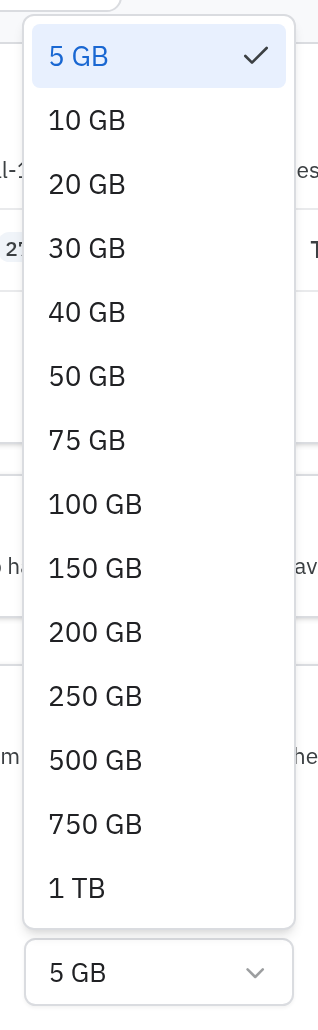
The sizes go from 5 GB to 1 TB: 5, 10, 20, 30, 40, 50, 75, 100, 150, 200, 250, 500 and 750 GB, and 1 TB.
Commit and deploy
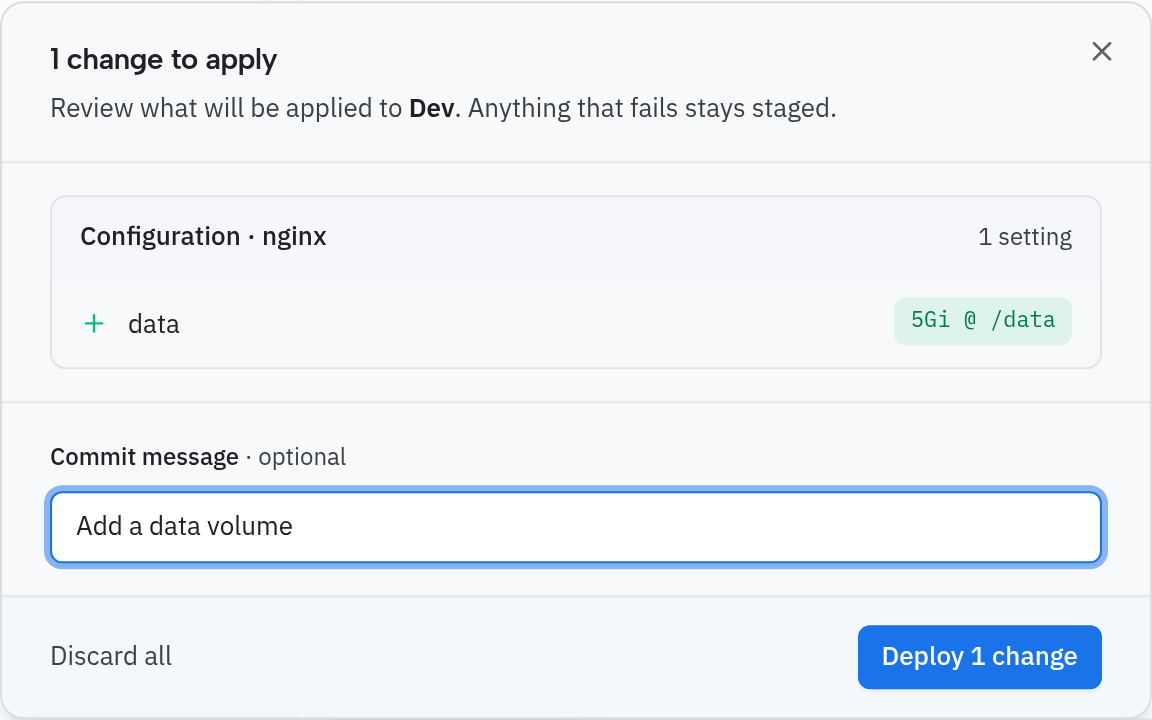
Click Commit 1 change. The dialog lists the volume with its size and path, here data 5Gi @ /data. Add a commit message if you like and click Deploy 1 change.
Once the new version is running, the volume is mounted at its path. We wrote a file to /data, restarted the service, and read the same file back from the new instance.
Once it's in use
After it's deployed, the volume is marked In use. Its Name can't be changed any more. The Mount Path can, and the Size can only grow: see Increase the size.
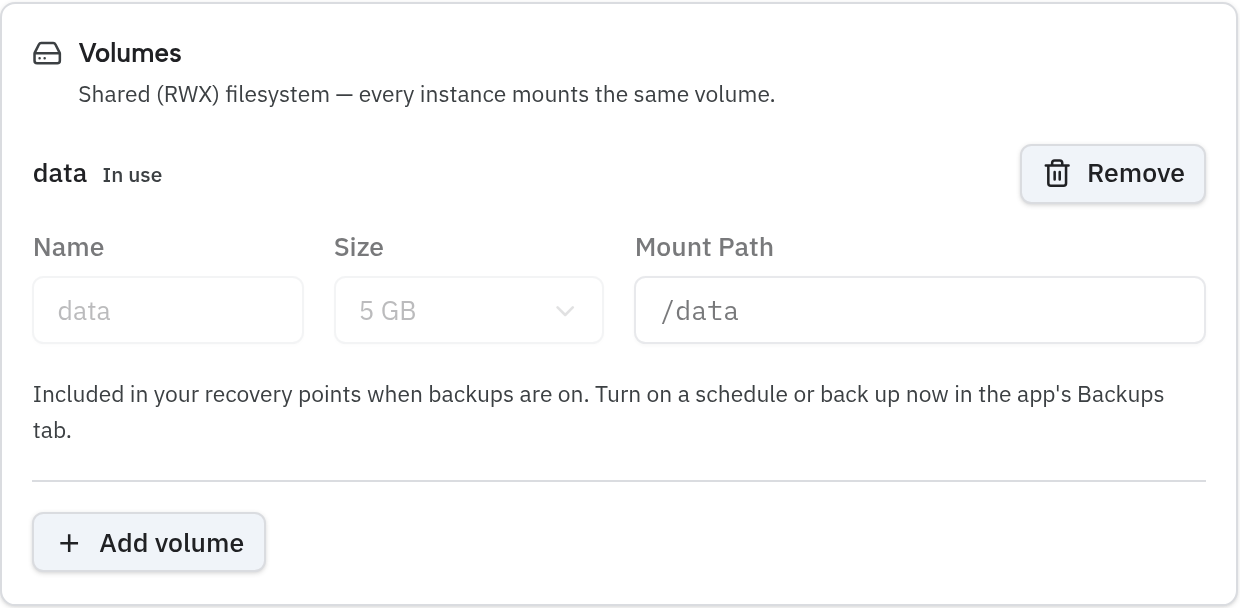
Volumes are included in the environment's recovery points when backups are on. See Environment backups.
Increase the size
A volume in use can be made bigger while the service keeps running. It can't be made smaller.
Pick a larger size
Open Settings, then Storage. The Size menu of a volume in use lists its size, marked (current), and the larger sizes only. Under it:
Volumes can only grow. Expansion depends on the storage class.
Pick the new size, for example 10 GB for a 5 GB volume.
Commit and deploy
Click Commit 1 change, then Deploy 1 change. A Growing volume message names the volume and both sizes, for example data 5Gi → 10Gi.
Watch it grow
The service isn't restarted. While the volume grows, the line under the Size menu shows how far it has got:
- Growing to 10Gi (now 5Gi)… while the disk is being made bigger;
- Disk grown to 10Gi; the filesystem grows next (no restart needed). while the service's filesystem catches up.
The line goes away when the volume is at its new size. The page checks every few seconds, so you don't need to reload it.
If it can't grow
- If the volume's storage class can't grow volumes in place, the Size menu is greyed out and says why, for example Storage class "…" cannot grow volumes in place.
- If the new size is saved but the disk couldn't be grown straight away, a Volume not grown yet message gives the reason. The new size is applied the next time the platform updates the service.
- If growing fails, the line under the menu turns red: Resize to 10Gi failed: followed by the reason.
A bigger volume is billed at its new size from then on. See Billing.
From the CLI
stackblaze volume resize data --size 10Gi -p shop -e dev -a webOK Growing volume data 5Gi → 10Gi on shop/dev/web (no restart)stackblaze volume grow does the same. The CLI refuses a smaller size (volumes can only grow, not shrink to 2Gi). If the volume is already that size, it says so and changes nothing.
Snapshots from the CLI
stackblaze snapshots create takes a snapshot of all of a service's volumes at once, as one group. stackblaze snapshots list lists each volume and its snapshots:
stackblaze snapshots create -p shop -e dev -a web
stackblaze snapshots list -p shop -e dev -a webOK Snapshot group snap-nginx-9agm-1795593648799
1 volume(s) snapshotted
data 5Gi
nginx-9agm-data-1795593649382 group=snap-nginx-9agm-1795593648799 ready=falseA snapshot is ready after a few seconds (ready=true). Snapshots are kept on the cluster, separate from recovery points. To get files back as a copy of a volume, restore a recovery point.
Billing
A volume is billed on its size, not on what it holds: see Storage (provisioned) in Usage.
Remove a volume
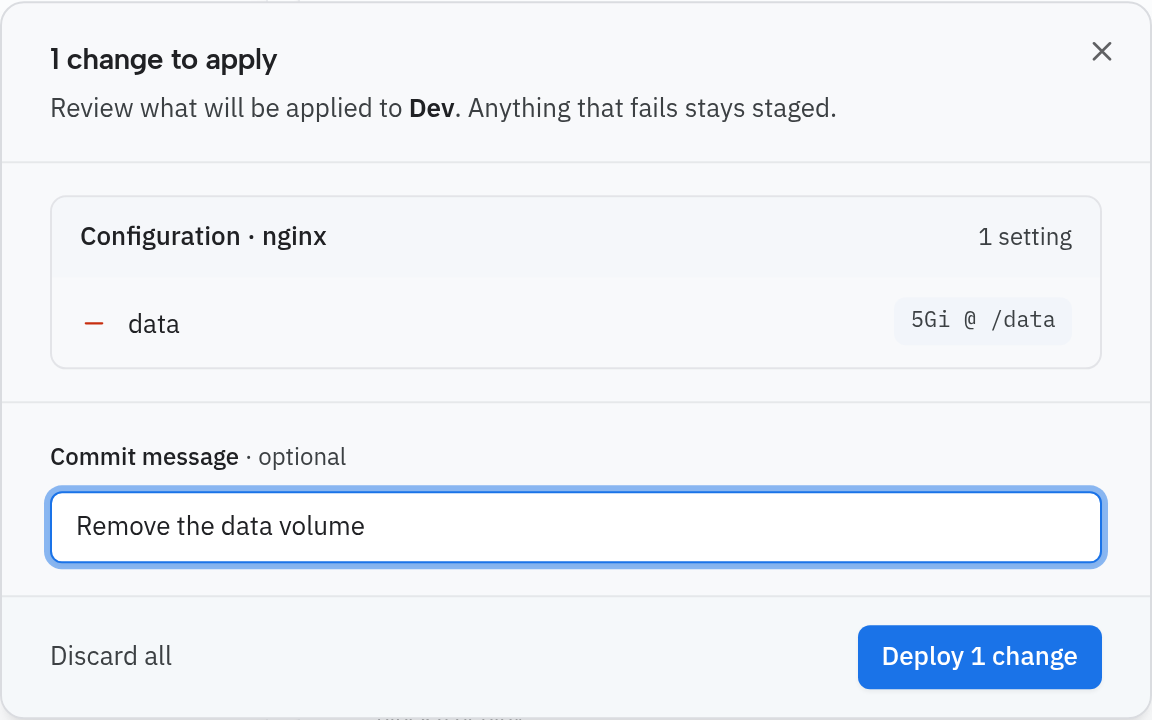
Click Remove on the volume. The browser asks:
Remove data from this app? Commit changes to unmount it. The PVC and its data stay in the cluster until deleted separately.
Confirm, then click Commit 1 change and Deploy 1 change. The service is deployed without the volume.