
Notifications
Send project events, such as an app being deployed, restarted or updated, to a webhook or a chat channel.
A notification channel sends the events you pick, for the projects you pick, to one destination. Channels belong to the organization. Open Settings → Notifications.
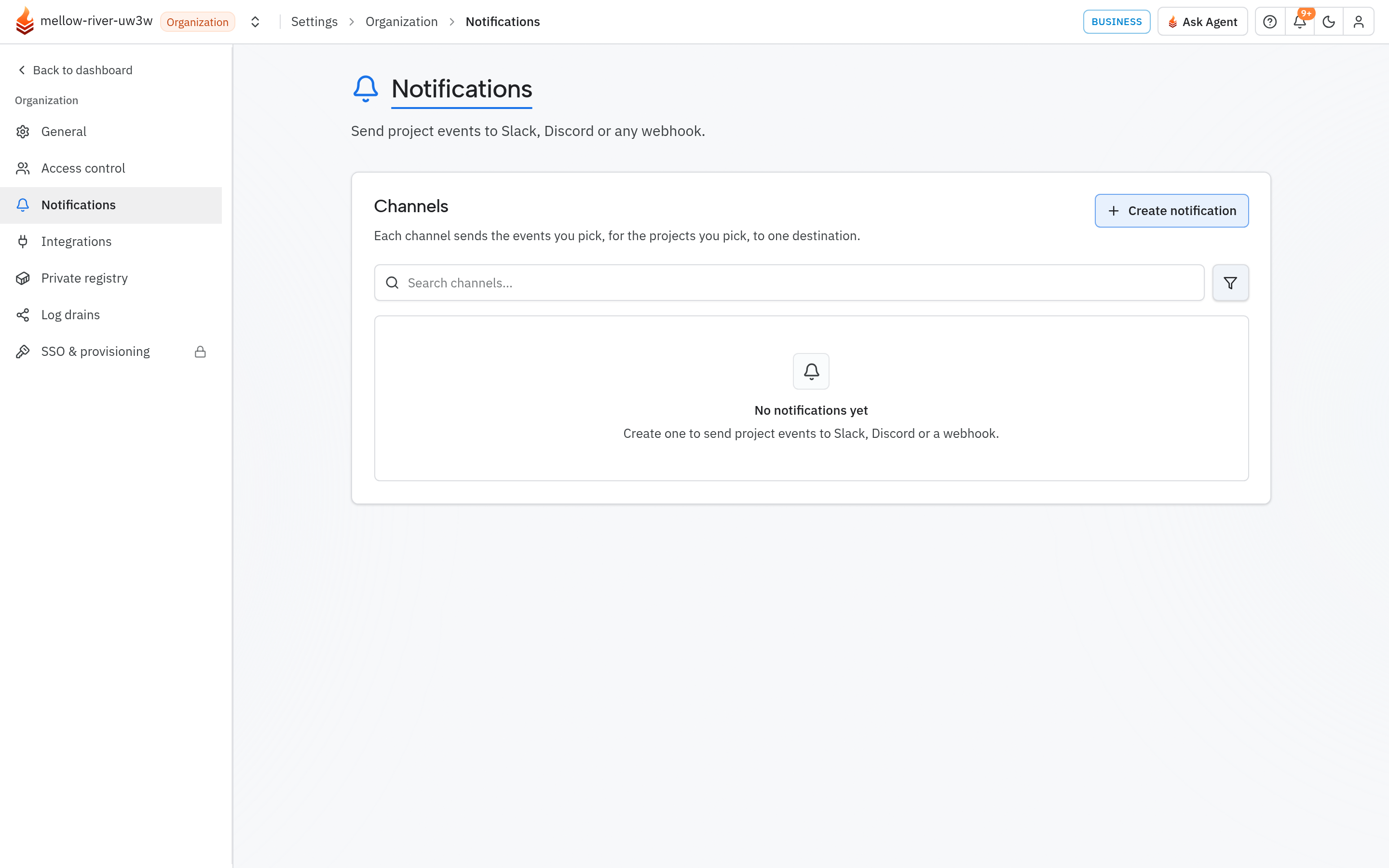
Create a channel
Name it and pick the destination
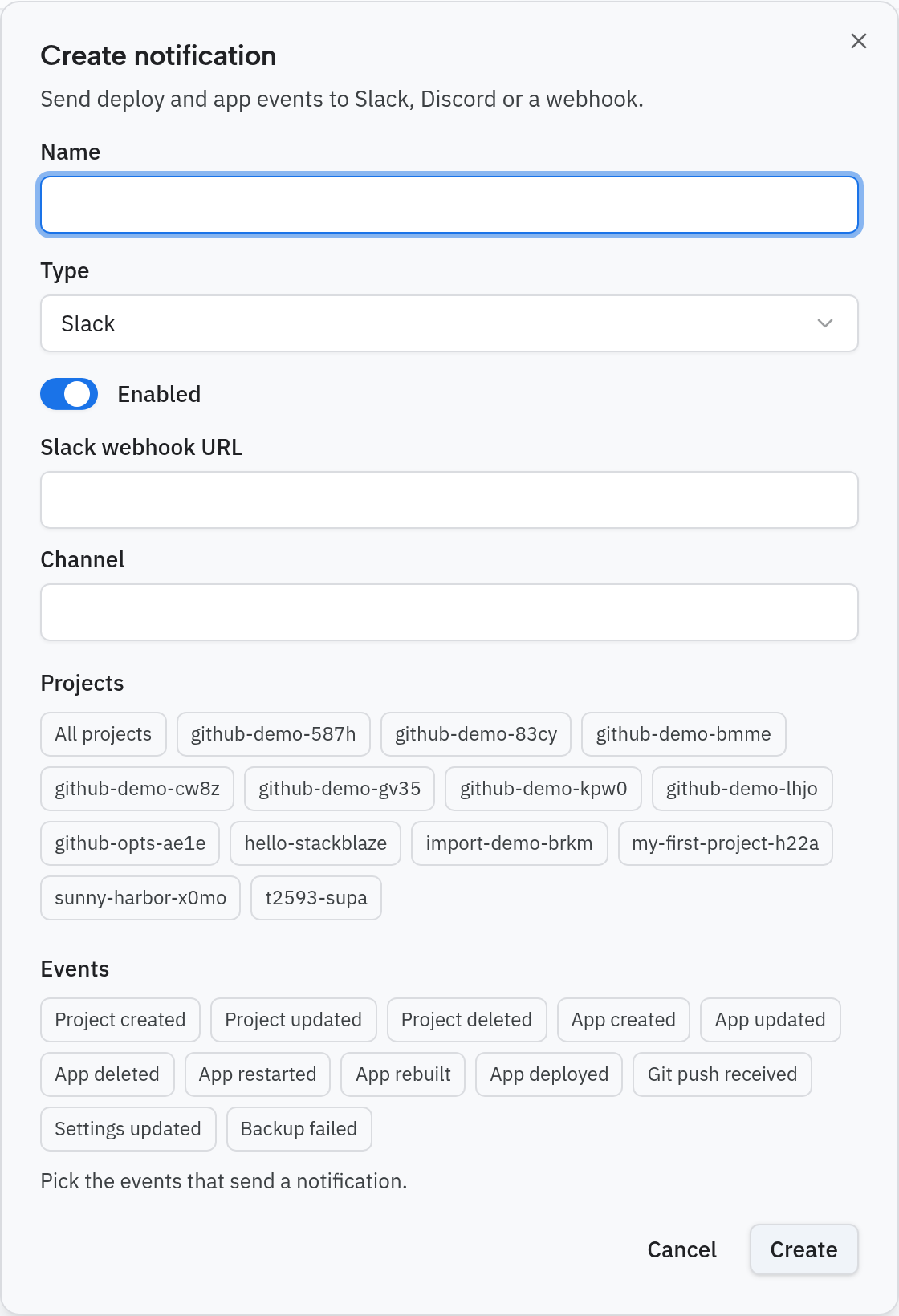
Click Create notification and give it a Name. Choose the Type: Webhook for any HTTP endpoint, or one of the two chat services in the menu. Enabled is on by default.
For Webhook, enter the Webhook URL and, if you like, a Secret. For a chat service, the dialog asks for that service's webhook URL and a Channel.
Pick projects and events
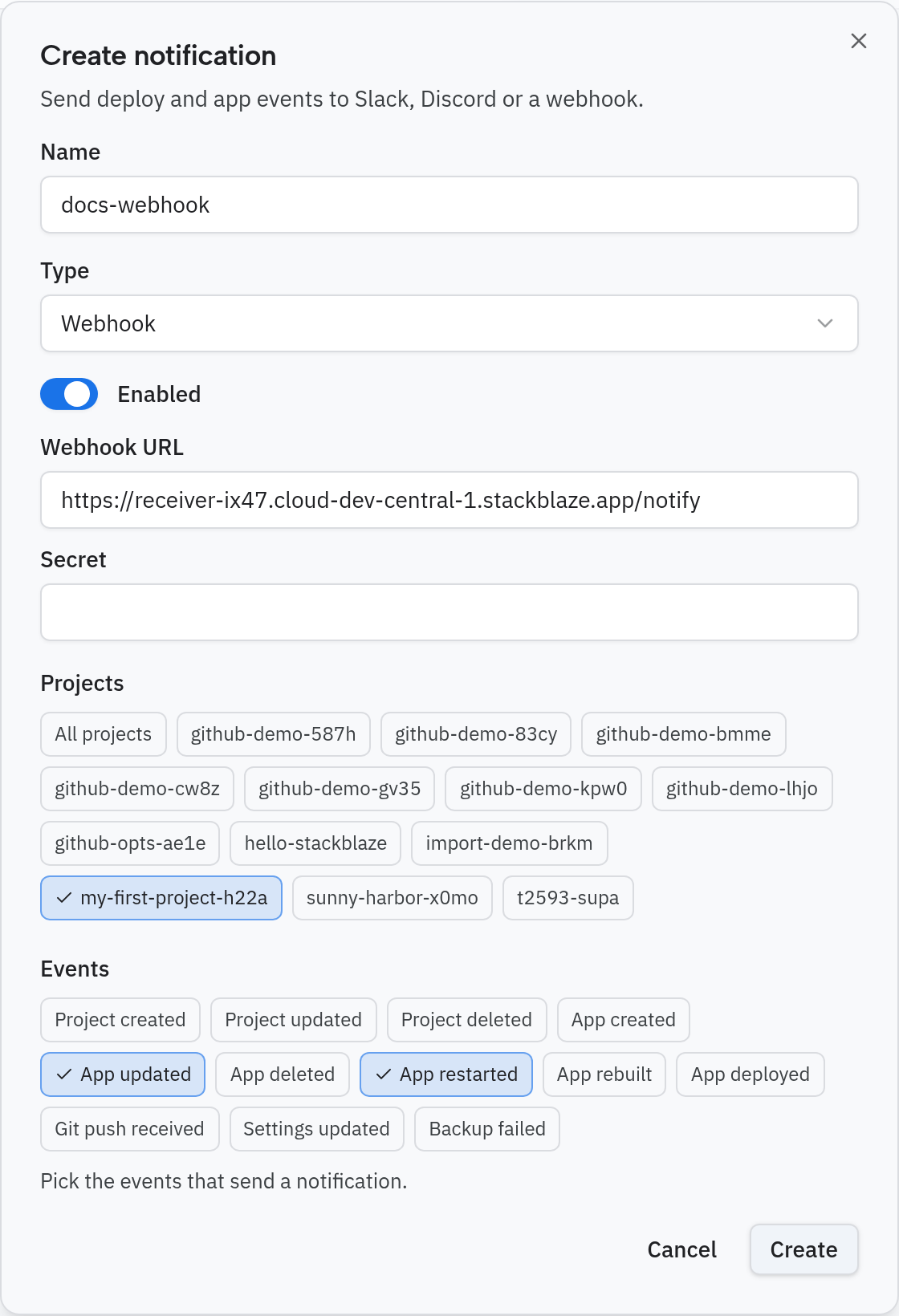
Under Projects, choose All projects or the projects you want. Under Events, pick the ones that send a notification:
| Projects | Apps | Other |
|---|---|---|
| Project created, Project updated, Project deleted | App created, App updated, App deleted, App restarted, App rebuilt, App deployed | Git push received, Settings updated, Backup failed |
Here, one project and two events: App restarted and App updated.
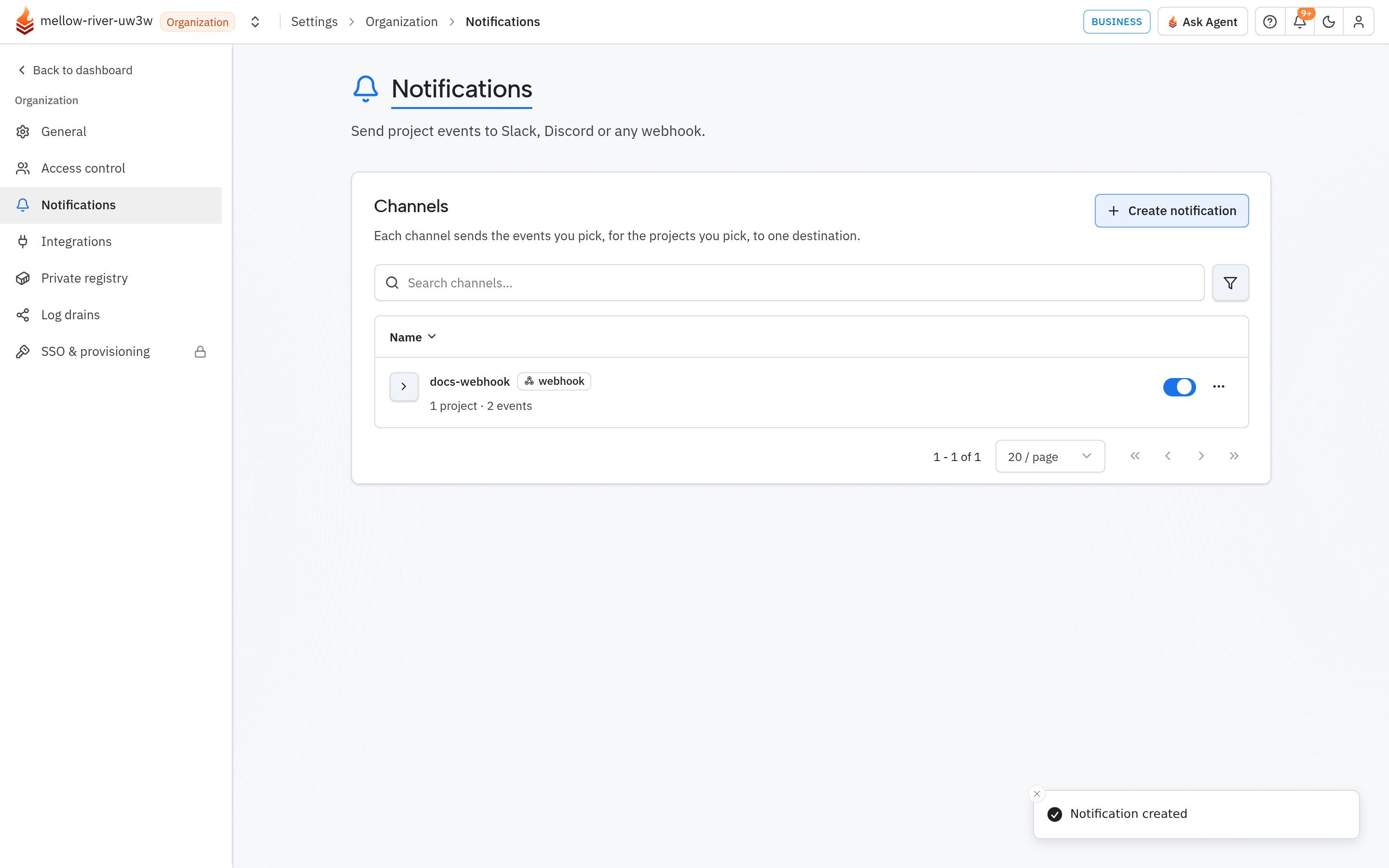
Create it
Click Create. The channel is listed with its type and what it covers, here 1 project · 2 events.
We restarted an app in that project. Within seconds, our webhook URL received a POST request for the restart.
Change or remove a channel
Each channel's row has a switch to turn it off without deleting it, and Show details. Its ⋯ menu has Edit notification and Delete notification.
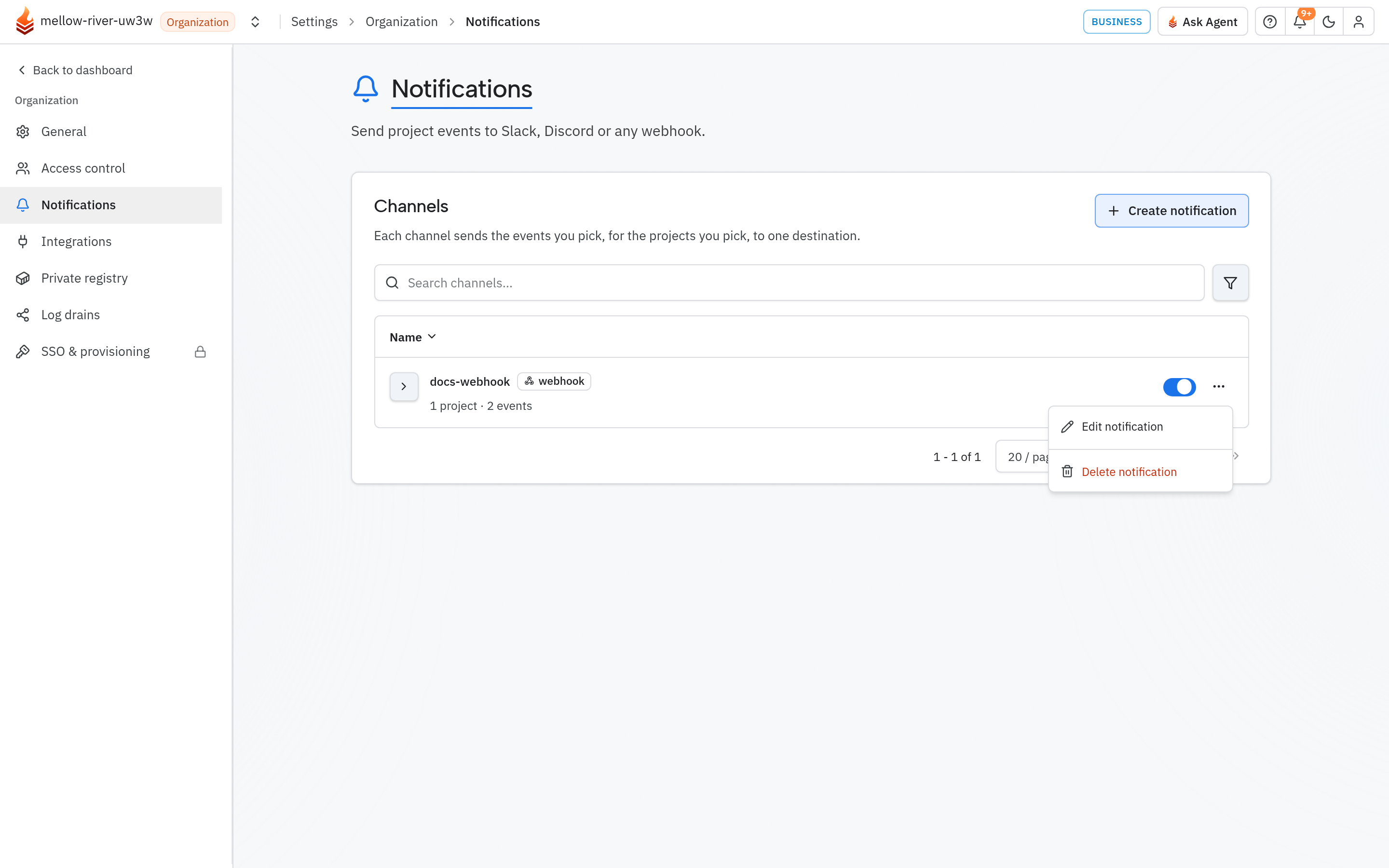
Delete notification asks first ("Are you sure you want to delete the notification "docs-webhook"?") and then removes the channel.