
Email (SMTP)
Send email from your apps with no setup — connected services get SMTP_HOST, SMTP_USER and the rest.
The Email (SMTP) add-on gives your apps an SMTP relay. Connect it to a service and the service gets the SMTP_* variables it needs. Sending is metered per email toward your plan's included usage.
Add it
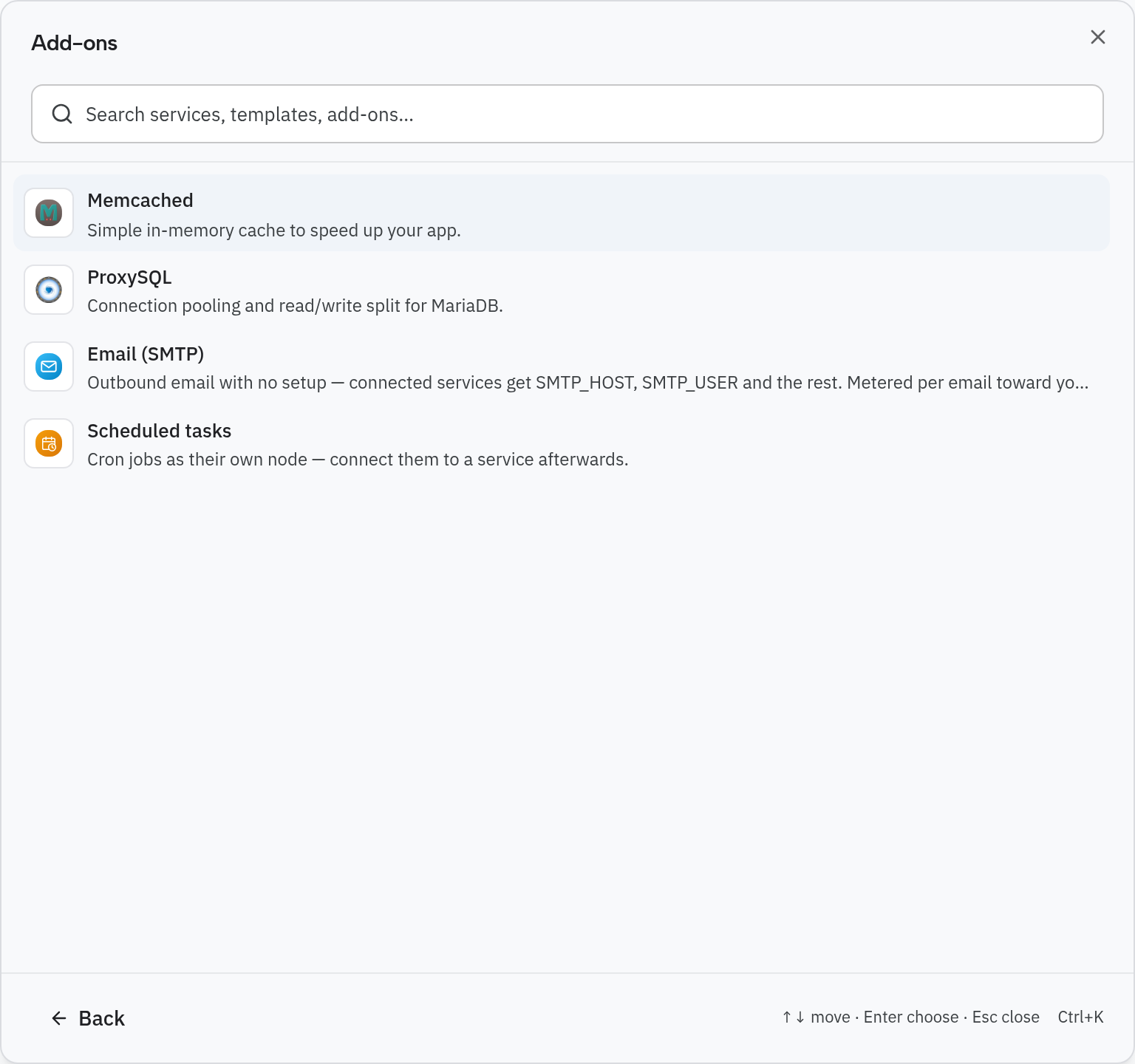
On the canvas, click + Service → Add-on (Kafka, email, and more) → Email (SMTP).
The menu lists the add-ons your project's region offers.
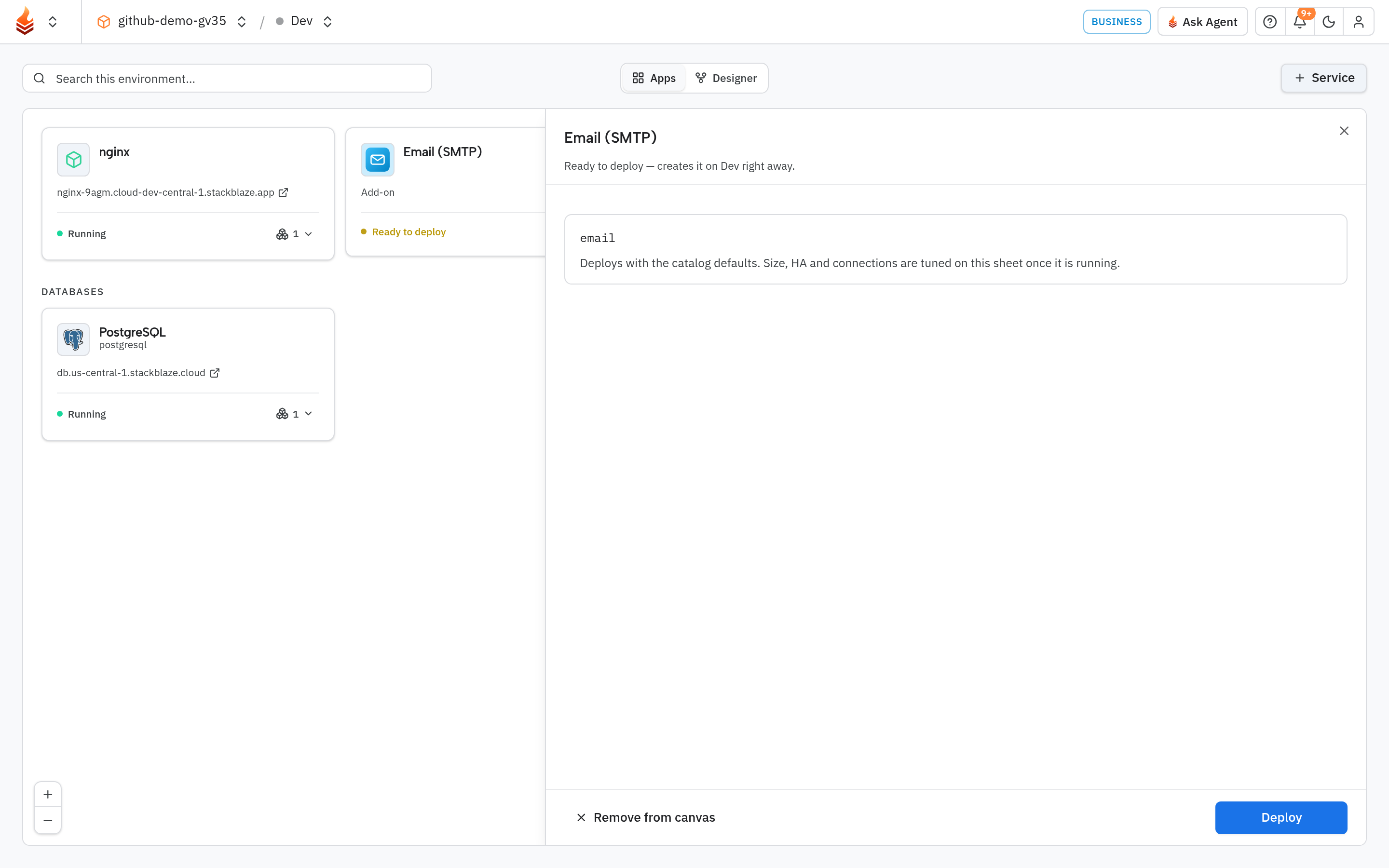
An Email (SMTP) card appears, marked Ready to deploy. Click it: the panel says it "creates it on Dev right away" with the catalog defaults. Click Deploy (or Remove from canvas to drop it).
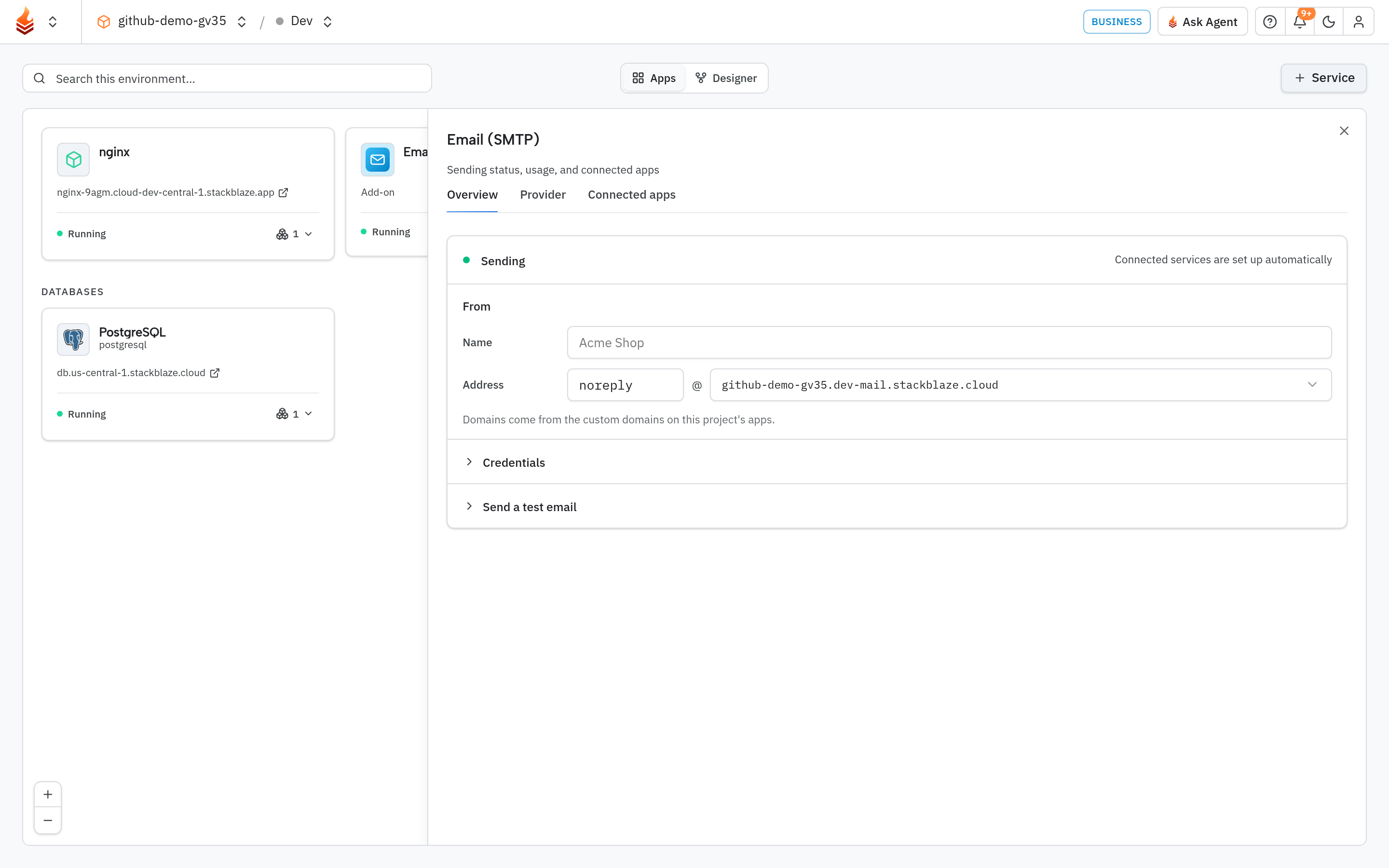
Set the sender
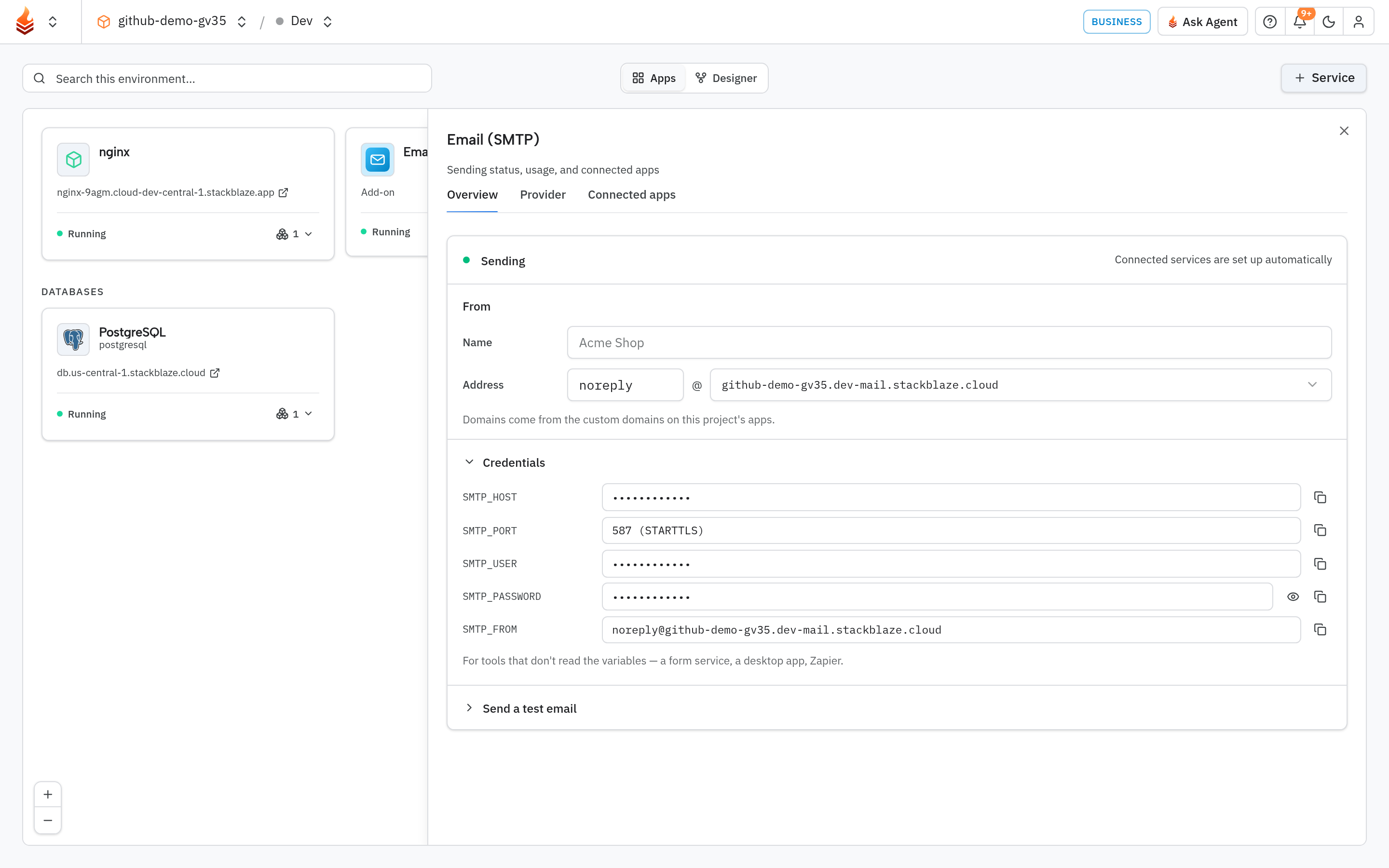
When the card shows Running, click it. Overview shows Sending and the From address: a Name and an Address on your project's mail domain (<project>.dev-mail.stackblaze.cloud here). The domains on offer come from the custom domains on this project's apps.
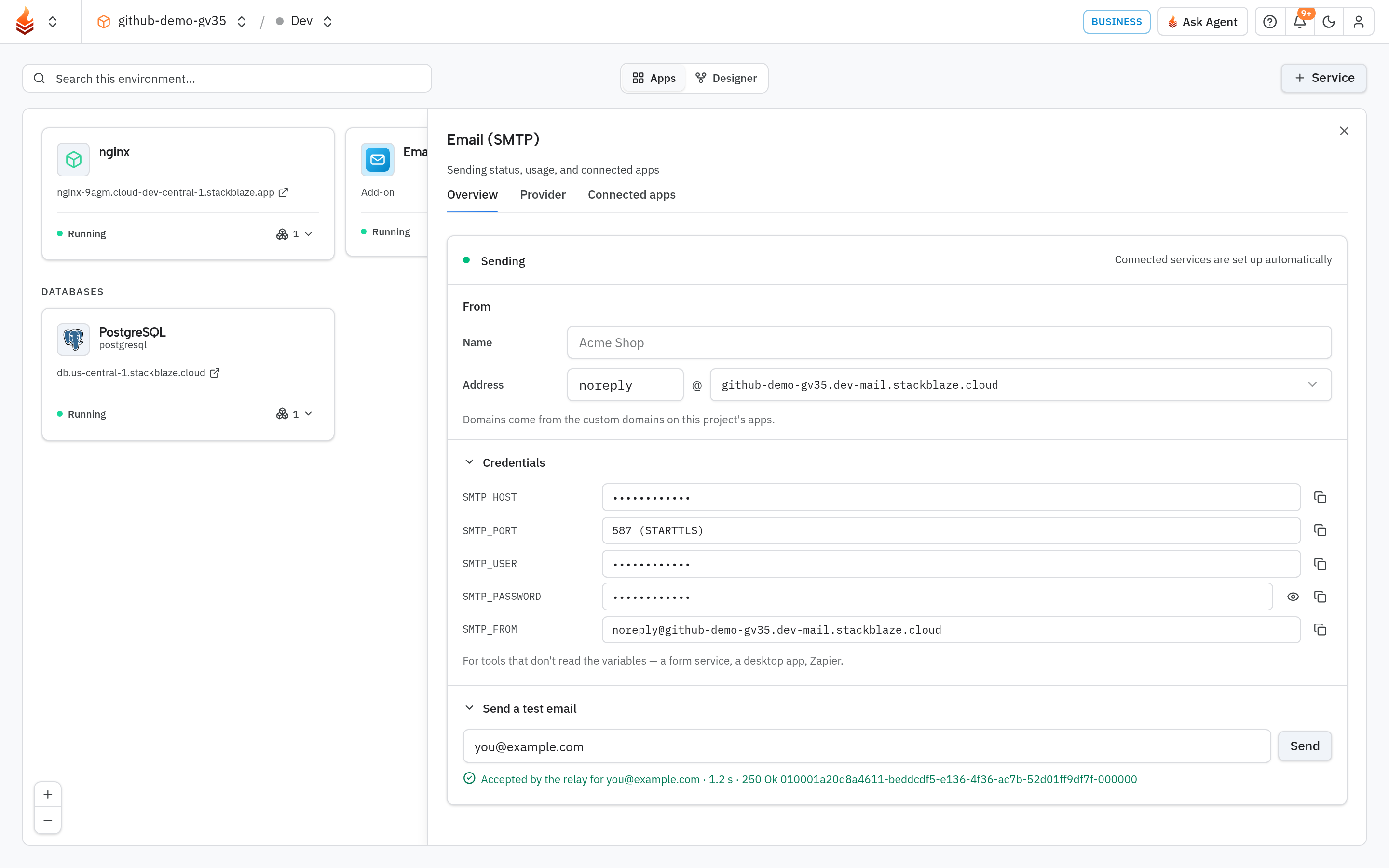
Send a test email
Open Send a test email, enter an address and click Send. The result shows whether the relay accepted it, for example "Accepted by the relay for … · 1.2 s · 250 Ok". This proves the relay takes the message; check the inbox to see where it lands.
Connect a service
Open Connected apps and turn on the switch next to the service, then commit and deploy the change (nginx ⇄ email off → on).
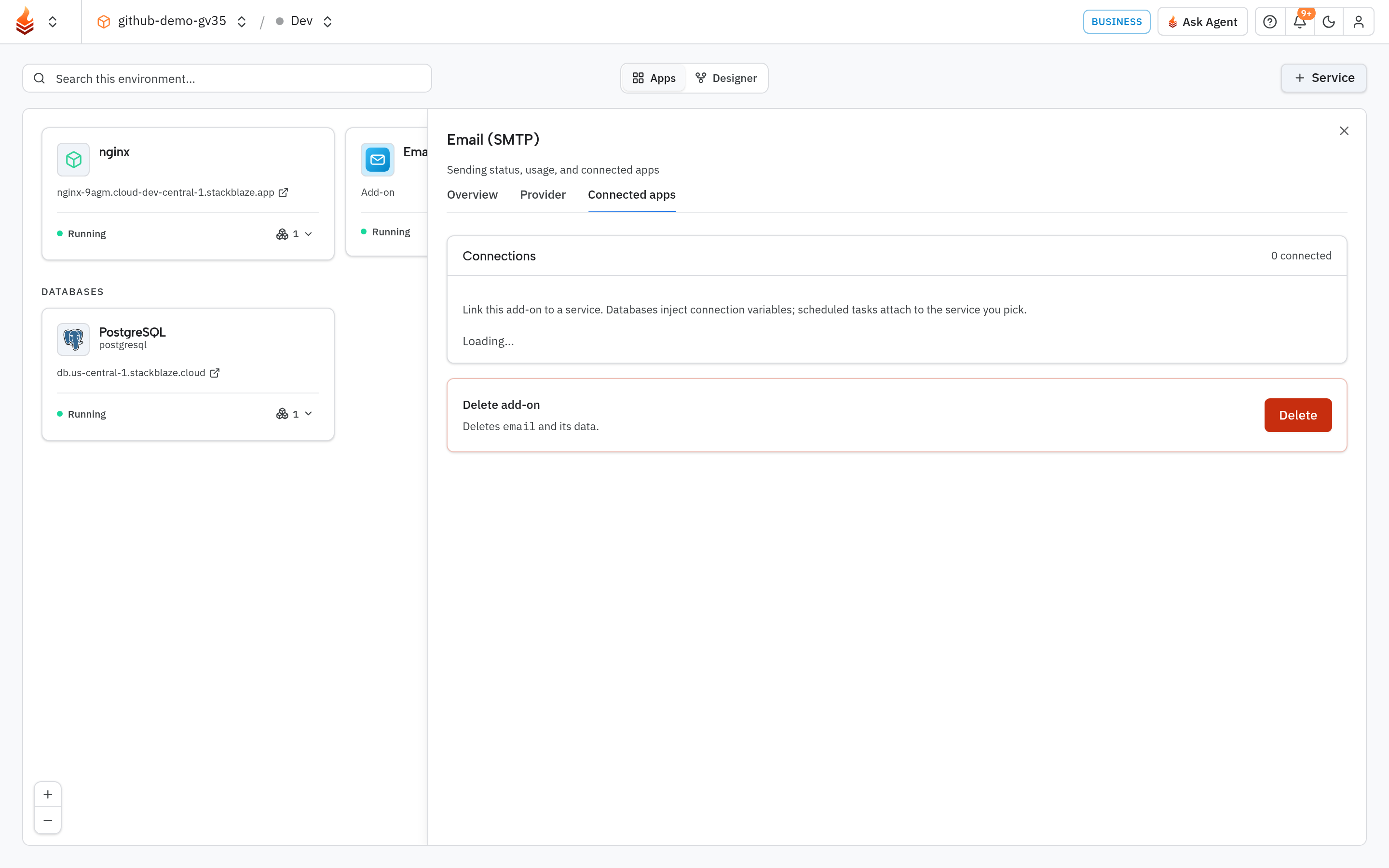
The service gets these variables:
| Variable | Value |
|---|---|
SMTP_HOST | The relay's address |
SMTP_PORT | 587 (STARTTLS) |
SMTP_USER | The relay user |
SMTP_PASSWORD | The relay password |
SMTP_FROM | The From address, e.g. noreply@<project>.dev-mail.stackblaze.cloud |
Credentials for other tools
Credentials on Overview shows the same five values, each with a copy button; the password is masked. Use them for tools that don't read your app's variables.
Use your own SMTP provider
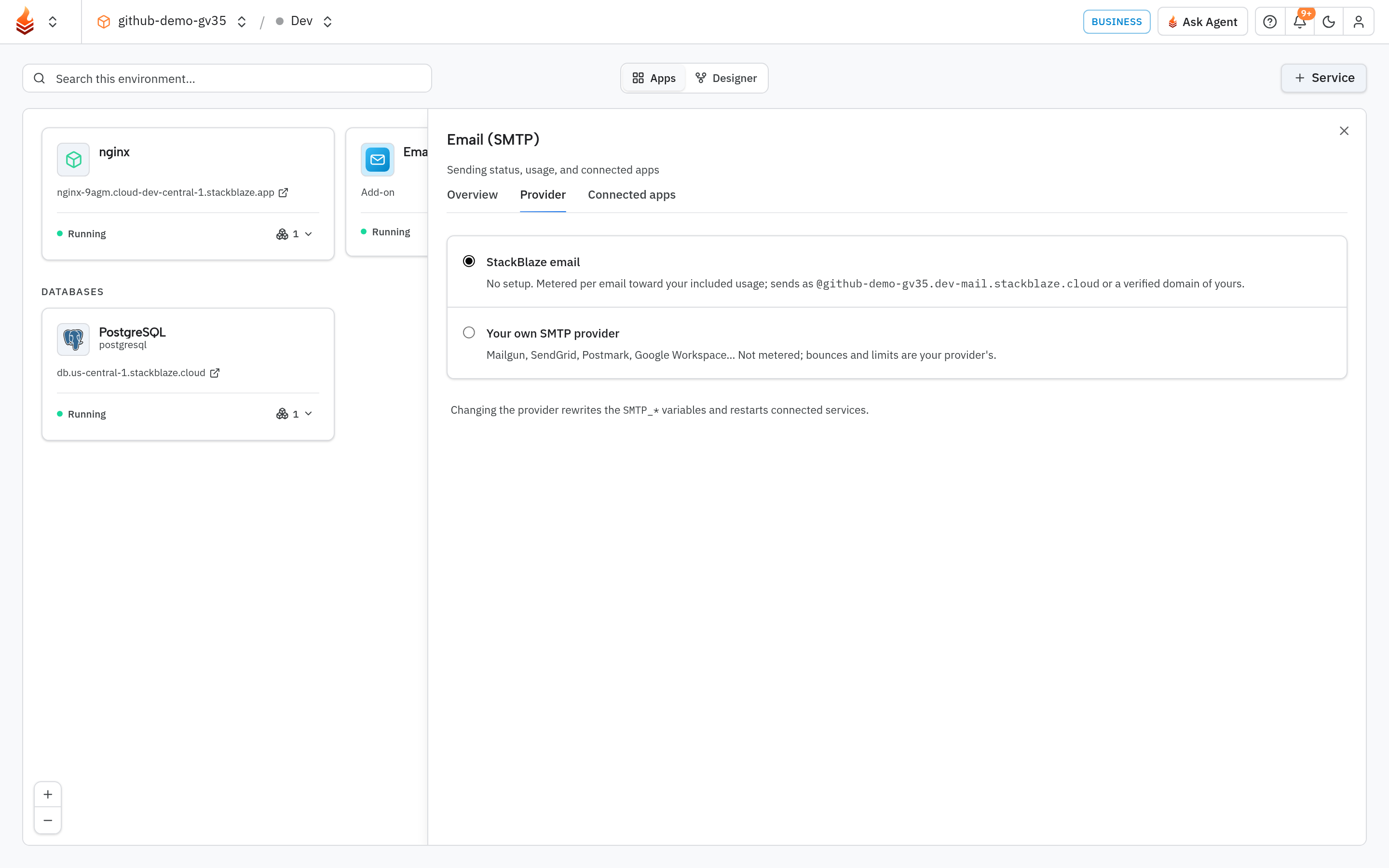
The Provider tab chooses between StackBlaze email (no setup, metered) and Your own SMTP provider (not metered; bounces and limits are your provider's). Changing the provider rewrites the SMTP_* variables and restarts connected services.
Delete
Delete add-on is at the bottom of Connected apps. Disconnect all apps first.