Account security
Two-factor authentication, recovery codes, passkeys, your sign-in methods, and changing your password or email.
Your sign-in settings are on Personal settings → Authentication. Click the person icon at the top right, choose Personal settings, then open Authentication. These settings belong to your account and apply in every organization you're in.
Two-factor authentication
Two-factor authentication adds a second step to every sign-in, on top of your password or provider. The card says Enabled when you have a second factor (an authenticator app or a passkey), and Not enabled otherwise.
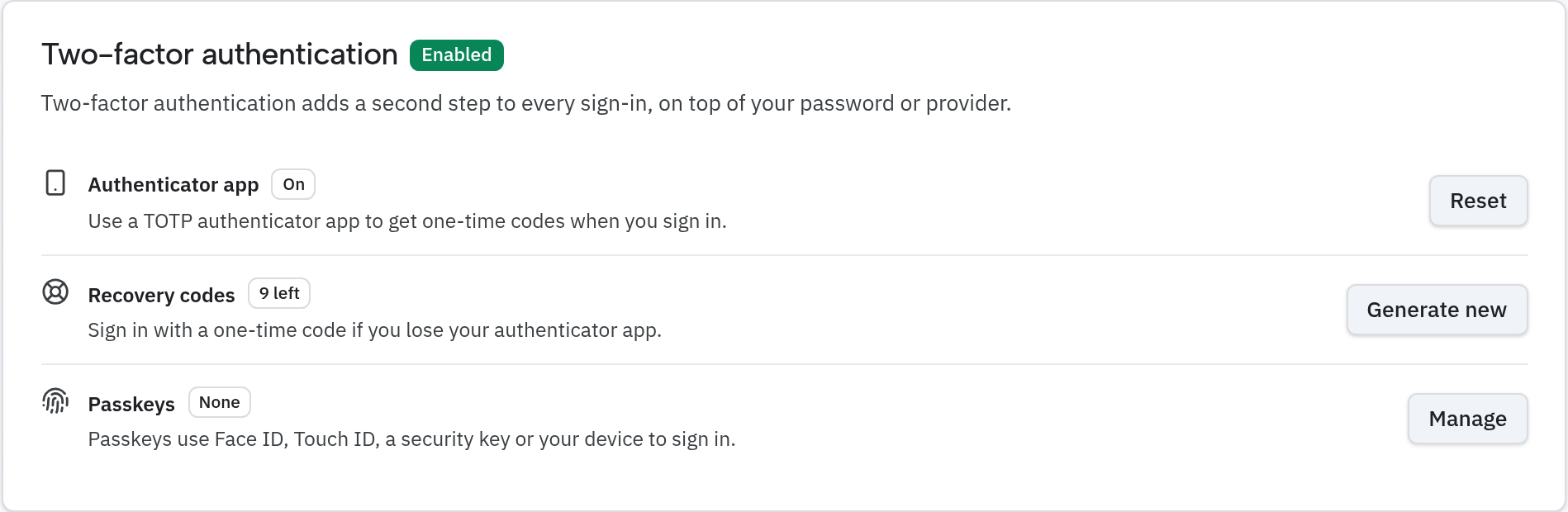
It has three rows.
Authenticator app
Shows On when a TOTP authenticator app is paired, with Reset. Without one it shows None and Set up. Set up opens the pairing page.
Any authenticator app that makes standard time-based codes works: it shows a new 6-digit code every 30 seconds. The pairing page, Set up two-factor authentication, has two steps:
- Scan with your authenticator app: a QR code. If you can't scan it, Can't scan? Show the key shows the key to type in instead, with Copy key.
- Enter the 6-digit code the app now shows, then click Enable 2FA.
Next comes Save your recovery codes: ten one-time codes, "We won't show them again." Copy or Download them, then click I've saved my codes. A new pairing (after Reset) also makes a new set, and the old codes stop working.
A started pairing expires after 30 minutes. If you enter a code after that, the page asks you to remove the old StackBlaze entry from your app and scan the new QR code.
Required for email accounts
An account that signs in with email and password must set up two-factor authentication ("Required for email accounts."). Right after such an account signs in without a second factor, the dashboard opens the pairing page; its only other choice is Log out. Until it's set up, the account can't create an organization or an API token, or approve a CLI sign-in: the API answers "Set up two-factor authentication first." A passkey counts as the second factor too. Accounts that sign in with GitHub, Google or SSO aren't asked.
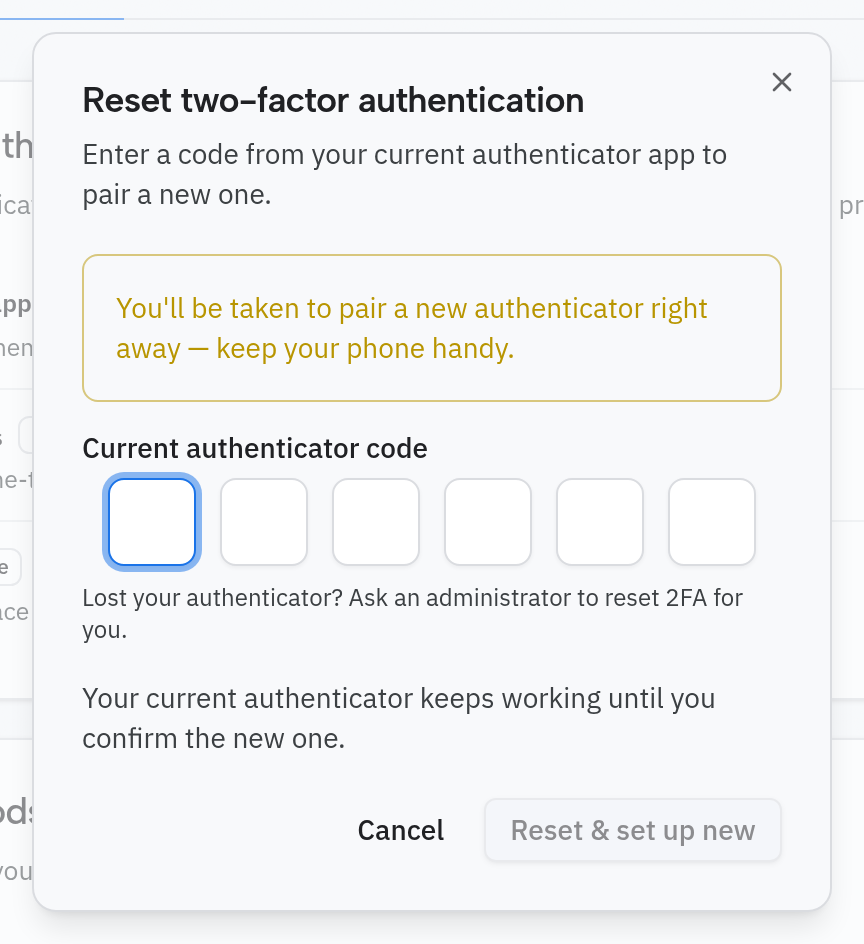
Reset pairs a new authenticator. It first asks you to prove it's you: a code from your current app (or your passkey, if you have one). Then Reset & set up new takes you to pair the new app. Your current authenticator keeps working until you confirm the new one. If you've lost your authenticator, ask an administrator to reset 2FA for you.
Recovery codes
Recovery codes let you sign in with a one-time code if you lose your authenticator app. The row only appears when an authenticator app is on. It shows how many codes are left (9 left here), and the badge turns red at 2 or fewer.
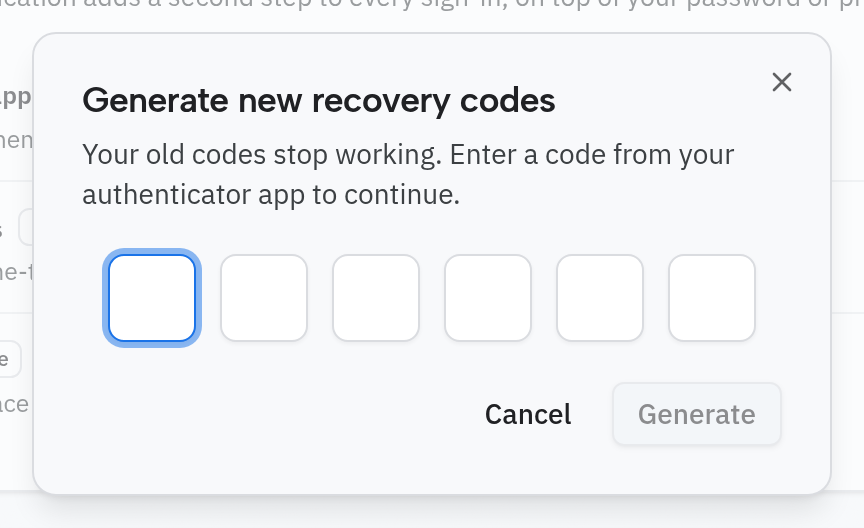
Generate new makes a fresh set, and your old codes stop working. It asks for a code from your authenticator app (or your passkey) first, then shows the new codes.
Passkey count
Shows how many passkeys you have (None here). Manage scrolls down to the Passkeys card.
Sign-in methods
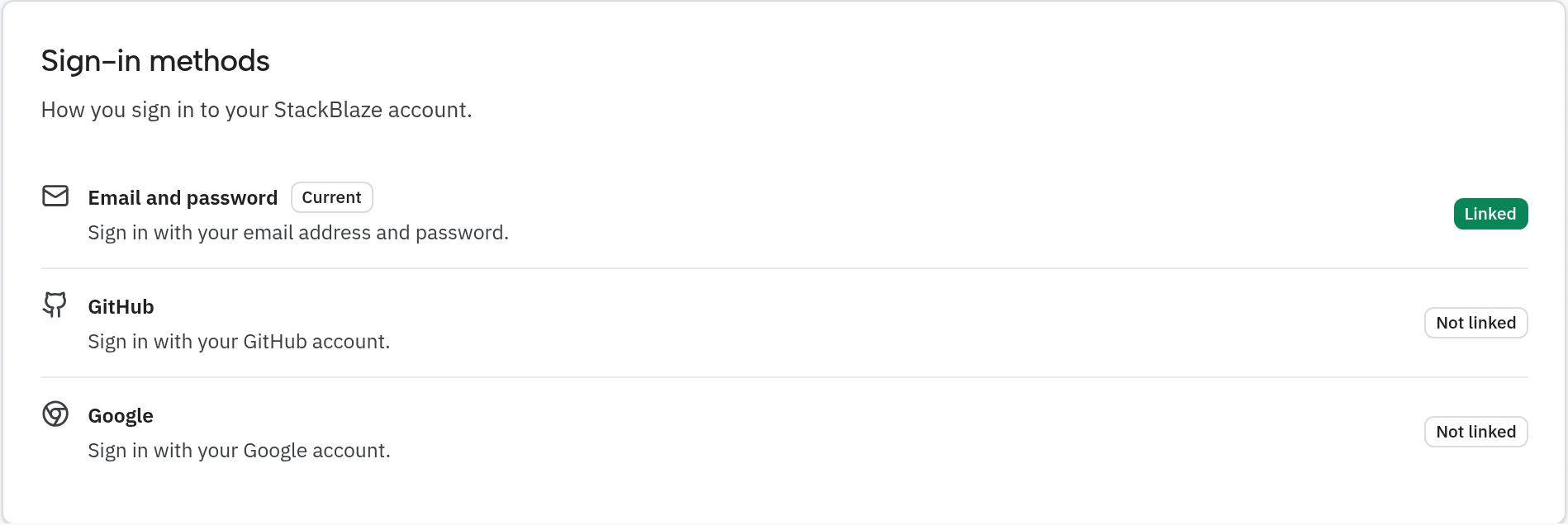
Sign-in methods shows how you sign in to your StackBlaze account: Email and password, GitHub or Google. The one you use is Linked and marked Current. The others are Not linked. This card is read-only.
Change password
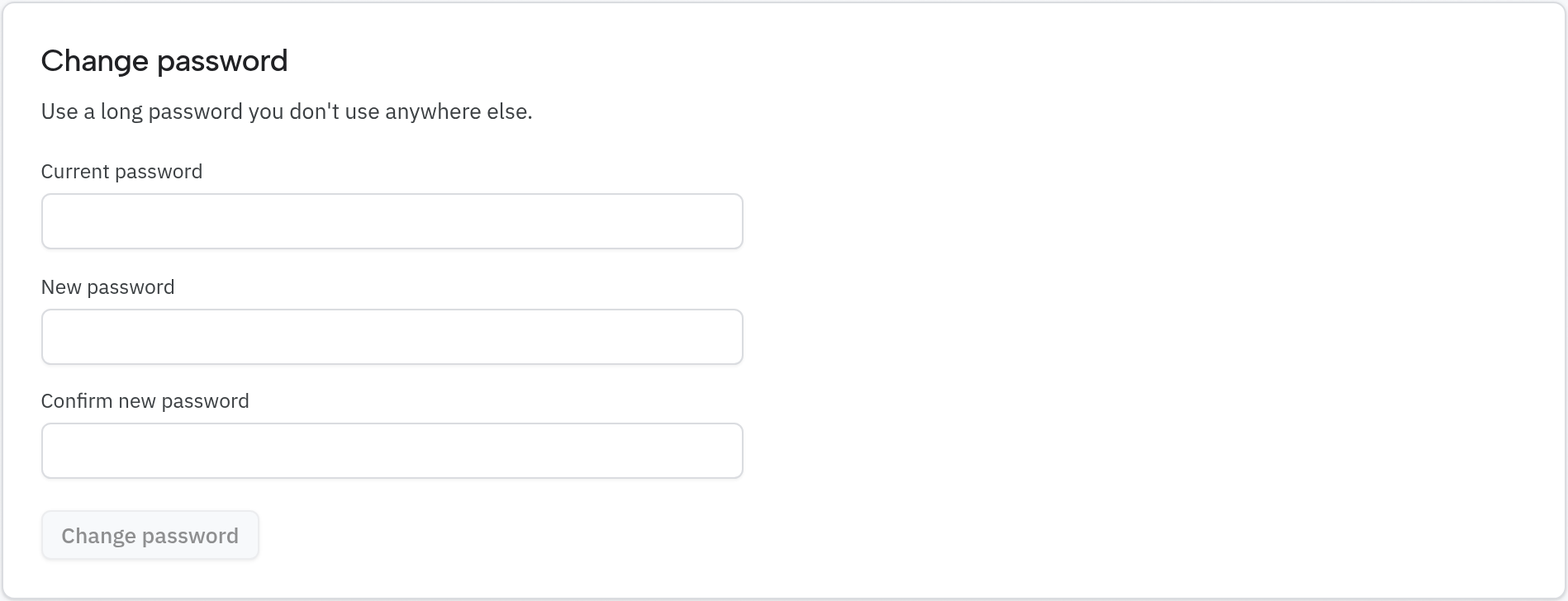
Accounts that sign in with email and password have a Change password card. Enter your Current password, a New password, and the same again under Confirm new password. Change password stays disabled until all three are filled and the two new ones match. A message confirms "Password changed."
Change email
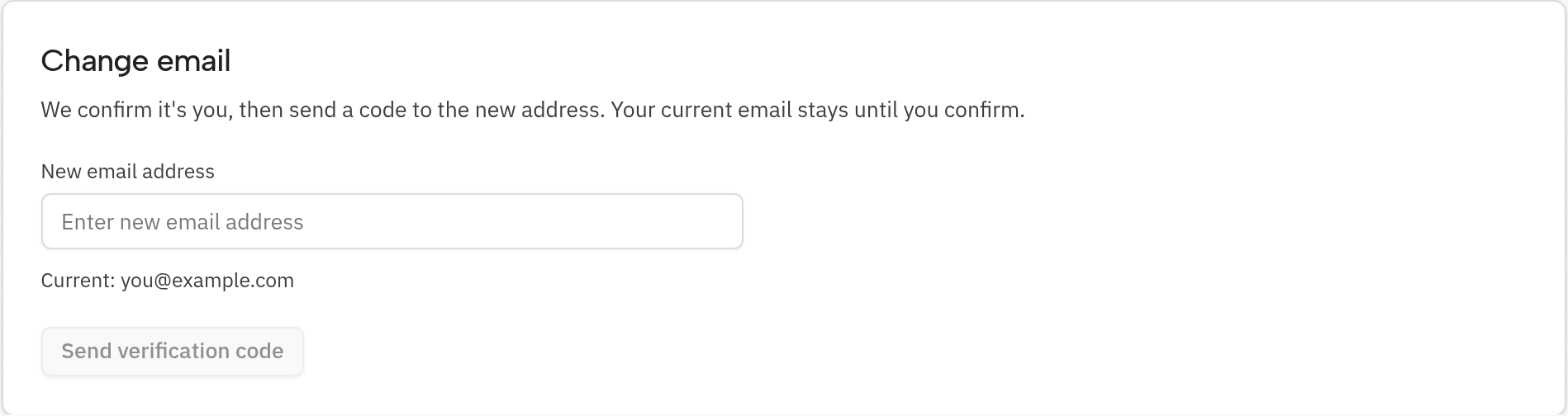
Under Change email, type the New email address and click Send verification code. StackBlaze first confirms it's you (with your authenticator code, password or passkey), then sends a code to the new address. Your current email, shown under the field, stays until you confirm.
Passkeys
A passkey lets you sign in with your fingerprint, face or device PIN instead of a password. It also counts as your second step. With none, the card says "No passkeys yet."

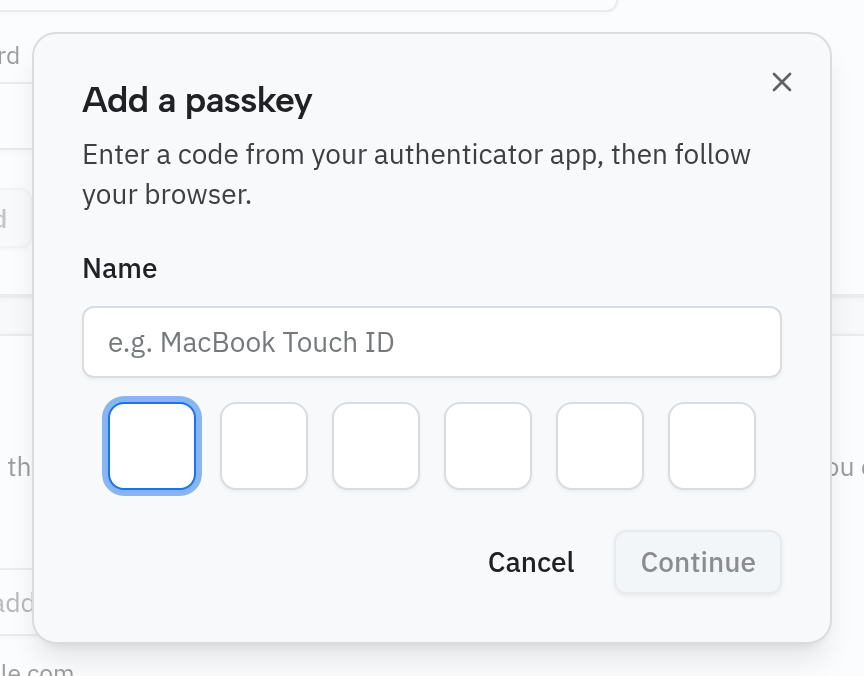
Add passkey opens Add a passkey. Give it a Name (up to 64 characters, for example MacBook Touch ID), enter a code from your authenticator app, click Continue and follow your browser to create the passkey.
Each passkey in the list can be renamed or removed. If a passkey is your only second factor, removing it asks you to confirm it's you first.
Profile and sessions
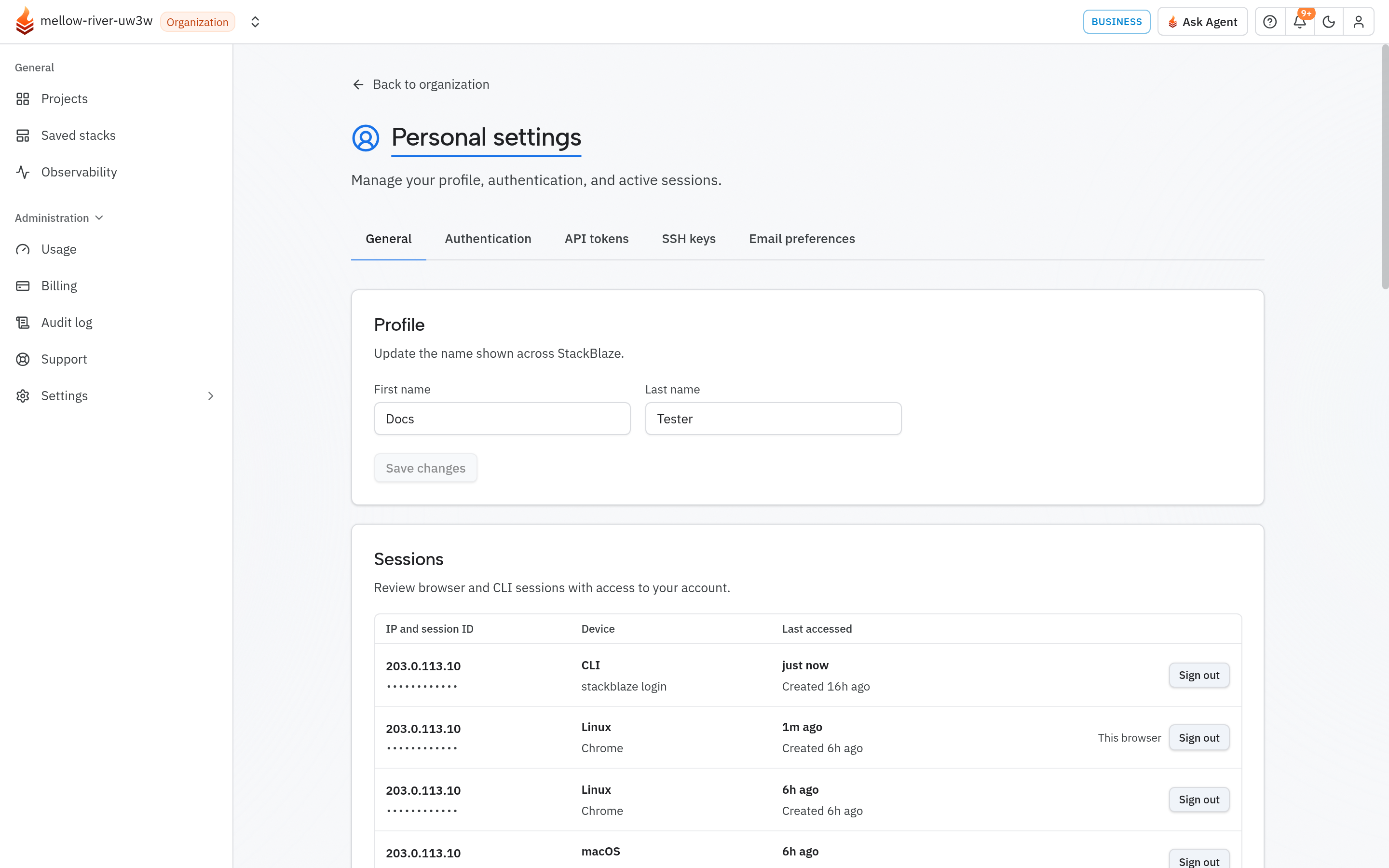
Personal settings → General has two cards.
Profile ("Update the name shown across StackBlaze") holds your First name and Last name. Type them and click Save changes; ours were kept after a reload.
Sessions ("Review browser and CLI sessions with access to your account") lists every browser and CLI sign-in: its IP address and session ID, the Device (for example Linux Chrome, or CLI stackblaze login for the CLI), and when it was Last accessed and created. The session you're using is marked This browser. Sign out ends one session, for example a CLI login on a machine you no longer use.
Email preferences
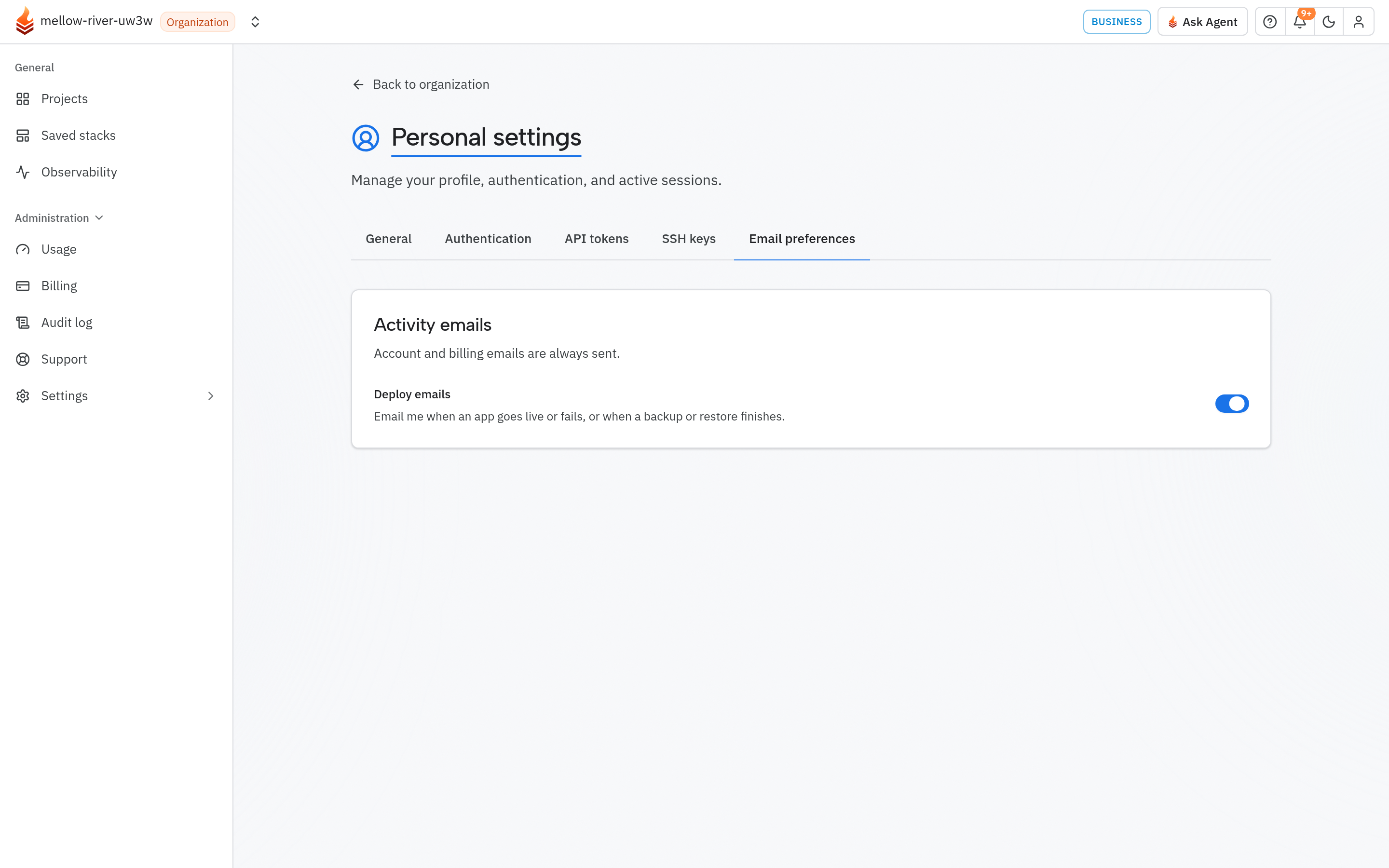
Personal settings → Email preferences chooses which activity emails you get. "Account and billing emails are always sent." Deploy emails ("Email me when an app goes live or fails, or when a backup or restore finishes.") is on by default; switch it off to stop those emails.