Developer sandbox
An isolated Debian VM with VS Code in the browser, a shell, coding agents and a persistent /workspace disk you can checkpoint and fork.
A developer sandbox is an isolated VM in your environment. It comes with VS Code in the browser, a shell, SSH, and the coding agents claude, codex and opencode. Its /workspace folder is on a persistent disk: you can snapshot it as a checkpoint and fork a new sandbox from any checkpoint.
Add a sandbox
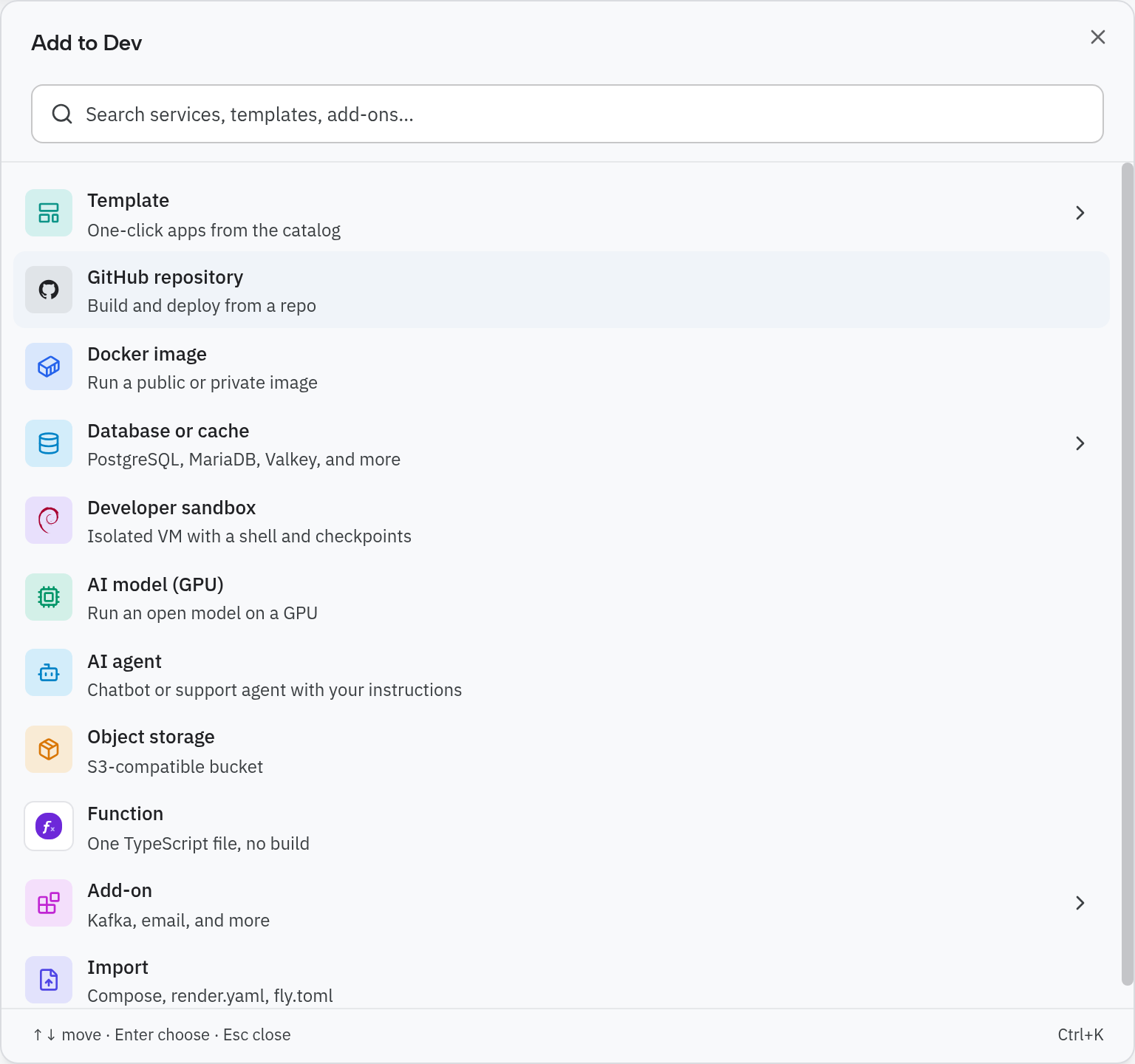
In your project, click + Service and choose Developer sandbox (Isolated VM with a shell and checkpoints).
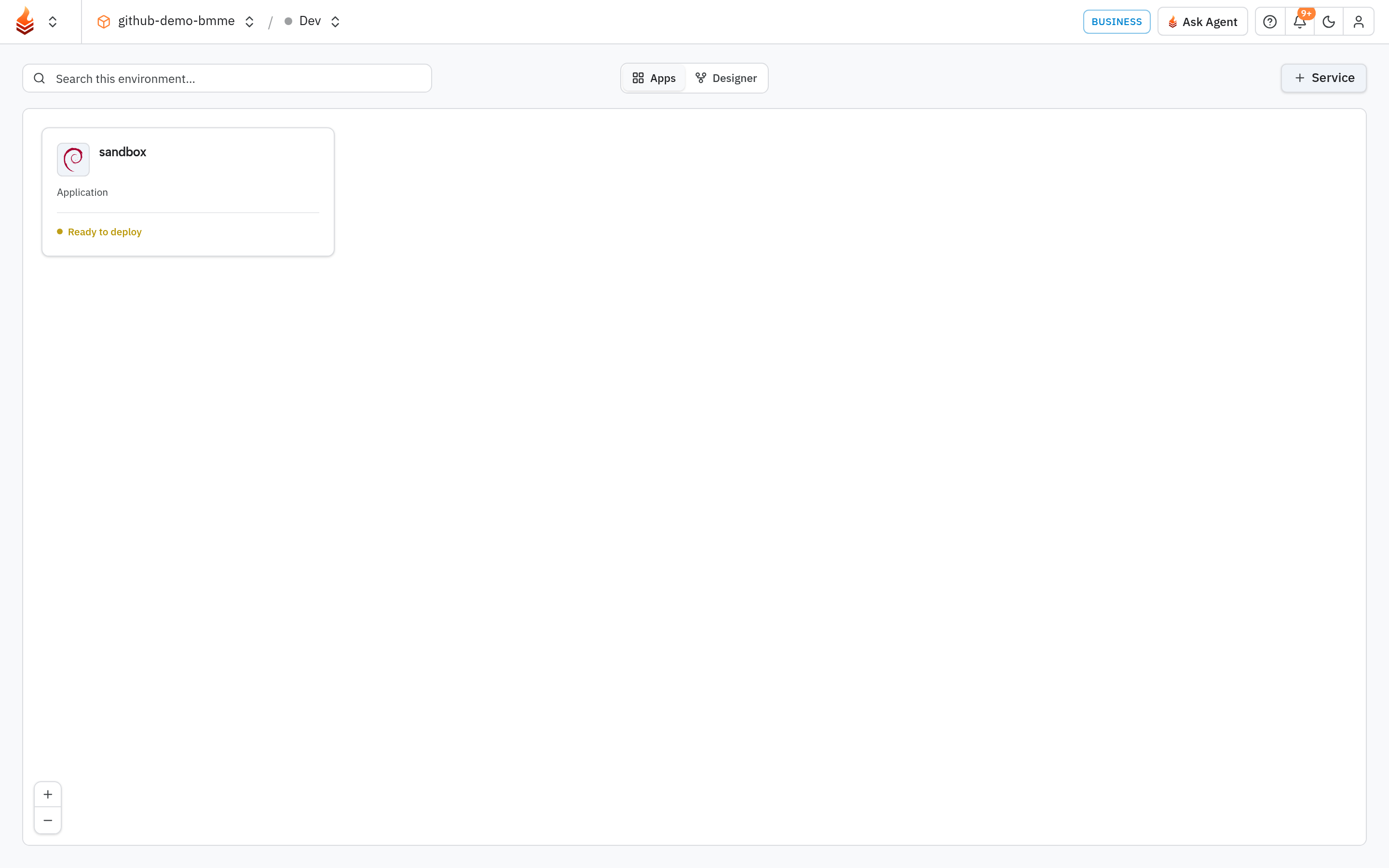
A sandbox card appears on the canvas as Ready to deploy. Nothing is created yet. Click the card to open the form.
Name it and choose a machine
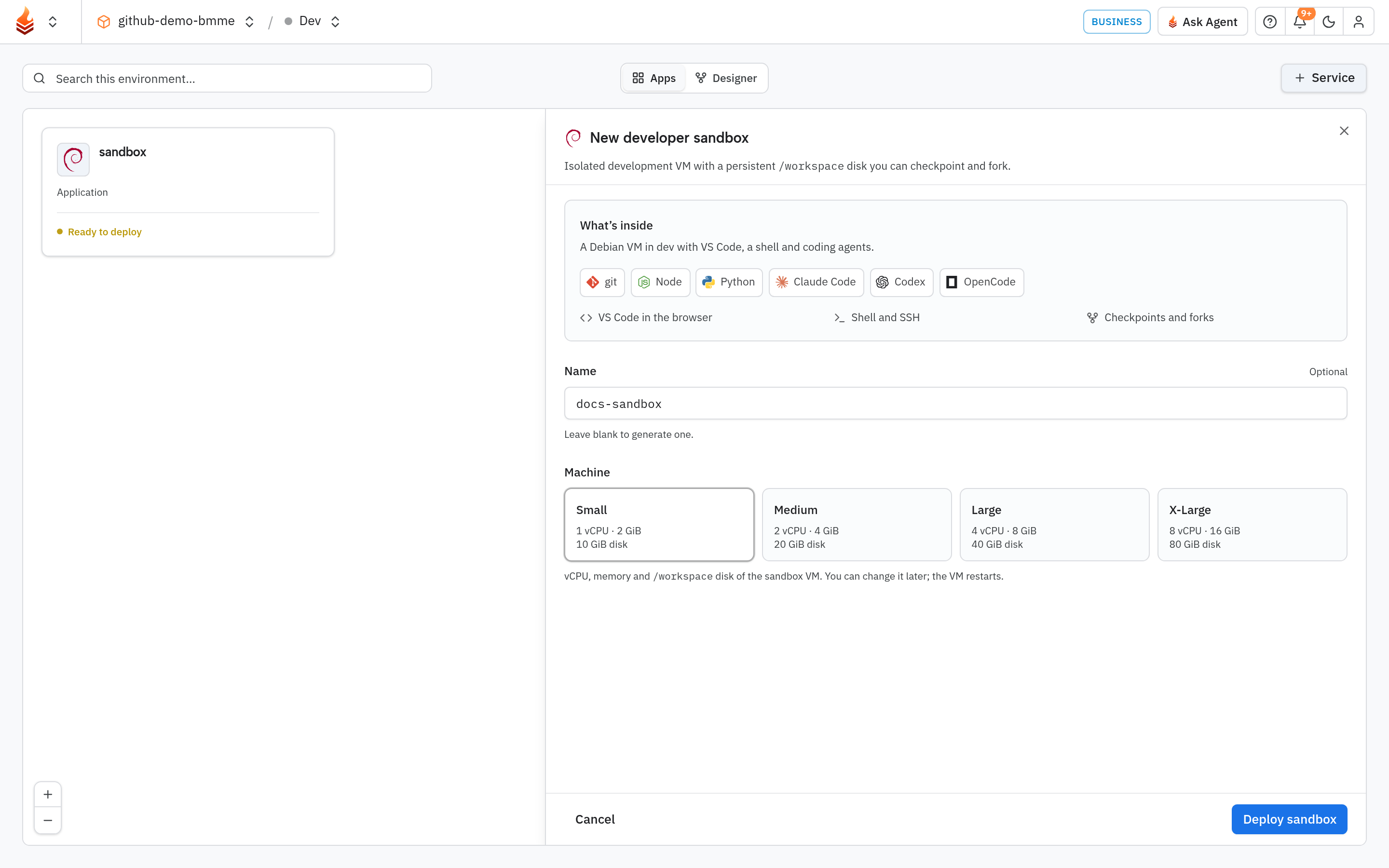
New developer sandbox lists what's inside: git, Node, Python, Claude Code, Codex and OpenCode, plus VS Code in the browser, shell and SSH, and checkpoints and forks.
- Name is optional. Leave it blank and StackBlaze generates one.
- Machine sets the VM's vCPU, memory and
/workspacedisk:
| Machine | vCPU | Memory | Disk |
|---|---|---|---|
| Small | 1 | 2 GiB | 10 GiB |
| Medium | 2 | 4 GiB | 20 GiB |
| Large | 4 | 8 GiB | 40 GiB |
| X-Large | 8 | 16 GiB | 80 GiB |
You can change the machine later; the VM restarts.
Deploy
Click Deploy sandbox. A short suffix is added to the name, here docs-sandbox-726c. The sandbox shows Booting while the VM starts, then Running.
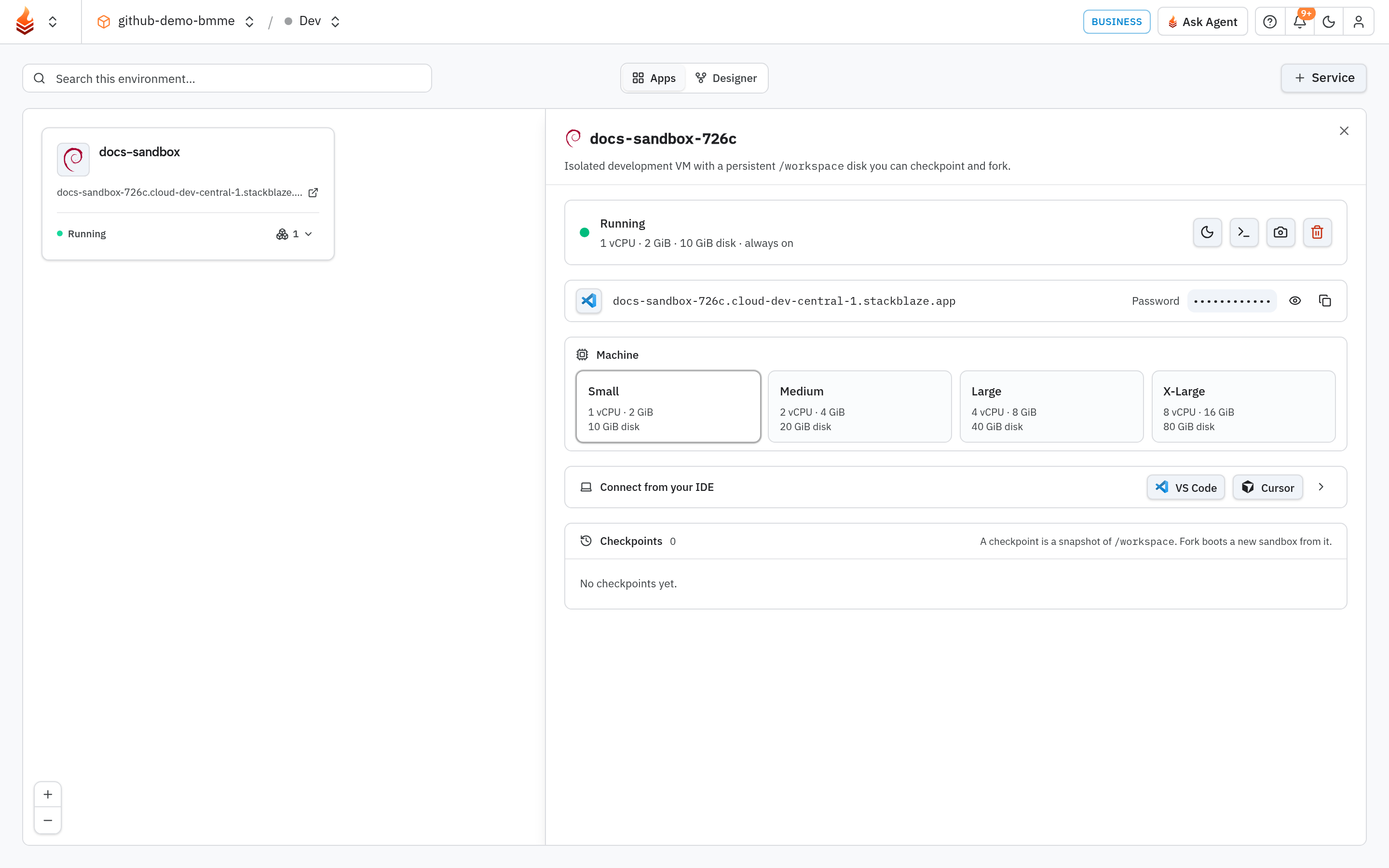
The sandbox sheet
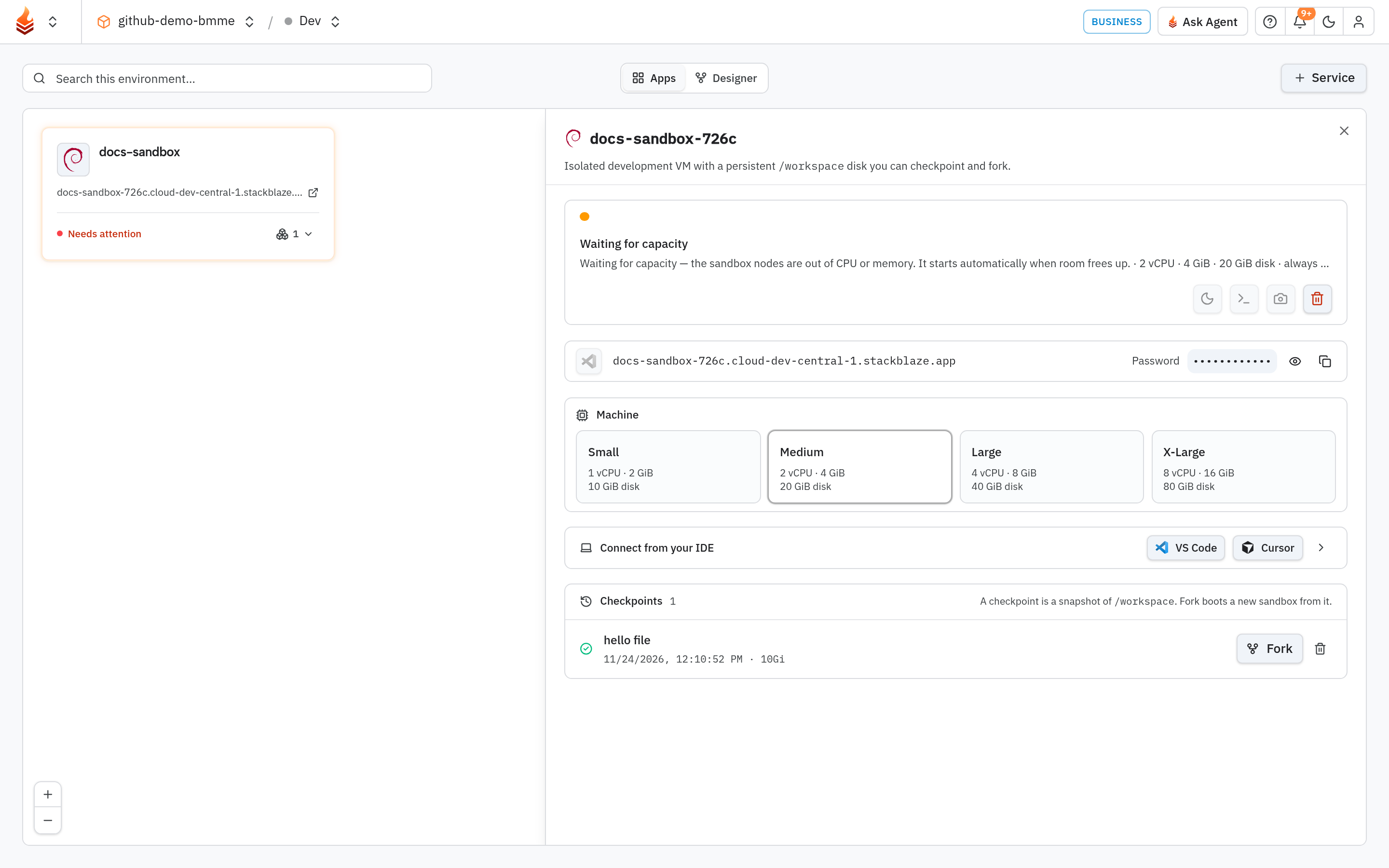
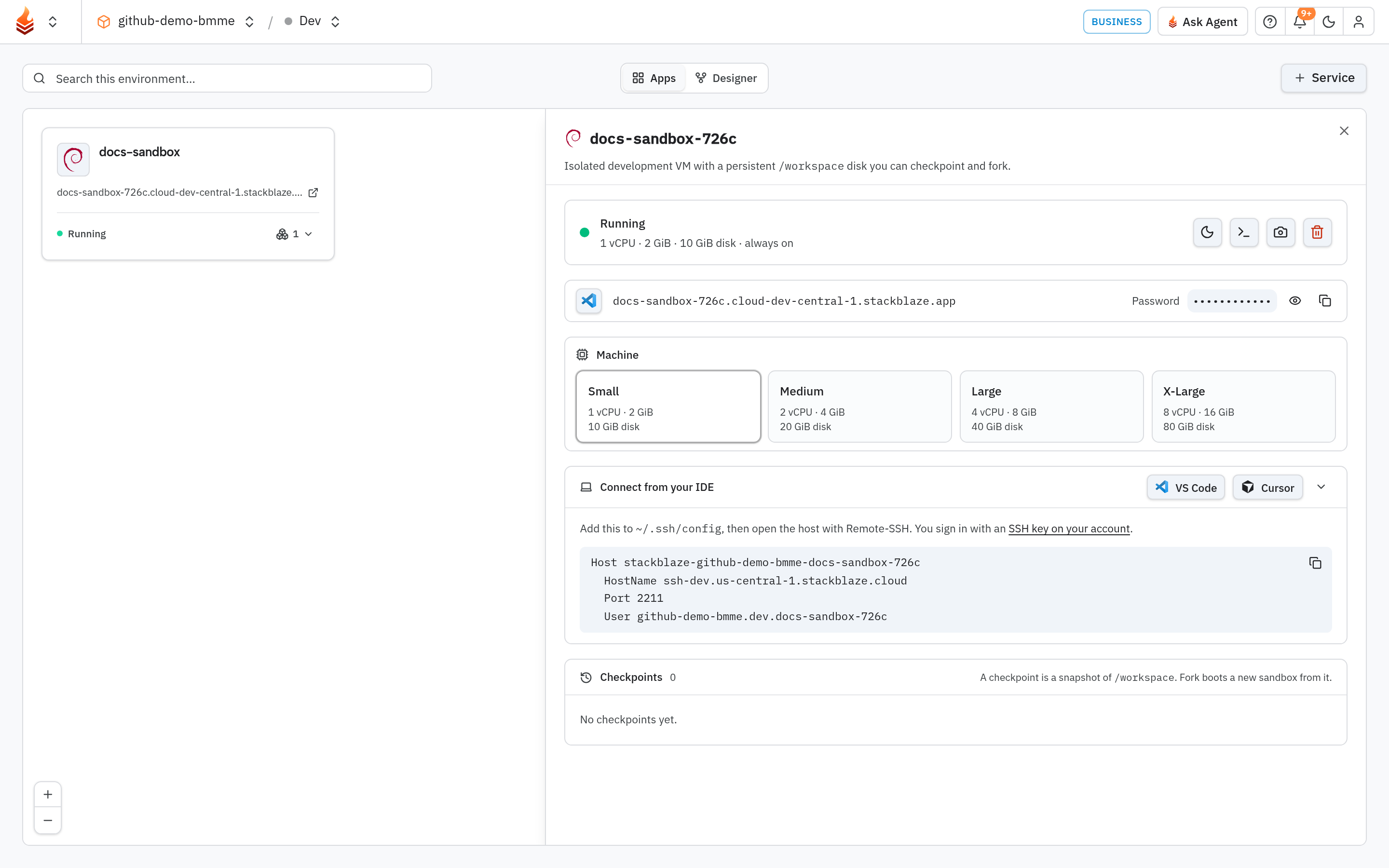
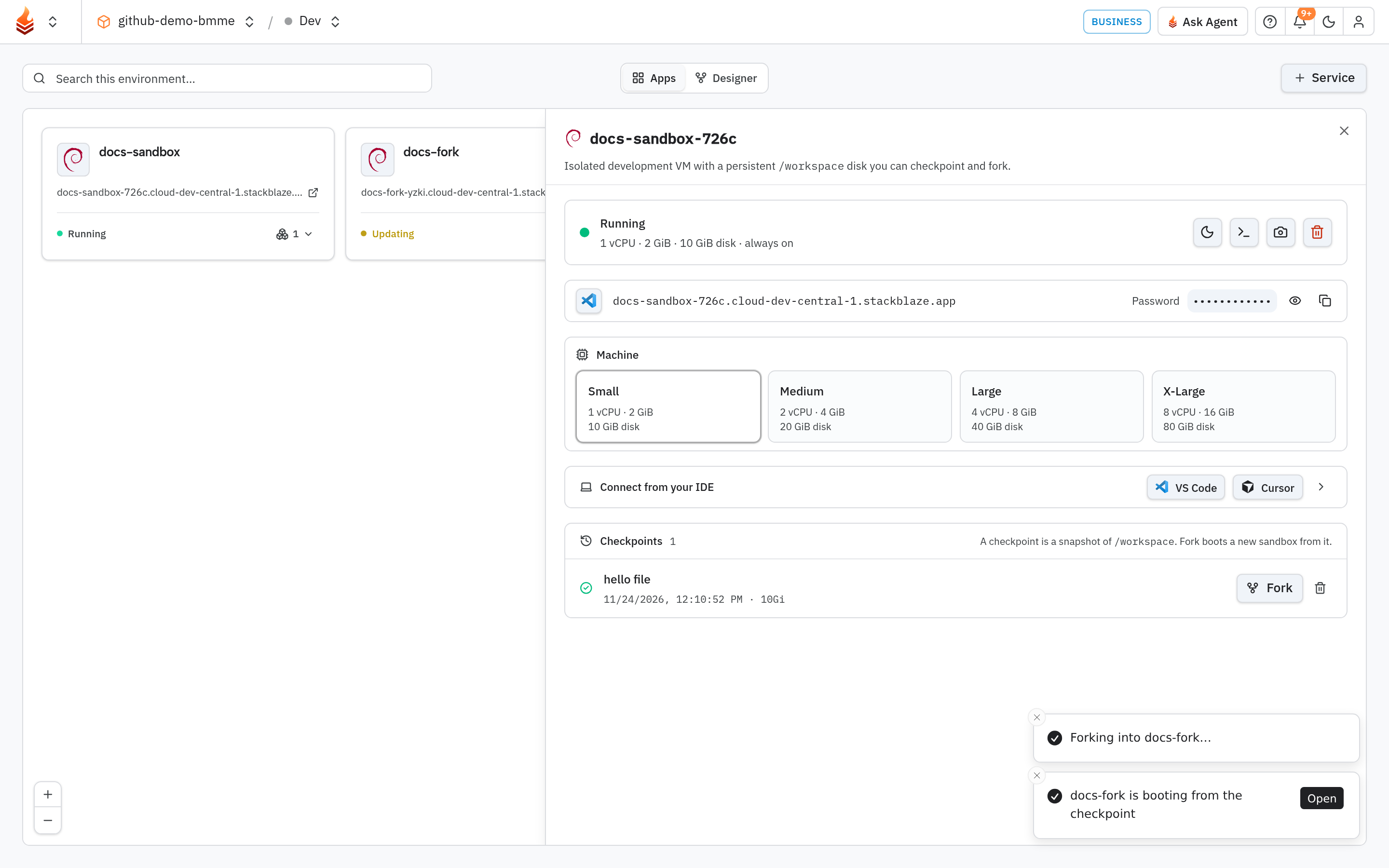
Click the sandbox card to open its sheet (shown above, under Deploy). The buttons next to the status are, from left to right, Sleep, Open a shell, Checkpoint and Delete sandbox.
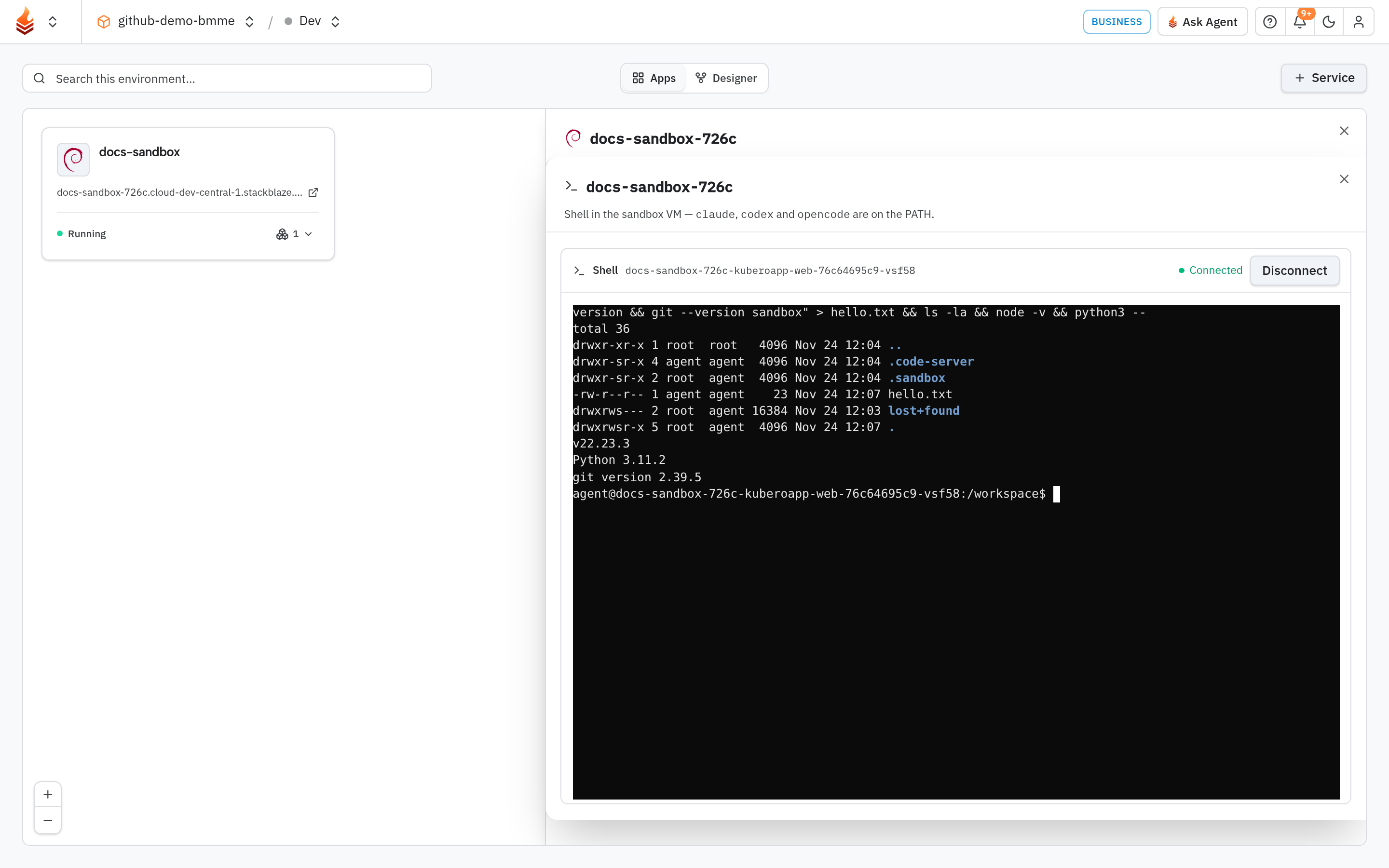
Open a shell
Open a shell opens a terminal in the VM as the agent user. claude, codex and opencode are on the PATH. Disconnect ends the session.
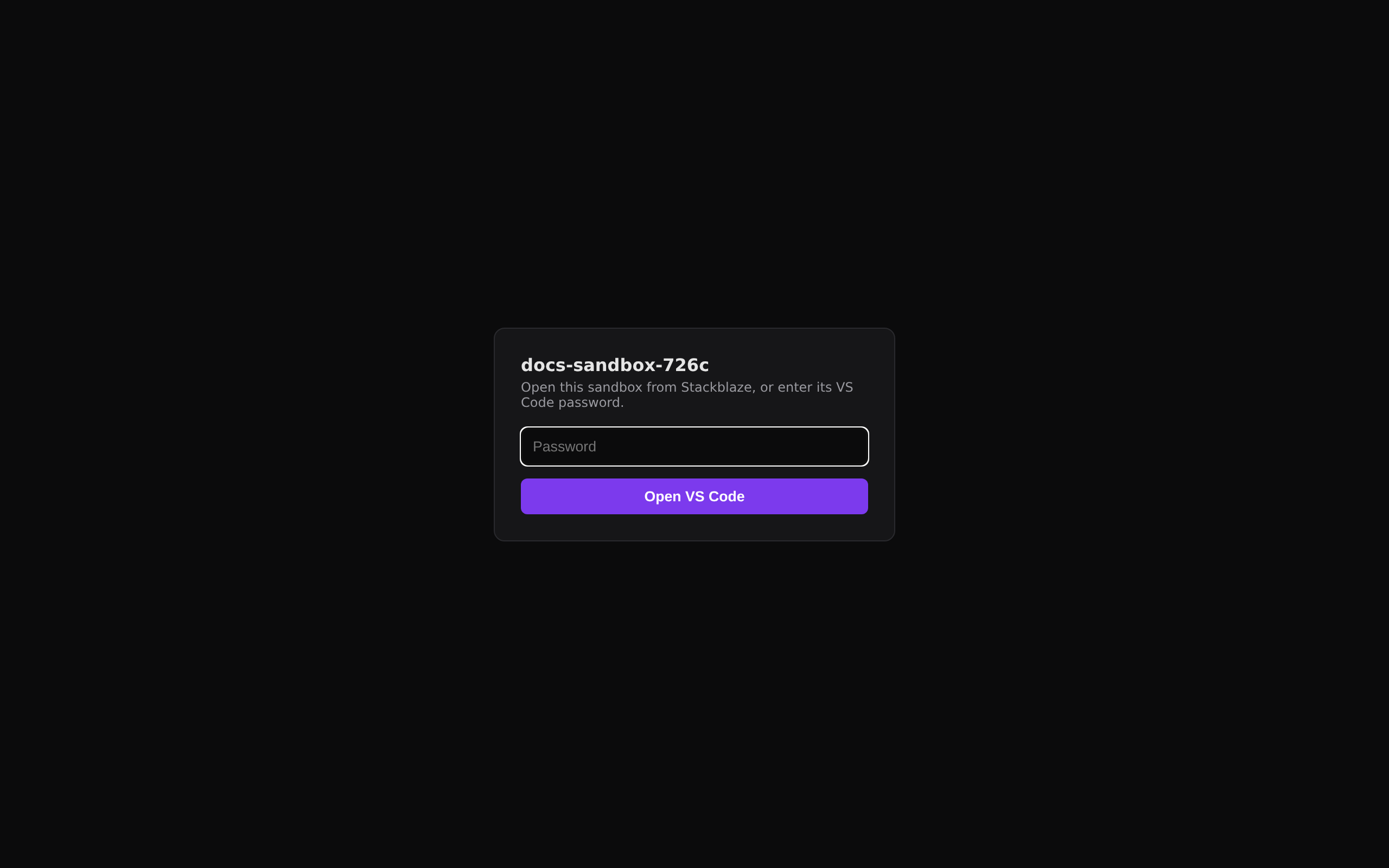
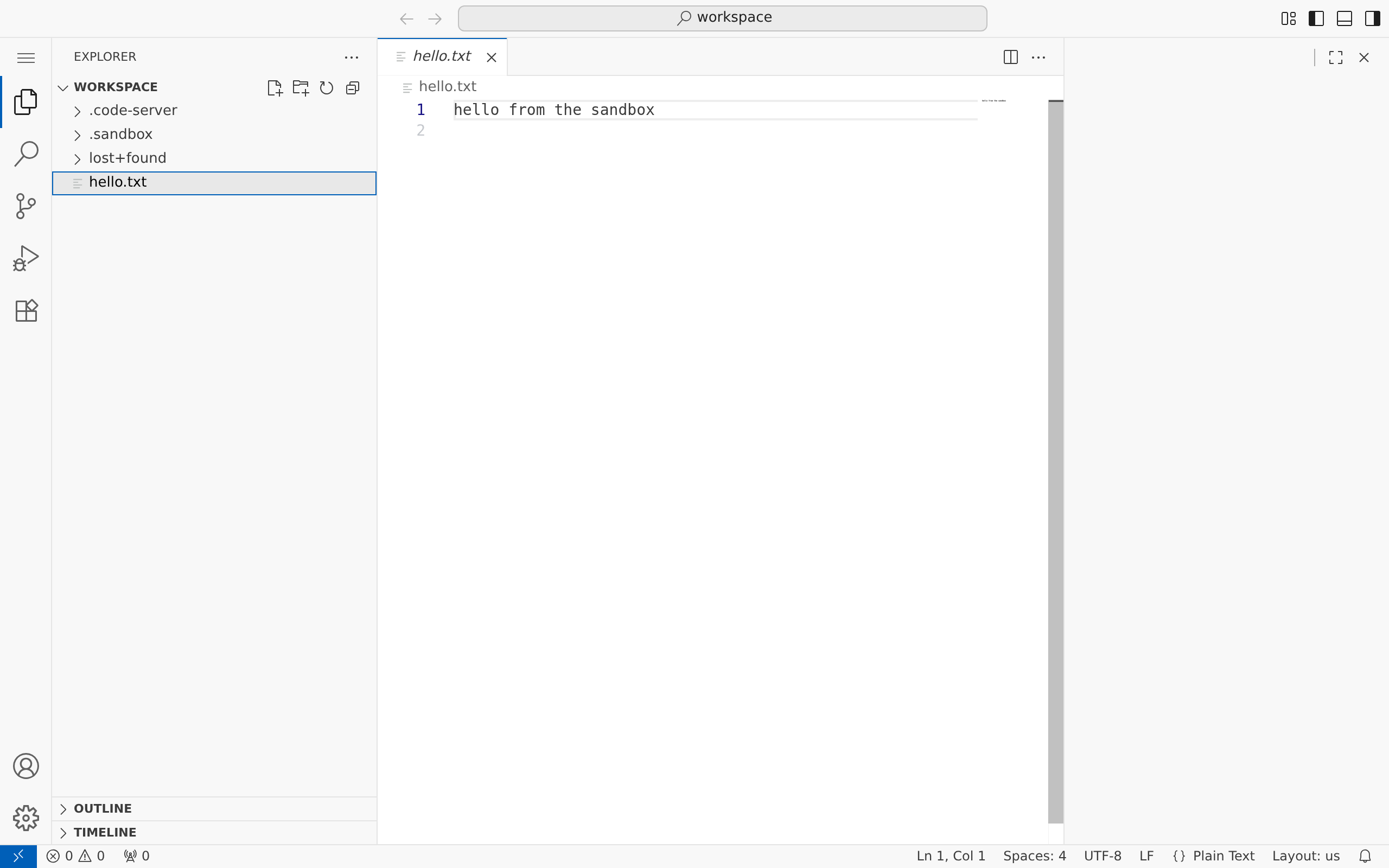
VS Code in the browser
The sandbox URL (<name>.<region>.stackblaze.app) serves VS Code in the browser, opened on /workspace.
- Open in VS Code (the VS Code icon next to the URL) opens it in a new tab and signs you in.
- Opening the URL directly asks for the sandbox's VS Code password. The eye button shows the password on the sheet, and the copy button copies it.
Connect from your IDE
VS Code and Cursor open /workspace in your desktop editor over Remote-SSH. The arrow shows the SSH setup: add the Host block to ~/.ssh/config, then open that host with Remote-SSH. You sign in with an SSH key on your account (the SSH key on your account link goes to your personal settings).
Checkpoints
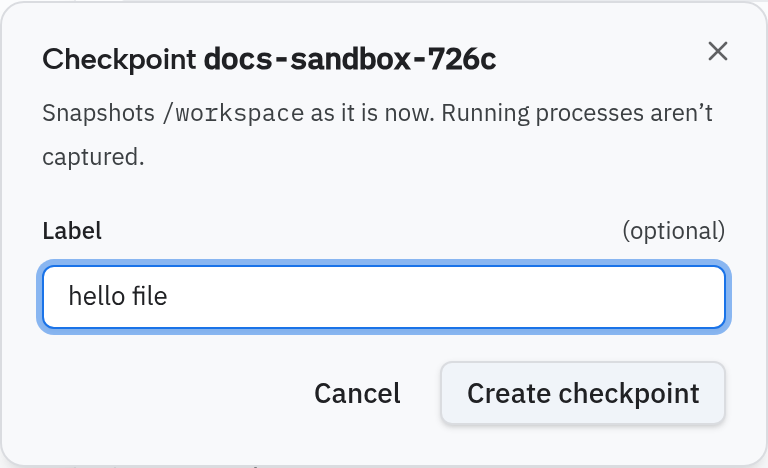
Checkpoint snapshots /workspace as it is now. Running processes aren't captured. Give it an optional Label and click Create checkpoint.
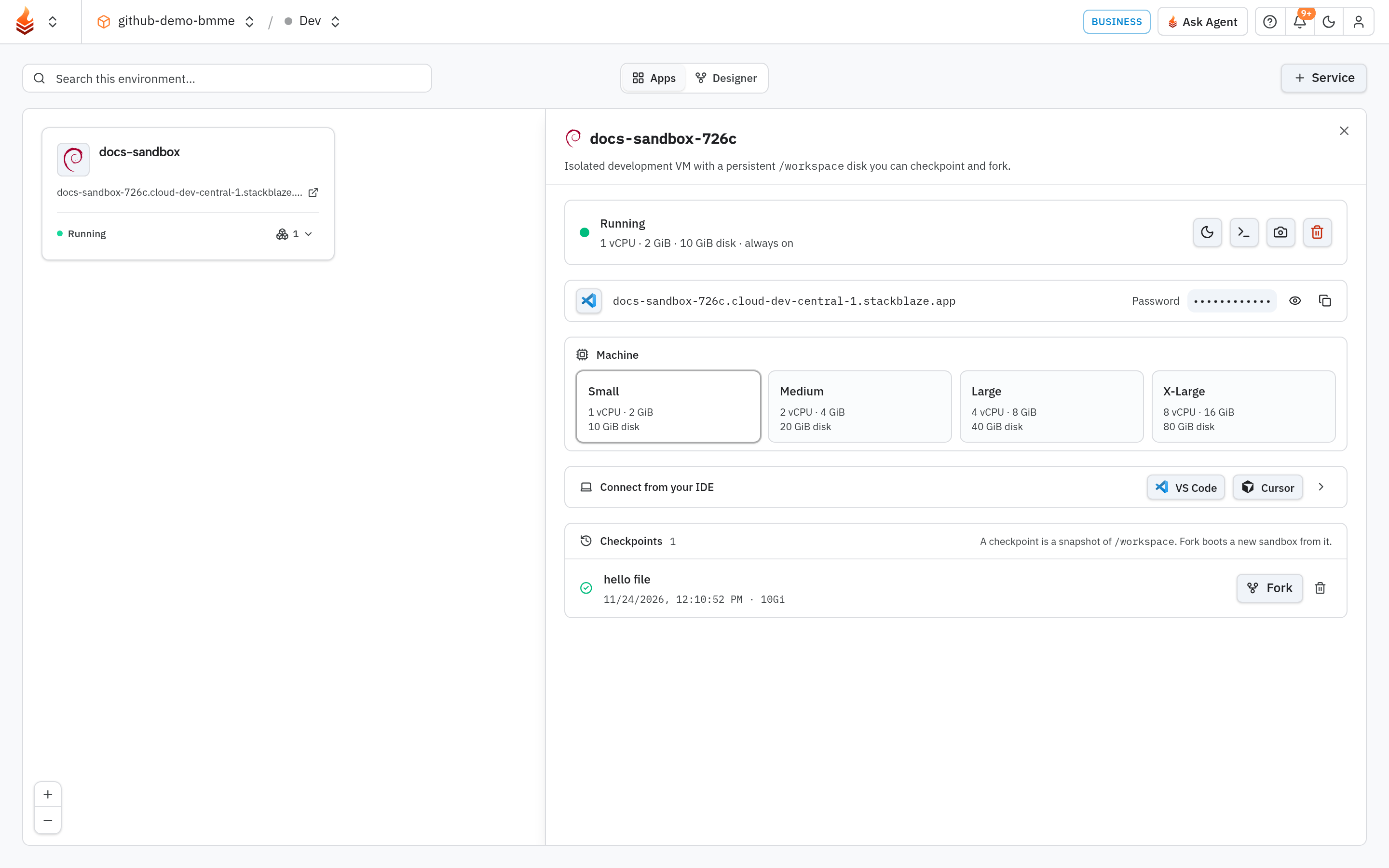
The checkpoint is listed with its label and time. Fork becomes available once the checkpoint is ready.
Fork
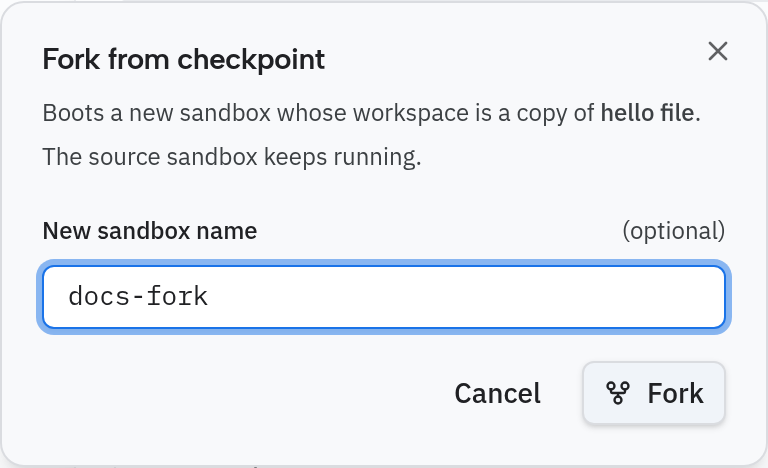
Fork opens Fork from checkpoint: it "boots a new sandbox whose workspace is a copy of" the checkpoint, and "the source sandbox keeps running". New sandbox name is optional; click Fork. The fork appears as its own card, marked forked from the source.
Sleep and wake
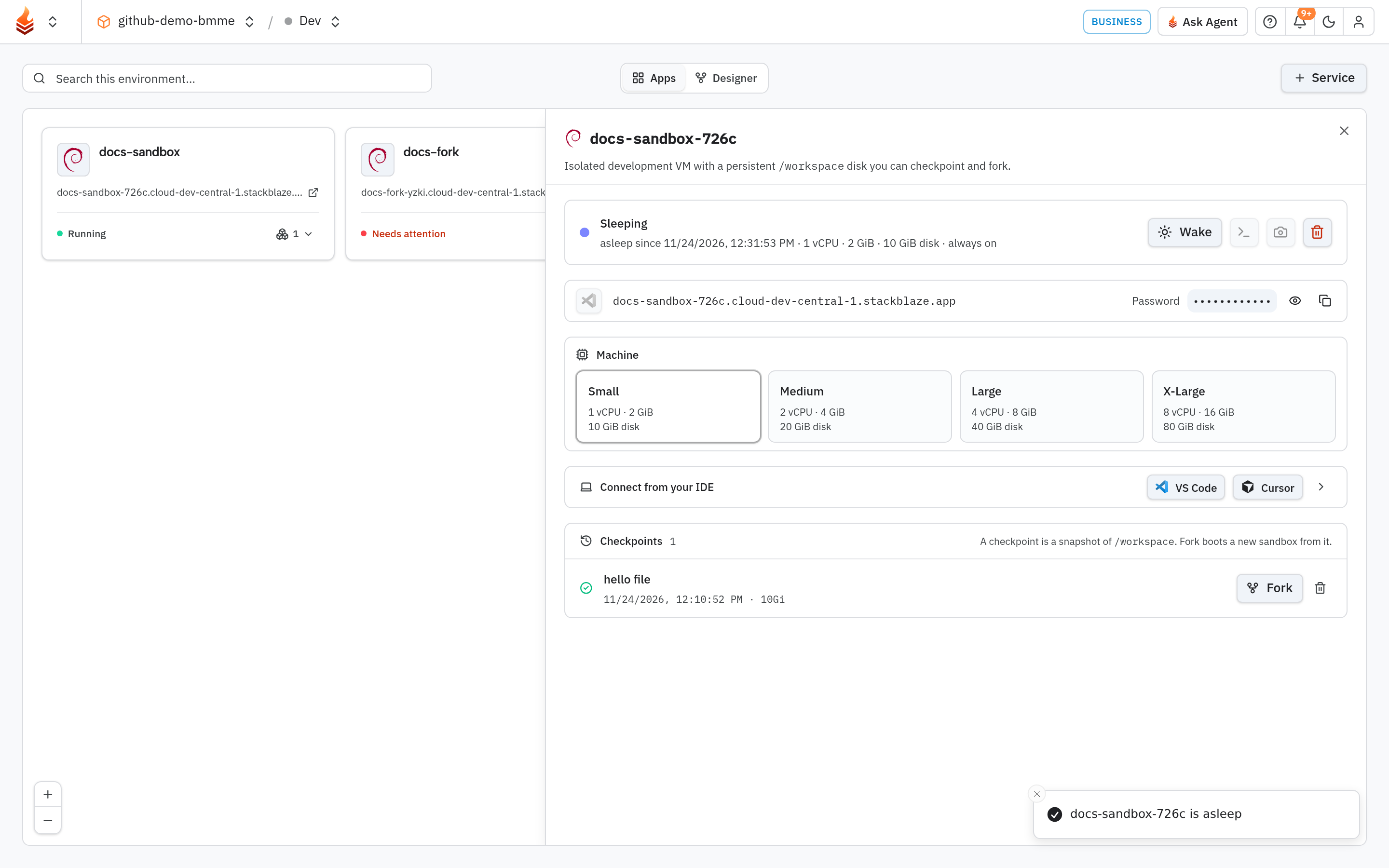
Sleep scales the VM to zero; the disk stays. The sheet shows Sleeping and the time it went to sleep, and the shell, checkpoint and VS Code buttons are disabled. Wake boots the VM again.
Change the machine
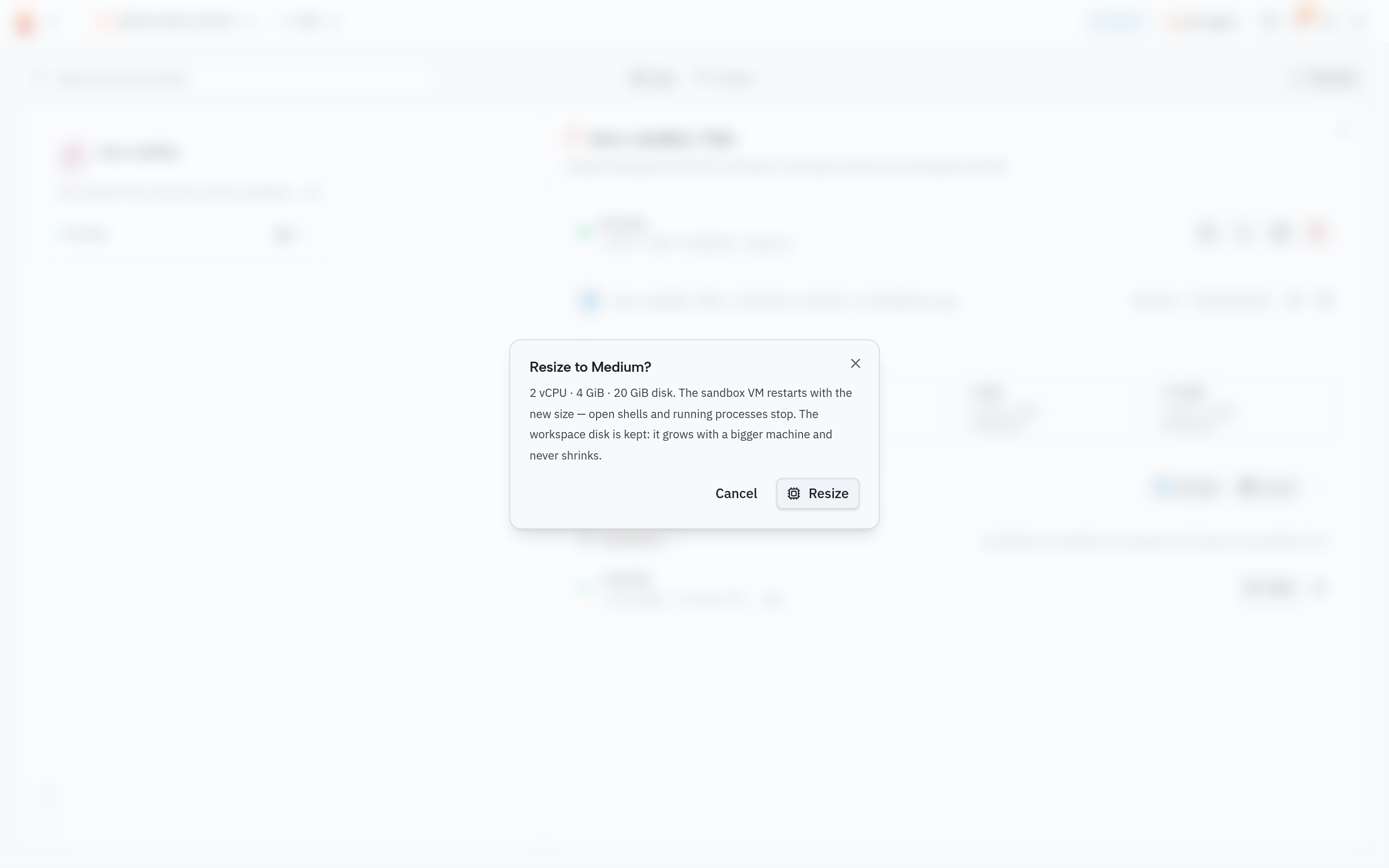
Pick another size under Machine. Resize to …? explains what happens: the VM restarts with the new size, and open shells and running processes stop. The workspace disk is kept. It grows with a bigger machine and never shrinks. Click Resize to confirm.
Delete a checkpoint
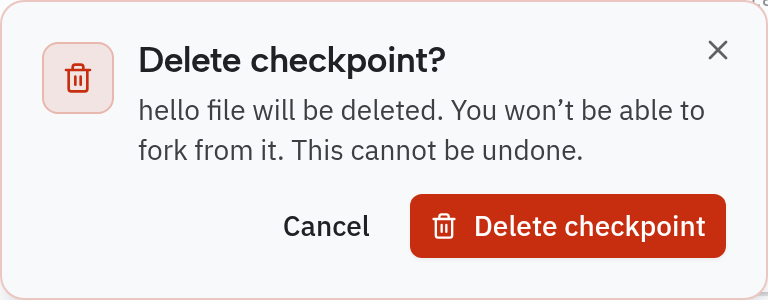
The trash button on a checkpoint deletes it. After that you can't fork from it. This can't be undone.
Delete the sandbox
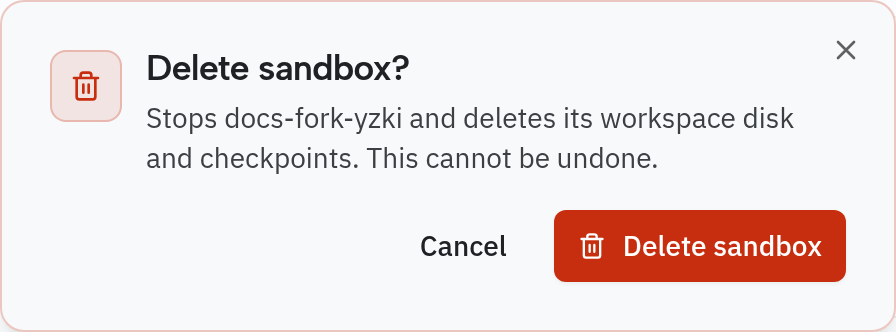
Delete sandbox stops the sandbox and deletes its workspace disk and checkpoints. This can't be undone.
Waiting for capacity
If the sandbox nodes are out of CPU or memory, a new, woken or forked sandbox shows Waiting for capacity. While it waits, the shell, checkpoint and VS Code buttons are disabled.