Functions
Run one TypeScript file on Bun, with no build. Serve it on a URL, or run it on a schedule.
A function is a service made of a single TypeScript file. StackBlaze runs it on Bun with no build step. Without a schedule it serves HTTP on its own URL. With a schedule it runs as a job instead.
Add a function
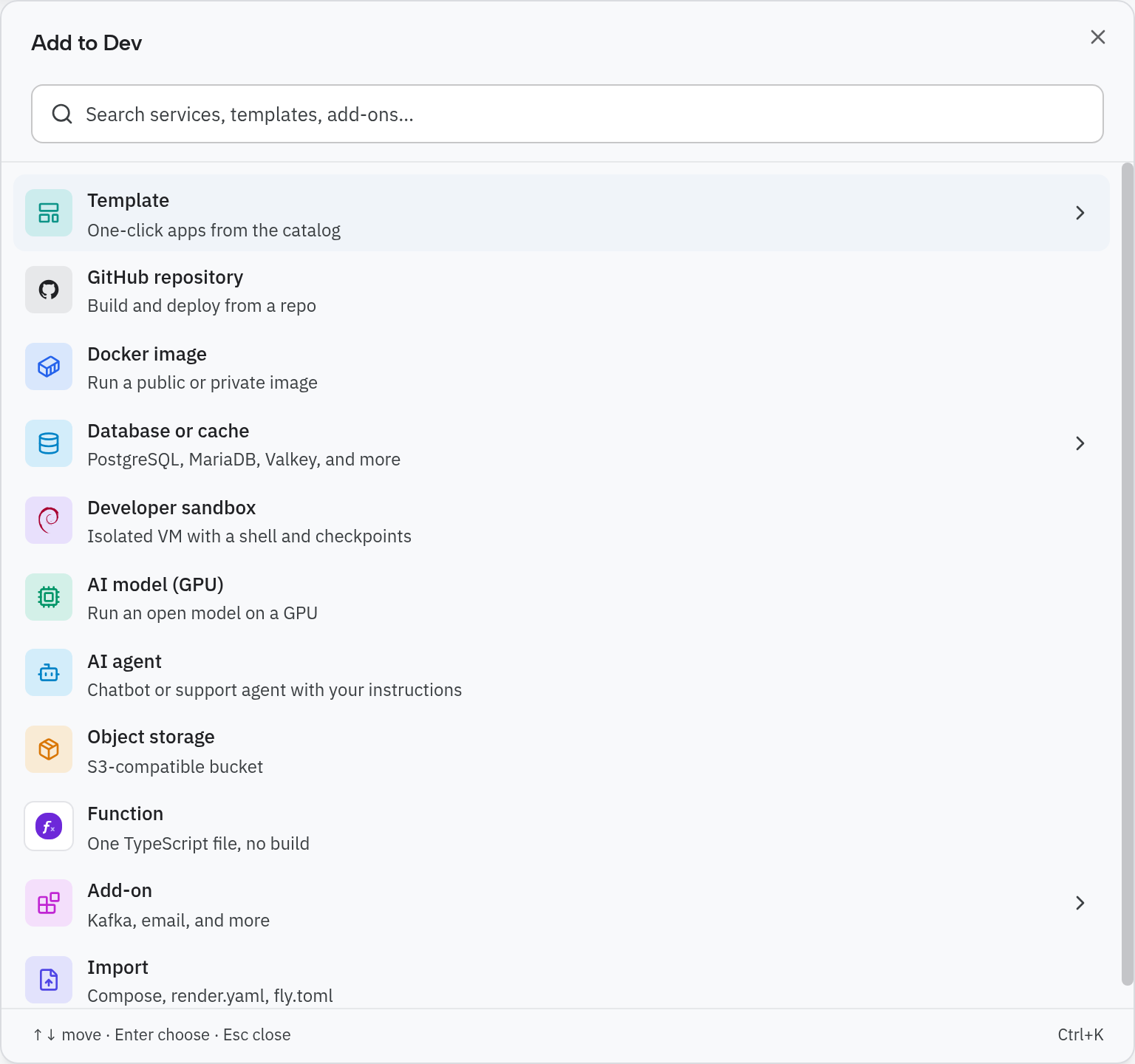
In your project, click + Service and choose Function (One TypeScript file, no build).
It is created and deployed right away
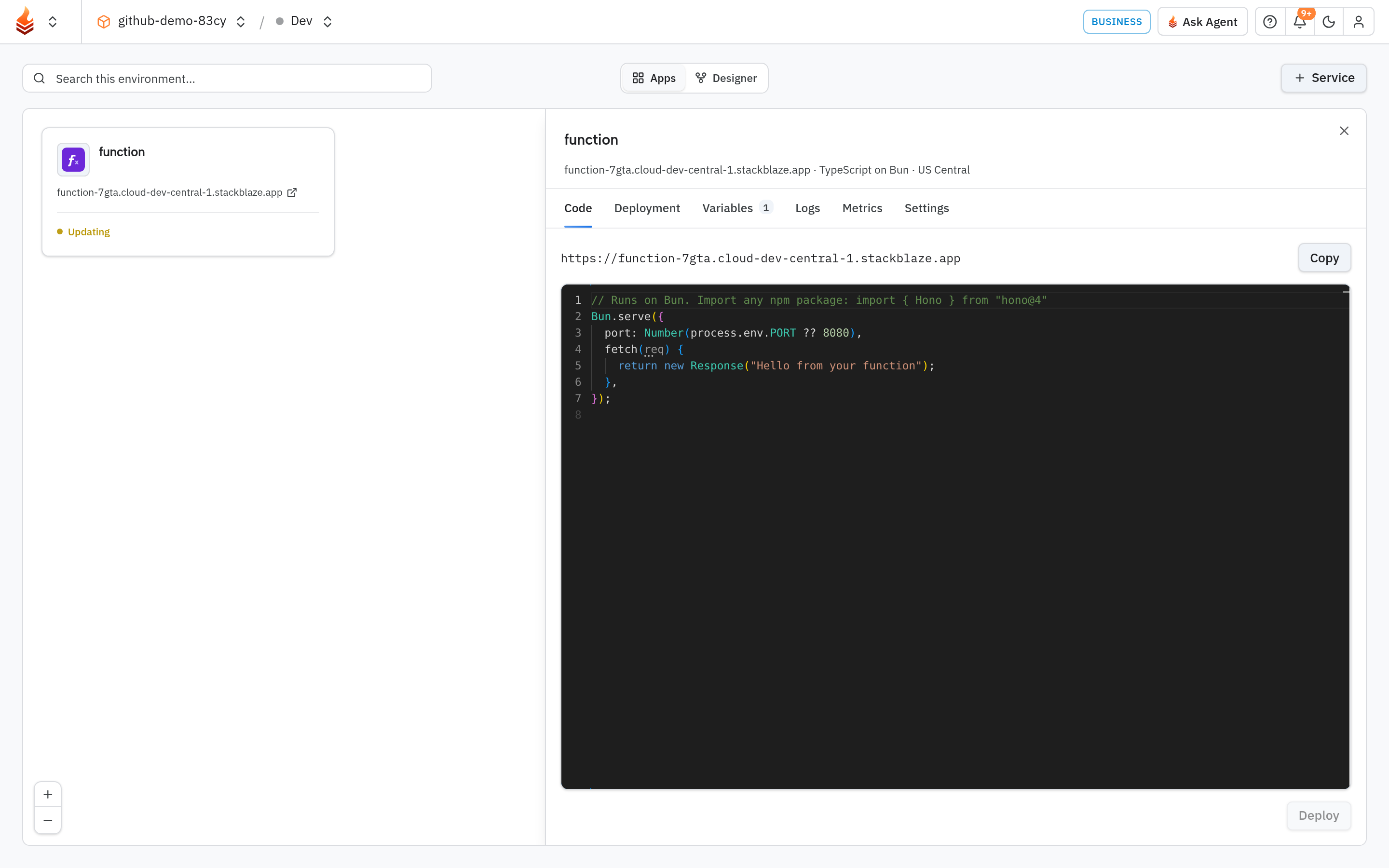
There is nothing to fill in and nothing to commit. The function is created under the name function (then function-2, and so on), deployed at once, and its panel opens on the Code tab. The header shows its URL and TypeScript on Bun.
The Code tab has the function's URL with Copy, an editor with the file, and Deploy. A new function starts from this file:
// Runs on Bun. Import any npm package: import { Hono } from "hono@4"
Bun.serve({
  port: Number(process.env.PORT ?? 8080),
  fetch(req) {
    return new Response("Hello from your function");
  },
});
Opening the URL returns Hello from your function.
Change the code and deploy
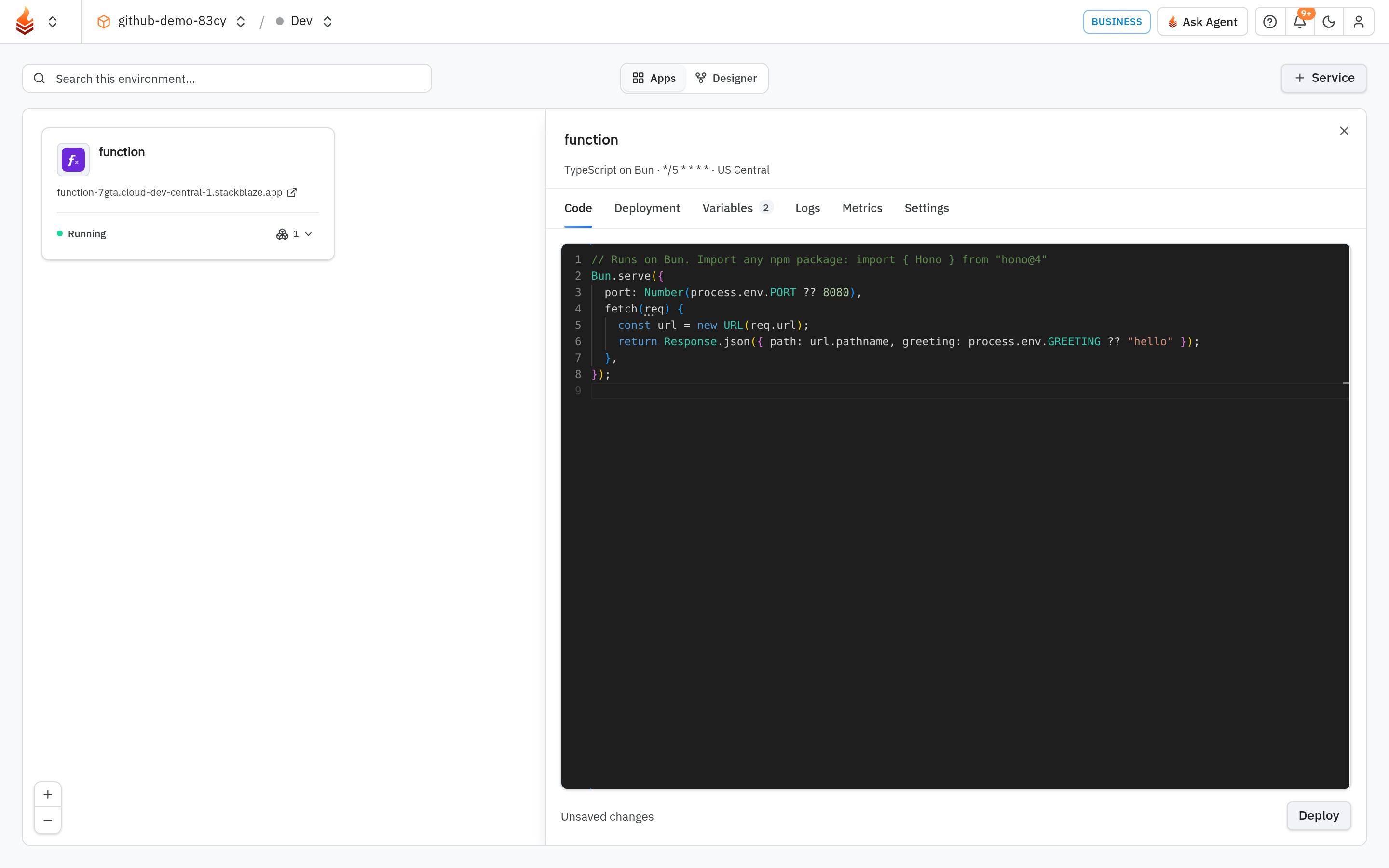
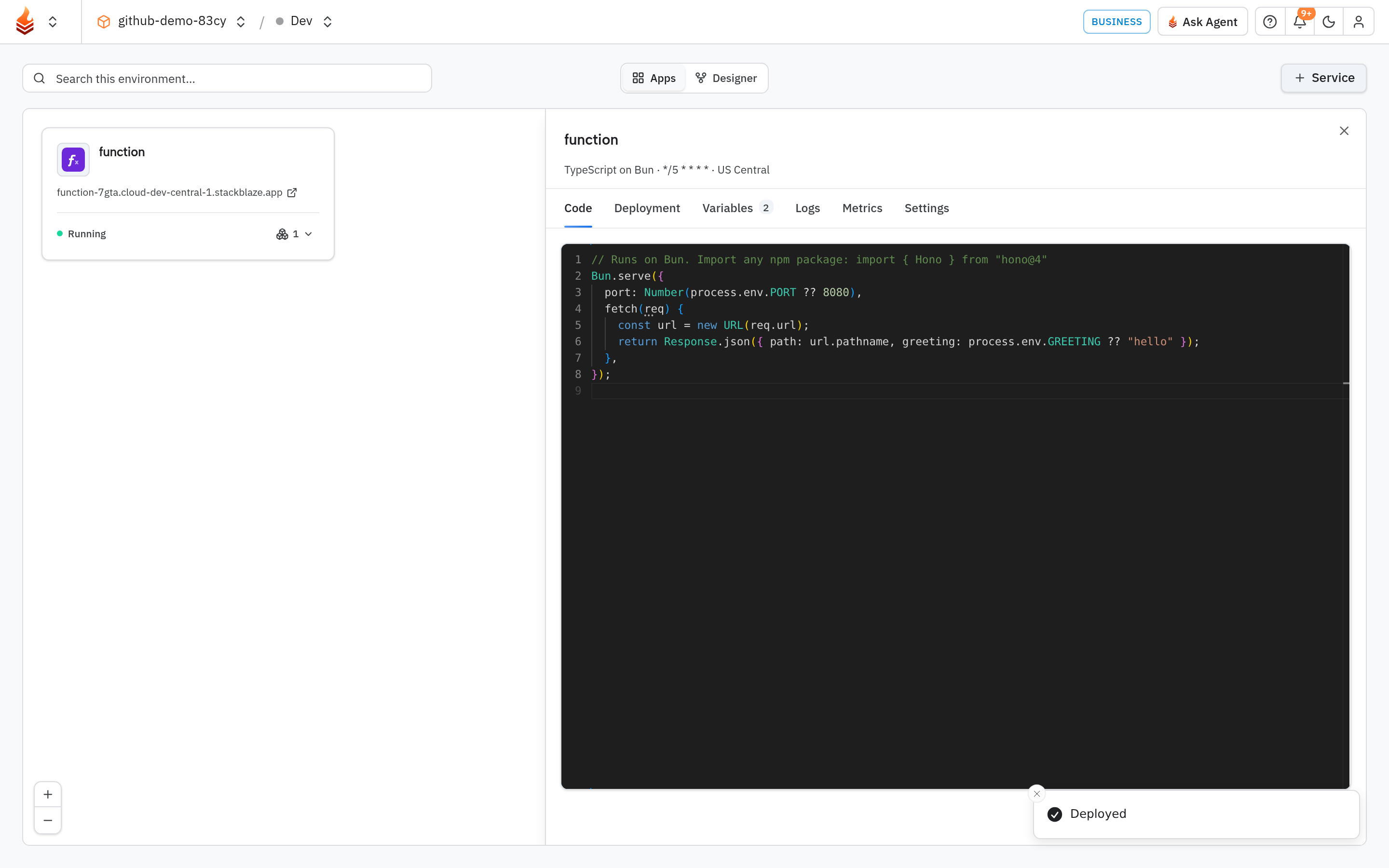
Edit the file. Unsaved changes appears next to Deploy. Click Deploy: a Deployed notice confirms it. The new code answers on the same URL once the update has rolled out (about half a minute when we tried it).
The file can be up to 96 KB.
Variables
A function reads environment variables like any app, through process.env. Variables already has PORT, which the starter code listens on. To add your own, click Add variable, type a KEY and a value, then Commit 1 change → Deploy 1 change (see Environment variables).
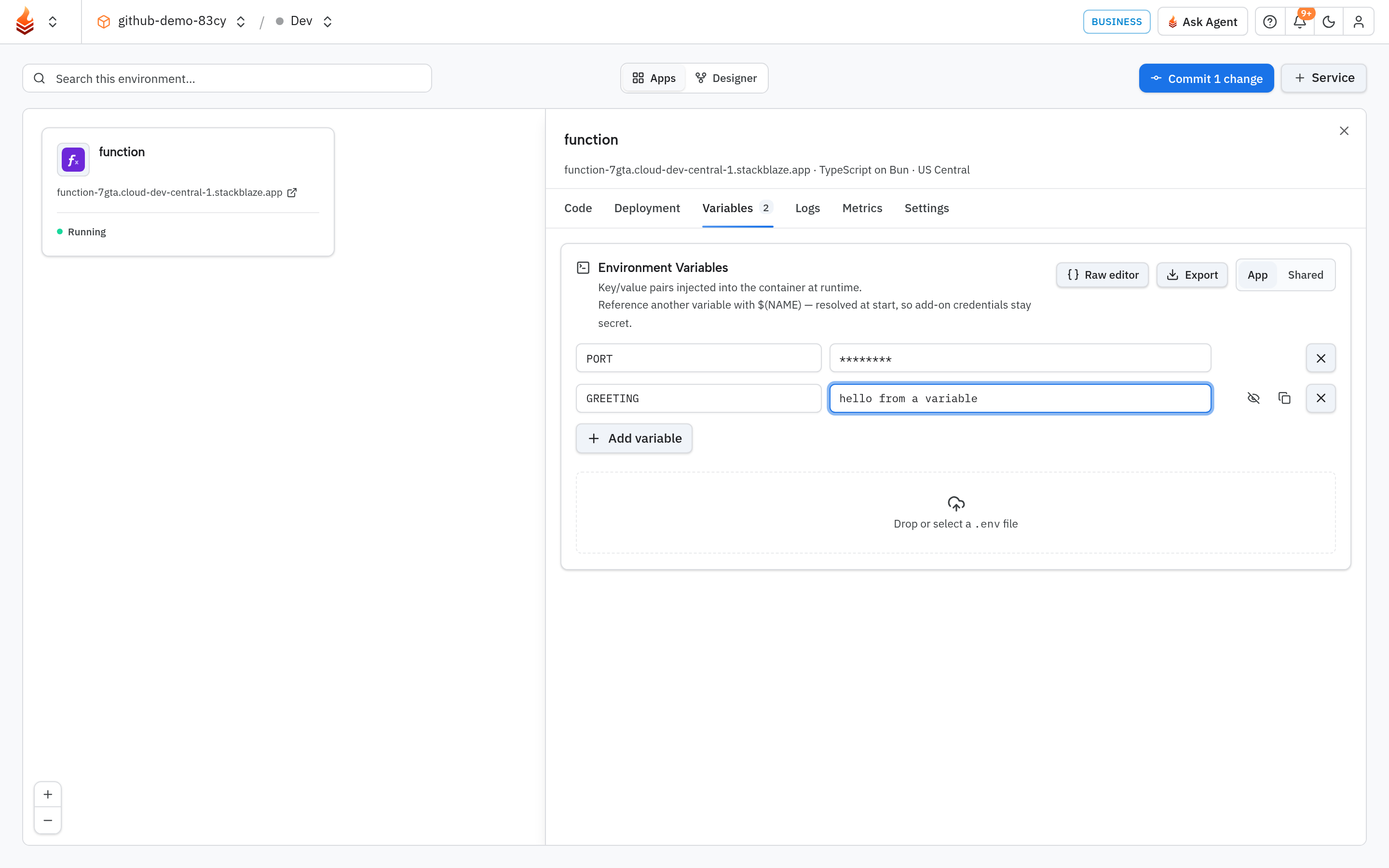
With GREETING set to hello from a variable, a function that returns process.env.GREETING answered {"path":"/hello","greeting":"hello from a variable"}. Changing a variable keeps the function's code.
Run on a schedule
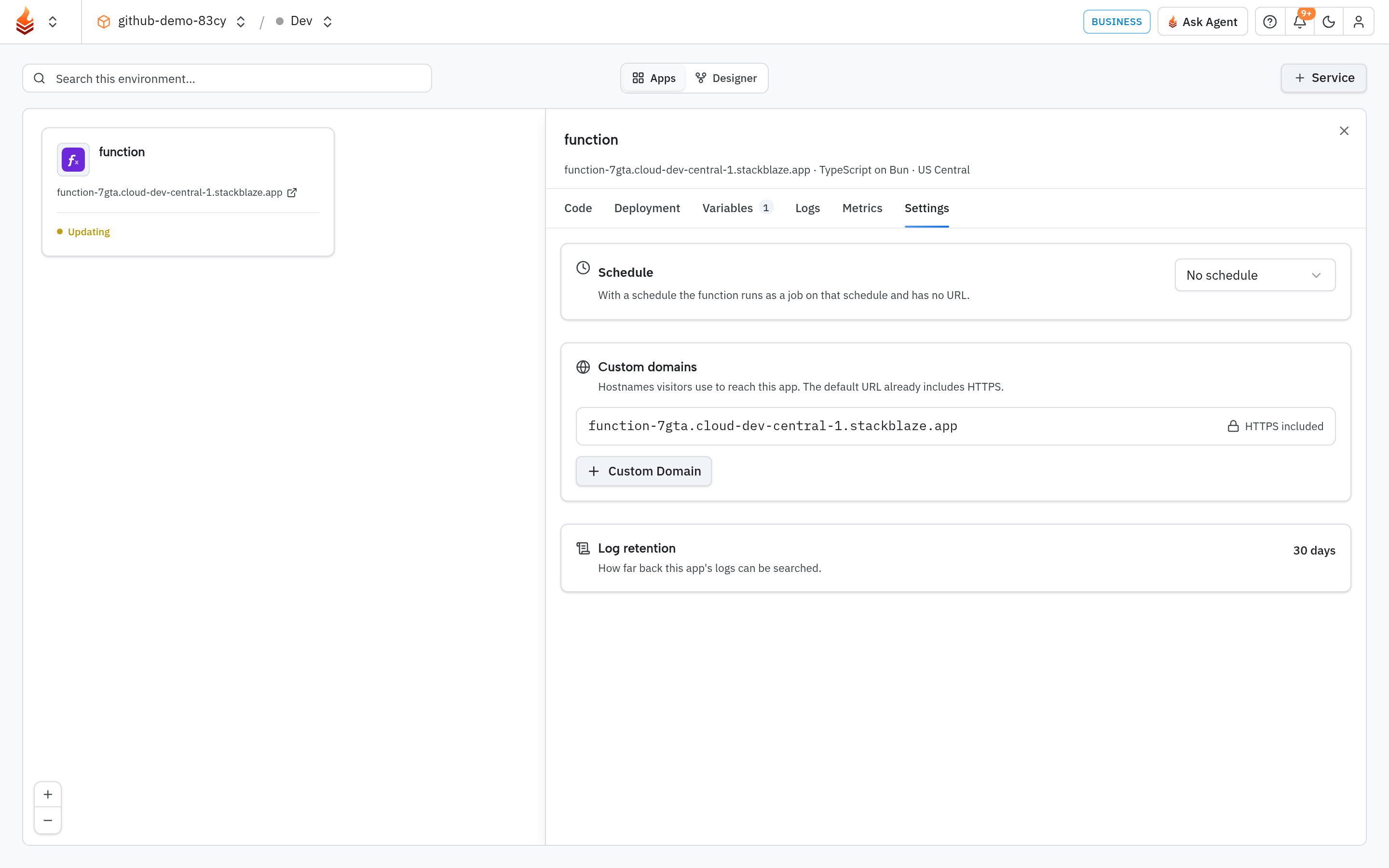
Settings → Schedule decides how the function runs. "With a schedule the function runs as a job on that schedule and has no URL."
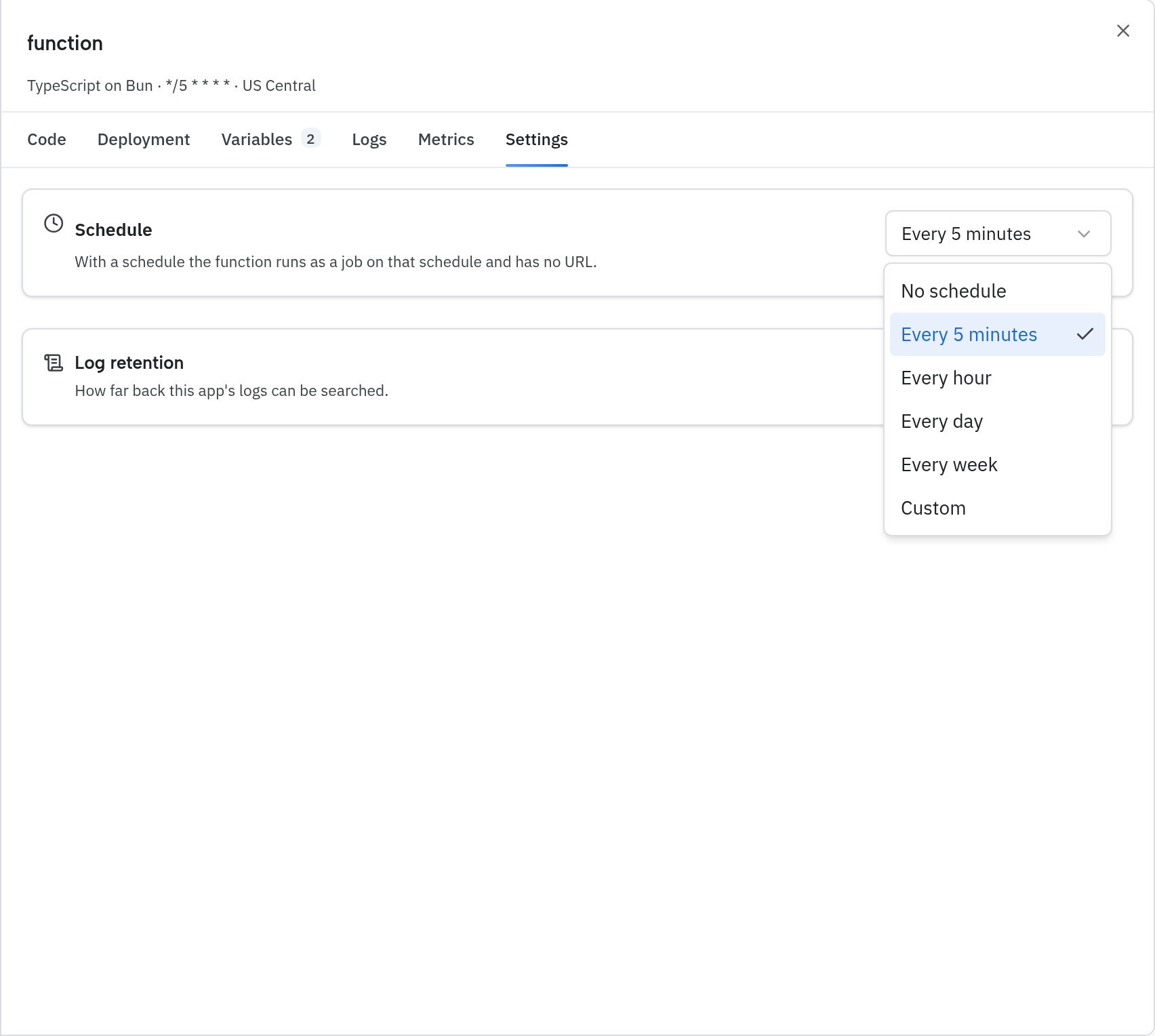
- No schedule (the default): the function serves HTTP on its URL.
- Every 5 minutes, Every hour.
- Every day: pick a time, in UTC (02:00 by default).
- Every week: pick a day and a time, in UTC (Monday, 02:00 by default).
- Custom: type a cron expression with five fields, in UTC. It starts from the expression of the option you had picked, for example
0 2 * * 1after Every week.



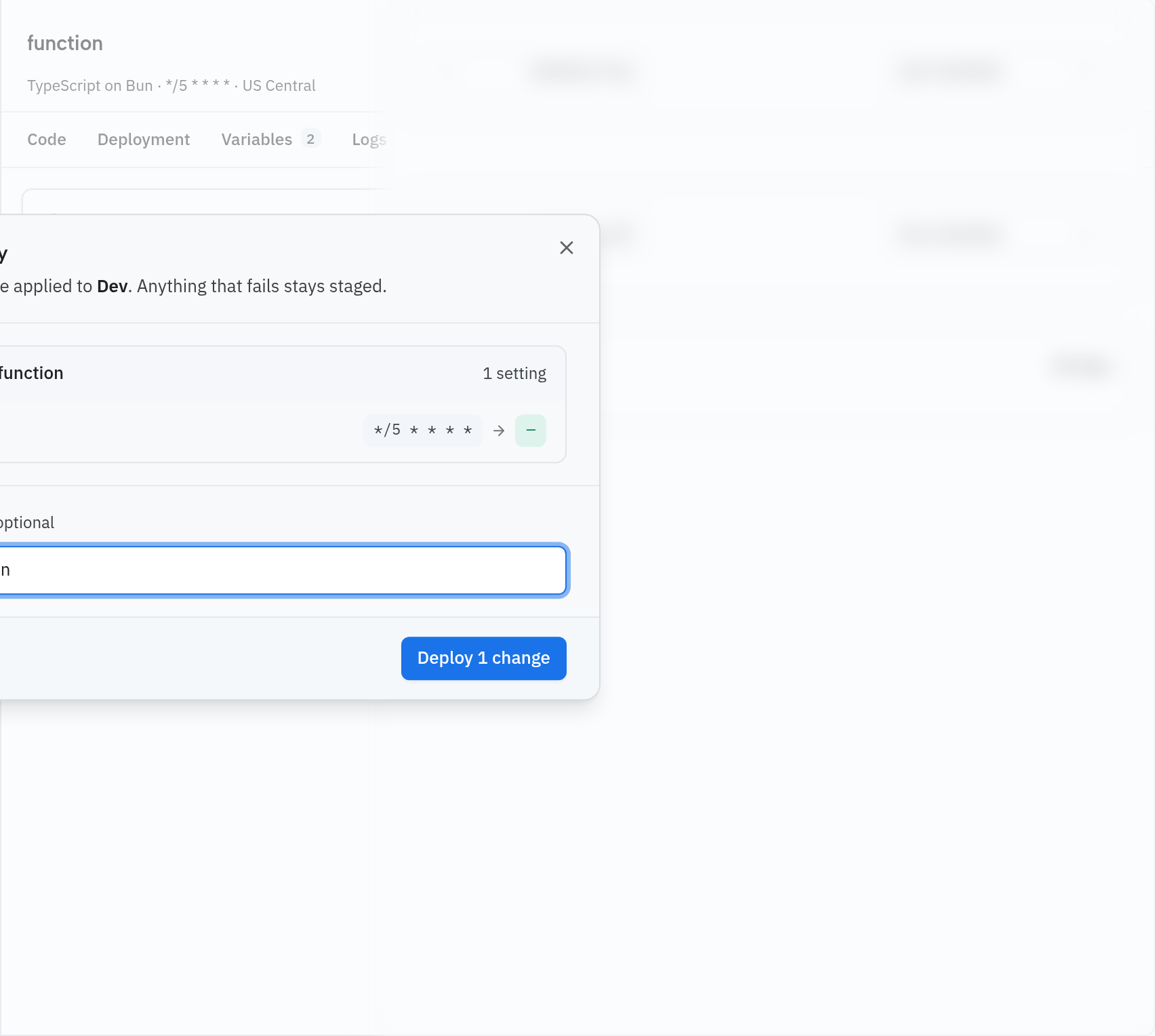
Changing the schedule is a staged change: Commit 1 change, then Deploy 1 change. Once a schedule is set, the URL stops answering.
Each run executes the file once with bun run. With the starter's Bun.serve code, the runs printed nothing. A scheduled function should do its work, print what it needs to, and exit. For example:
console.log(`Ran at ${new Date().toISOString()}: ${process.env.GREETING ?? "hello"}`);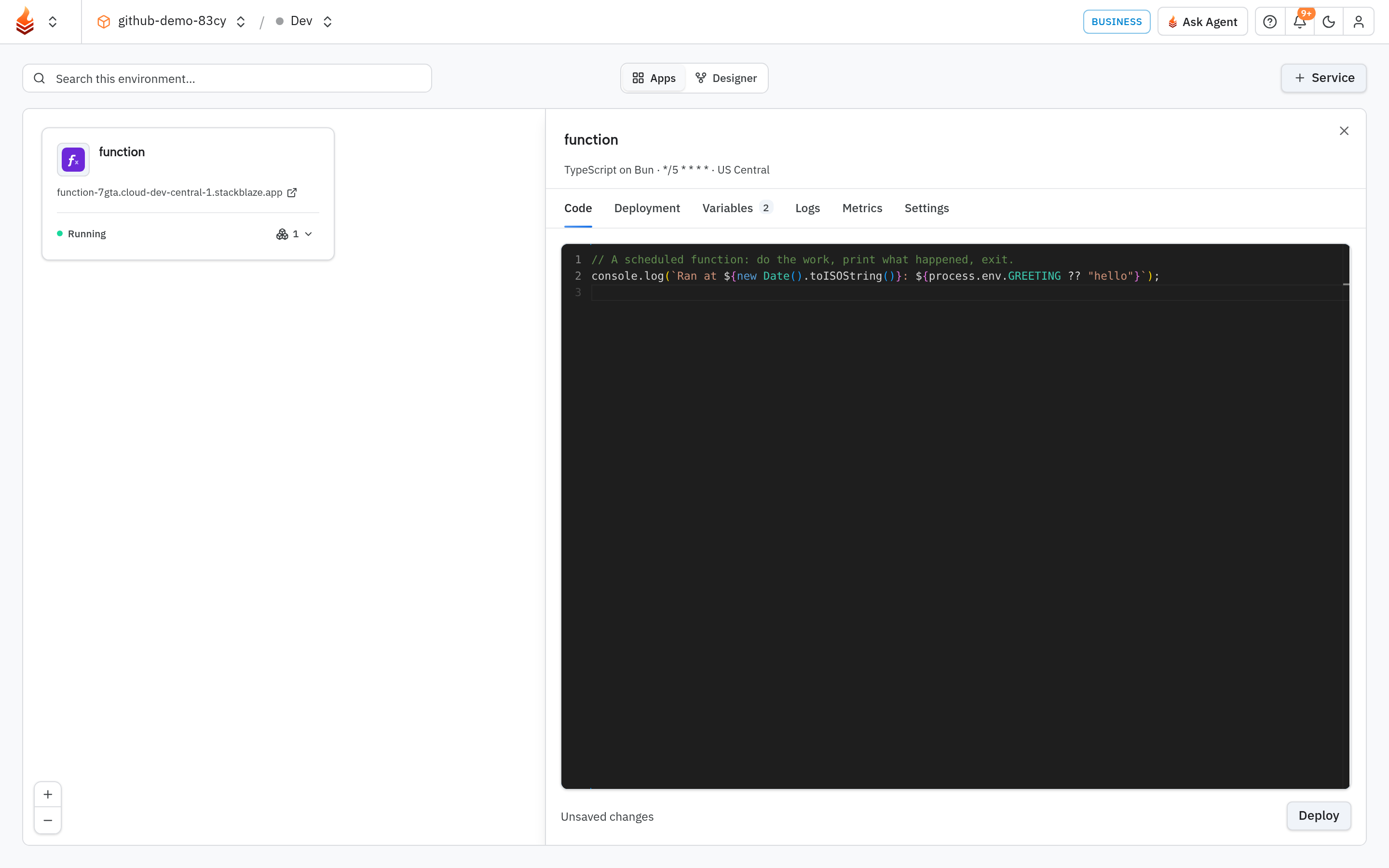
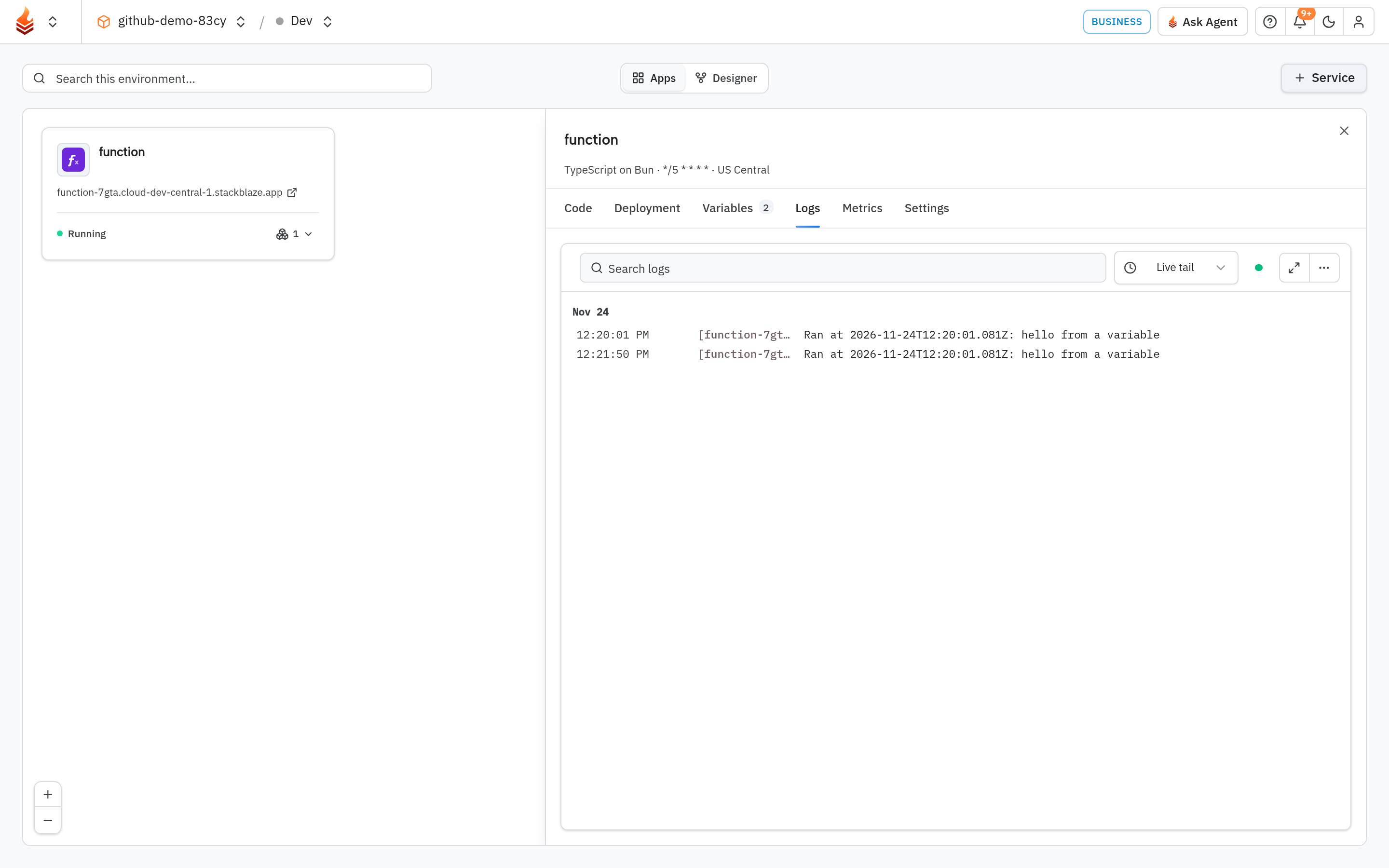
Each run's output appears in Logs, tagged with the run:
To serve HTTP again, set No schedule, deploy the change, and deploy code that calls Bun.serve again.
From the CLI
stackblaze functions (or fn) does the same from the terminal. Every command takes -p <project> and -e <environment> (default production).
Create a function and wait until it answers:
stackblaze functions deploy hello --wait! No --file given: the function starts with a "Hello" example. Deploy your code with --file.
Waiting for function hello-bn2k…
OK Function hello is ready
url: https://hello-bn2k.….stackblaze.appWithout --file it starts from the same starter file as the dashboard. To deploy your own code, or to update it later, pass the file (up to 96 KB):
stackblaze functions deploy hello --file index.ts --waitdeploy both creates and updates. It also takes --port (default 8080) and:
--schedule '<cron>'to run on a schedule (five fields, UTC) instead of on request;--no-scheduleto serve on request again. Deploy code that callsBun.servewith it, as in the dashboard.
The other commands:
| Command | What it does |
|---|---|
functions list | Each function, how it runs (on request or on schedule with the expression) and its URL |
functions get hello | How it runs, its URL, its status and the size of its code. --code prints the file. |
functions invoke hello | Calls the URL and prints the answer: OK Invoked hello (HTTP 200) then Hello from your function. --method (default POST), --path and --body shape the request. |
functions delete hello | Deletes it. Without a terminal, add -y. |
invoke refuses a scheduled function, which has no URL: "Function hello runs on a schedule (*/5 * * * *) and has no URL to call." (exit code 1).
A function is also an app, so app commands work on it with -a <name>: stackblaze variables list -a hello lists its variables, and stackblaze events -a hello shows each scheduled run's job being created and completed.
Every option: stackblaze functions.
Other tabs and settings
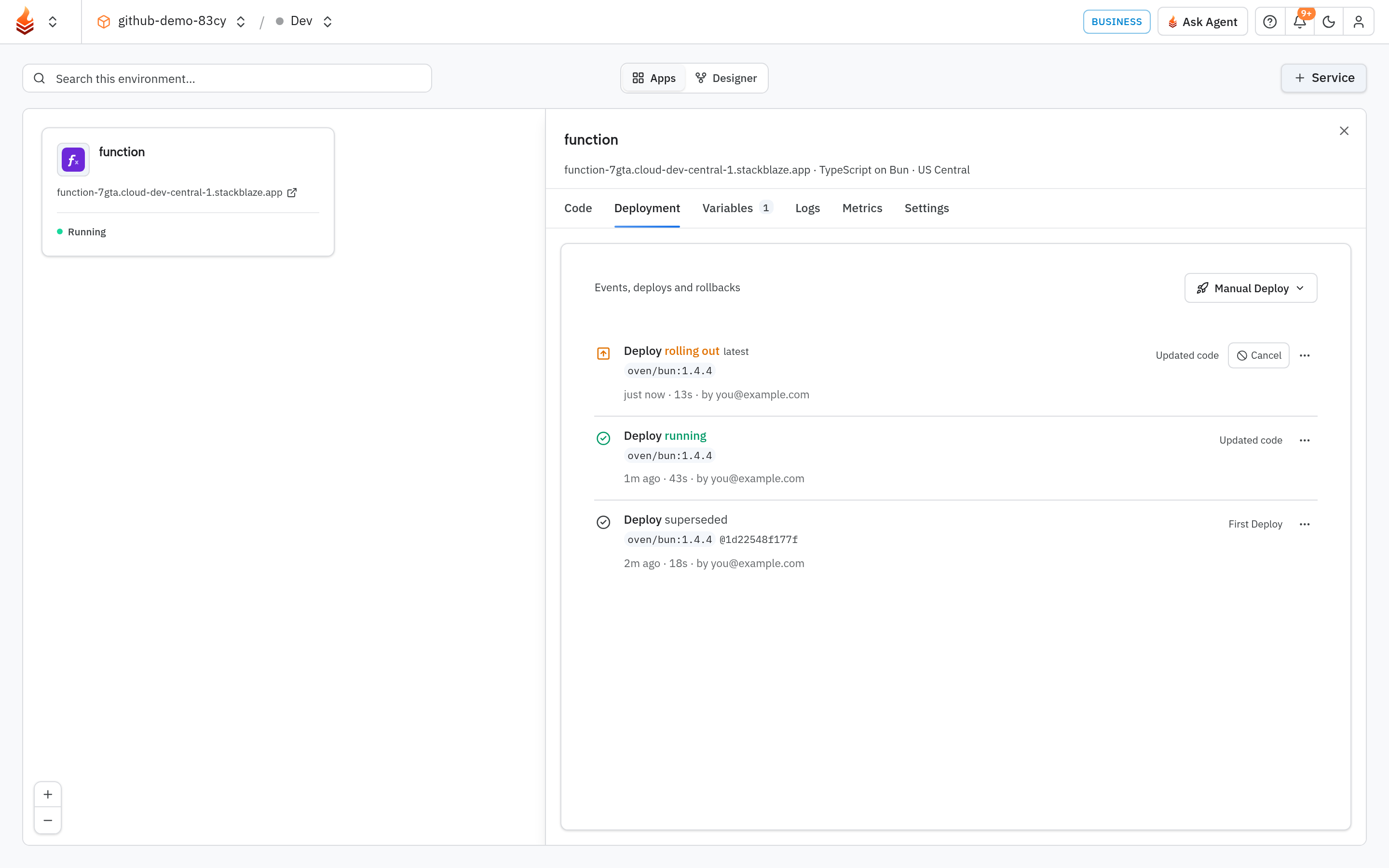
- Deployment lists each deploy, with what changed (Updated code, First Deploy), its status and who made it.
- Logs streams the function's output (for a scheduled function, each run's output).
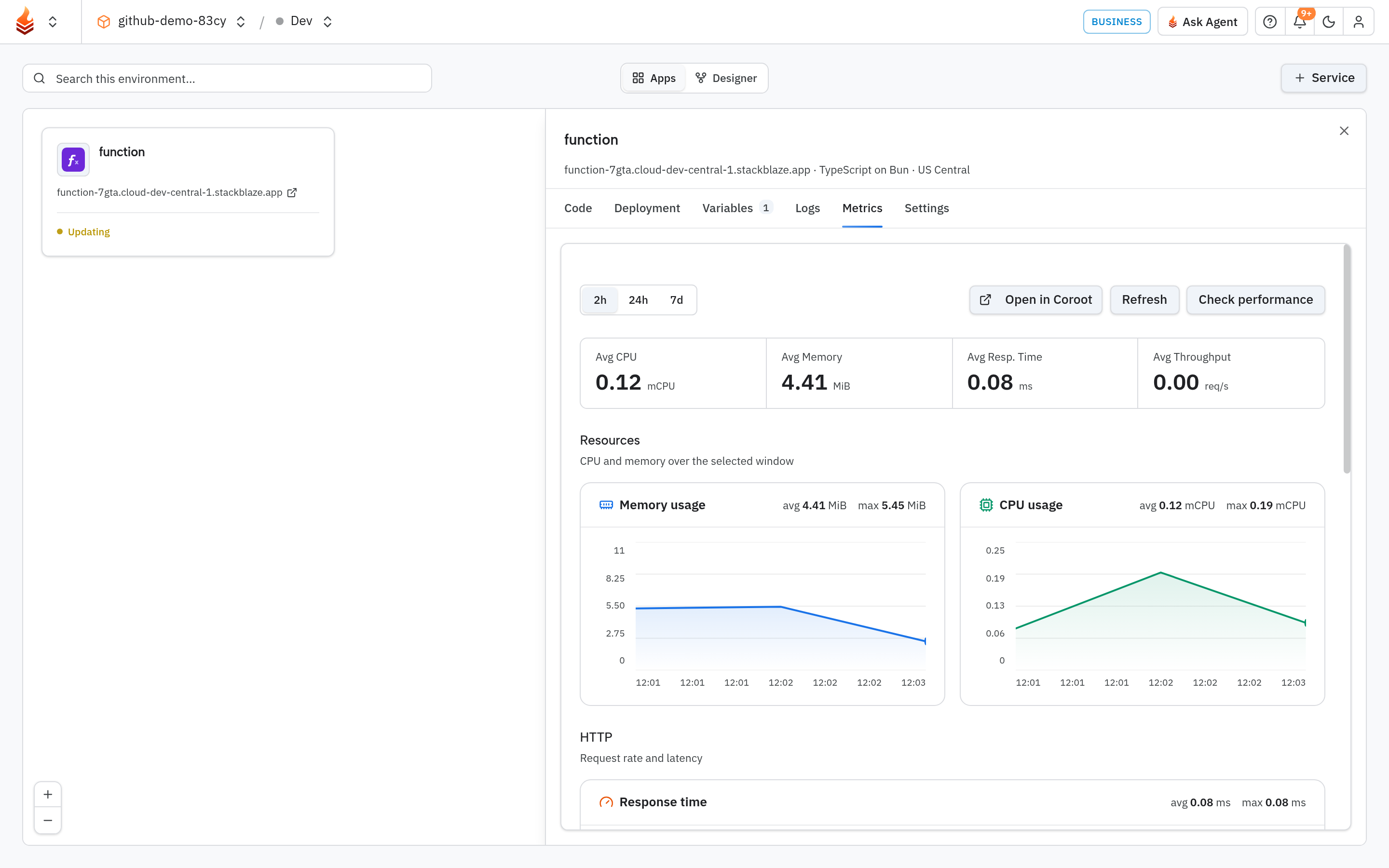
- Metrics shows CPU, memory, response time, throughput and status codes over 2h, 24h or 7d.
- Settings also has Custom domains (the default URL includes HTTPS) and Log retention.