
Deploy a Docker image
Run any public container image from Docker Hub, GitHub Container Registry or another registry.
A Docker image service runs a prebuilt container image; nothing is built. For an image in a private registry, first add a registry login. This guide deploys ghcr.io/nginxinc/nginx-unprivileged:stable-alpine, an nginx image that listens on port 8080. For the shortest path with Docker Hub's nginx, see the Quick Start.
Add a Docker image
In your project, click + Service and choose Docker image (Run a public or private image). Container registry opens.

Pick the image
You have two ways in:
- Search Docker Hub: type a name, such as
redis. Results appear as you type, with Official on official images. Click Use next to one. The tag islatest. - Paste a full reference from any registry, with its tag, such as
ghcr.io/nginxinc/nginx-unprivileged:stable-alpine, and press Enter. Without a tag,latestis used.
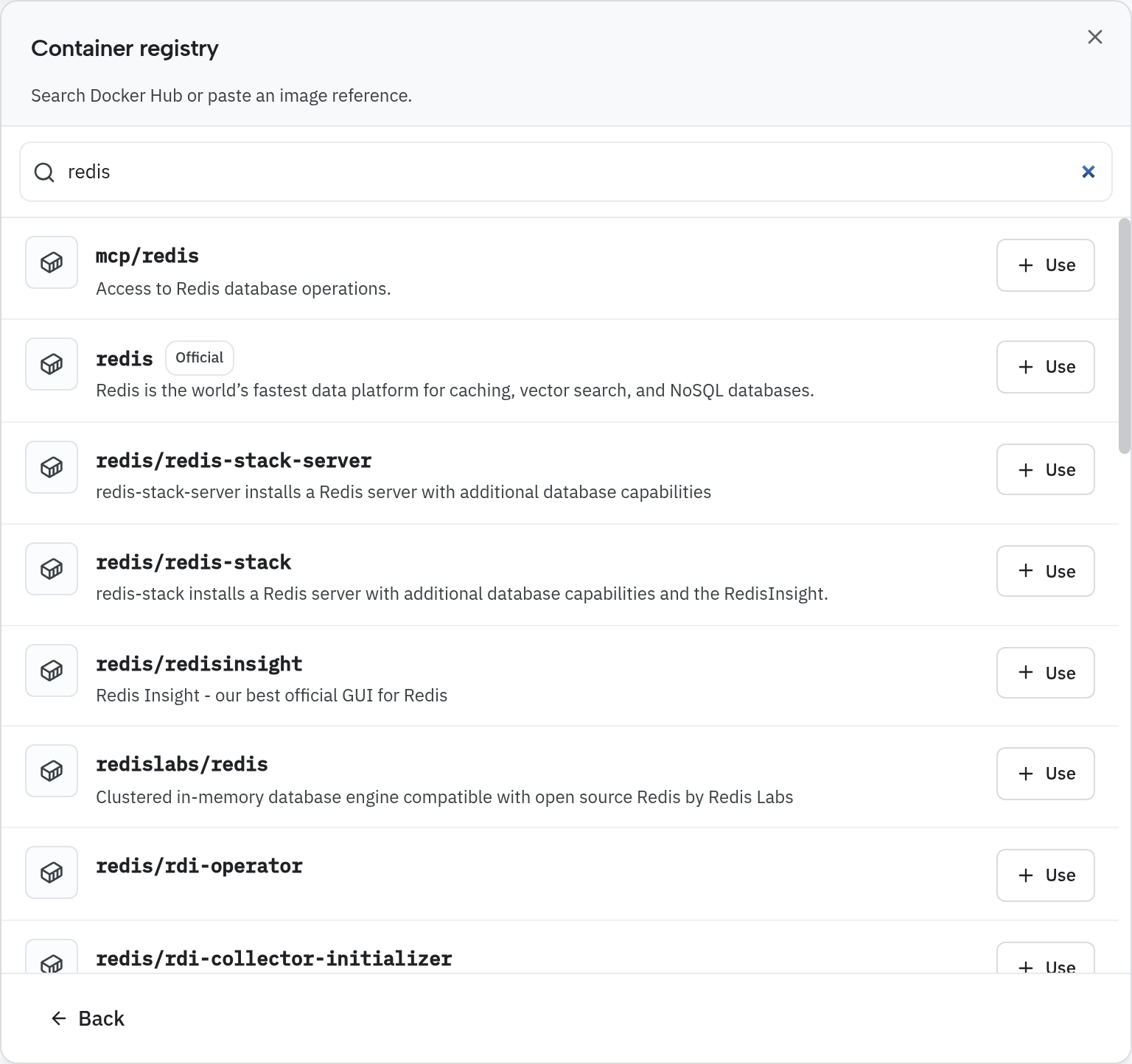
When you paste a full reference, the list says "Press Enter to use this image reference." Press Enter and the reference is used.
Review
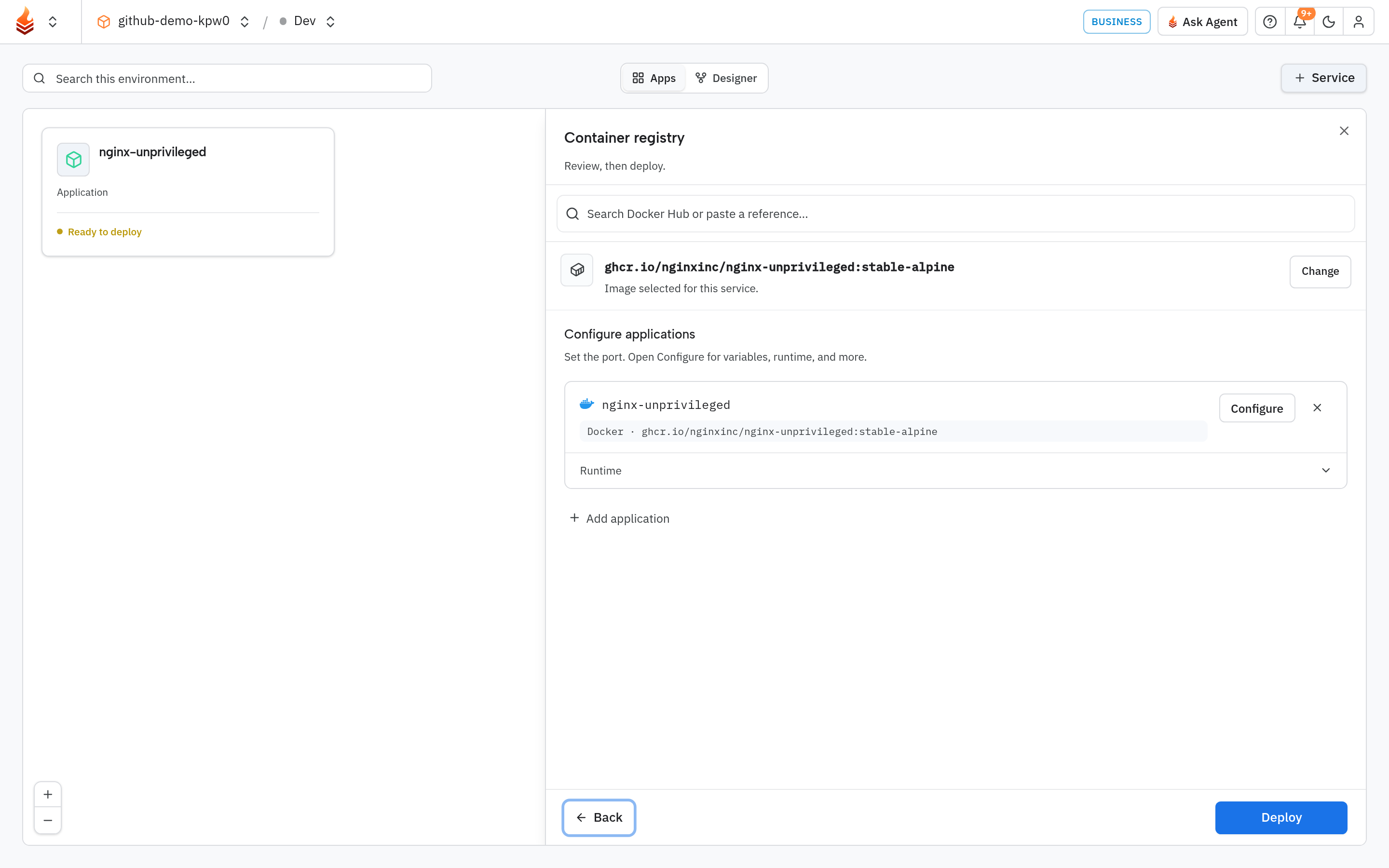
A card for the image appears on the canvas, Ready to deploy. Click it to open the review panel:
- The image and tag, with Change to go back to the search.
- Under Configure applications, the app with its image. Runtime opens a start command (blank keeps the image's default) and the Port. Set the port your image listens on; it is the port the public URL sends traffic to.
- Configure opens the app's settings: variables, visibility (Public, Internal, Worker), custom domains, a pre-deploy command and start command, health checks, basic auth, advanced networking, instances and autoscale, sleep mode, volumes, vulnerability scans, tracing and log retention. See Service settings.
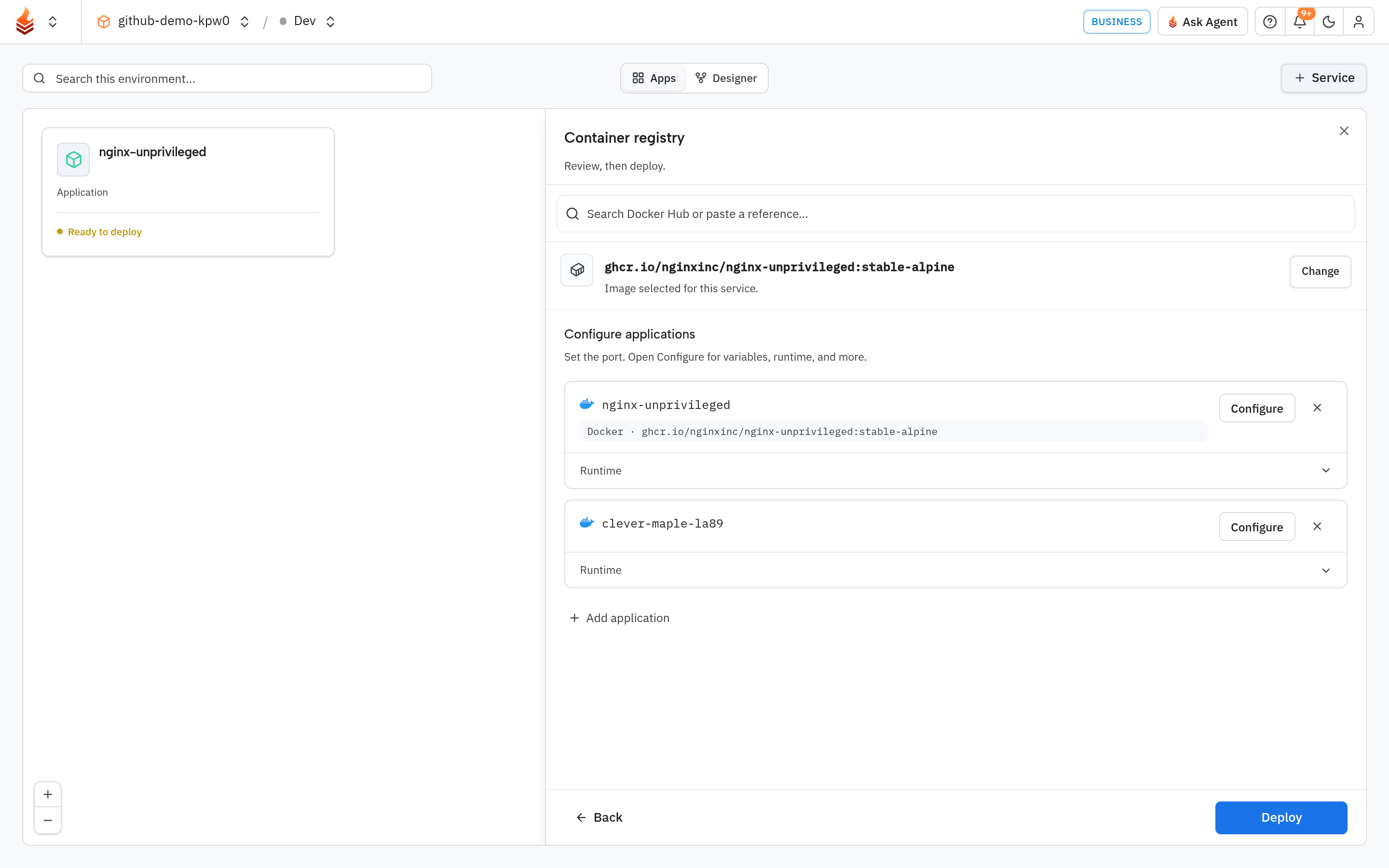
- Add application adds another app that runs the same image, with its own name, runtime and settings.
Deploy
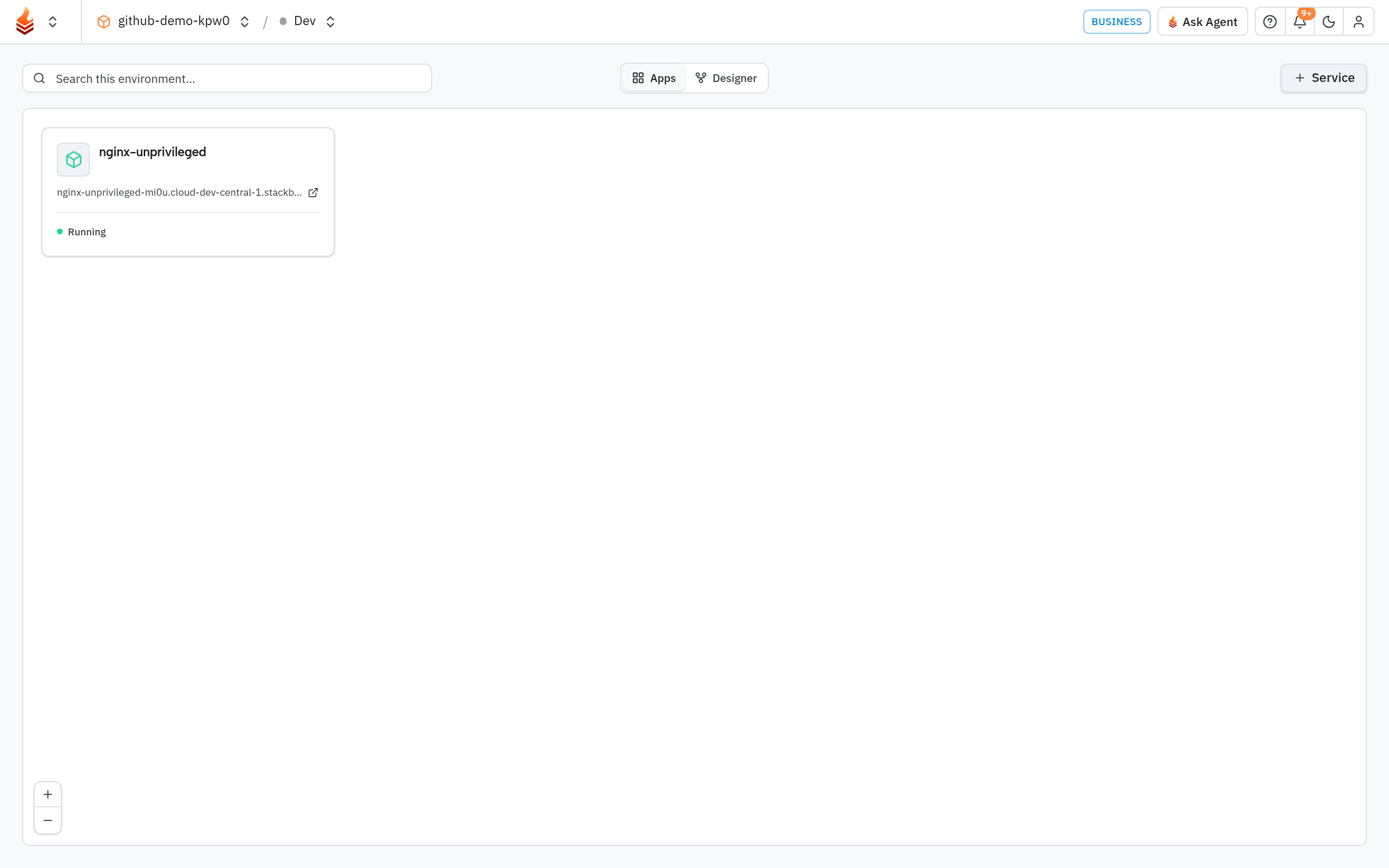
Click Deploy. When the card shows Running, it shows the app's public URL on stackblaze.app, with HTTPS.
From the CLI
stackblaze up --image deploys an image without the dashboard. We deployed nginx:1.26 into a project's Production environment:
stackblaze up --image nginx:1.26 --name docs-img -p github-demo-cw8z --phase production --port 80 --waitOK Created github-demo-cw8z/production/docs-img (docker nginx:1.26)
Waiting for github-demo-cw8z/production/docs-img-ne7i to be ready (up to 10m00s)…
…
OK github-demo-cw8z/production/docs-img-ne7i is ready
url: https://docs-img-ne7i.us-central-1.stackblaze.app--imagetakes a full reference, with a registry, a tag or a digest:nginx:1.27,ghcr.io/org/app:2.0,ghcr.io/org/app@sha256:…. Without a tag,latestis used.--tagsets the tag of an image given without one:--image nginx --tag 1.27is the same as--image nginx:1.27. When both give a tag, they must agree.--image nginx:1.27 --tag 1.26is refused: "--image nginx:1.27 already names tag "1.27" but --tag is "1.26". Drop --tag, or pass the image without a tag."--portis the port the image listens on. Without it, the CLI reads the image'sEXPOSEport, or uses 3000 and warns.--workerdeploys it as a Worker instead, with no port.--waitwaits until the new version is running.
Run the same command with another tag to update the service. Ours went from nginx:1.26 to nginx:1.27, and the release was titled Updated image nginx:1.26 → nginx:1.27. Every option is in the up reference.
In stackblaze.yaml
In a stackblaze.yaml, an image service has runtime: image and an image:
services:
  - name: web
    runtime: image
    image:
      url: nginx
      tag: "1.27"
    port: 80