
Preview environments
Every pull request gets its own temporary copy of your app, with its own address, rebuilt on every push and removed when the pull request is closed.
A preview environment is a temporary environment for one pull request. It's named pr-<number> and copied from the environment that deploys the pull request's target branch. You can try the change at its own address before you merge it.
This guide uses a project whose Dev environment deploys a repository's main branch. A pull request into main changes the page's heading.
Previews need the StackBlaze GitHub App, because it's how StackBlaze sees pull requests. Connect it from an app's Build settings.
Turn on previews for the project
Open Project settings → General. In Preview environments, previews start turned off.

Turn on Create previews for pull requests and click Save changes. The card shows Saved.
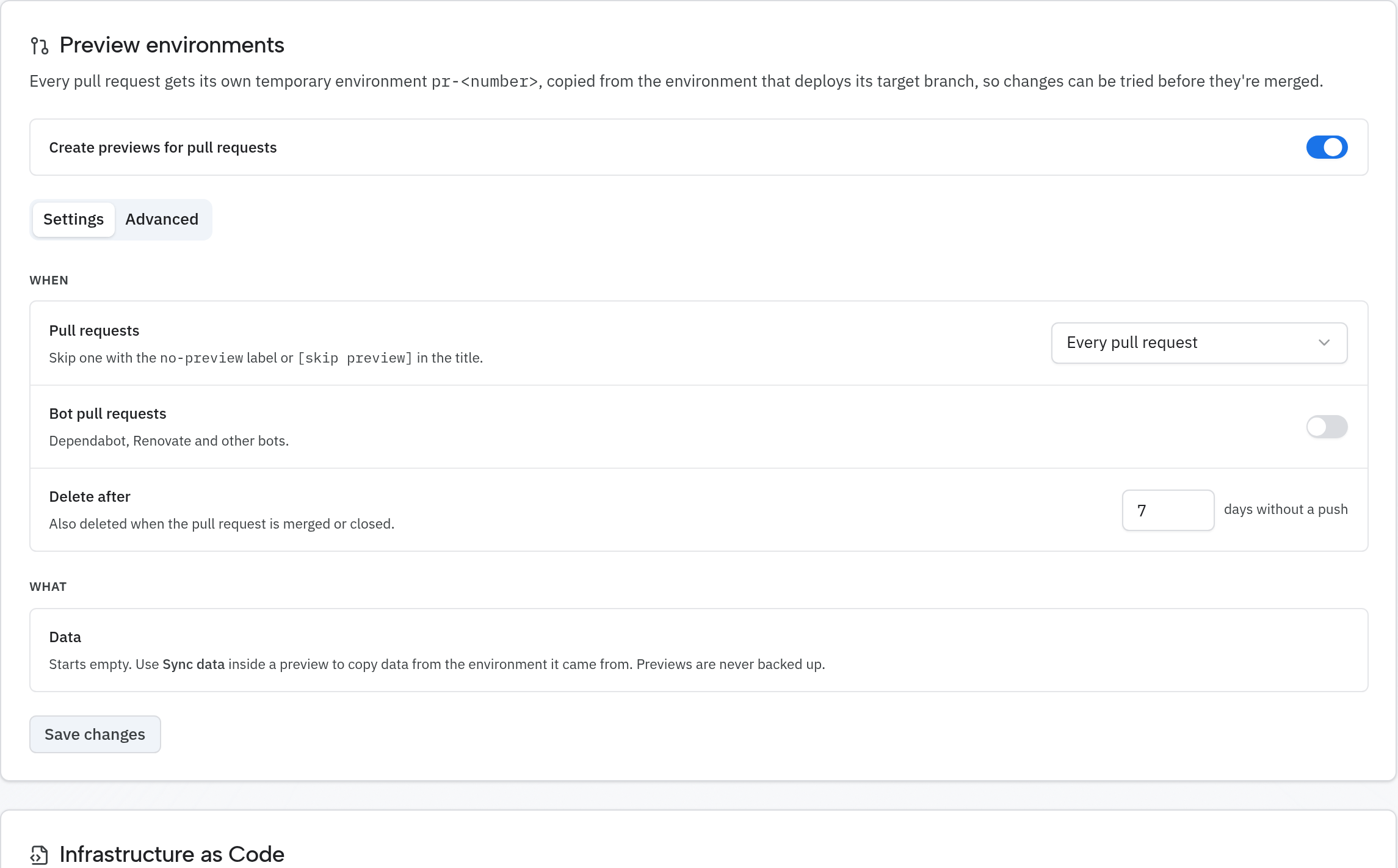
The defaults are:
- Pull requests: Every pull request. Skip one with the
no-previewlabel or[skip preview]in its title. - Bot pull requests: off.
- Delete after: 7 days without a push.
Every option, including Only when asked for, seed commands and variable rules, is described in Project settings → Preview environments.
The project here has only Dev, Stage and Production: previews don't need an environment of their own. Each one is made when its pull request is opened.
Open a pull request
Push a branch and open a pull request into the branch your environment deploys, here main.
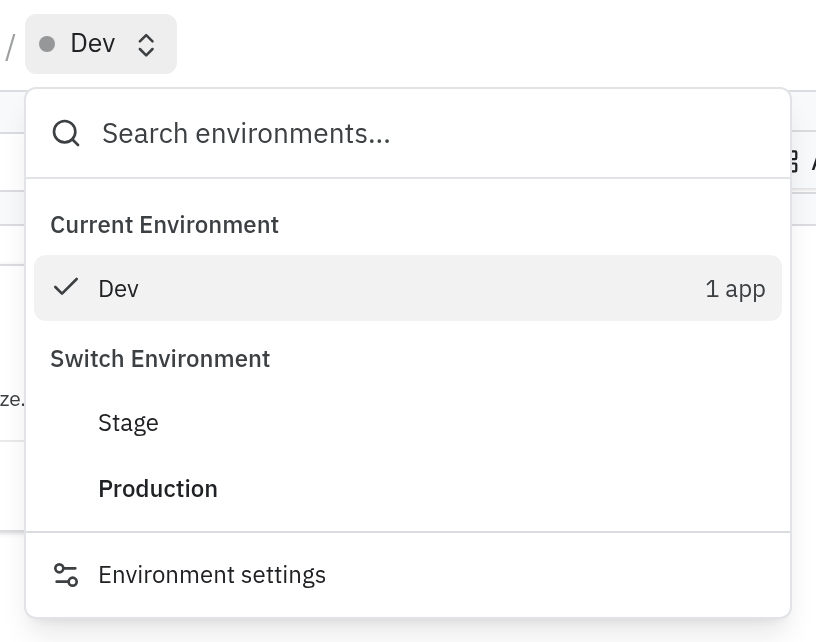
Within about half a minute, the preview is in the environment menu, under Previews. It shows the pull request number, its title, and how long ago it was made.
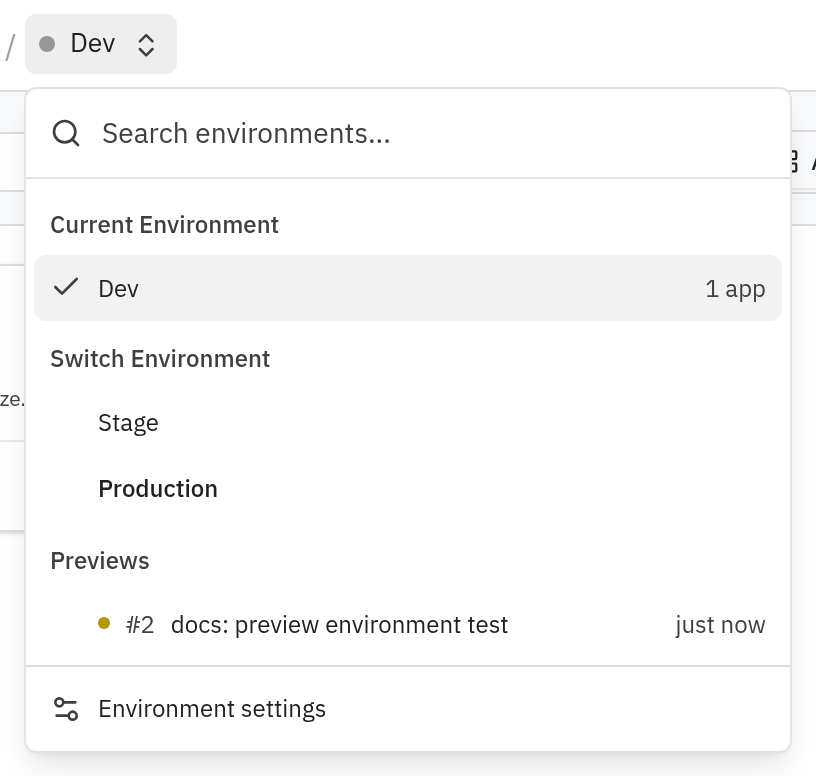
Open the preview
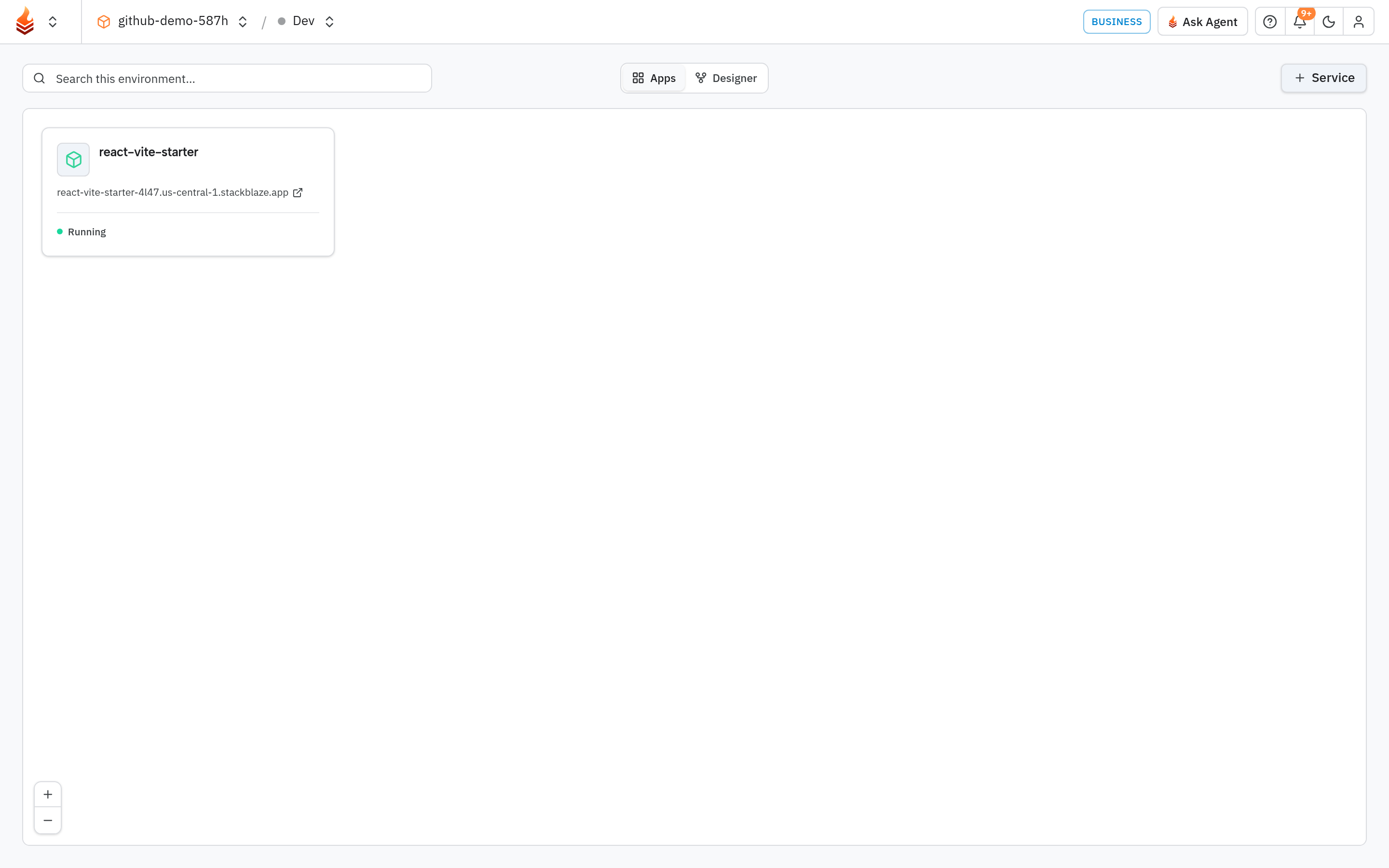
Click the preview in the menu. The header shows PR #2 with a Preview tag, and a bar at the bottom of the canvas reads Preview of PR #2 · from Dev · expires in 7 days · not backed up.
The canvas has a copy of the app from Dev, building the pull request's branch. The copy has its own address, different from the app in Dev.
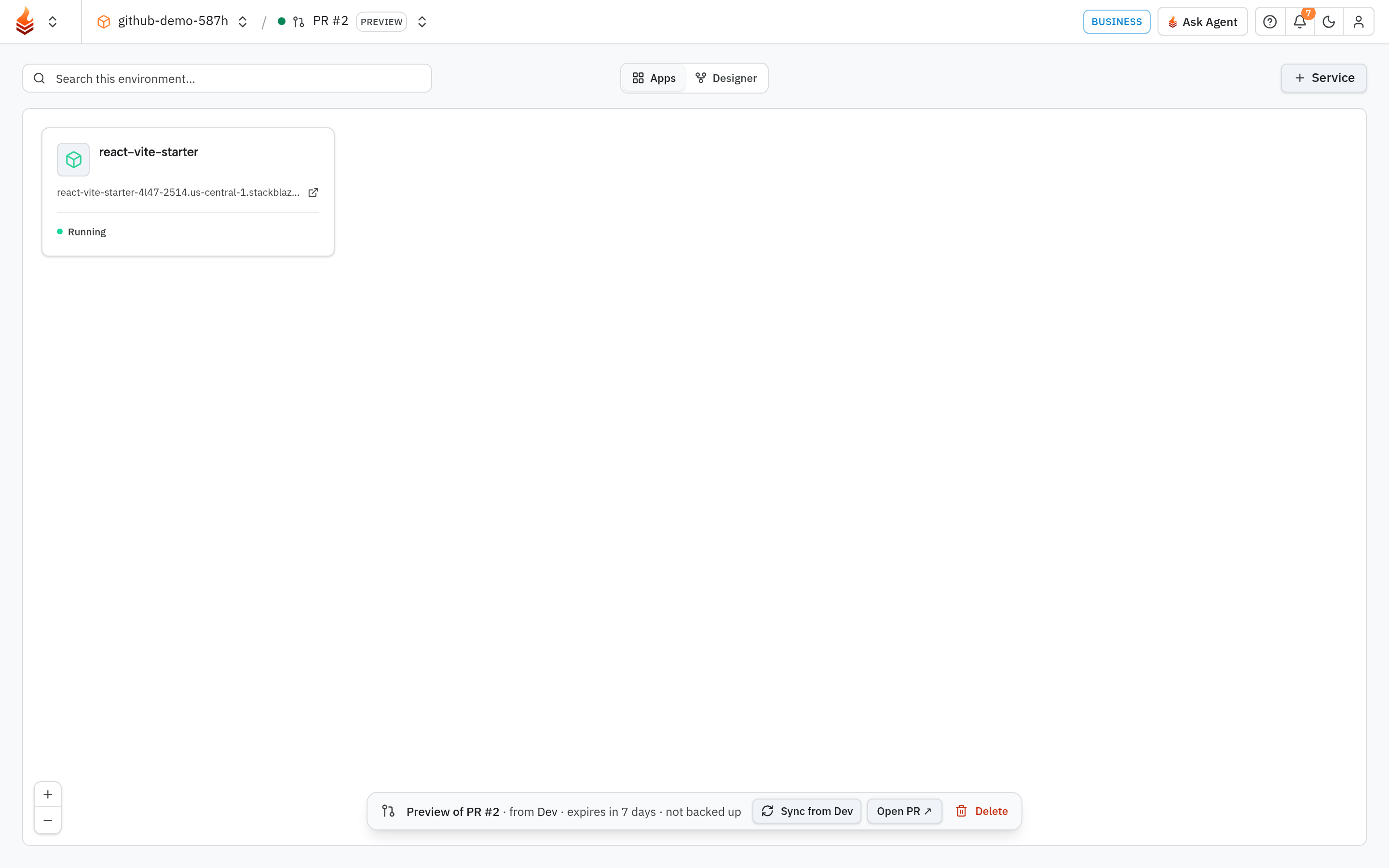
In this example the build took about two minutes. Then the preview's address served the new heading, and the app in Dev still served the old one.
Check the pull request
StackBlaze posts one comment on the pull request, titled StackBlaze Preview, and keeps it up to date. It has a table with a row for each app: App, Status, Preview (a Visit link to the address) and Updated (UTC). Below it, a link opens the preview in StackBlaze.
The Status goes from 🔄 Building to ✅ Ready.
Each commit also gets a check named Stackblaze / and the build type, for example Stackblaze / railpack.
Push more commits
Push another commit to the pull request's branch. The preview rebuilds: the app shows Building, and then the new commit is live at the same address. Here it took just over a minute.
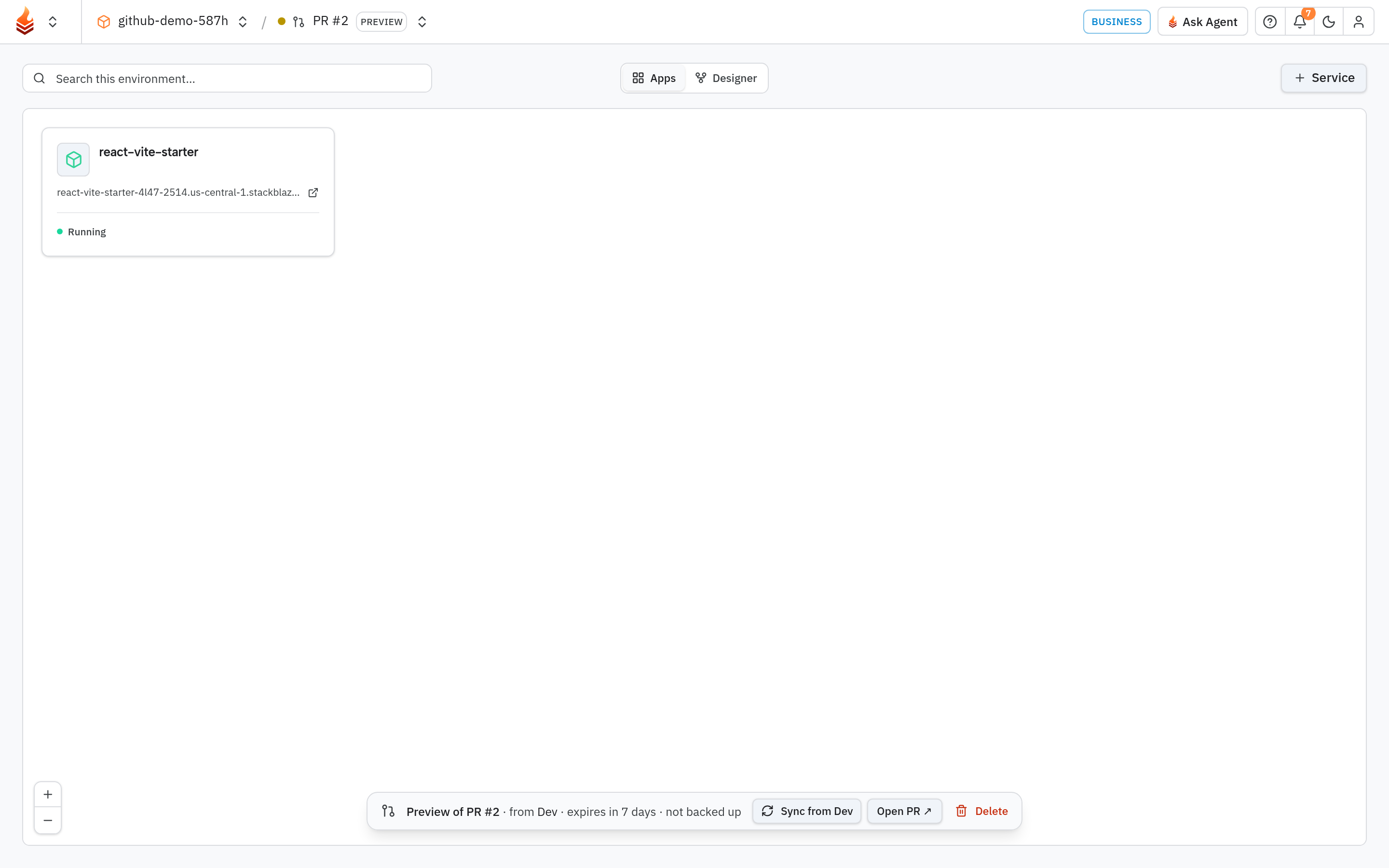
Every push restarts the expiry, so the bar shows expires in 7 days again. The comment's row goes back to ✅ Ready with a new time.
Close the pull request
When you merge or close the pull request, its preview is deleted. Here it was gone 17 seconds after the pull request was closed. The preview's address stopped answering.
The preview is no longer in the environment menu.
The comment's rows change to 🗑️ Removed, and the comment ends with "Preview removed."
If you reload a page of the deleted preview, it opens the Dev environment instead.
The preview bar
Inside a preview, the bar at the bottom of the canvas shows which pull request it's for, the environment it was copied from, when it expires, and that previews aren't backed up. It has three buttons.

- Sync from Dev (named after the environment the preview came from) brings the preview up to date with it. See below.
- Open PR ↗ opens the pull request.
- Delete deletes the preview.
Sync from the base environment
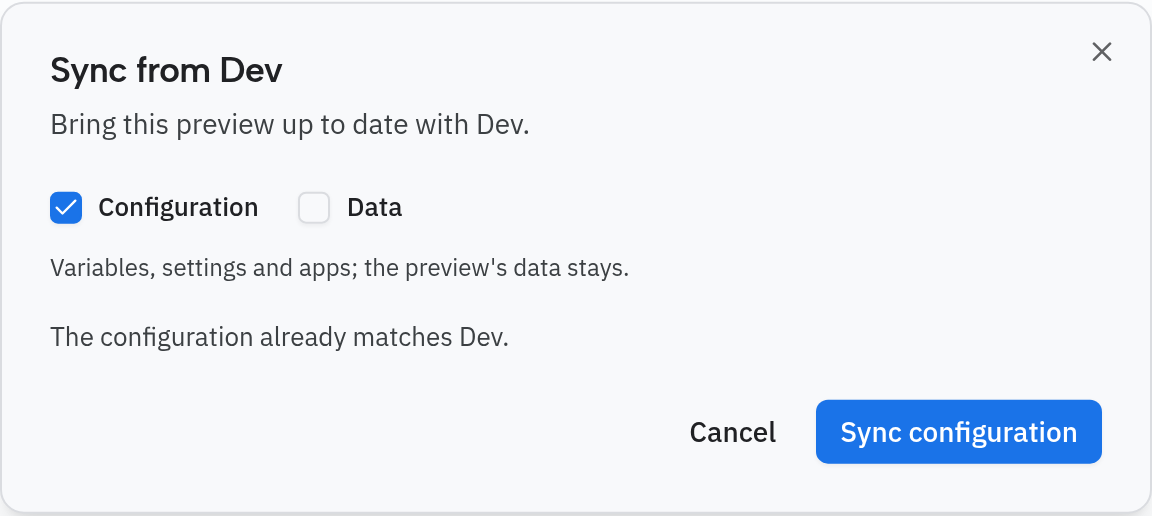
Click Sync from Dev. The dialog reads "Bring this preview up to date with Dev." Choose what to copy:
- Configuration (ticked): "Variables, settings and apps; the preview's data stays." The dialog compares the preview with Dev; here it says "The configuration already matches Dev." The button is Sync configuration.
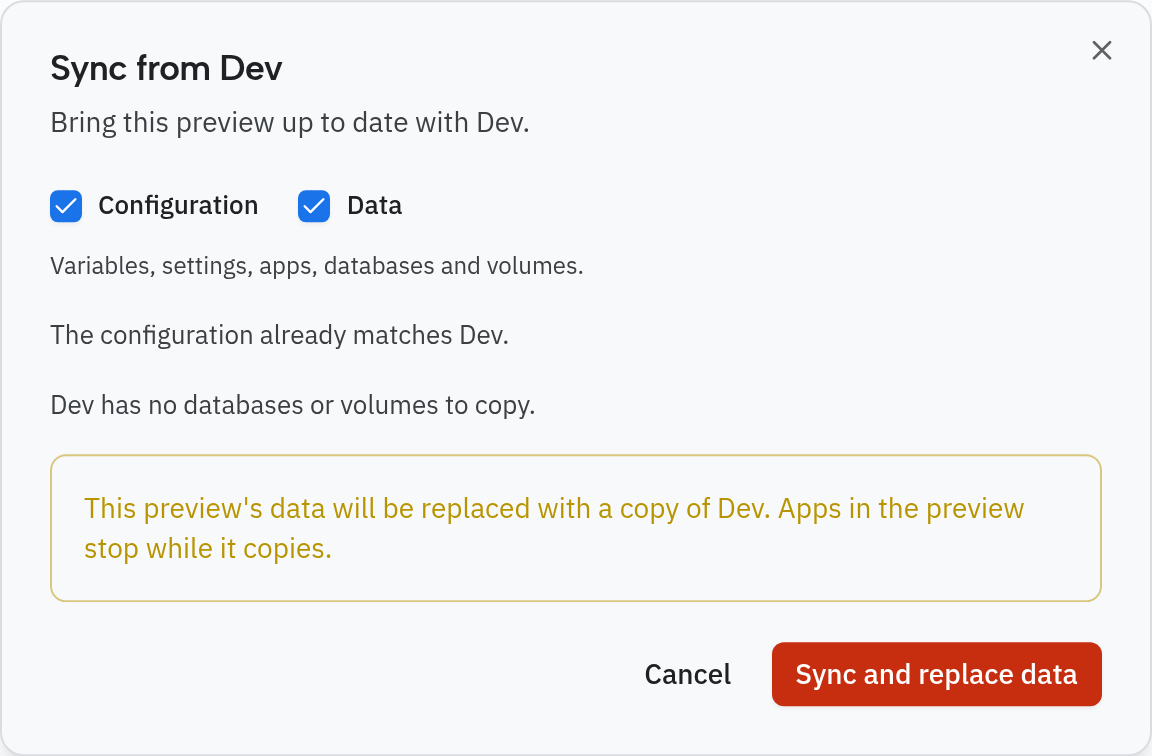
- Data: databases and volumes.
With Data ticked too, the dialog checks what can be copied; here it says "Dev has no databases or volumes to copy." It warns: "This preview's data will be replaced with a copy of Dev. Apps in the preview stop while it copies." The button becomes Sync and replace data.
Cancel closes the dialog without syncing.
Delete a preview
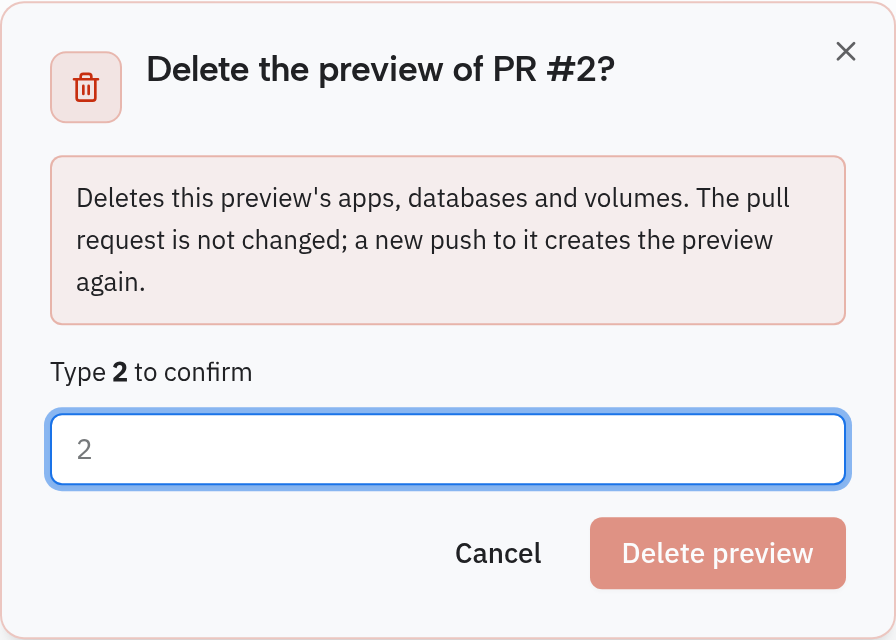
Click Delete. The dialog asks "Delete the preview of PR #2?" and warns: "Deletes this preview's apps, databases and volumes. The pull request is not changed; a new push to it creates the preview again." Type the pull request number (Type 2 to confirm) and click Delete preview. Cancel keeps the preview. In this guide the preview was removed by closing the pull request instead.
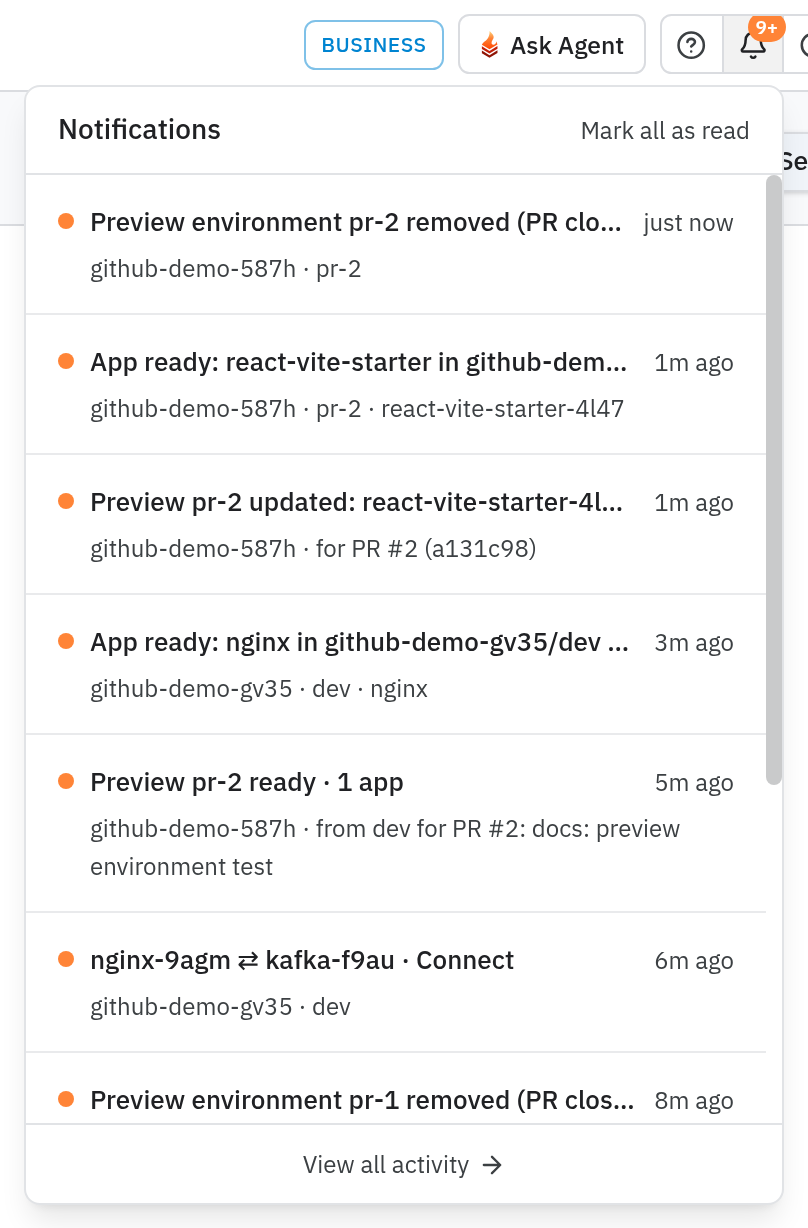
Notifications
The bell in the header gets an entry when a preview is ready, when it's updated by a push, and when it's removed. For example: Preview pr-2 ready · 1 app, Preview pr-2 updated: react-vite-starter-4l47 ready and Preview environment pr-2 removed (PR closed).
How a preview is made
Which environment it copies
The preview copies the environment whose services build from the pull request's repository and deploy its target branch. If several environments match, Production wins. If none deploys that branch, but some environment has a service on the repository, Production is copied when there is one.
What gets built
- Services that build from the pull request's repository follow its branch: they're built from the pull request and rebuilt on every push to it.
- A service whose watched files the pull request doesn't touch (for example a monorepo service whose Build path the pull request leaves alone) starts on the image it already runs, instead of building. Later pushes that do touch it rebuild it.
- Services that run an image, and services from other repositories, are plain copies.
Variables a preview adds
Each service copied into a preview gets these variables, so your code can tell it's running in one (for example to skip sending real email):
| Variable | Value |
|---|---|
STACKBLAZE_PREVIEW | true |
STACKBLAZE_PR_NUMBER | The pull request number, such as 2 |
STACKBLAZE_PR_BRANCH | The pull request's branch |
STACKBLAZE_PREVIEW_SOURCE | The service it was copied from, as project/environment/service |
Every other variable is copied as it is, unless a variable rule in Project settings says otherwise.
Pull requests that get no preview
- Pull requests from a fork never get one: their code would run with your project's variables and databases.
- Pull requests opened by a bot, unless Bot pull requests is on.
- Pull requests with the
no-previewlabel or[skip preview]in the title (or, with Only when asked for, without thepreviewlabel or[preview]).
Plans
Preview environments are part of the Pro and Business plans. See Billing.
Promote a preview
When the change looks right, you can put it live from the preview itself: on the service's Deployment tab, the release's ⋯ menu has Promote. It rebuilds the service the preview was copied from, in its own environment, from the preview's commit. See Deployments.
Good to know
- Previews are never backed up. Back up the environment they're copied from instead.
- A preview's data starts empty. Use Sync from Dev with Data to copy it.
Deployments
Every release of a service, what it changed and who made it. Redeploy, restart, cancel a rollout, or roll the configuration back to an earlier release.
Infrastructure as code
Export a project and its apps as YAML manifests, keep them in git, preview a change with plan and make it with apply.