
Backups and restore
Back up an environment's databases, restore a recovery point as a copy, check the copy and point your apps at it.
Backups are per environment. A recovery point captures the environment's databases (and its volumes, if it has any). Restoring never touches what is running: it creates a copy next to it, and you decide when your apps use the copy.
We tested this end to end: we wrote a row, backed up, wrote a second row, restored, and the copy had only the first row while the running database still had both.
Back up
Open Backup and restore
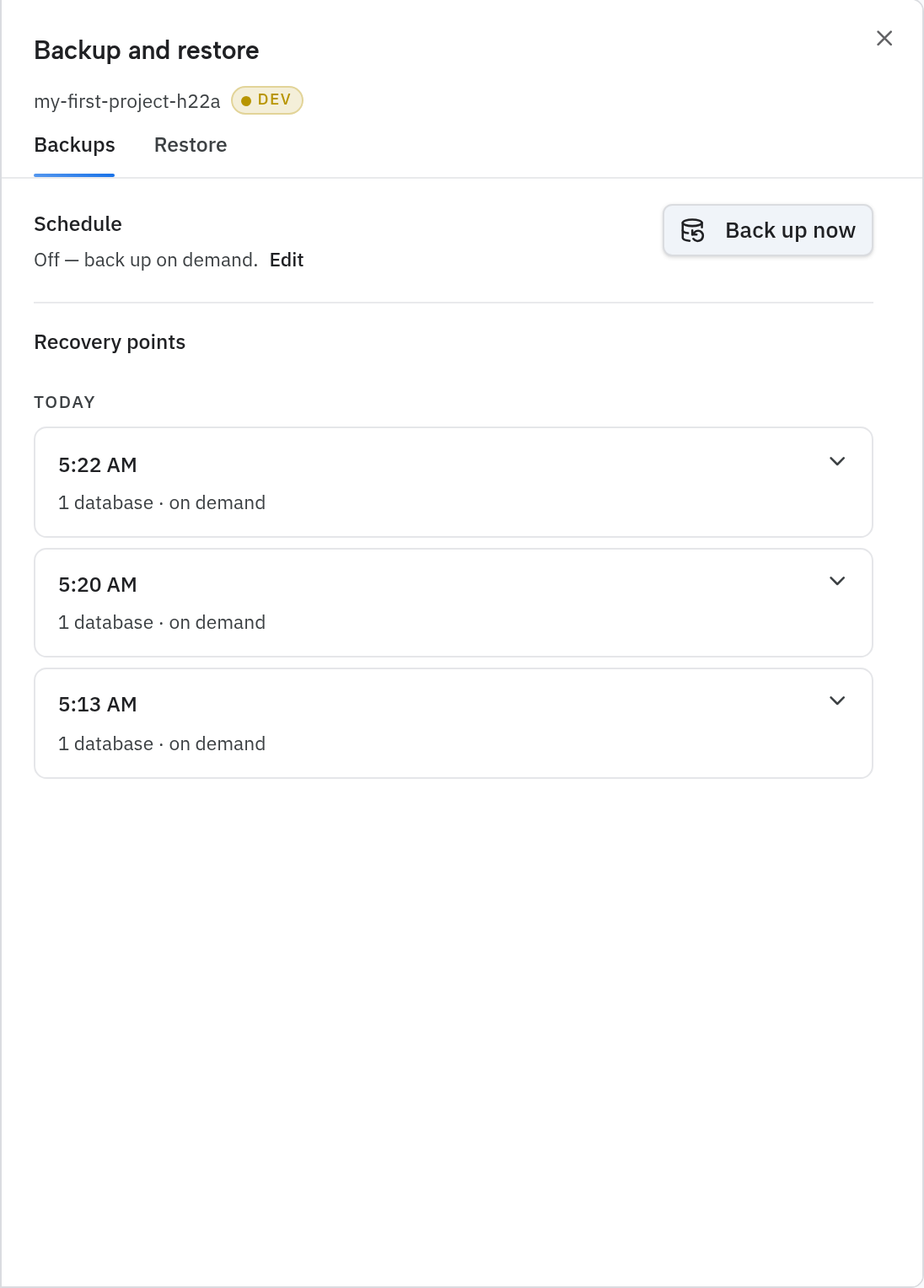
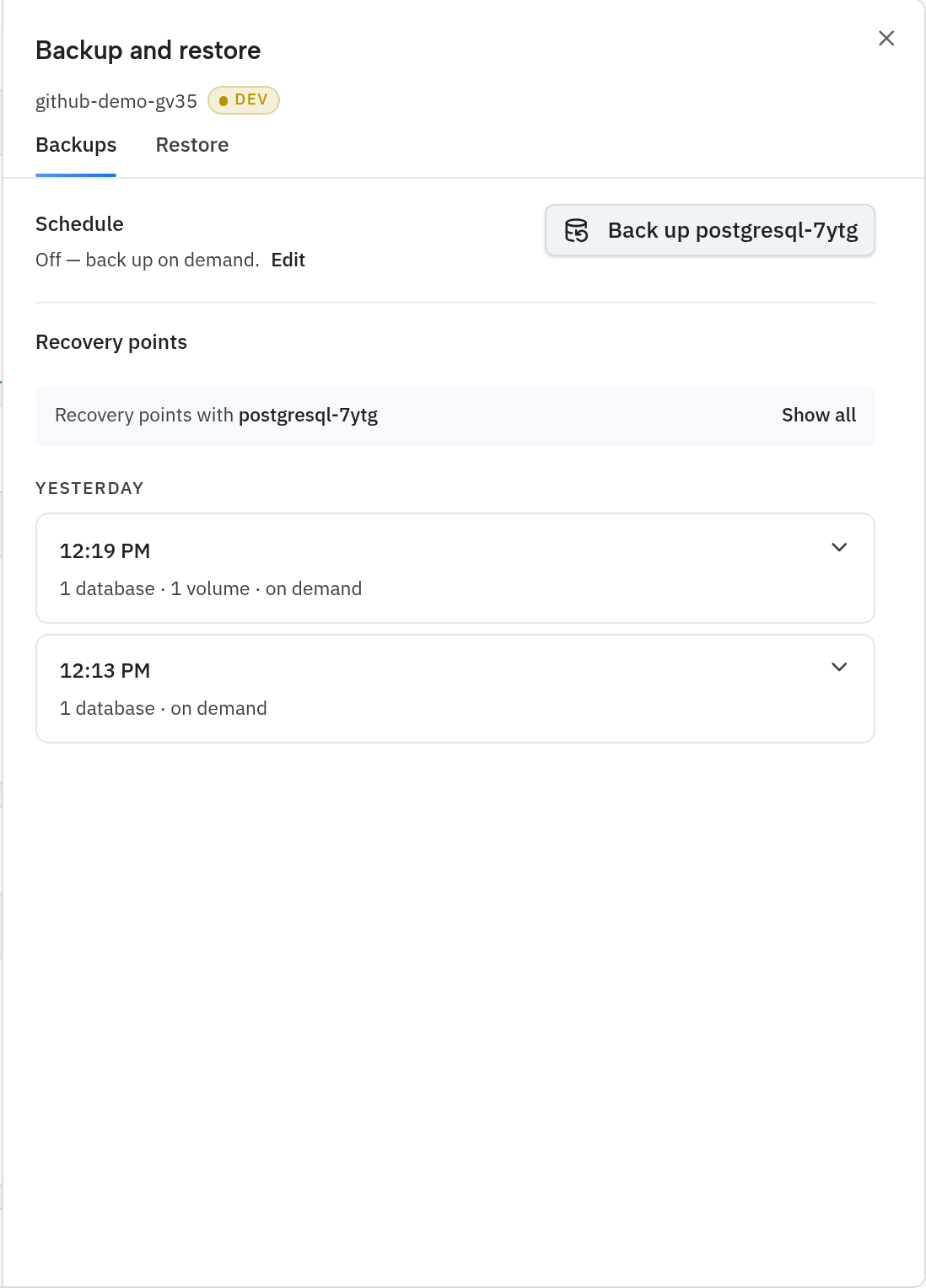
On the project canvas, click + Service, then Backups. The Backups tab shows the schedule, Back up now and the environment's recovery points.
Back up now
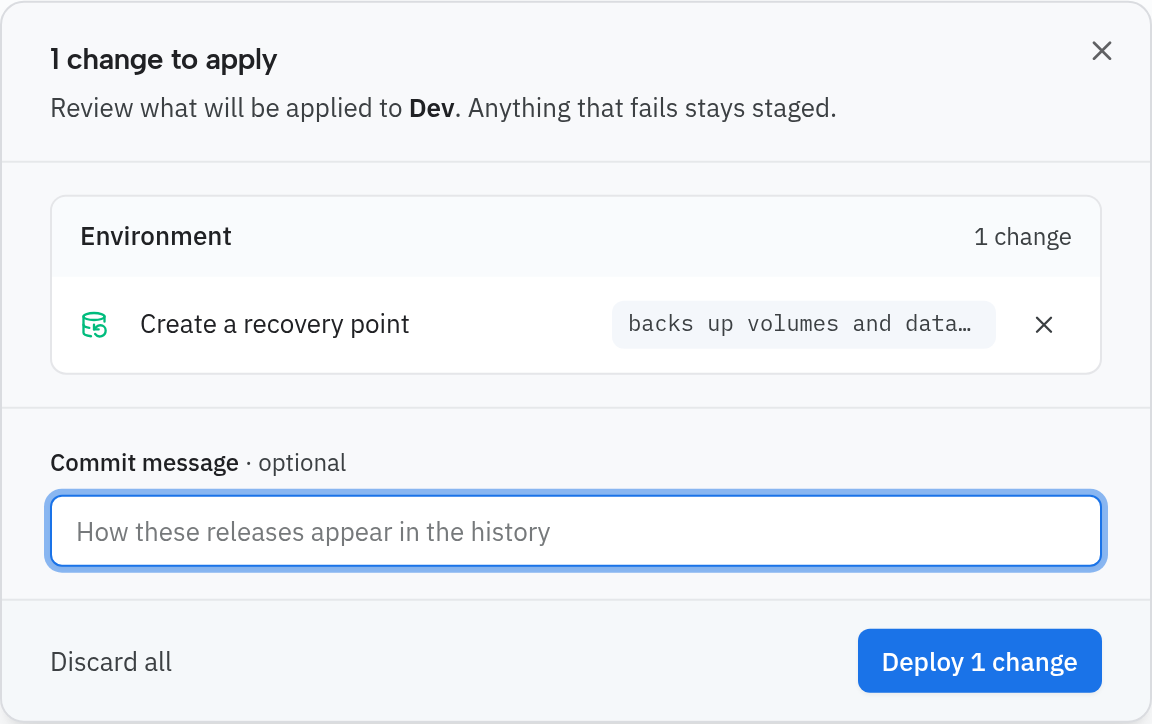
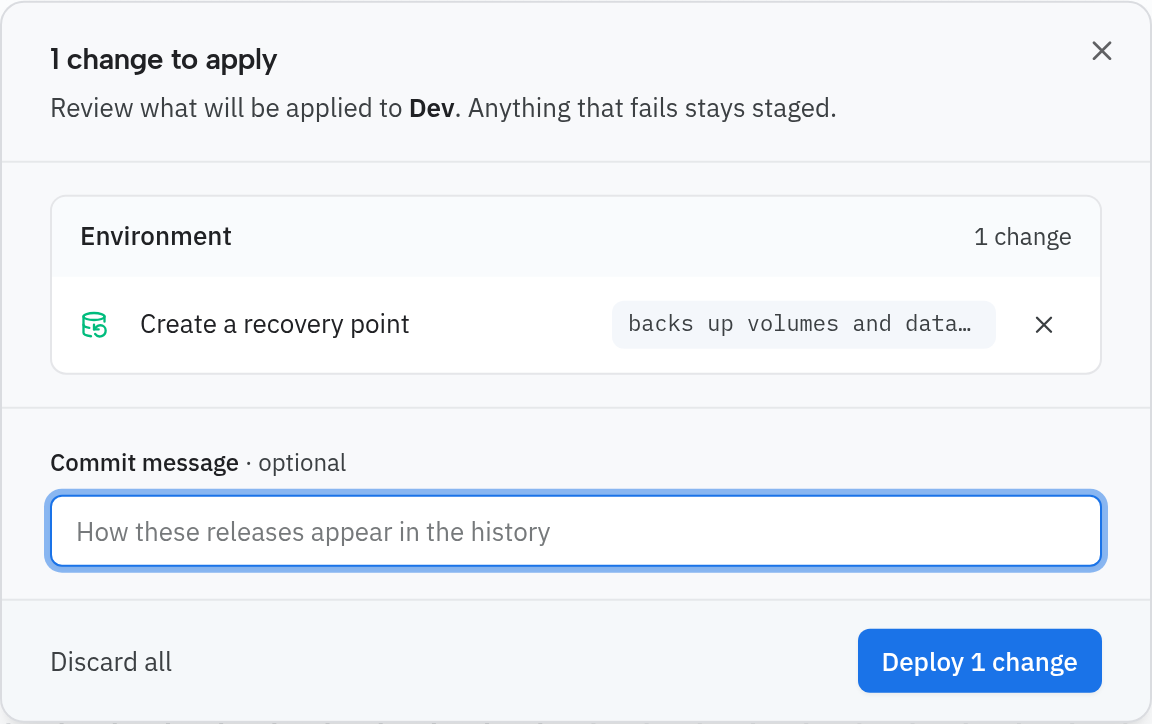
Click Back up now. Like other changes on the canvas, it is staged: click Commit 1 change. The dialog lists Create a recovery point — backs up volumes and databases. Click Deploy 1 change.
Check the recovery point
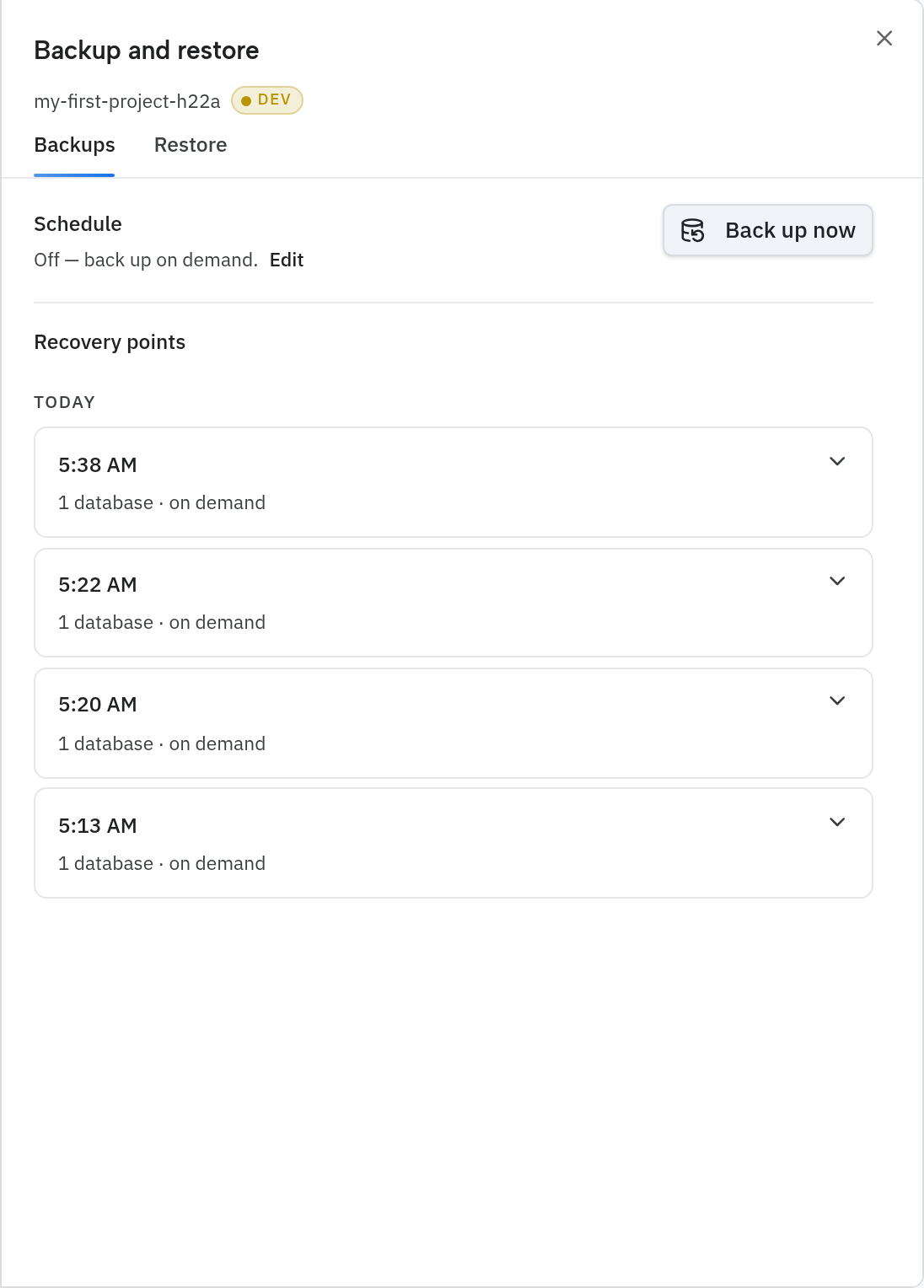
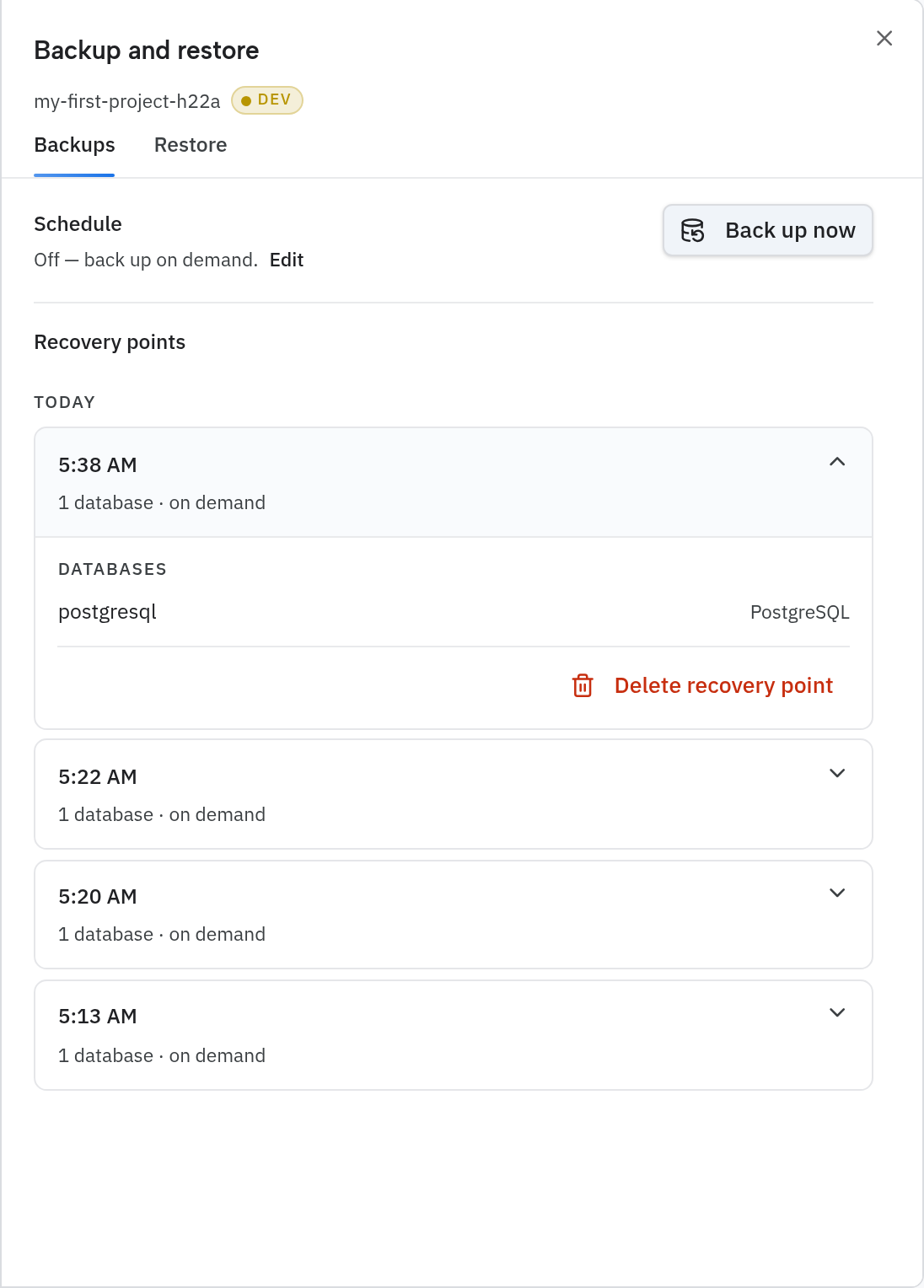
The new point appears under Recovery points, with its time and what it holds (for example 1 database · on demand). Click it to see the databases it contains.
Other ways to back up
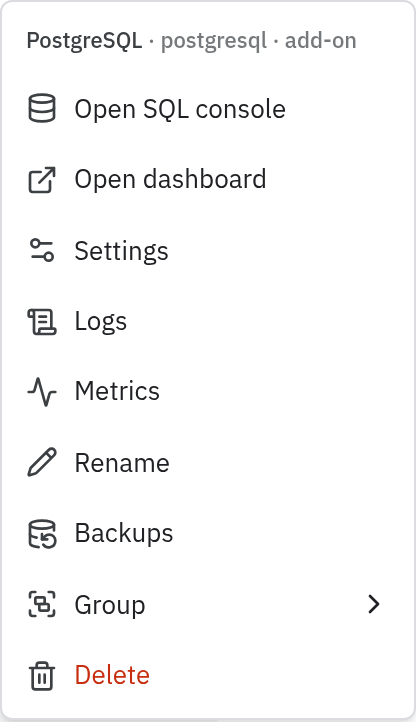
- Right-click a database card and pick Backups. The sheet opens for that database: the button reads Back up and the database's name, and Recovery points lists only the points that hold it (Show all lists every point).
- Select cards on the canvas (Shift-click) and click Backup in the selection bar. It backs up only the selected services and databases: the toast says "Backup of … staged. Commit to start it.", and the commit dialog lists Create a recovery point. The point is marked Partial and holds only what you selected.
What a recovery point holds
| In a recovery point | |
|---|---|
| PostgreSQL, MariaDB | A dump of each database, listed under Databases |
| App volumes | A copy of each volume, listed under Volumes with its app |
| Valkey, Memcached | Not listed under Databases: they have no dumps |
A point you take with Back up now is kept for 7 days, or less if your plan keeps backups for less.
Restore as a copy
Choose what to restore
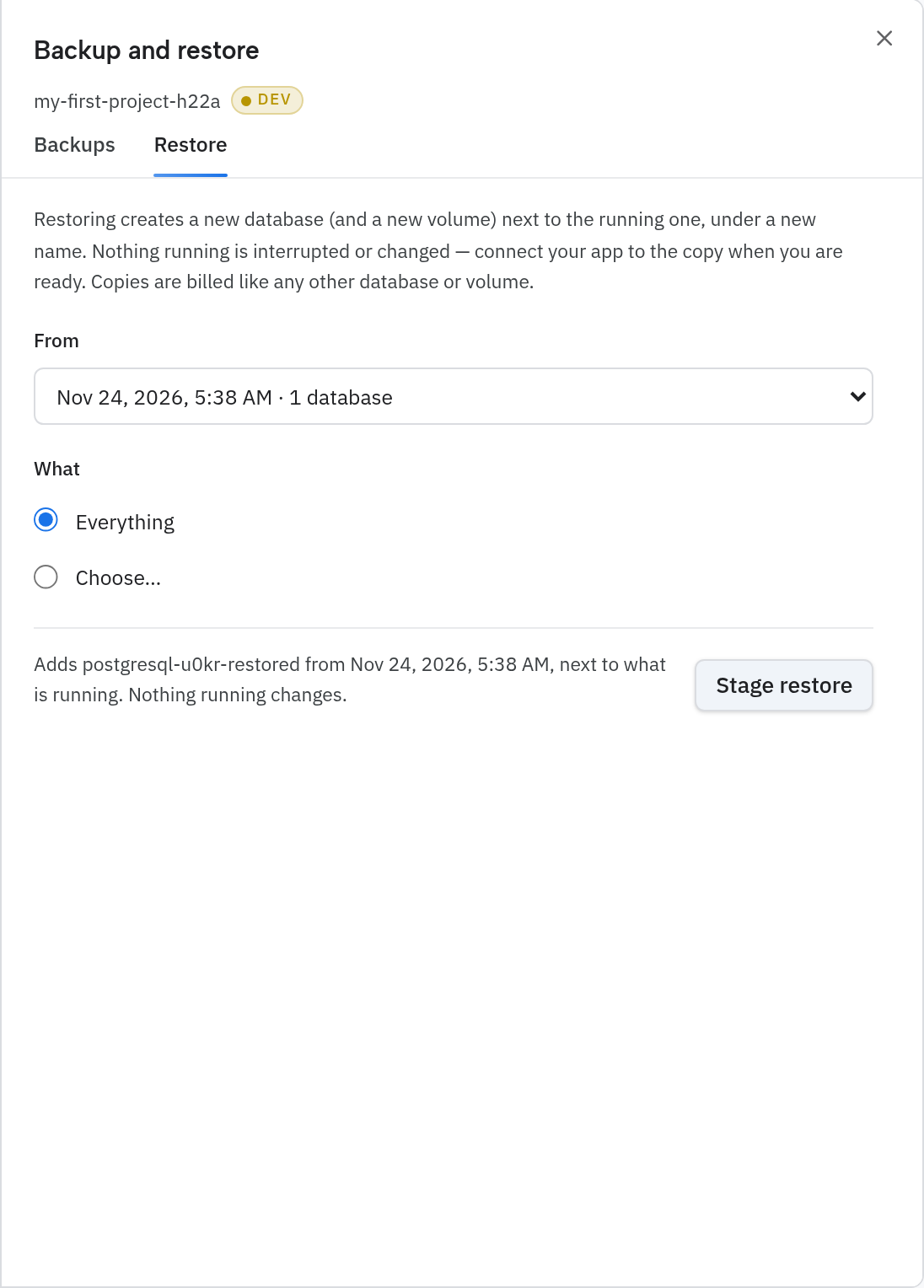
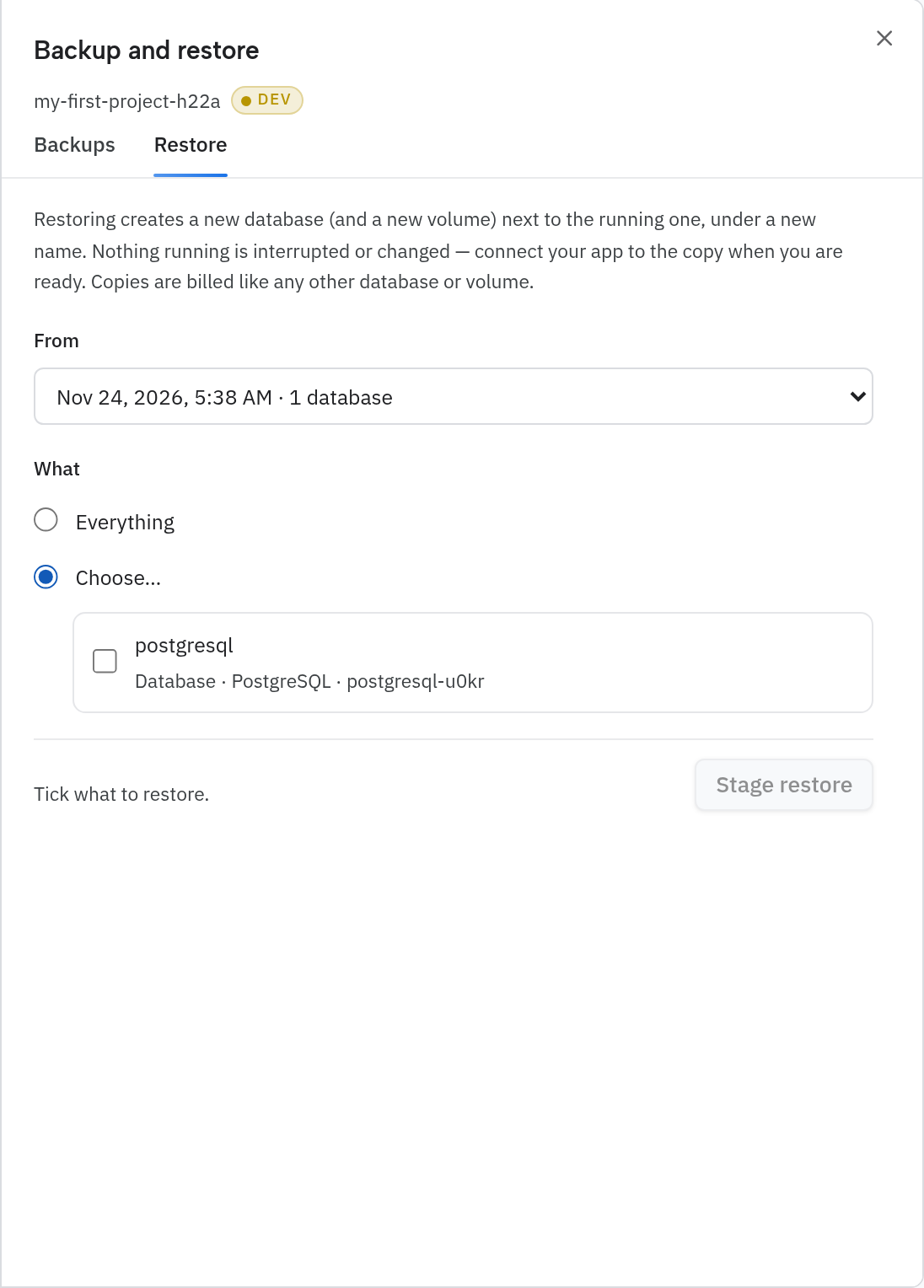
Open the Restore tab.
- From: the recovery point.
- What: Everything in it, or Choose… to tick only some databases or volumes.
The panel says what will be added: a copy next to what is running. The copy gets a new name.
Stage and deploy the restore
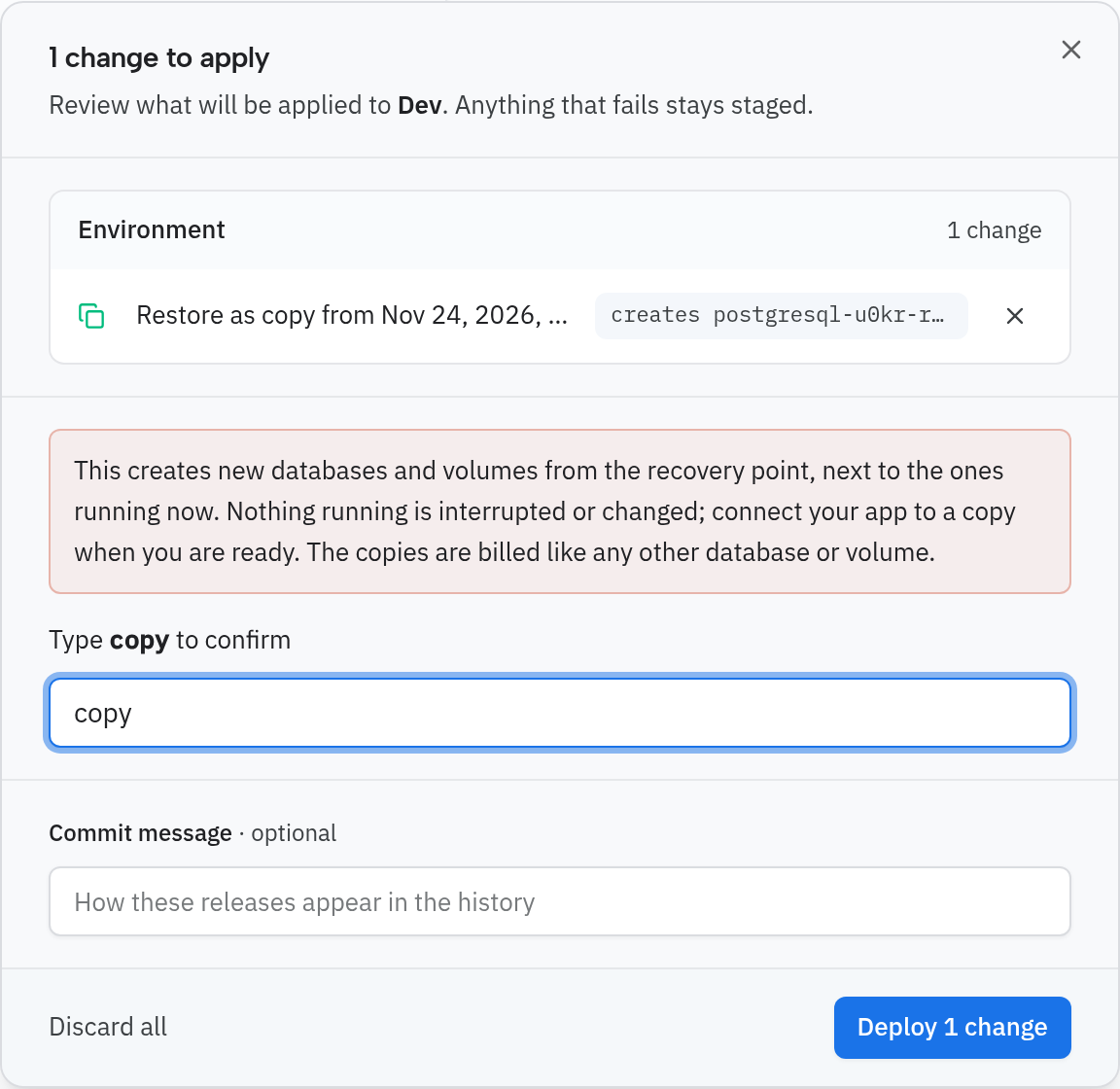
Click Stage restore, then Commit 1 change. The dialog explains that this "creates new databases and volumes from the recovery point, next to the ones running now" and that copies "are billed like any other database or volume". Type copy to confirm, then click Deploy 1 change.
Find the copy
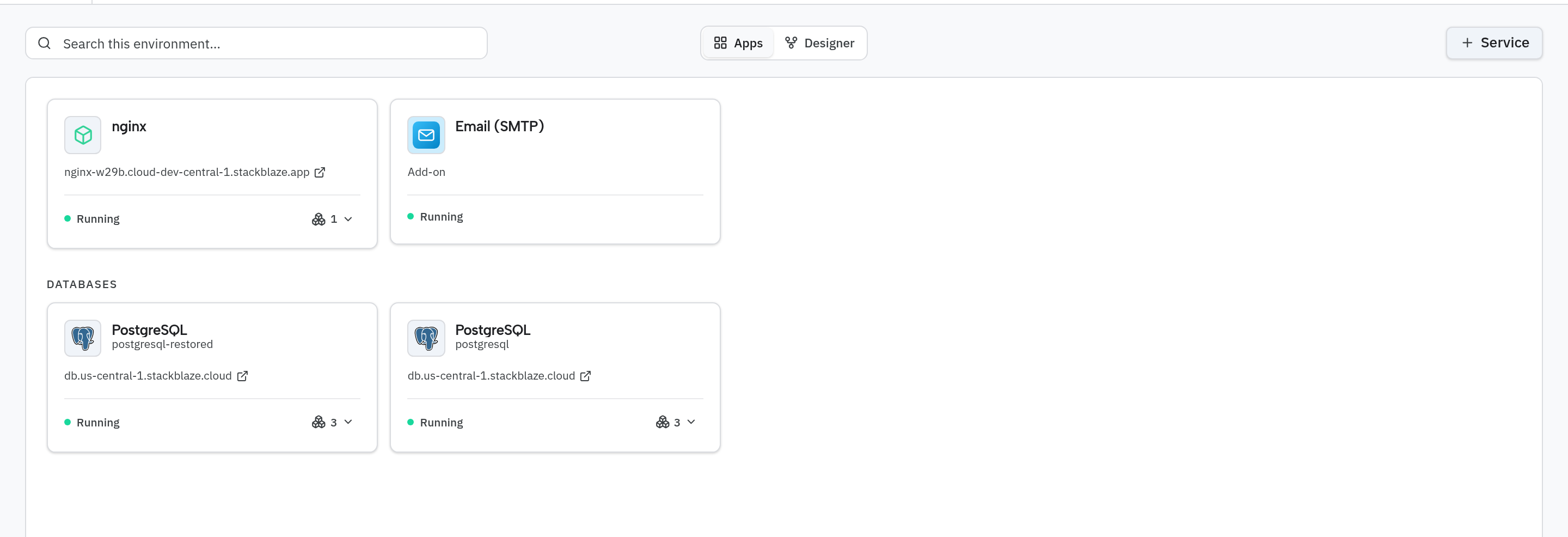
The copy appears as a second database card on the canvas. In our test it took a few minutes to be Running. It had the same size as the original: three instances (the original had high availability on) and 10 GiB of storage.
Check the data
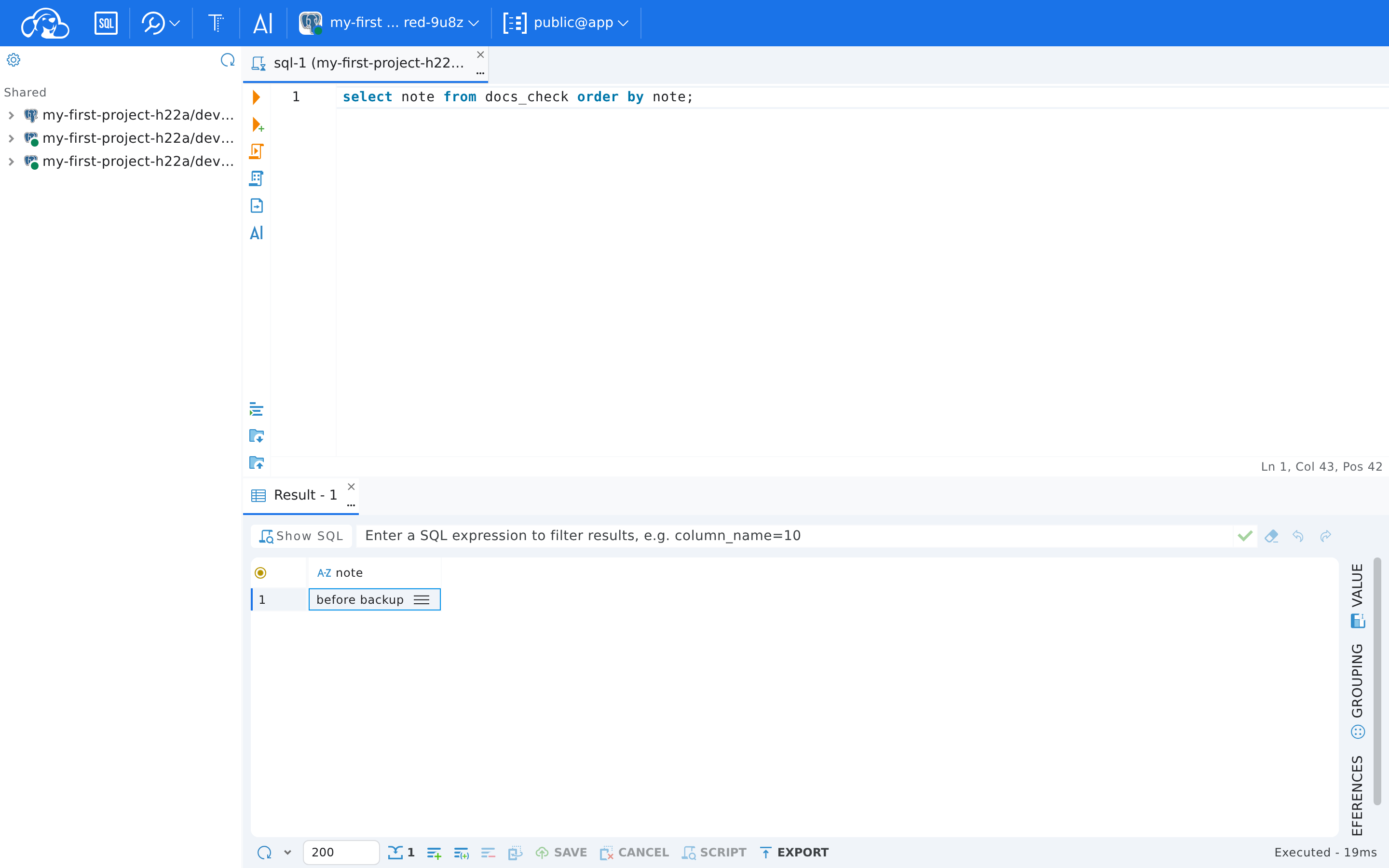
Open the copy's SQL console from its card and query it. Ours had the row written before the backup, and not the one written after.
Point your apps at the copy
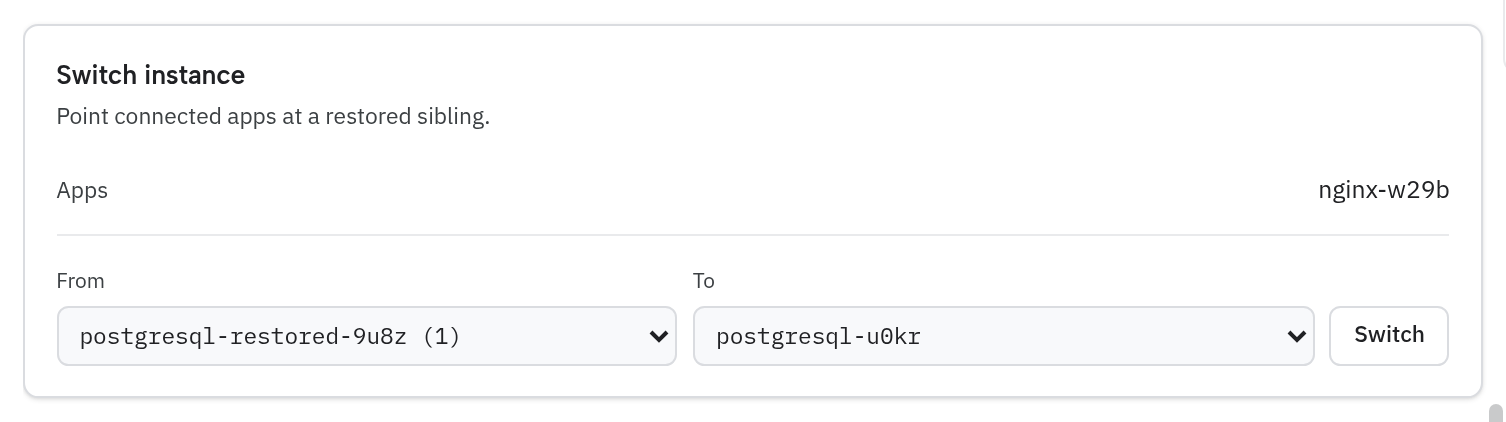
In the running database's Settings, Switch instance moves every app connected to one database onto another. Apps lists the apps connected now.
Choose From (the database your apps use now; the number in brackets is how many apps are connected) and To (the copy), then click Switch.
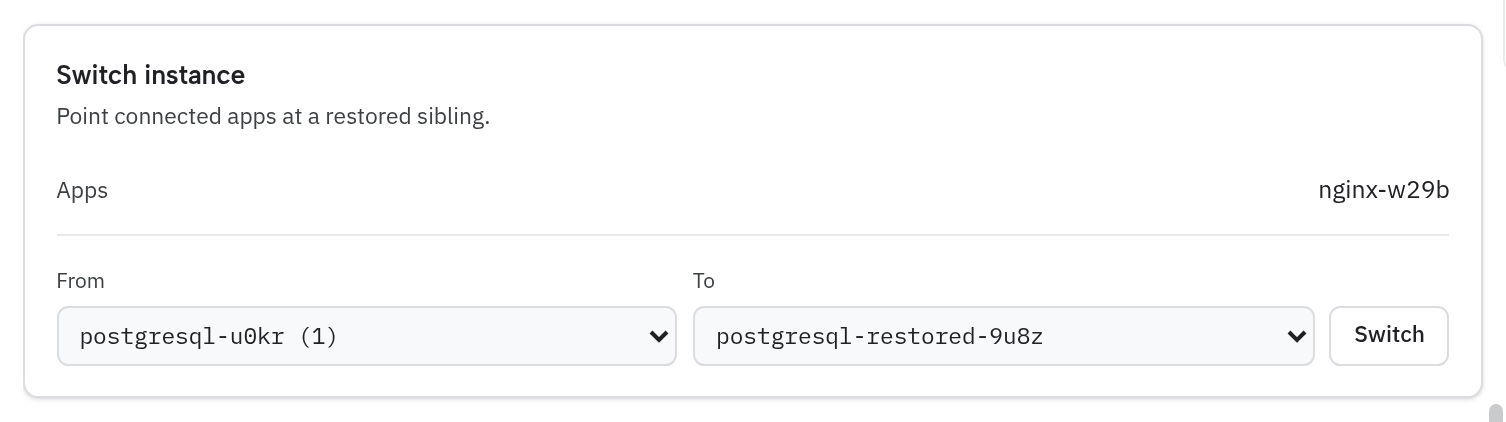
The dashboard confirms with "Pointed 1 app(s) from … to …", and the app now uses the copy. To go back, switch the other way.
Restore a deleted database
When you delete a database, its dumps are kept. On the Restore tab, Deleted databases (n) lists them: "Dumps kept after a database was deleted." Each row shows the database, its engine, how many dumps are kept and the latest.
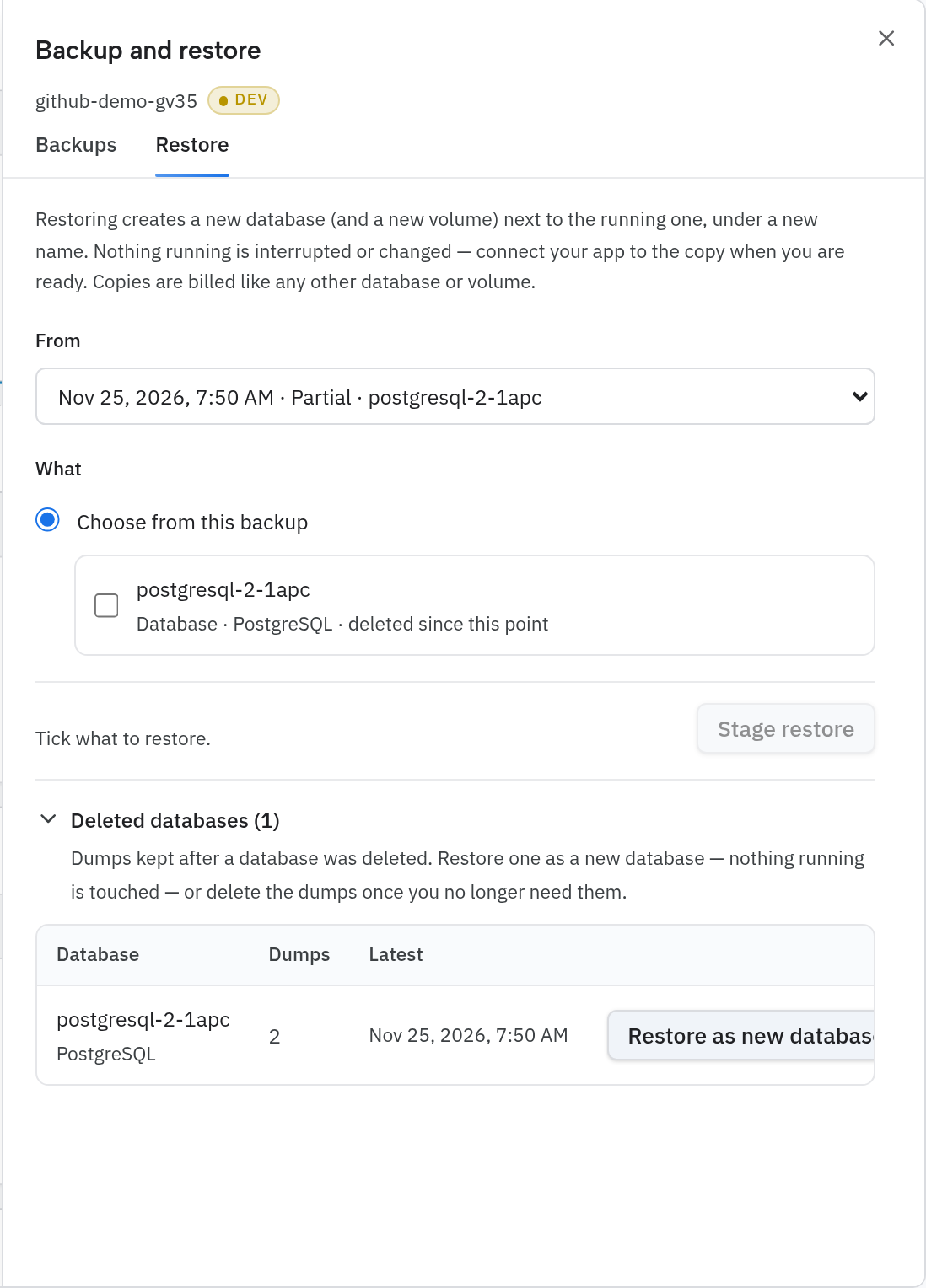
A recovery point taken before the deletion also still offers the database, marked deleted since this point.
Restore as new database
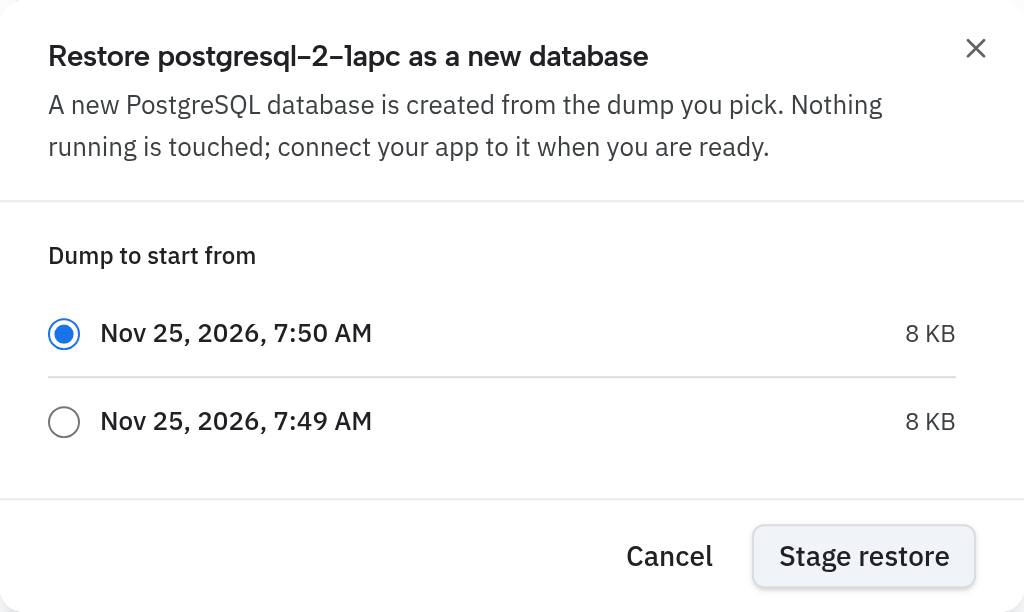
Click Restore as new database and pick the Dump to start from. Click Stage restore. The toast names the new database ("Restore staged. Commit to create postgresql-2-1apc-restored.").
Commit and deploy
Click Commit 1 change. The row reads Restore … as a new database ("creates … from the dump of …; nothing running changes"). Type copy to confirm and click Deploy 1 change.
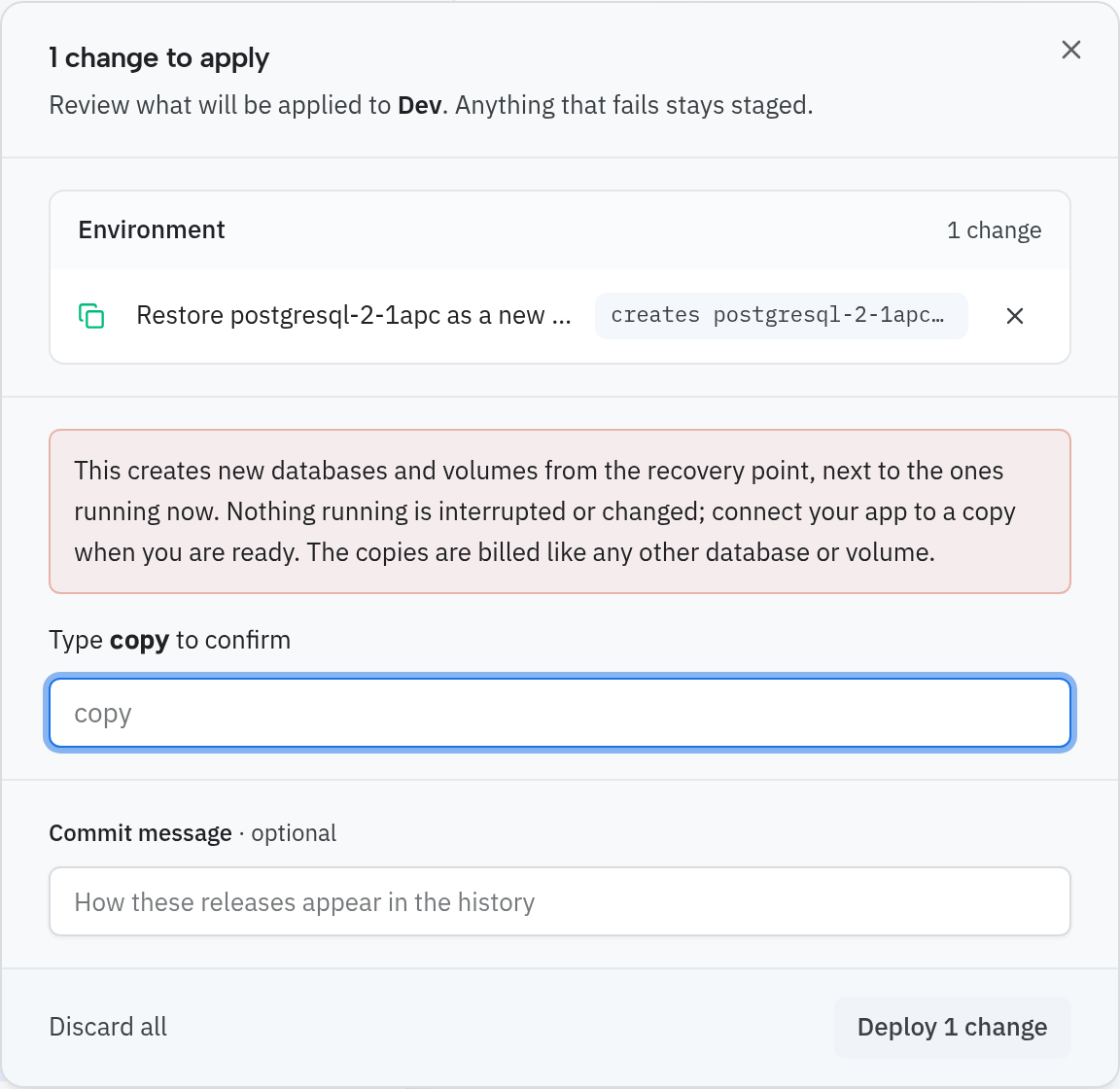
In our test the new database appeared with a short suffix after the name shown in the toast (postgresql-2-1apc-restored-ta46), and it held the deleted database's tables.
The bin icon on the row deletes all the kept dumps of that database. They count toward your backup storage until you delete them.
Delete a recovery point
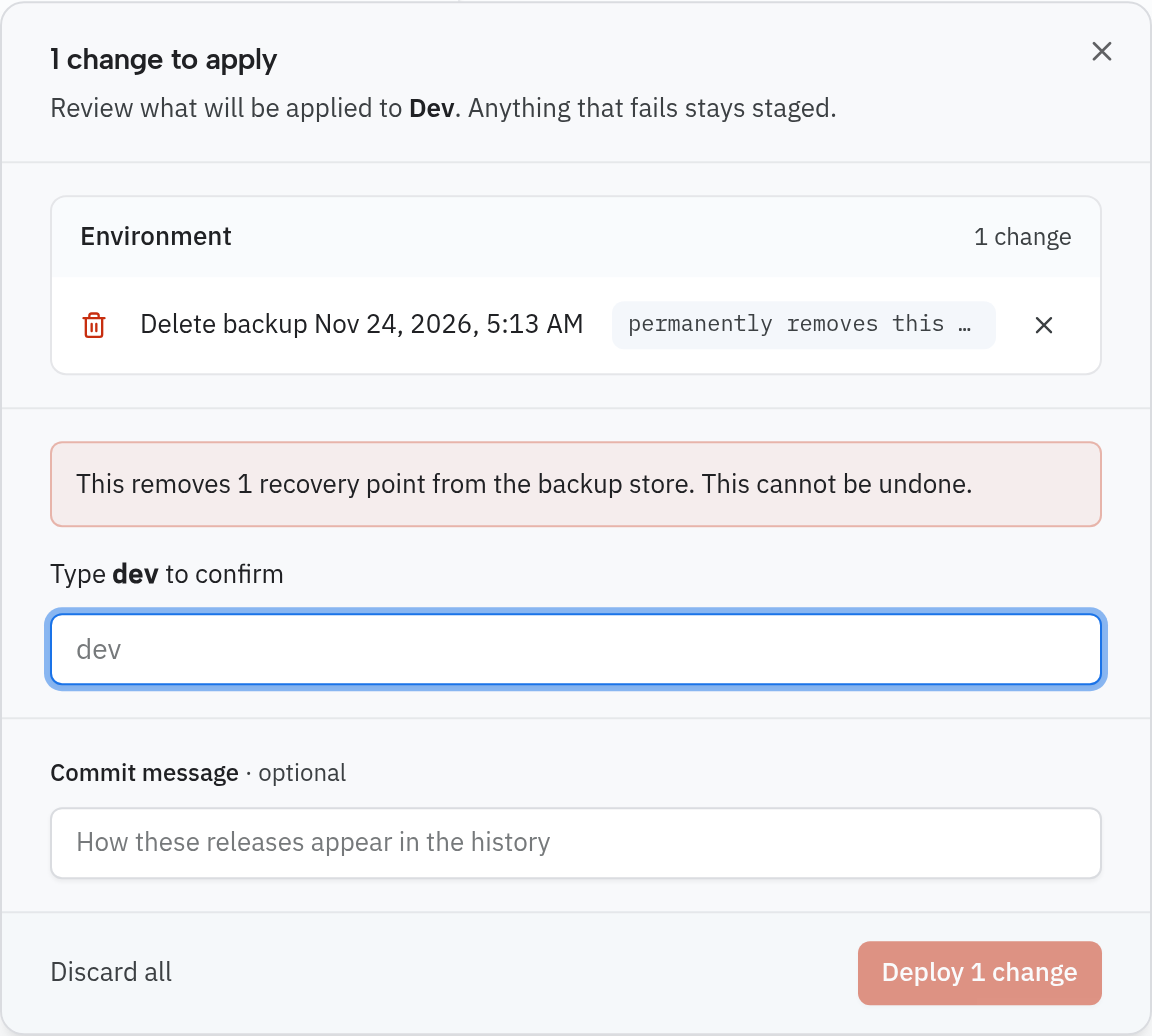
Open the point and click Delete recovery point. The deletion is staged: Commit 1 change shows Delete backup with the point's time, and warns that "This removes 1 recovery point from the backup store. This cannot be undone." Type the environment's name (for example dev) to confirm and click Deploy 1 change.
Plan limits
- Your plan caps how long backups are kept: 7 days on Developer, 14 on Pro and 30 on Business (see Billing). A longer retention you choose is saved as your plan's maximum.
- The Free Trial has no backups. Turning a schedule on, or Back up now, is refused with "Database backups are not included in the … plan. Upgrade to turn backups on."
- Backups are never turned on for you. Nothing is backed up until you turn on a schedule or click Back up now.
Restores from the dashboard and the CLI always create a copy. They never write over a running database.
From the CLI
The whole environment (stackblaze backups):
stackblaze backups create --wait -p shop -e dev                 # back up now
stackblaze backups create --only postgresql-2-1apc --wait -p shop -e dev   # a partial point
stackblaze backups list -p shop -e dev
stackblaze backups show <id> -p shop -e dev                     # what a point holds
stackblaze backups restore <id> --database <name> --wait -p shop -e dev
stackblaze backups delete <id> -p shop -e dev
stackblaze backups schedule -p shop -e dev # read onlyBackup manual-github-demo-gv35-dev-1795593018023 started — waiting for it to finish…
backup manual-github-demo-gv35-dev-1795593018023 → InProgress
backup manual-github-demo-gv35-dev-1795593018023 → saving databases
backup manual-github-demo-gv35-dev-1795593018023 → Completed
OK Backup manual-github-demo-gv35-dev-1795593018023 completed (partial: postgresql-2-1apc)One PostgreSQL or MariaDB database (stackblaze addons backups), through an app connected to it:
stackblaze addons backups status postgresql-u0kr -p shop -e dev -a web
stackblaze addons backups list postgresql-u0kr -p shop -e dev -a web
stackblaze addons backups restore postgresql-u0kr --backup <name> --wait -p shop -e dev -a web
status says whether scheduled backups are on, the last dump and how many are kept. list shows each dump with the recovery point it belongs to. restore creates a new database named <database>-restored. For Valkey, these commands answer "Per-database dumps are not available for Valkey add-ons". The CLI never turns on a schedule; set it in the dashboard.
Point-in-time recovery (PostgreSQL, API only)
Point-in-time recovery restores one PostgreSQL database as it was at a moment you choose, into a new database. It is turned on per database, and today only through the API, with stackblaze api or an API token. There is no dashboard control. It needs a plan with backups, and it isn't available in preview environments or for MariaDB and Valkey.
Once it is on, the database's changes are archived continuously, with a full base backup every day at 02:00 UTC. You choose how long the archive is kept: 7, 14 or 28 days, capped by your plan (Developer offers 7, Pro 7 or 14).
Read the state of a database (a read; it changes nothing). The answer below is trimmed:
stackblaze api GET /api/pipelines/<project>/<env>/backups/db/<database>/pitr{
"instance": "postgresql-7ytg",
"available": true,
"unavailableReason": null,
"enabled": false,
"retentionDays": null,
"retentionChoices": [7, 14, 28],
"maxRetentionDays": 30,
"firstRecoverableTime": null,
"lastRecoverableTime": null,
"lastBaseBackupTime": null,
"restores": []
}- Turn it on:
PUTthe same path with{"enabled": true, "retentionDays": 7}. Turn it off with{"enabled": false}: the archive is then kept for its retention (archiveKeptUntil). - Restore:
POST …/backups/db/<database>/restore-pitrwith{"targetTime": "2026-11-25T08:00:00Z"}, a UTC time betweenfirstRecoverableTimeand now. The new database is named after the original with-pitr. Until the first base backup has finished there is nothing to restore from.
Then move your apps onto the new database with Switch instance.