
Plans
Compare the plans, upgrade, downgrade, cancel a scheduled downgrade, the Free Trial, and cancel your subscription.
Your organization's plan sets its included usage and limits. You change it on Billing, under Administration in the sidebar. Upgrades apply right away; downgrades and cancellations at the end of the billing period.
Current plan
The Current plan card shows the plan's name and price, for example Business $499/mo, and when the included usage starts again: "Included usage resets on Dec 11 (17 days left)".
From here you can open Change plan or Cancel subscription. On the Free Trial the button reads Upgrade, or Choose a plan once the trial has expired.
While a downgrade is scheduled, the card says so, for example "Downgrading to Pro on December 1, 2026.", with Cancel next to it (see Cancel a scheduled downgrade). After you cancel the subscription, it says "Your subscription ends on" the date and "You keep" the plan "until then.", with Keep my plan.
Change plan
Click Change plan. The window opens with "Compare plans and change anytime. Upgrades apply immediately; downgrades at period end." It shows one plan at a time: its name, what it's for, a price picker, Monthly and Annual, and What's included:. On the right it says what changing to that plan does.
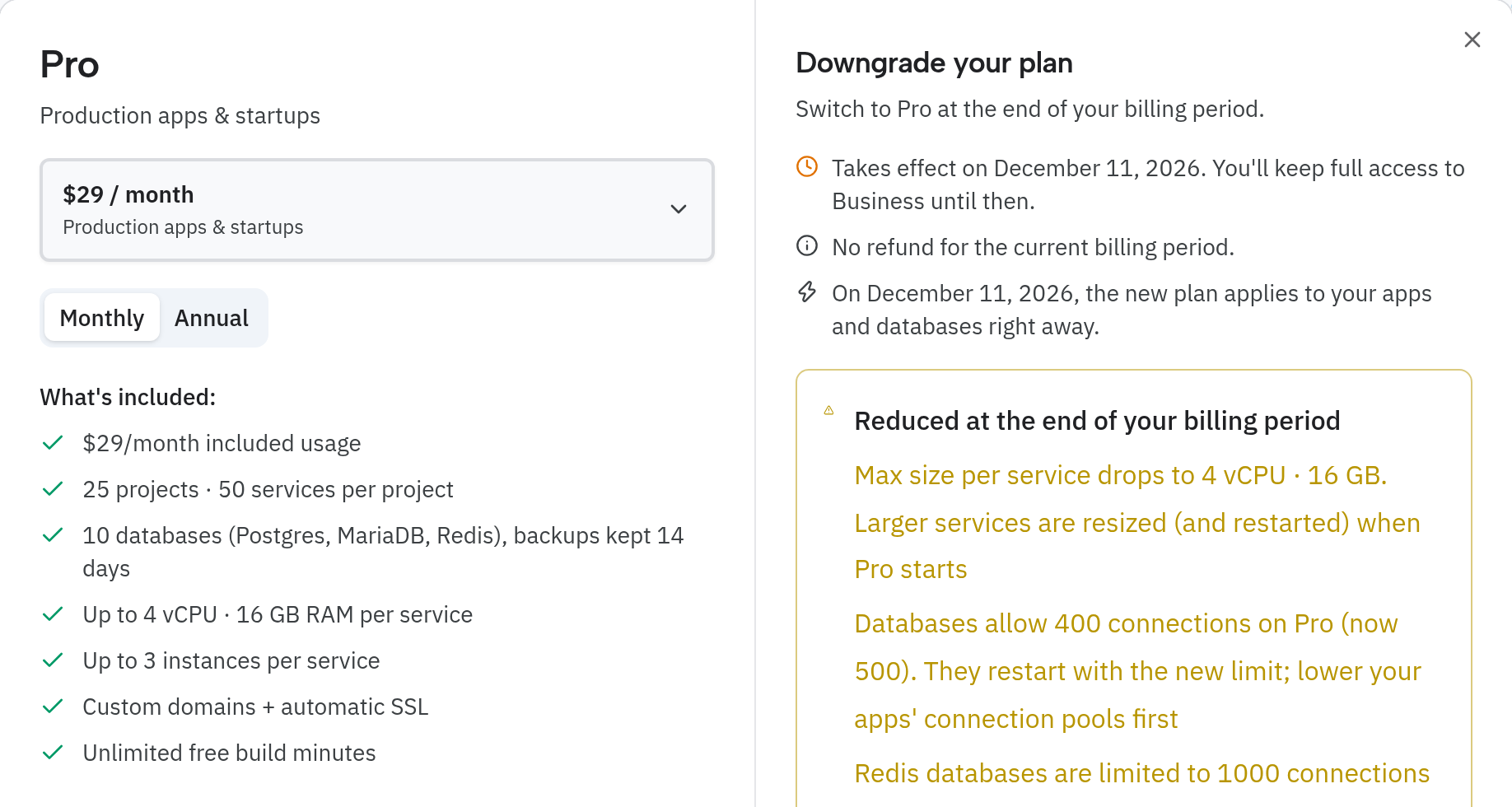
Open the picker to see the plans you can switch to, listed under Cloud ("Organizations and shared hosting"). Your current plan isn't listed. Each row shows the price and what the plan is for.
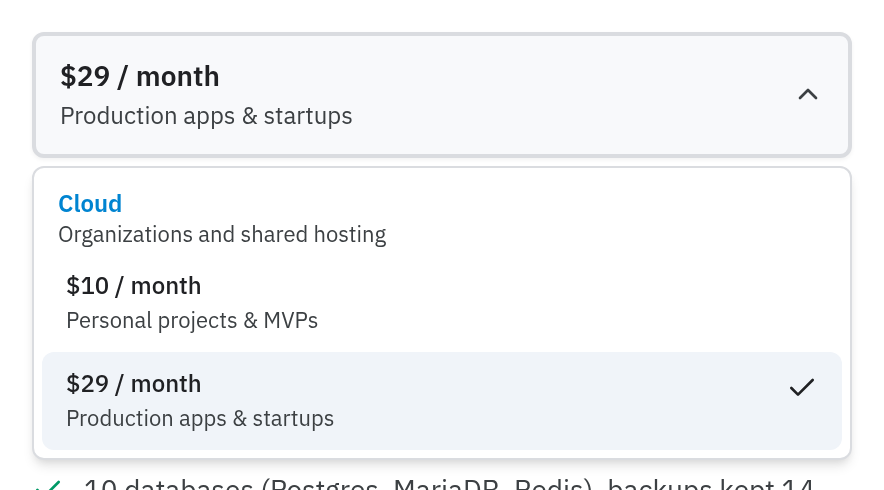
Click Annual to see the yearly price. It's billed once a year, up front, and saves 20%: the picker reads, for example, $278.40 / year and "$23.20/mo billed annually · save 20%".
Upgrade
Pick a higher plan in the picker. The right side reads Upgrade your plan and lists what happens:
- "Your new limits apply right away. Nothing that is running is restarted."
- "You'll be charged a prorated amount today for the remainder of this billing period."
The card you pay with is shown, "Charged for this upgrade". To pay with another card, click Change and enter the new card; Use saved card instead goes back to the saved one.
Click Confirm upgrade for the price, for example Confirm upgrade for $29/month. If your bank asks you to confirm the payment, it opens its confirmation step; the upgrade completes once you approve it. If the payment can't go through, the window shows why and nothing changes.
When it's done, the window shows Plan updated and "You're on" the new plan, with Plan active now. If your services were paused, it adds Your apps are starting: "Anything that was paused is coming back online." Click Done to close it.
From the Free Trial
On the Free Trial, click Upgrade (or Choose a plan after the trial has ended). The window reads "Choose a paid plan to unlock more templates and deploy heavier apps." There is no saved card yet, so you enter one in the window, then click Subscribe for the price, for example Subscribe for $10/month, or Subscribe for $96/year on Annual. Choosing a plan brings stopped services back.
When a feature needs a higher plan
Some screens open the same window when what you tried needs a higher plan, for example "Upgrade your plan to unlock this.", "Pick a plan to bring your apps back online." or "Want to deploy Ghost? Upgrade your plan to unlock this template." The window then picks "the lowest plan that includes this" for you (Selected for you). You can still pick another plan.
The plans
These are the self-serve plans and what What's included: lists for each.
| Developer | Pro | Business | |
|---|---|---|---|
| For | Personal projects & MVPs | Production apps & startups | Growing teams & agencies |
| Monthly | $10 / month | $29 / month | $499 / month |
| Annual | $96 / year ($8/mo) | $278.40 / year ($23.20/mo) | $4,790.40 / year ($399.20/mo) |
| Included usage | $10/month | $29/month | $499/month |
| Projects | 5 | 25 | 100 |
| Services per project | 20 | 50 | 200 |
| Databases (Postgres, MariaDB, Redis) | 2 | 10 | 30 |
| Backups kept | 7 days | 14 days | 30 days |
| Size per service | Up to 2 vCPU · 4 GB RAM | Up to 4 vCPU · 16 GB RAM | Up to 8 vCPU · 32 GB RAM |
| Instances per service | 1 | Up to 3 | Up to 10 |
| Environments per project | 2 | 5 | 10 |
| Team members | 1 | 5 | 20 |
| Regions | 1 | 3 | 3 |
Every plan includes custom domains with automatic SSL and unlimited free build minutes. The plan price comes back as included usage: what your apps use is counted against it first (see Usage).
Every plan, the Free Trial included, can add any add-on and deploy any template the platform offers. Plans differ only in the limits on this page. A template that needs more than your plan allows, such as more services or databases, or a bigger service than Size per service, is refused before anything is created.
The last three rows are the limits the Plan limits card on Usage counts against.
Size per service is the most one service can use in total. A service with more than one instance splits it: each instance gets an equal share. A helper container that runs inside an instance, such as the private-network proxy, takes its part from that instance's share, and the app container always keeps at least 60% of it. Each run of a scheduled task gets the size of one instance, and runs of the same task never overlap.
Other limits
Each plan also sets these limits:
| Free Trial | Developer | Pro | Business | |
|---|---|---|---|---|
| Builds at the same time | 1 | 2 | 5 | 10 |
| Build timeout | 10 minutes | 30 minutes | 60 minutes | 90 minutes |
| Log retention | 1 day | 3 days | 14 days | 30 days |
| Connections per database | 100 | 200 | 400 | 500 |
| Connections per Valkey database | 50 | 200 | 1,000 | 2,000 |
| Database backups | No | Yes | Yes | Yes |
| Highly available databases | No | No | Yes | Yes |
| Preview environments | No | No | Yes | Yes |
| AI agents | No | Yes | Yes | Yes |
| AI models | No | 3 | 3 | 10 |
| Single sign-on, tracing, security scans, advanced networking | No | No | No | Yes |
A build over the limit isn't queued: it's refused, and you can start it again once a build finishes (see Deploy from CI).
The Free Trial
A new account's first organization can start on the Free trial: "7 days or $3 of usage · no credit card". The trial is once per account; another organization needs a paid plan from the start.
During the trial, the organization has:
| Free Trial | |
|---|---|
| Size per service | Up to 0.5 vCPU · 1 GB RAM |
| Projects | 1 |
| Services per project | 3 |
| Environments per project | 1 |
| Instances per service | 1 |
| Databases | 2, each with a fixed 1 GiB of storage |
| Valkey memory | 25 MiB |
| Emails | 100 a day |
| Outbound data included | 5 GB |
| Team members | 1 |
| Regions | 1 |
The Current plan card shows Free trial and "Pick a plan before" the end date "to keep services online", with Upgrade. When the 7 days are over or the $3 is used up, whichever comes first, the services are stopped and new deploys are refused. The card then shows Trial expired and Choose a plan. Apps and data are kept for 30 days, then deleted unless you choose a plan; choosing one brings the services back.
Downgrade
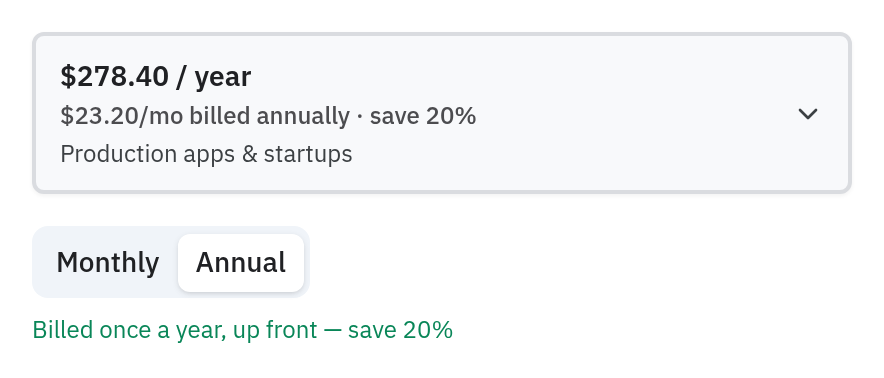
Picking a lower plan shows Downgrade your plan: "Switch to Pro at the end of your billing period." The window lists:
- "Takes effect on" the date, and "You'll keep full access to" your current plan "until then."
- "No refund for the current billing period."
- "On" that date, "the new plan applies to your apps and databases right away."
- Any database that restarts for the new limits, for example "Database pg restarts once on December 1, 2026."
The button reads Schedule downgrade. Nothing changes until the date shown.
Before a downgrade, the window checks what you run against the lower plan and lists what changes:
- Reduced at the end of your billing period: for example, a smaller maximum size per service (larger services are resized and restarted), fewer database connections, or Redis connection limits. Databases restart with the new limits.
- Over the new plan: keeps running, but you can't add more: for example, "Your workspace has 11 databases; Pro includes 10."
- Not included in the new plan: for example, backups kept for fewer days. Existing schedules keep their retention until you save them again.
To leave without changing anything, close the window with ×.
Cancel a scheduled downgrade
Until the date, the Current plan card shows "Downgrading to" the plan "on" the date. Click Cancel next to it to keep your current plan. Nothing is charged or changed.
Cancel subscription
Click Cancel subscription under Change plan on Billing. The confirmation explains what happens.
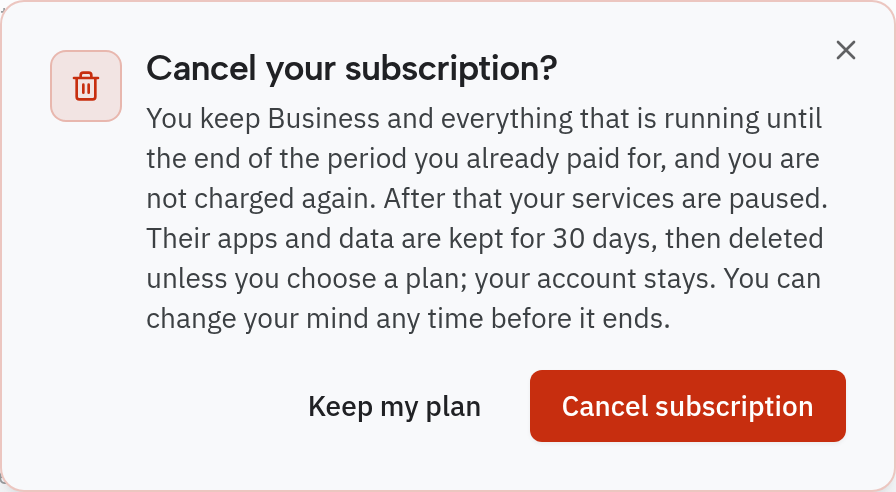
You keep your plan and everything running until the end of the period you already paid for, and you aren't charged again. After that your services are paused. Their apps and data are kept for 30 days, then deleted unless you choose a plan. Your account stays.
Click Keep my plan to close it without cancelling. After you cancel, Keep my plan stays on the Current plan card until the end date, so you can undo it.