
Visibility and access
Make a service public, internal to the project, or a background worker.
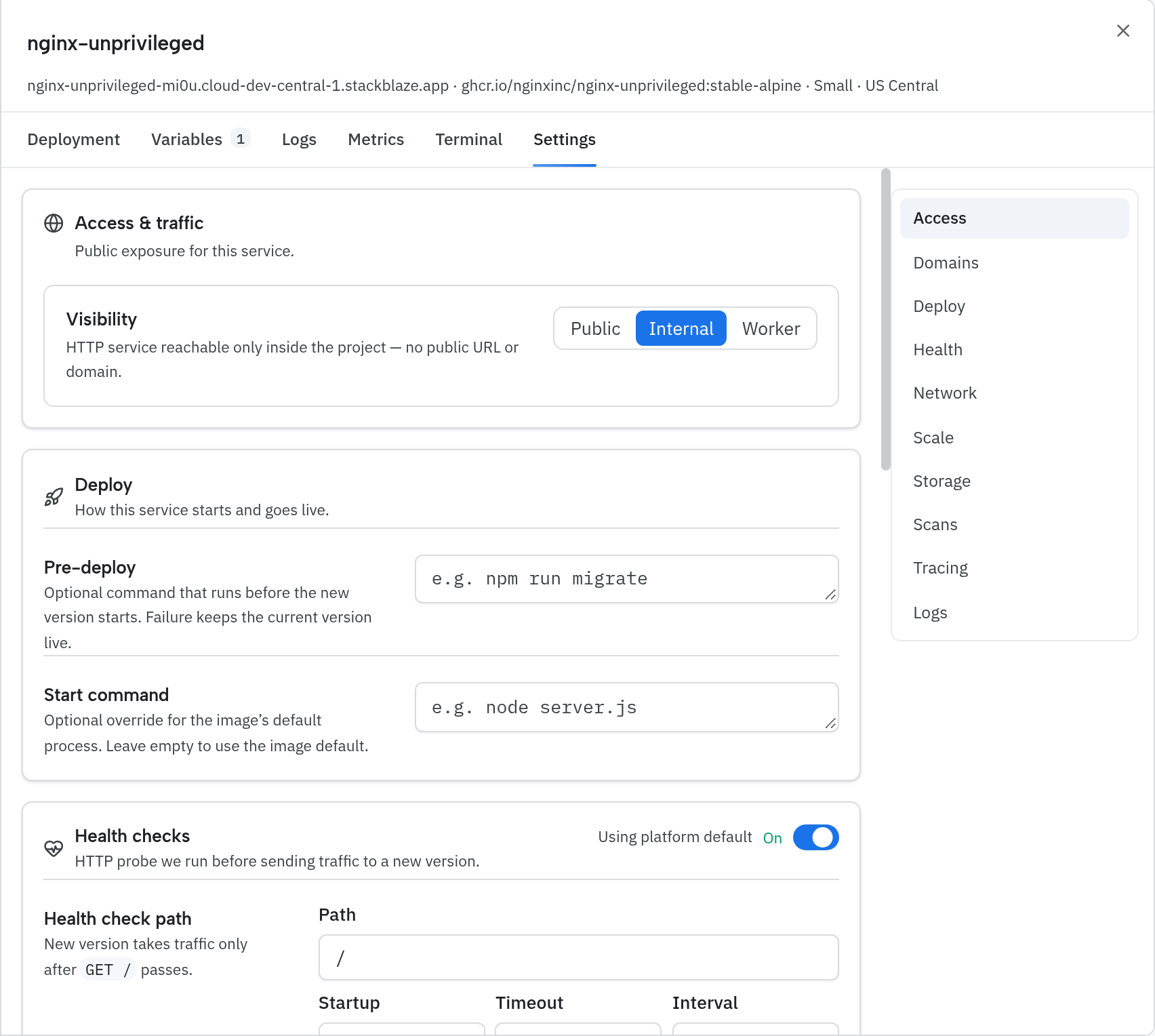
Settings → Access decides who can reach a service. Open the service (click its name on the canvas card), then Settings. The first card, Access & traffic ("Public exposure for this service."), holds Visibility.
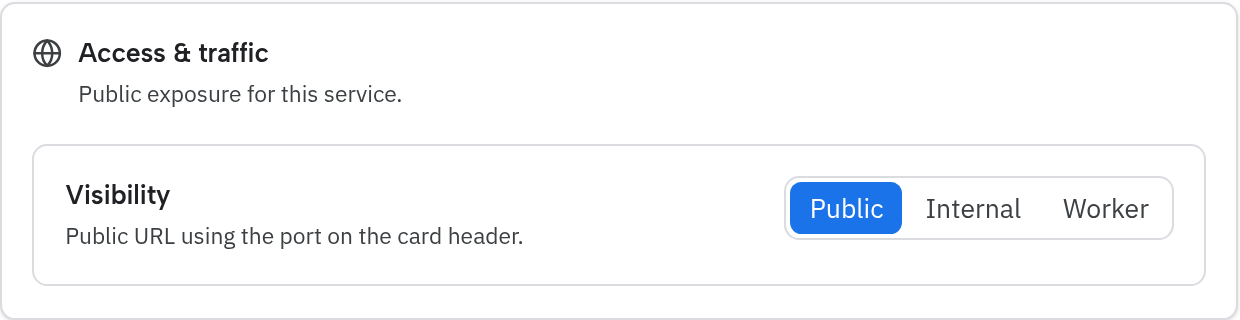
The three choices
| Visibility | What the card says | What you get |
|---|---|---|
| Public | "Public URL using the port on the card header." | A URL on stackblaze.app with HTTPS, and custom domains. |
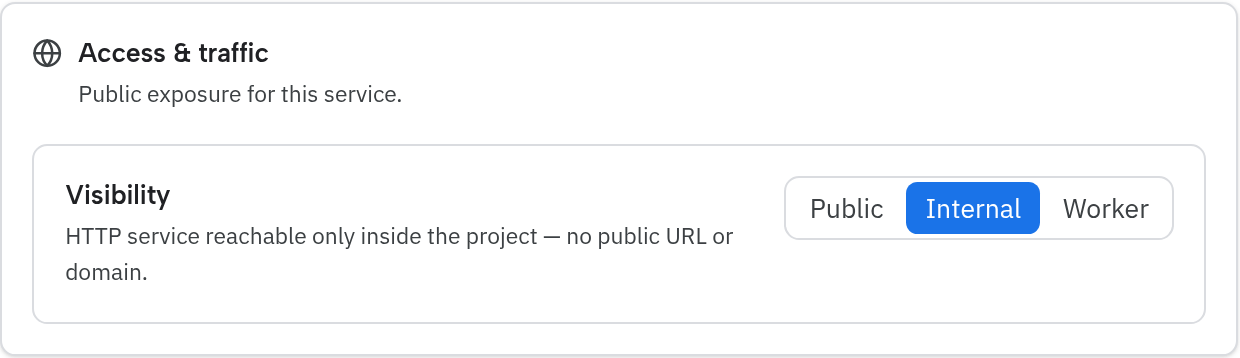
| Internal | "HTTP service reachable only inside the project — no public URL or domain." | The service keeps running, but has no public URL. |
| Worker | "Background process — no HTTP port, no domain." | A process with no port at all, for queue consumers and other background work. |
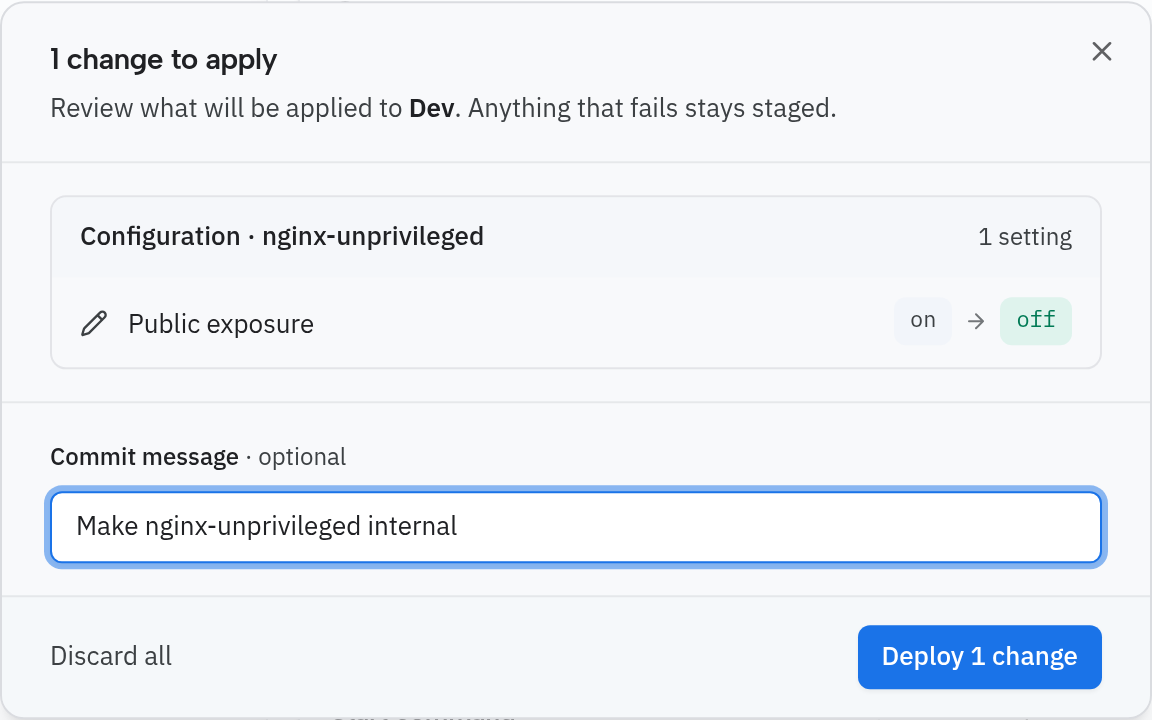
Like every setting, a change of visibility is staged. Click Commit 1 change in the canvas toolbar, check the change, and click Deploy 1 change. See Environment variables for the commit dialog.
Make a service internal
Choose Internal
Click Internal. The text under Visibility changes to "HTTP service reachable only inside the project — no public URL or domain."
Commit and deploy
Click Commit 1 change. The dialog lists one setting: Public exposure on → off. Click Deploy 1 change.
Once it is live, the public URL stops answering: a request to https://nginx-unprivileged-mi0u.cloud-dev-central-1.stackblaze.app/ got 404 Not Found. The service itself keeps running.
To make it public again, choose Public and deploy. The commit dialog lists Public exposure off → on, and the same URL answers again.
Make a service a worker
Choose Worker. A worker has no HTTP port, so its Settings no longer have Domains or Health: the rail lists Access, Deploy, Network, Scale, Storage, Scans, Tracing and Logs.
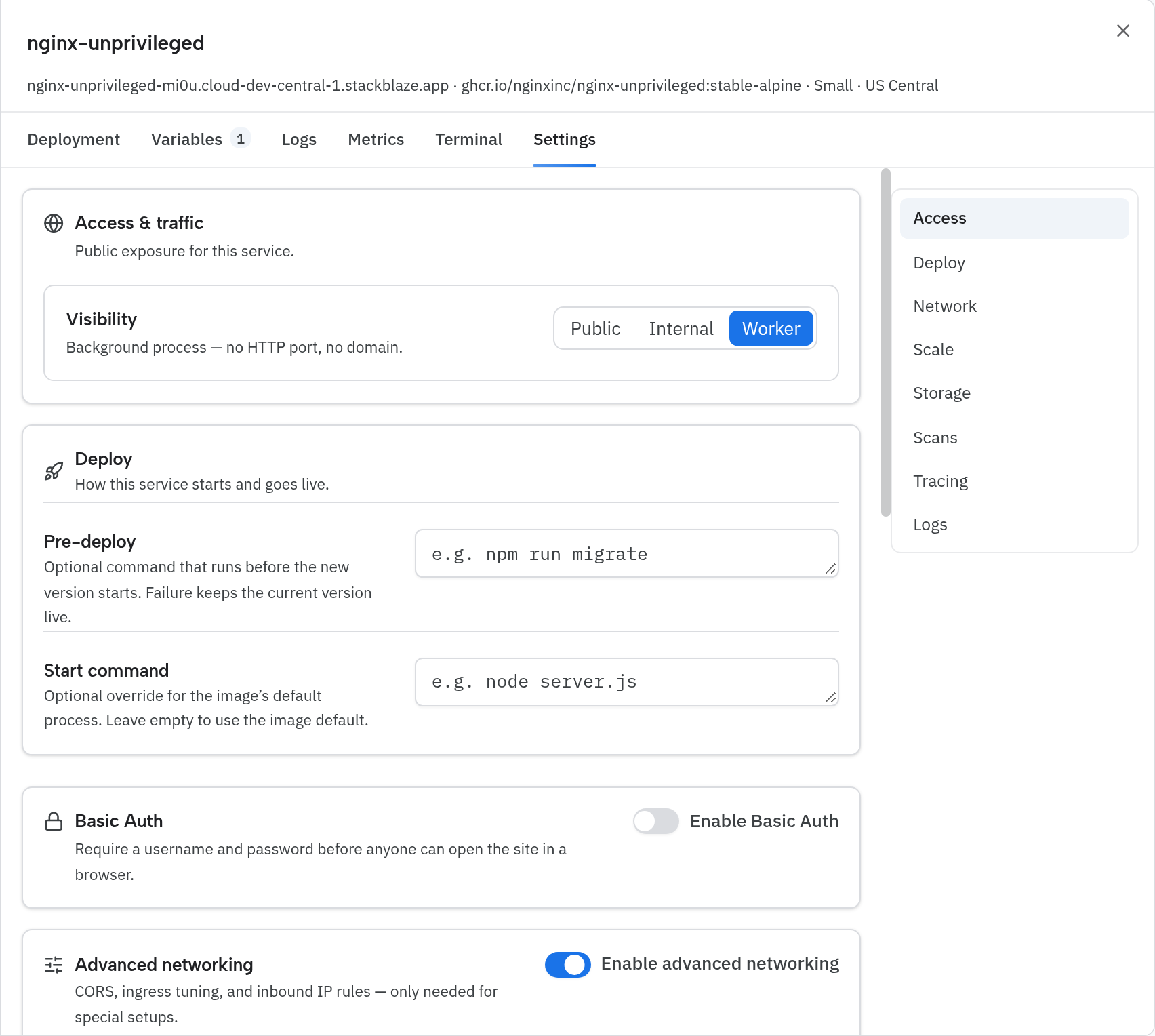
The commit dialog shows what the switch does to the processes: Web instances 1 → 0 and Worker instances 0 → 1. After the deploy, the service runs one worker process and no web process, and its URL answers 404.
Switching a worker back to Public lists three settings: Public exposure off → on, Web instances 0 → 1 and Worker instances 1 → 0.
What workers are for
A worker runs your code without taking requests: a queue consumer, a bot, a job that polls for work. It is built the same way as any other service, from a Docker image or from source, and gets variables and connected databases the same way. Every plan can run workers.
To create one from the CLI, add --worker: stackblaze up --worker or stackblaze apps create … --worker (no port, no public URL). In stackblaze.yaml it is type: worker. A web service can also run a worker process next to its web process: see Scaling.
When a worker stops
A worker has no health check, so its process is the only sign of health. If the process exits, it is started again, with a longer wait after each try. We deployed a worker whose start command was sh -c 'echo worker starting; sleep 5; echo boom; exit 1':
- Logs showed
worker startingandboomfor each try. - After six restarts, its status was
failed, with the reasonCrashLoopBackOff.
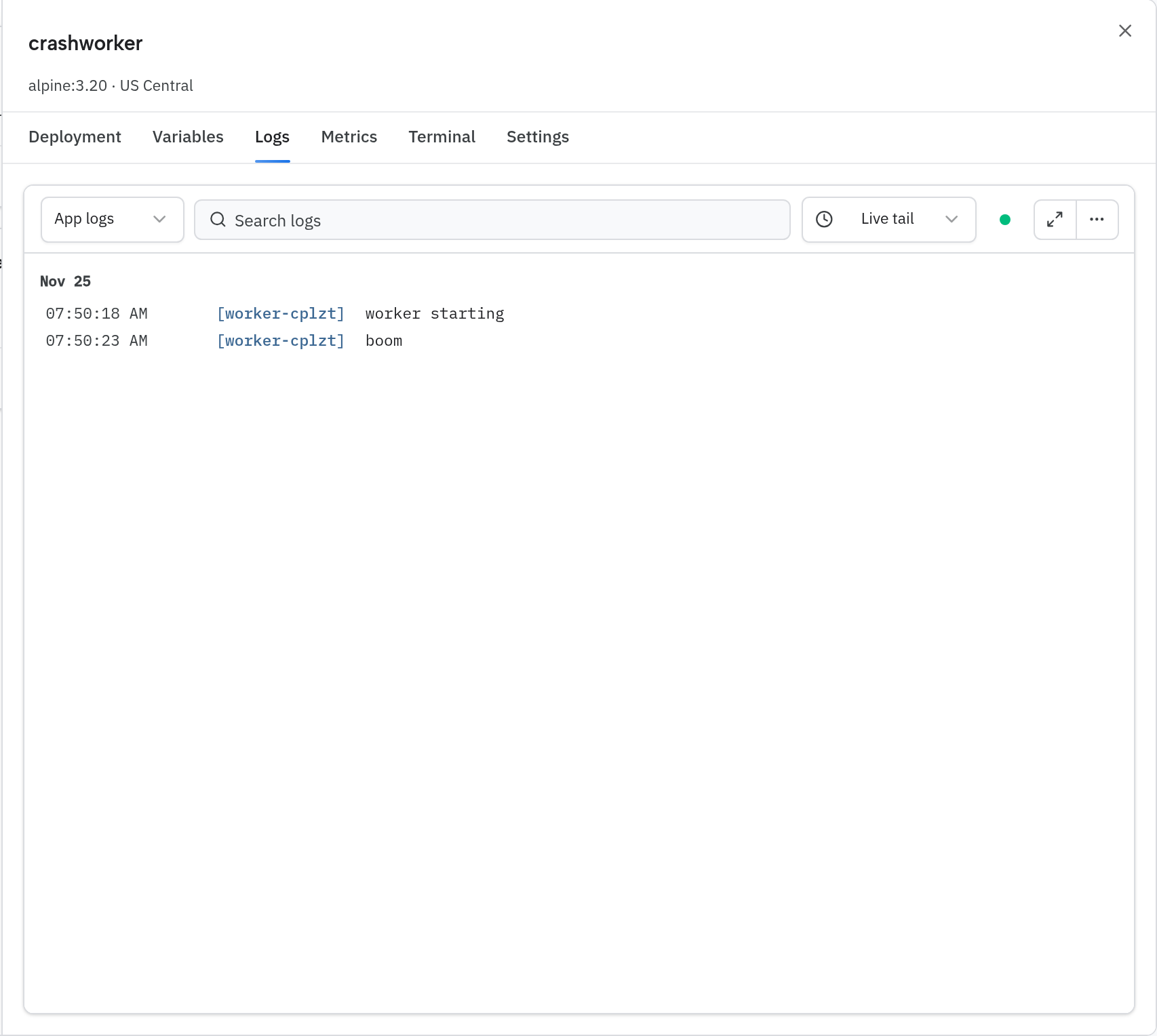
So watch a worker's Logs, or send them to a log drain. Make it exit with an error when its configuration is wrong, so the problem shows up right away.
More than one worker instance
Settings → Scale sets how many instances run. Each instance runs the same command, so with a queue, every instance takes jobs from the same queue. See Scaling.
The port
The port that Public sends traffic to is the port set when the service was added: Runtime → Port on the review panel (see Deploy a Docker image). The service here, nginx-unprivileged, listens on 8080. Settings has no port field.