
Environment variables
Add a variable to a service, commit the change and deploy it.
Variables are key/value pairs that StackBlaze injects into the service's container when it starts. Changing them is a staged change: nothing reaches the running service until you commit and deploy it.
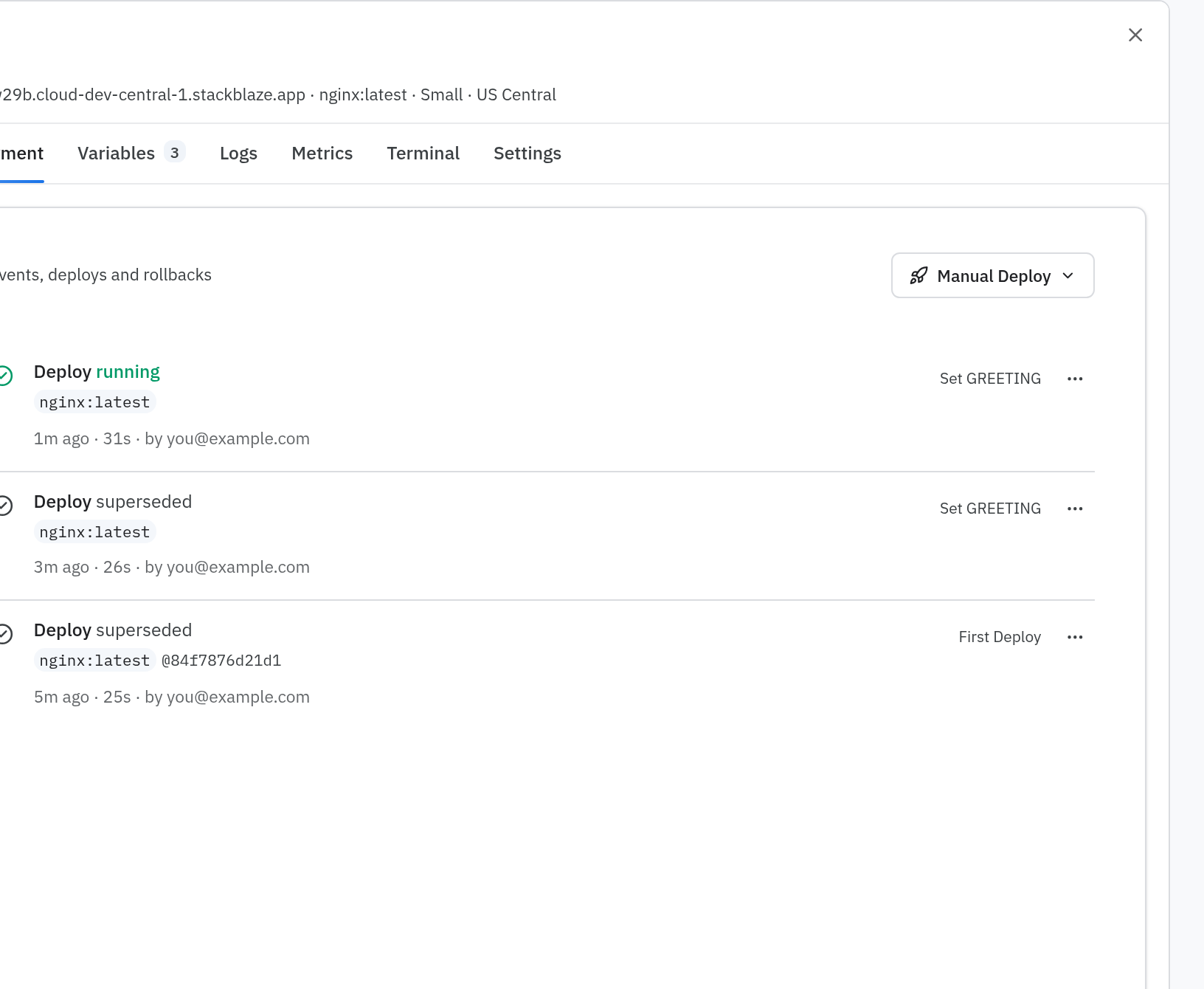
Open the service
On the project canvas, click the service's name on its card. The service panel opens on the right.
Add the variable
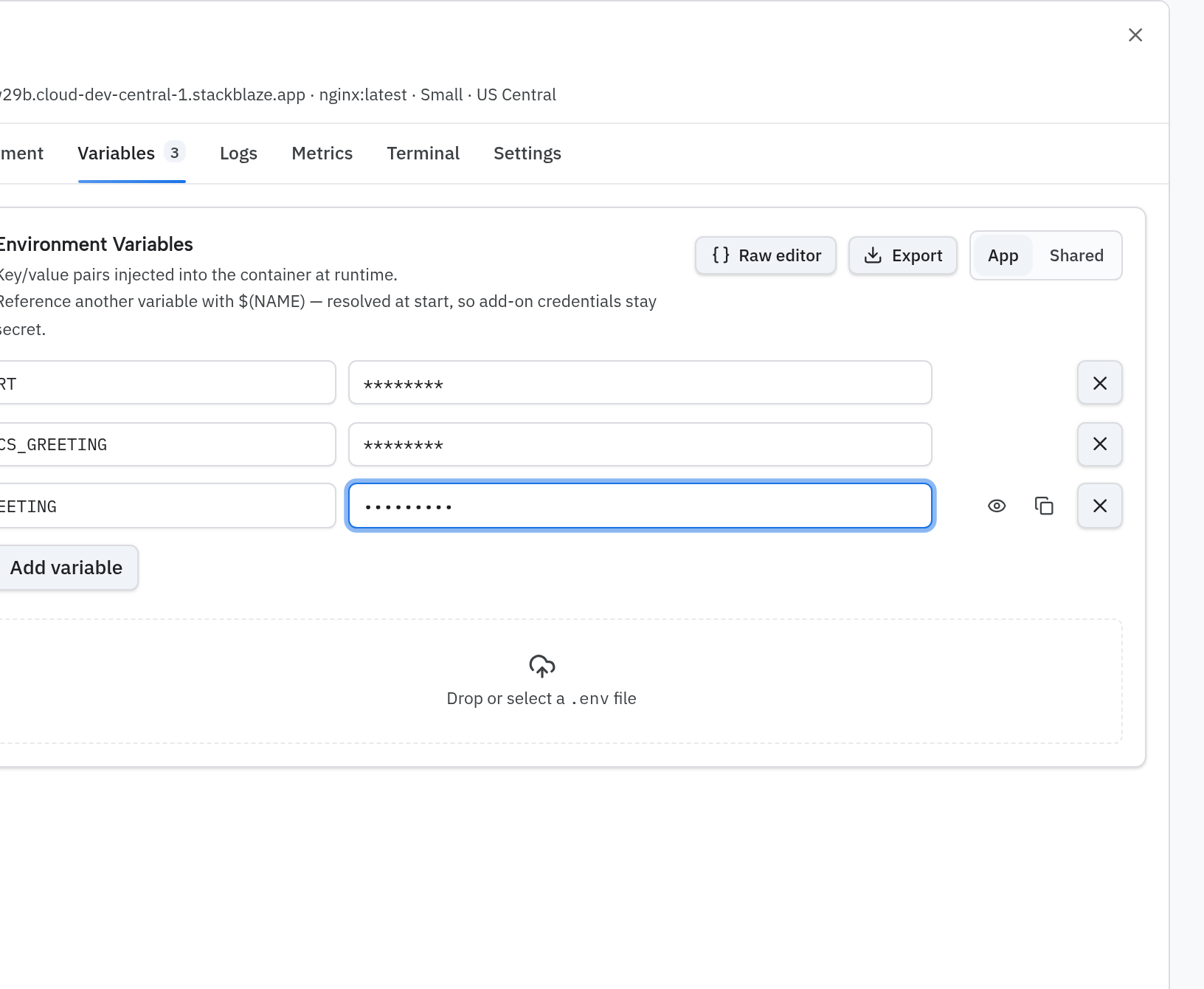
Open Variables, click Add variable, and type a KEY and a value.
As soon as you change anything, Commit 1 change appears in the canvas toolbar.
Commit and deploy
Click Commit 1 change. The dialog lists what will be applied to the environment. Add a Commit message if you want one (it is optional and shows in the deploy history), then click Deploy 1 change.
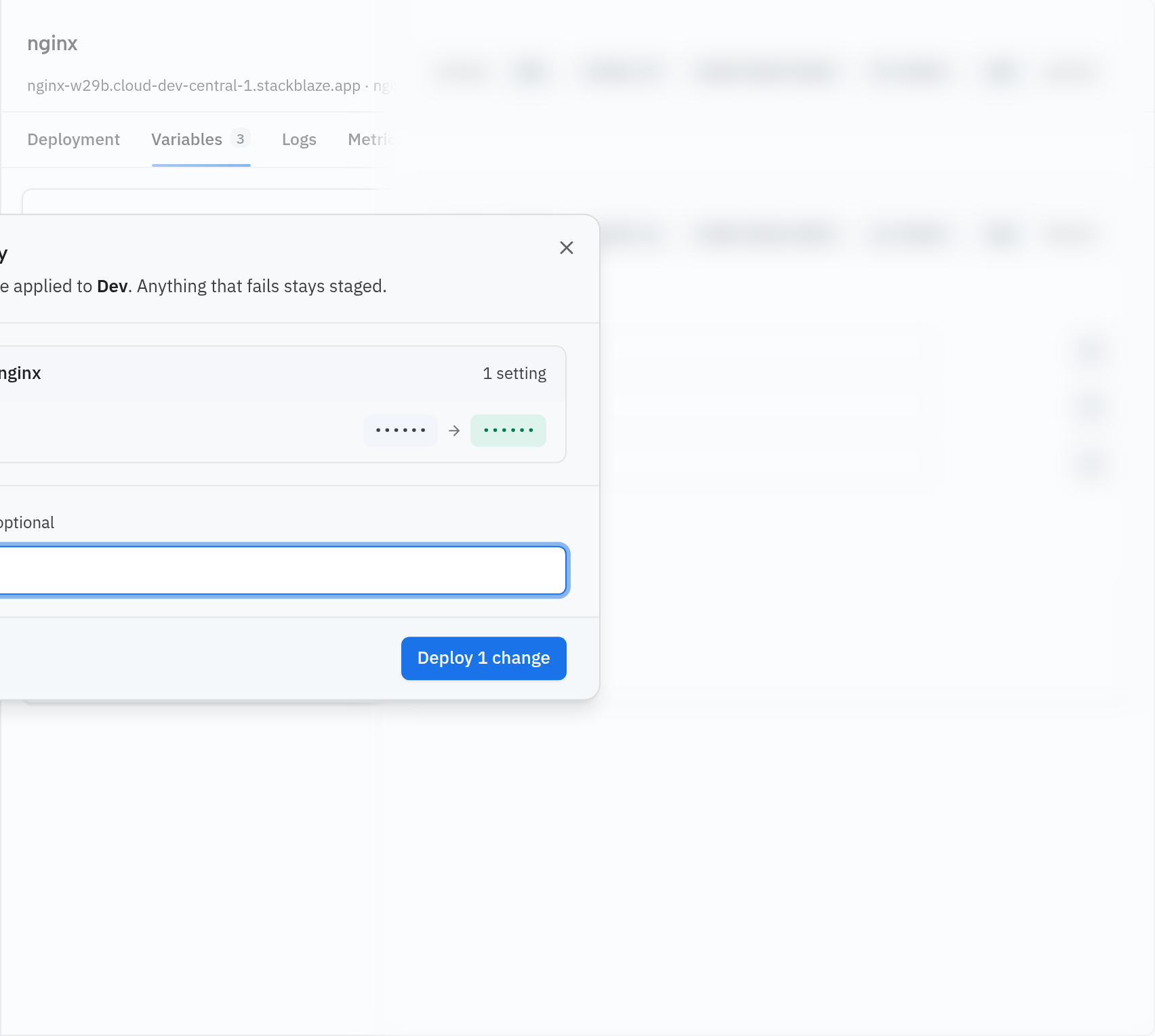
The service restarts with the new value. If you change your mind before deploying, Discard all in the same dialog drops every staged change.
Working with values
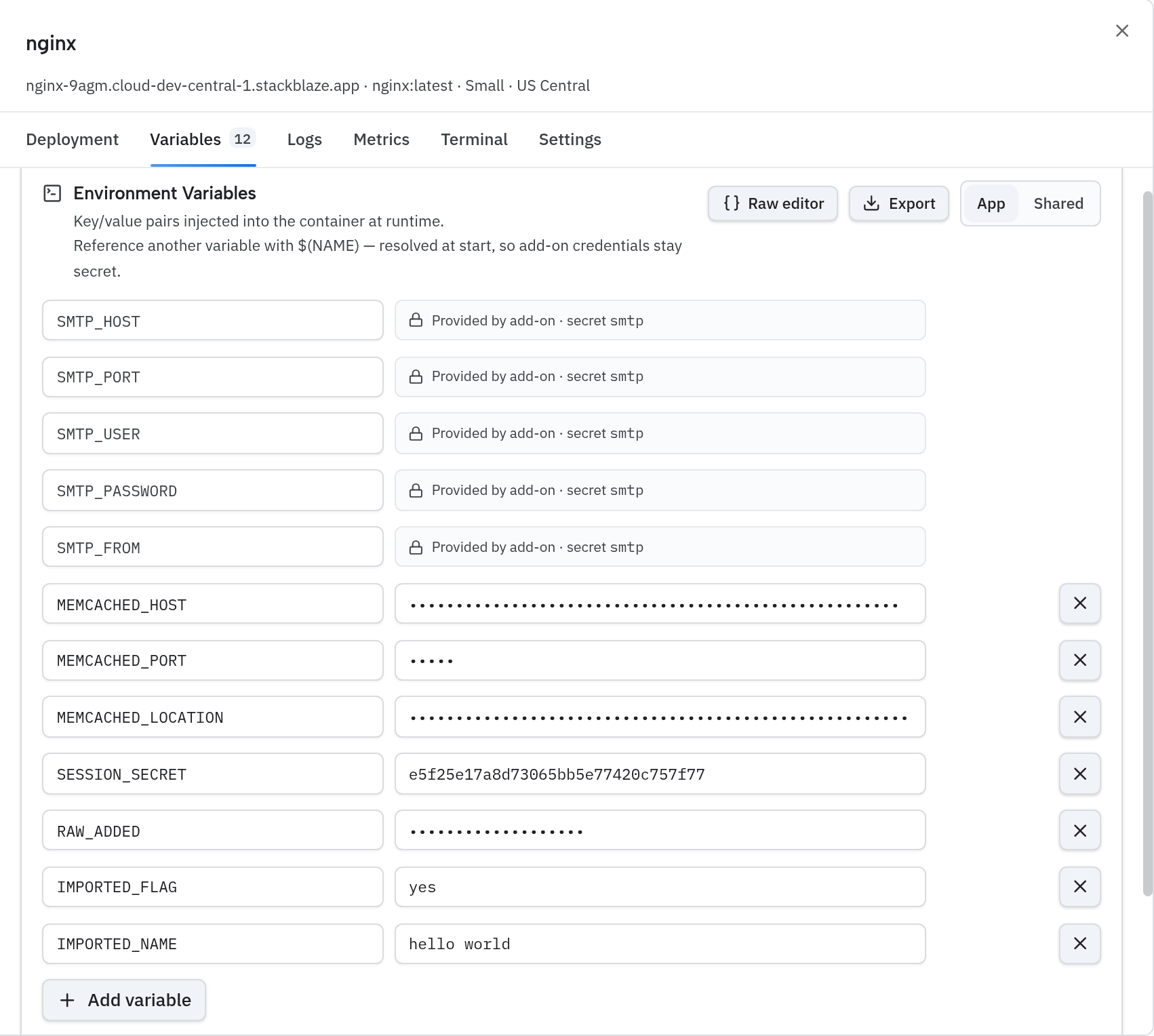
Each row has a KEY (up to 60 characters) and a value, and a Remove (×) button on the right.
Show and copy a value
Stored values are hidden. Hover over a row, or tab to it, to see two buttons: Show value / Hide value and Copy value. Showing or copying a stored value fetches it from the server. That needs write access to the service, and it is recorded in the audit log.

Generate a secret
A row with an empty value has a Generate button. It fills the value with a random 32-character secret.

Errors on a row
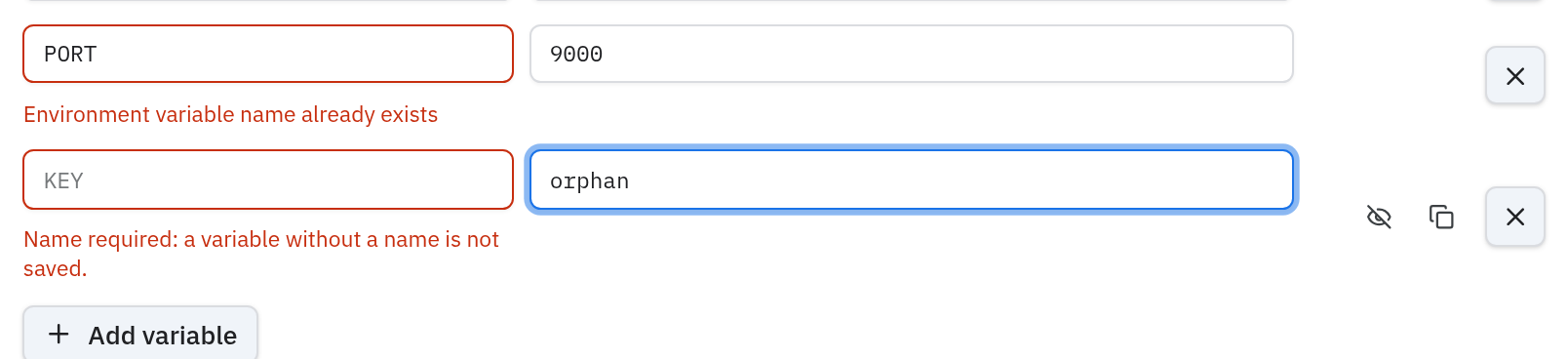
The editor flags two mistakes in red:
- A name that is already used: "Environment variable name already exists".
- A value without a name: "Name required: a variable without a name is not saved."
Passwords written inline
If a value contains a password inside a URL (scheme://user:password@host) and a database or other add-on gives the service its credentials, you see "Password written inline — it will break when the add-on rotates." Click Use $(NAME) instead to swap the password for a reference to the add-on's variable. The reference is resolved when the service starts.

Variables you can't edit
Variables that an add-on provides are locked and say Provided by add-on · secret and the secret's name (here smtp, from the email add-on). You can't edit or remove them here, and they are kept as they are when you save.
Raw editor
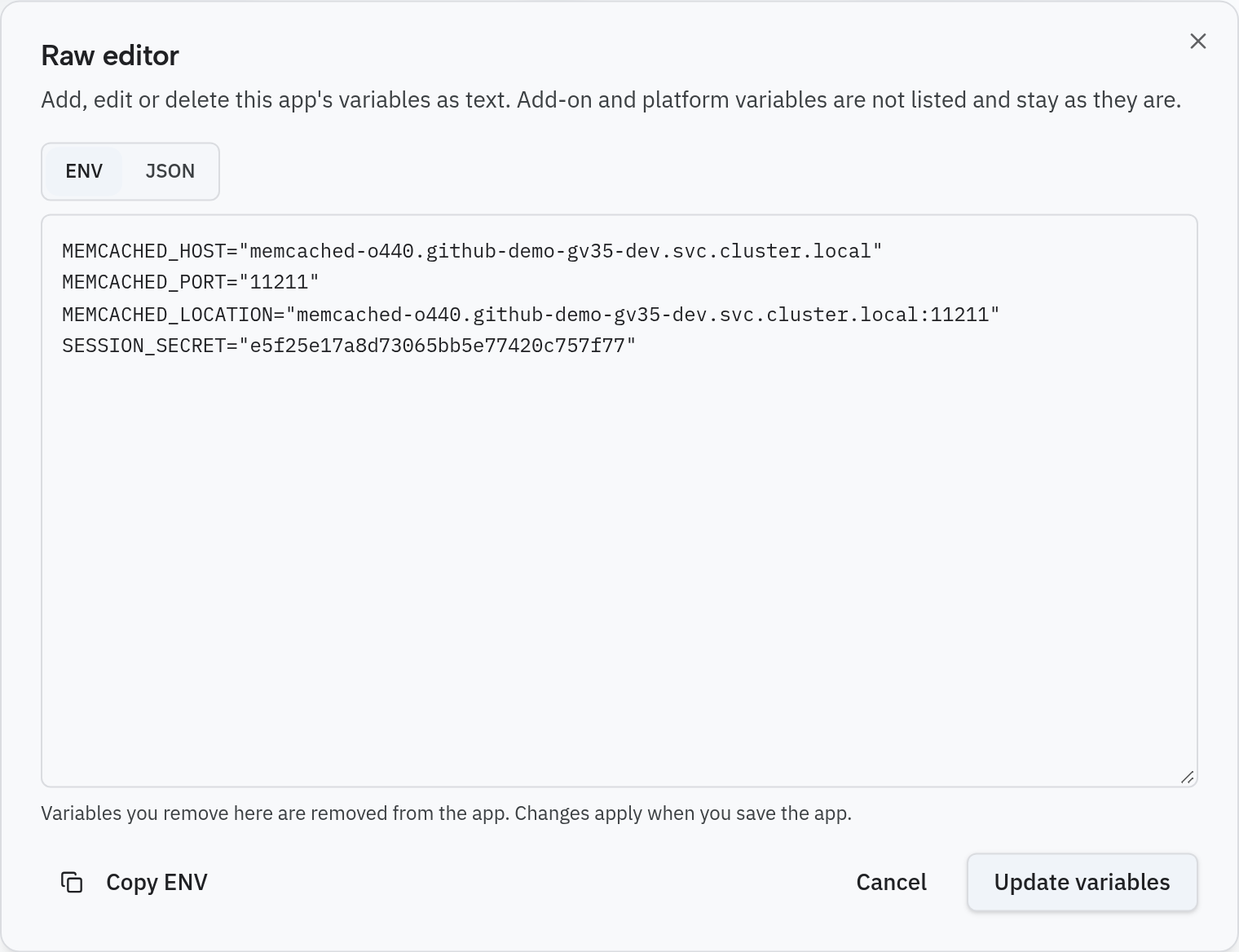
Raw editor opens all of the service's own variables as text. Add-on and platform variables are not listed and stay as they are.
Edit as .env
The editor opens in ENV mode, one NAME="value" per line. (Within a visit it reopens in the mode you used last.) Stored values are fetched first, so the text has the real values.
Or as JSON
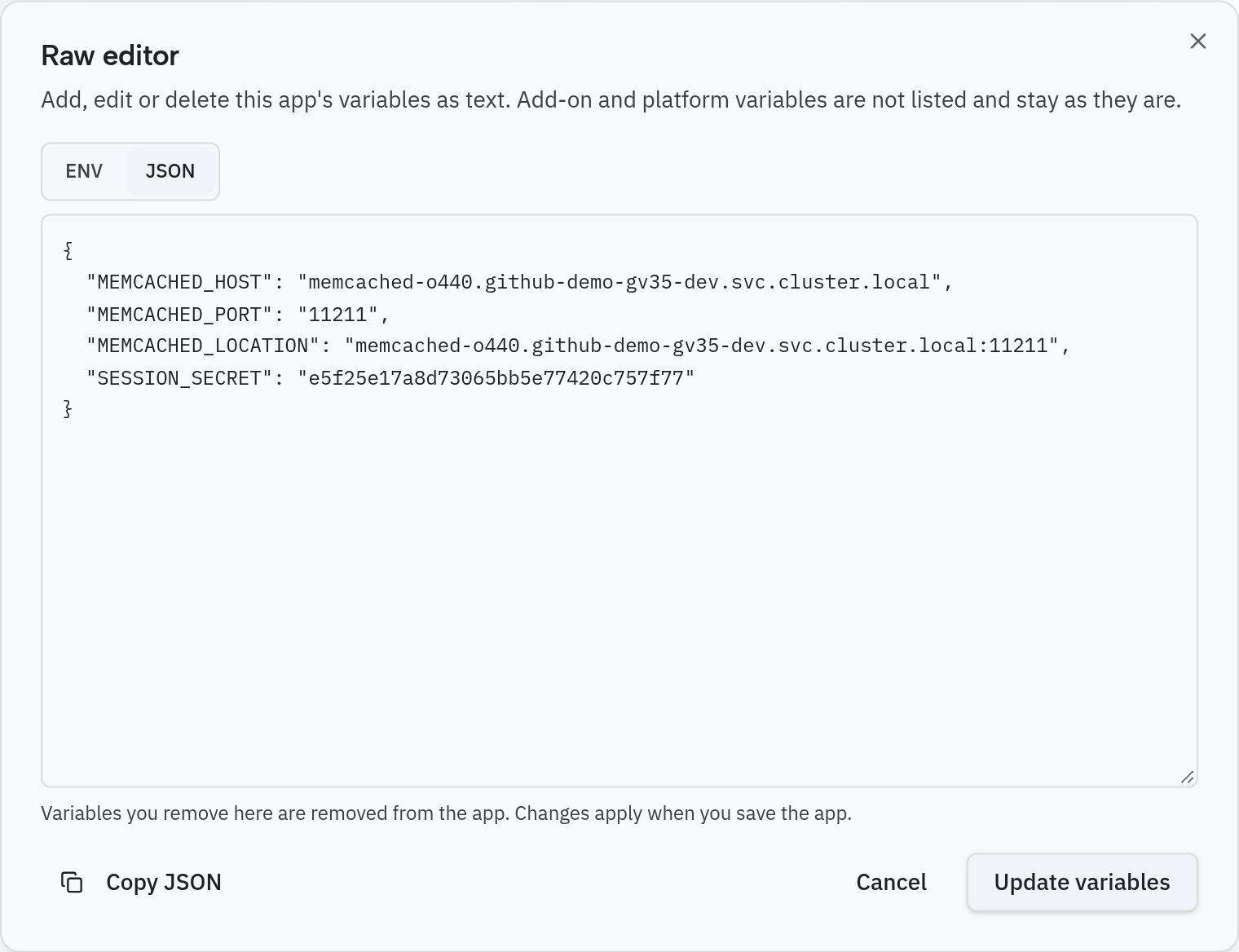
Click JSON to switch to a { "NAME": "value" } object. Copy ENV / Copy JSON copies the text.
Update variables
Click Update variables to put the text back into the Variables tab. Variables you removed in the text are removed from the service. As with any edit, nothing is applied until you commit and deploy. Cancel closes the editor without changes.
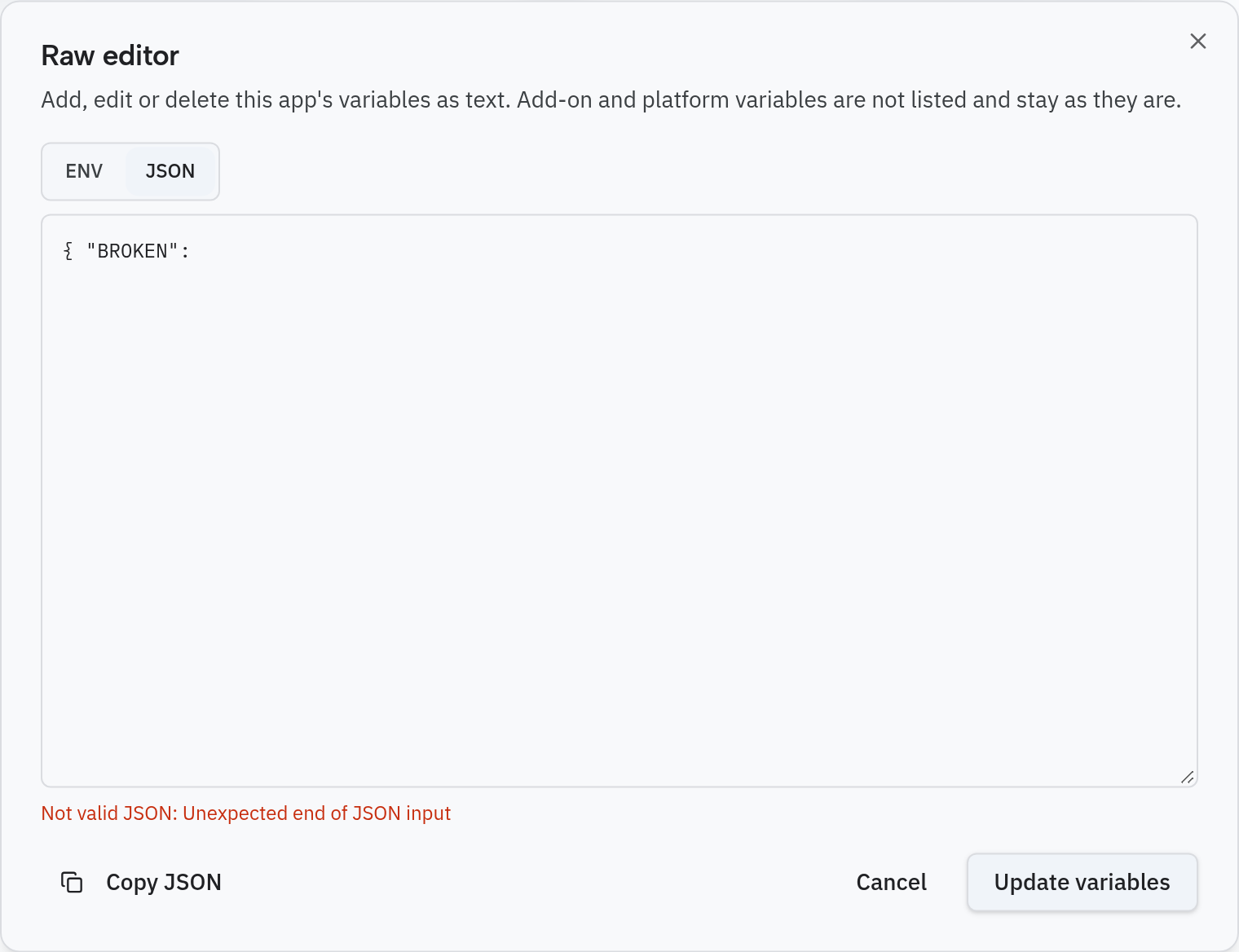
If the text doesn't parse, the editor says why and keeps the dialog open:
Export to a .env file
Export downloads the variables as a .env file named after the service's resource name (for example nginx-9agm.env). The file starts with a comment header with the export date. Variables that an add-on provides are written as comments, not values, so the file never holds a database password. Export only shows when the service has variables.
Import a .env file
Drop a .env file on Drop or select a .env file, or click it to choose one. The picker also takes .txt files. Its variables are added to the tab as staged changes. Commit and deploy to apply them.
Shared groups
App and Shared switch between the service's own variables and the project's shared groups. See Shared variables.
References
A value can reference another variable of the same service with $(NAME). The panel notes that references are "resolved at start, so add-on credentials stay secret".
Variables StackBlaze sets
Some variables come from the platform, not from you:
| Variable | Value | When |
|---|---|---|
PORT | The service's port, for example 8080 | Always, on a service with a port |
STACKBLAZE_PUBLIC_URL | https:// and the service's first public hostname | Only when another variable uses $(STACKBLAZE_PUBLIC_URL) or $(STACKBLAZE_PUBLIC_DOMAIN) |
STACKBLAZE_PUBLIC_DOMAIN | The hostname alone | Same as above |
STACKBLAZE_PREVIEW | true | In a preview environment |
STACKBLAZE_PR_BRANCH, STACKBLAZE_PR_NUMBER | The pull request's branch and number | In a preview environment |
On a service created on port 3000 with SELFURL=$(STACKBLAZE_PUBLIC_URL), the container got PORT=3000, SELFURL, STACKBLAZE_PUBLIC_URL and STACKBLAZE_PUBLIC_DOMAIN. A service with no such variable got only PORT.
Have your app listen on PORT, on all addresses (0.0.0.0), not on 127.0.0.1. HTTPS ends at the edge, so the app serves plain HTTP. See Custom domains.
References to other services
A value can also read a variable of another service in the same environment, with ${{service.NAME}}. service is the name on the service's canvas card. Each service also has three variables that always exist for references:
| Reference | Value |
|---|---|
${{api.STACKBLAZE_PRIVATE_DOMAIN}} | The service's private address |
${{api.STACKBLAZE_PUBLIC_URL}} | https:// and its first public hostname |
${{api.STACKBLAZE_PUBLIC_DOMAIN}} | Its first public hostname |
For example, a crondemo service had these variables, which refer to a wsdemo service in the same environment:
PEER=${{wsdemo.STACKBLAZE_PRIVATE_DOMAIN}}
PEERURL=${{wsdemo.STACKBLAZE_PUBLIC_URL}}
DEEP=${{wsdemo.PEER}}
Its container got:
PEER=wsdemo-zmfb-kuberoapp.github-demo-cw8z-dev.svc.cluster.local
PEERURL=https://wsdemo-zmfb.cloud-dev-central-1.stackblaze.app
DEEP=${{receiver.STACKBLAZE_PRIVATE_DOMAIN}}- References are filled in when the service starts. The stored value stays the reference.
- They resolve in the environment the service runs in. A copy of the environment, such as a preview, points at its own services.
- They go one level deep.
wsdemo's ownPEERwas itself a reference, andDEEPgot that text, not what it pointed to. - A reference to a service or variable that doesn't exist stays as text:
${{nosuch.STACKBLAZE_PUBLIC_URL}}reached the container unchanged. So does a reference to a service in another environment or project.
During the build
A service built from source (Railpack, a Dockerfile or buildpacks) also gets its variables during the build and the pre-deploy command, except names the build tools use themselves, such as PATH, HOME and names starting with DOCKER_ or BUILDAH_. The build itself can't reach other services; the pre-deploy command can.
Files from a variable
Some tools want a file, such as a certificate or a key file. Keep the contents in a variable and write the file in the start command. For binary files or text with many lines, store it base64-encoded:
base64 -w0 key.pem # on Linux; paste the output as the value of KEY_B64Then decode it before the app starts:
sh -c 'echo "$KEY_B64" | base64 -d > /tmp/key.pem && exec node server.js'The services on this page start this way: their start command writes a script from a base64 variable to /tmp and runs it. exec hands the process over to your app, so it gets the stop signal on each deploy (see Start command).
You could also upload a file to a volume. It is stored there as it is, while a variable is stored as a secret and hidden in the dashboard, so prefer a variable.