
AI agents
Create an AI agent from a template, pick its model and tools, and see what it adds to your environment.
An AI agent is a service in your environment that answers with your instructions and can use the tools you allow. Each agent comes with a team chat page, an API, a PostgreSQL database for its chats, and a panel where you change it.
An AI agent is not the same as Ask Agent, the assistant in the dashboard that looks at and changes your StackBlaze projects for you. An AI agent is a service you build for your own users or team. To let your coding tool operate StackBlaze, see coding tools.
This page creates agents and explains every field of the form. The other agent pages cover the rest:
- Run and change your agent: the agent's panel, the chat page, changing its settings, pausing and deleting it.
- AI Gateway: the service that holds a provider key for your agents.
- Reach your agent: its API, webhooks, schedules and the website widget.
- Knowledge, skills and integrations: documents, step-by-step skills and outside tools.
- Test your agent: evals.
- Optimizations: cheaper ways to run it, tried on its own sessions.
- AI agents API: manage agents and chat with them from your code.
- Security and limits: what an agent can reach, where secrets are kept, and every limit.
We made two agents for these pages, both on Qwen3 4B, a small open model running as an AI model in the same environment. One used Blank and talked to the model directly. The other used Webhook triage through an AI Gateway.
Create an agent
Open the form
In your project, click + Service and choose AI agent (Chatbot or support agent with your instructions). New AI agent opens.

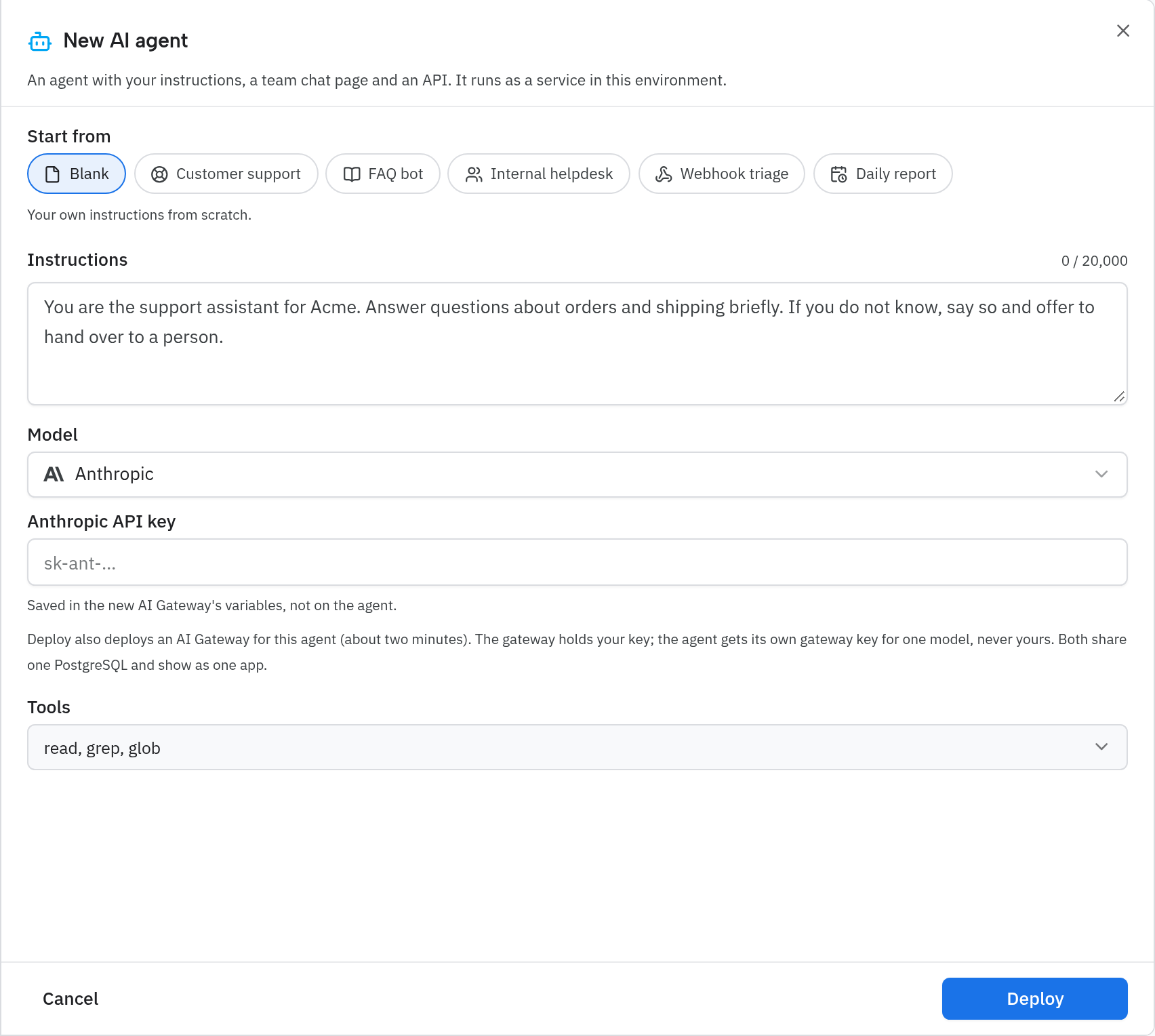
The form has Start from, Instructions, Model and Tools. There's no name field: the first agent is named ai-agent, the next ai-agent-2, and so on. You can rename it on the canvas later.
Start from a template
Start from fills in the instructions and the tools. A line under the buttons says what the template is for. Switching templates replaces the instructions, so pick one before you edit them.
| Template | What it's for | Tools | Also sets up |
|---|---|---|---|
| Blank | Your own instructions from scratch | read, grep, glob | Nothing: the instructions are empty |
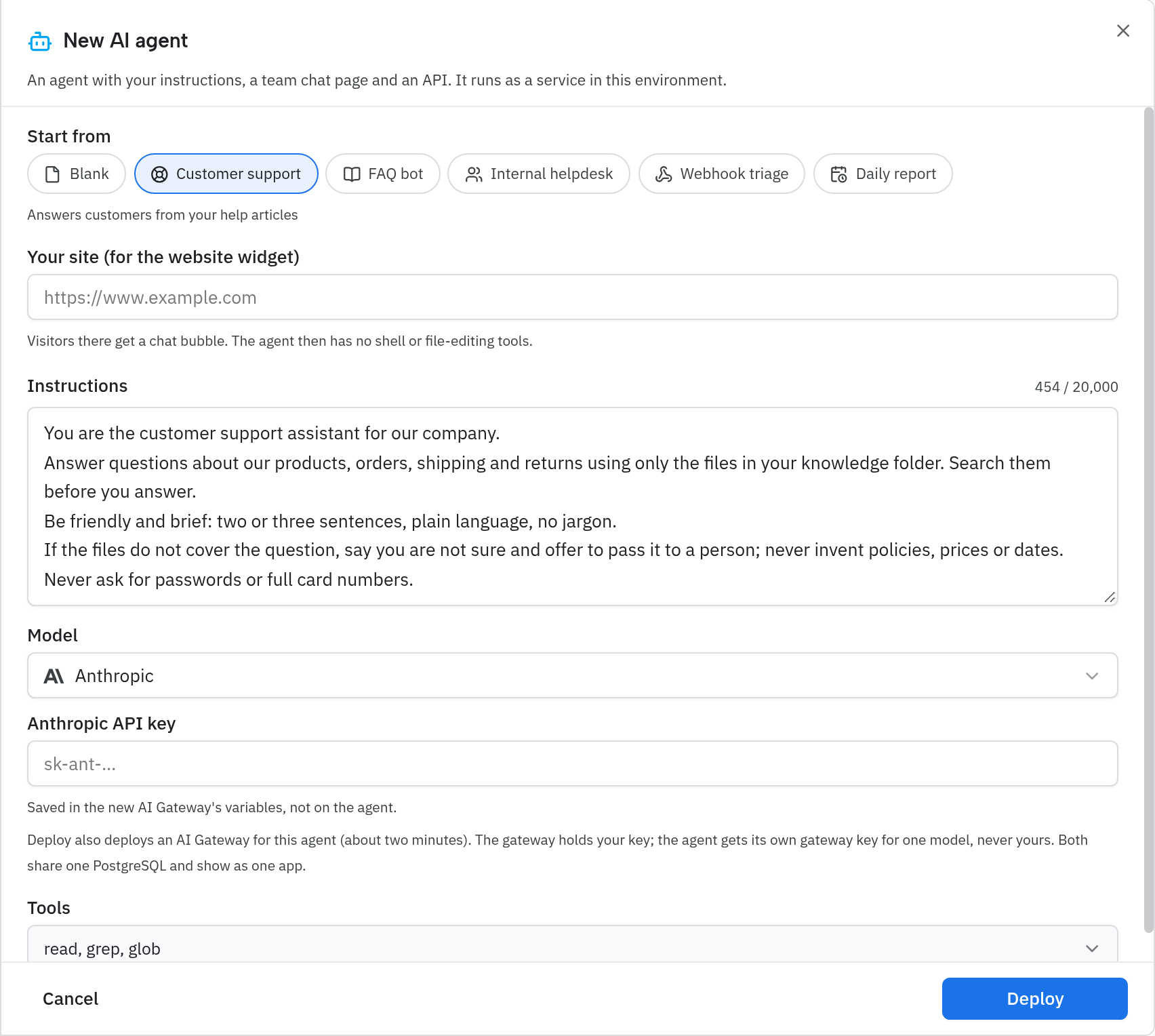
| Customer support | Answers customers from your help articles | read, grep, glob | The website widget, so it asks for Your site |
| FAQ bot | Answers from your documents, nothing else | read, grep, glob | Nothing |
| Internal helpdesk | IT and HR questions for your team | read, grep, glob, web_search | Nothing |
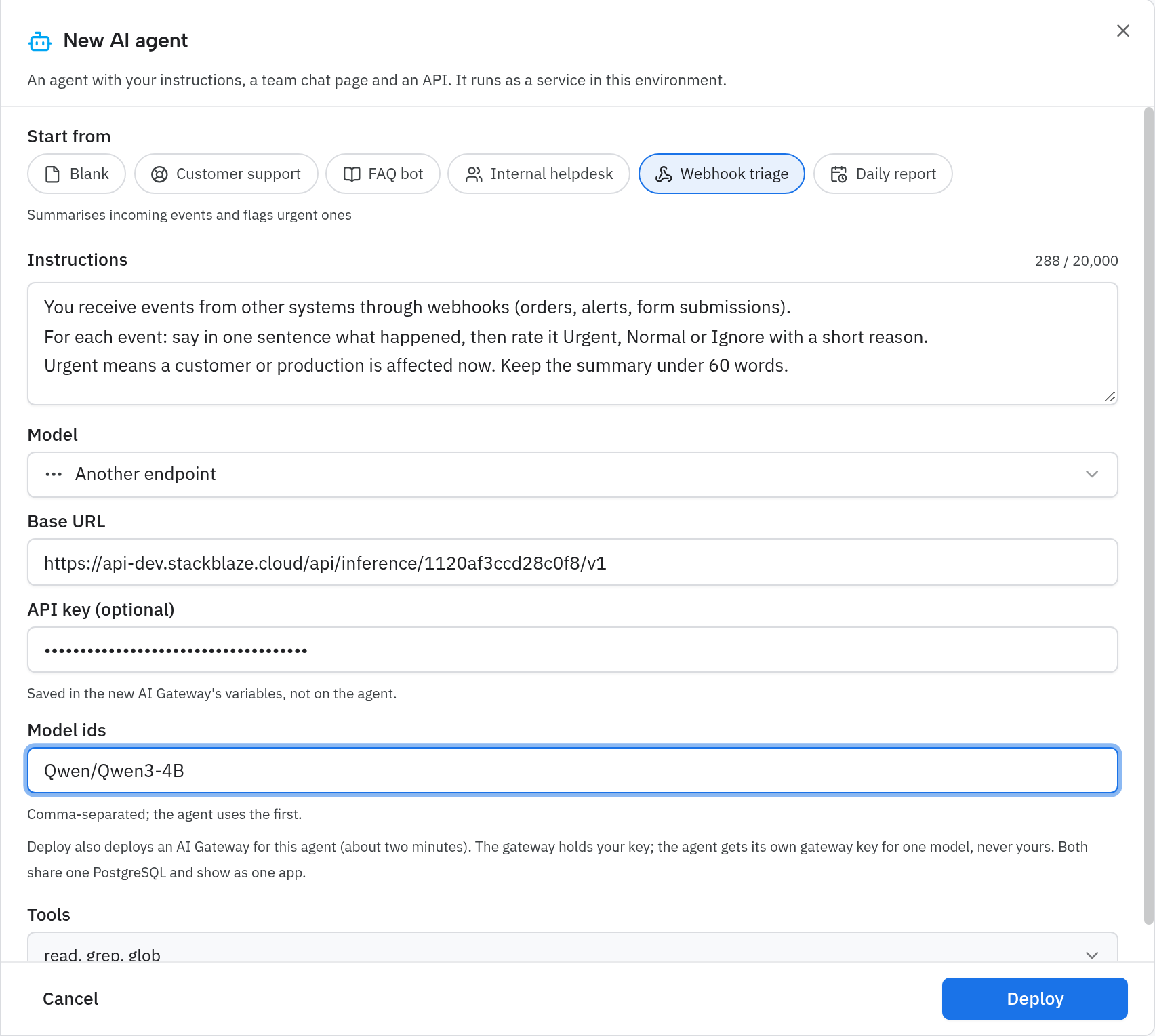
| Webhook triage | Summarises incoming events and flags urgent ones | read, grep, glob | A webhook, shown right after Deploy |
| Daily report | Writes a short report every weekday morning | read, grep, glob | A schedule on weekdays at 09:00 UTC |
The instructions each one fills in:
- Customer support: answers about products, orders, shipping and returns, using only the files in its knowledge folder. Two or three friendly sentences. When the files don't cover a question, it says it isn't sure and offers to pass it to a person. It never invents policies, prices or dates, and never asks for passwords or card numbers.
- FAQ bot: answers only from its documents and searches them first. It quotes the relevant part and names the file. When the documents don't have the answer, it says so plainly.
- Internal helpdesk: IT, accounts, tools, leave and policies. It uses its files first and may search the web for general how-to steps. For anything that needs an admin, it says who to contact.
- Webhook triage: for each event it receives, one sentence on what happened, then Urgent, Normal or Ignore with a short reason, in under 60 words.
- Daily report: a short status report from the files in its knowledge folder, with Highlights, Problems and Next steps.
Customer support adds Your site (for the website widget): visitors there get a chat bubble. It makes the agent public, so it can't use bash, edit or write. Deploy checks the site:
- Empty: Add the site that embeds the widget.
acme.com: Enter a site address, like https://acme.com.https://acme.com/shop: Only the site address: no path, like https://acme.com.
See Put it on your website for the widget.
Write the instructions
Instructions is what the agent is told before every chat: who it is, what it may answer and how. The counter shows how many characters you've used, up to 20,000. Over that, Deploy shows Up to 20,000 characters.
The instructions take the place of the general-purpose prompt the agent would otherwise get. StackBlaze adds only a short header in front of them: the agent's name, not to reveal its configuration or credentials, and, when it has knowledge files, to look things up there first.
Keep the instructions to what applies in every chat. Put facts in Knowledge and the steps for one kind of request in a skill, which the agent reads only when it needs it. For an agent that answers from its files, say so in the instructions, as FAQ bot does: You answer questions using only the documents in your knowledge folder. Search them first.
You can change the instructions after deploying. We did, and the agent followed them in the next chat: see Change its instructions.
Pick the model
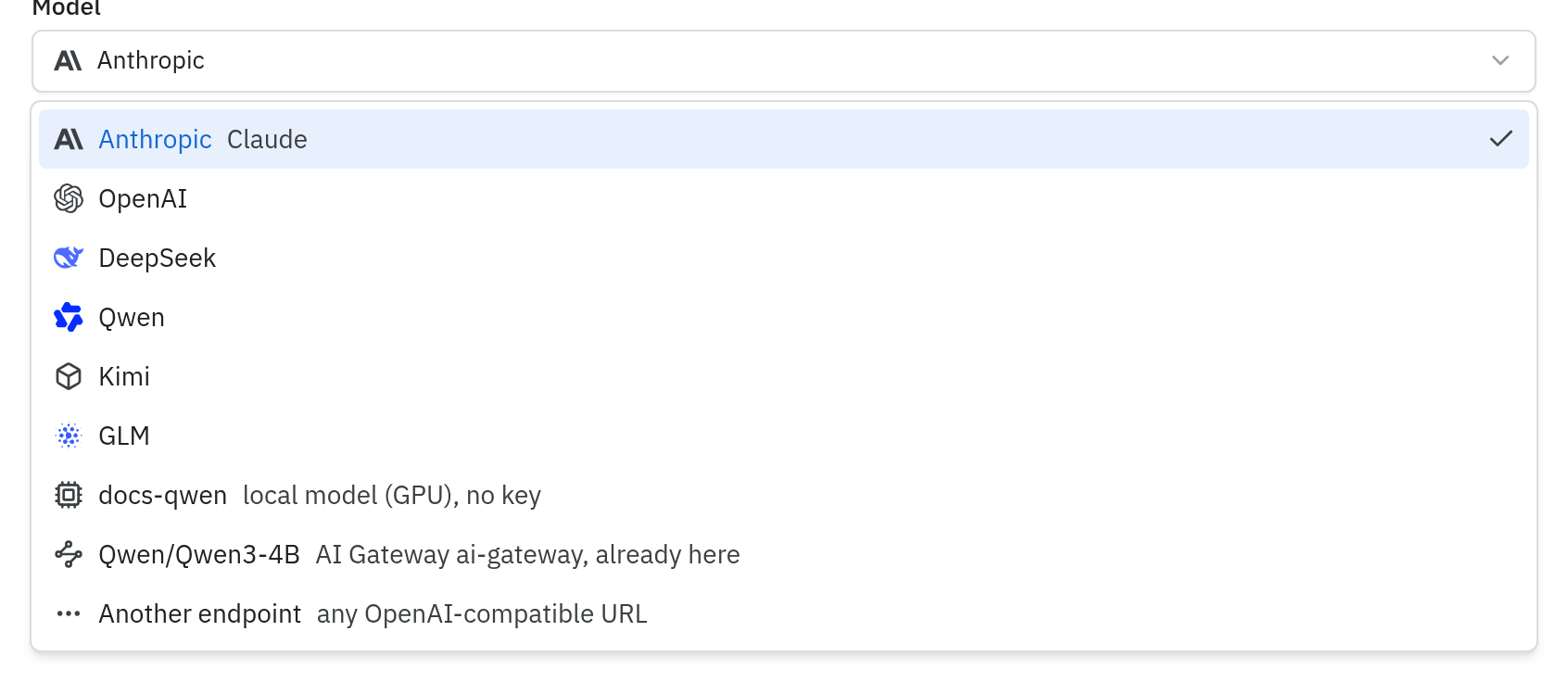
Model lists, in one menu:
- Anthropic (Claude), OpenAI, DeepSeek, Qwen, Kimi and GLM: a provider's API, with your key.
- Each AI model in this environment, marked local model (GPU), no key.
- Each model of an AI Gateway already in this environment, marked AI Gateway …, already here.
- Another endpoint (any OpenAI-compatible URL).
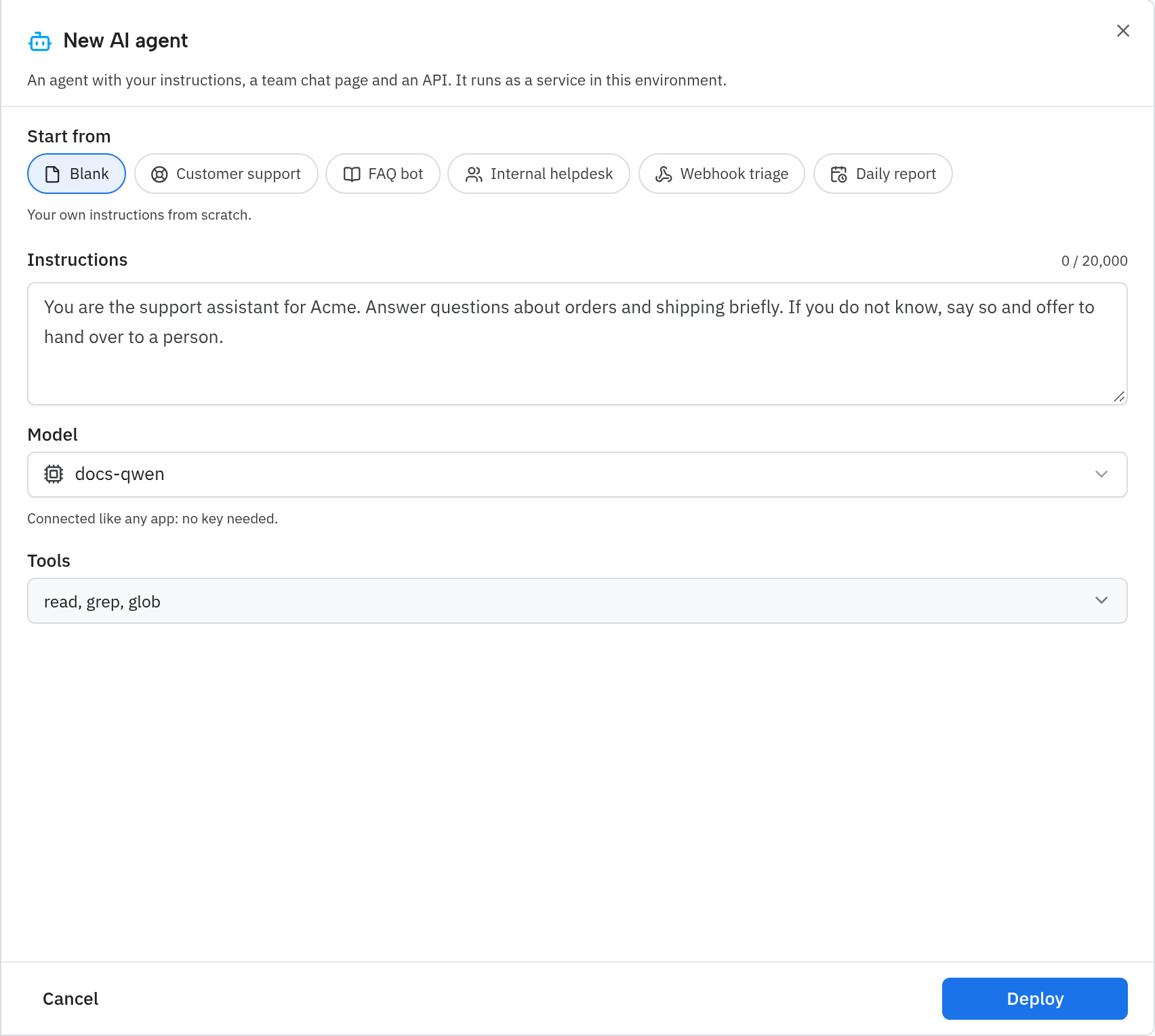
When the environment has an AI model, the form starts on it ("Connected like any app: no key needed"). Otherwise it starts on Anthropic.
What each choice asks for:
| Choice | Fields | What Deploy creates |
|---|---|---|
| An AI model of this environment | Nothing. The hint says Connected like any app: no key needed. | The agent only |
| Anthropic | Anthropic API key | A new AI Gateway, then the agent |
| OpenAI | OpenAI API key and Model ids | A new AI Gateway, then the agent |
| DeepSeek, Qwen, Kimi, GLM | That provider's API key and Model ids | A new AI Gateway, then the agent |
| Another endpoint | Base URL, API key (optional) and Model ids | A new AI Gateway, then the agent |
| An AI Gateway already here | Nothing | The agent only, on that gateway |
A gateway that has no models yet shows in the menu with add a provider key…. Pick it to give it a key and its models. While it is still starting, it shows starting… (checked every 10 s) and can't be picked.
Model ids takes several ids, separated by commas. The gateway serves all of them, and the agent uses the first. Under each key field: Saved in the new AI Gateway's variables, not on the agent.
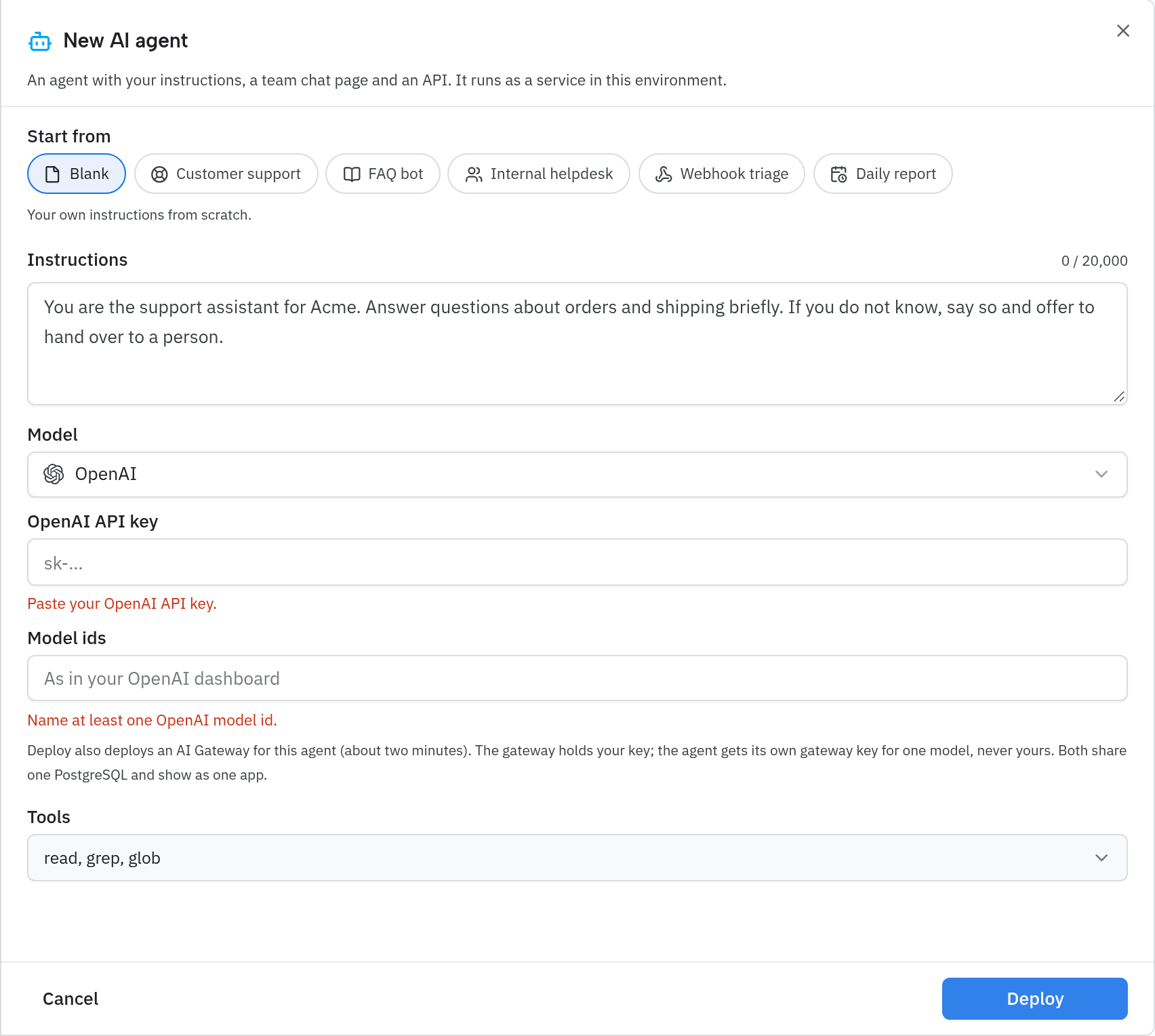
Deploy checks the fields before anything is deployed:
- No key: Paste your Anthropic API key. (or OpenAI, DeepSeek, and so on).
- A key that doesn't start right: An Anthropic key starts with sk-ant-. or An OpenAI key starts with sk-.
- A key with a space in it: The key is one line, without spaces.
- No model id: Name at least one OpenAI model id., or Name at least one model id. for another endpoint.
- A base URL that isn't a full address, like
gpu.example: An http(s) URL, like https://gpu.example/v1.
Before the gateway is deployed, StackBlaze asks the provider whether it accepts the key. A key the provider refuses deploys nothing: the toast says The API key was refused and Nothing was deployed. Check the key and try again., and the key field shows the provider's answer. We tried a made-up Anthropic key: Anthropic refused this API key (401). Check the key and paste it again. A provider that is down or slow doesn't block the deploy. Another endpoint isn't checked.
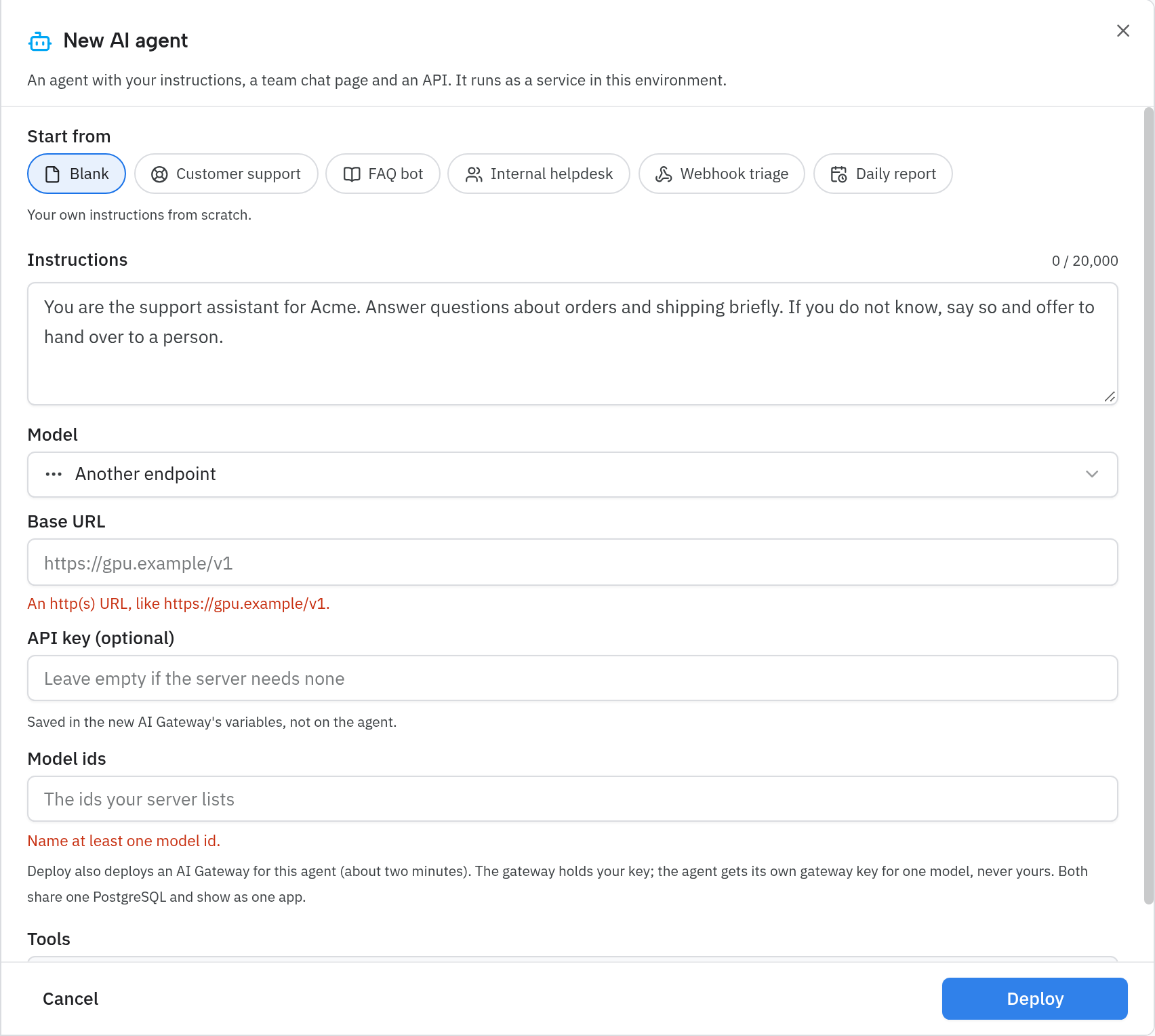
Another endpoint also works for an AI model of this environment. Paste the model's Base URL, API key and model id from its Connect section. The agent then talks to the model through a gateway, which optimizations need.
Choose the tools
Tools sets what the agent can do. Each one can be turned on or off:
| Tool | What it does |
|---|---|
| read | Read files in its knowledge folder |
| grep | Search file contents |
| glob | Find files by name |
| web_search | Search the web |
| todo | Keep a task list |
| bash | Run shell commands |
| edit | Edit files |
| write | Create files |
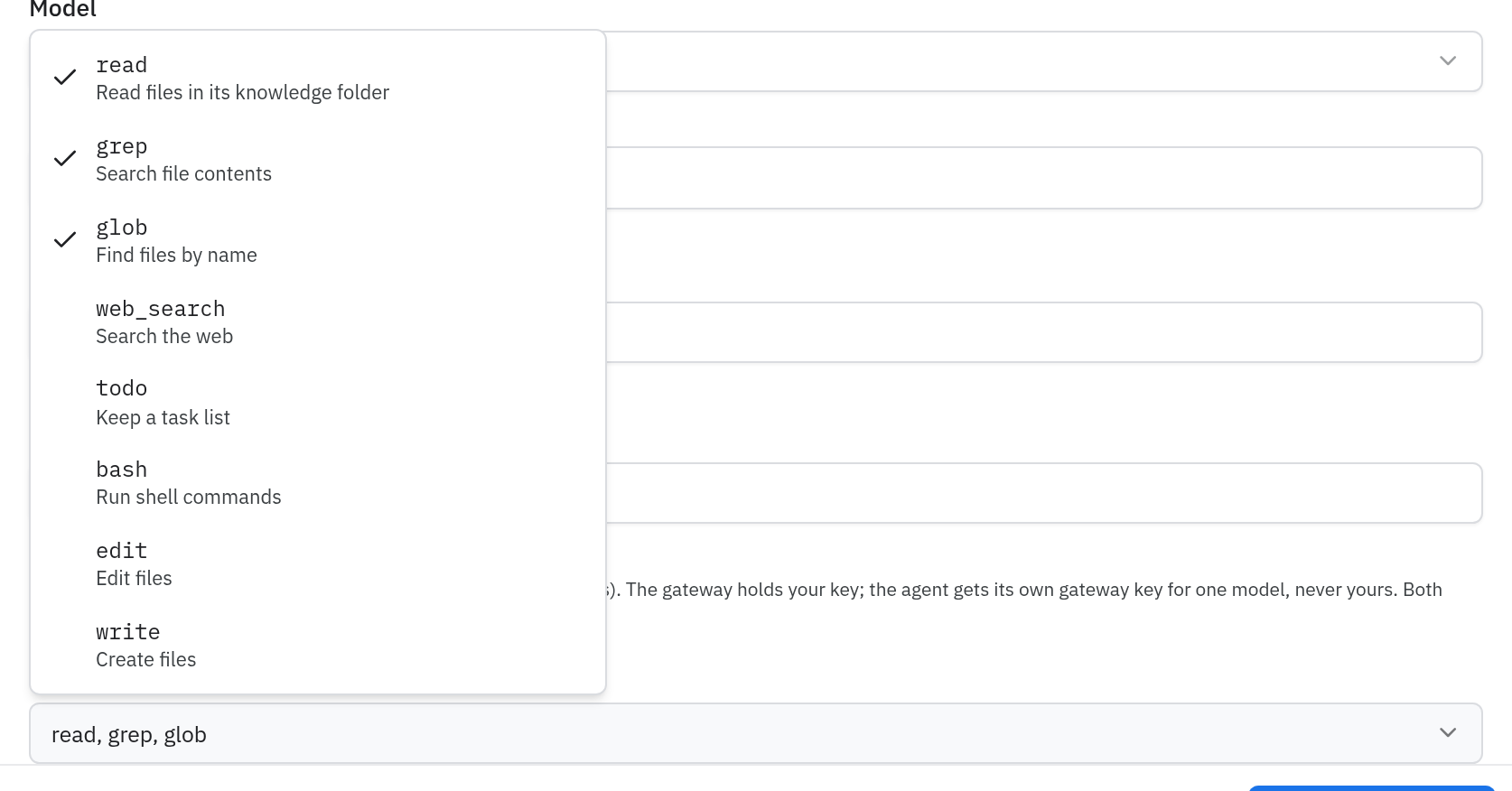
With every tool off, the field says No tools: answers from instructions only. The agent then can't read its documents. When we tried this, it answered from its own knowledge: see Turn its tools off.
On a public agent (one with the website widget), bash, edit and write are greyed out with Off while the website widget is on.
Deploy it
Click Deploy. What happens next depends on the model:
- An AI model or an AI Gateway already here: the panel closes at once, with a toast saying the agent is deploying.
- A provider or another endpoint: the panel stays open. It first shows Deploying the AI Gateway with your key…, then Waiting for the AI Gateway to start and add its models (about two minutes)…. Then it creates the agent. Ours took about a minute.
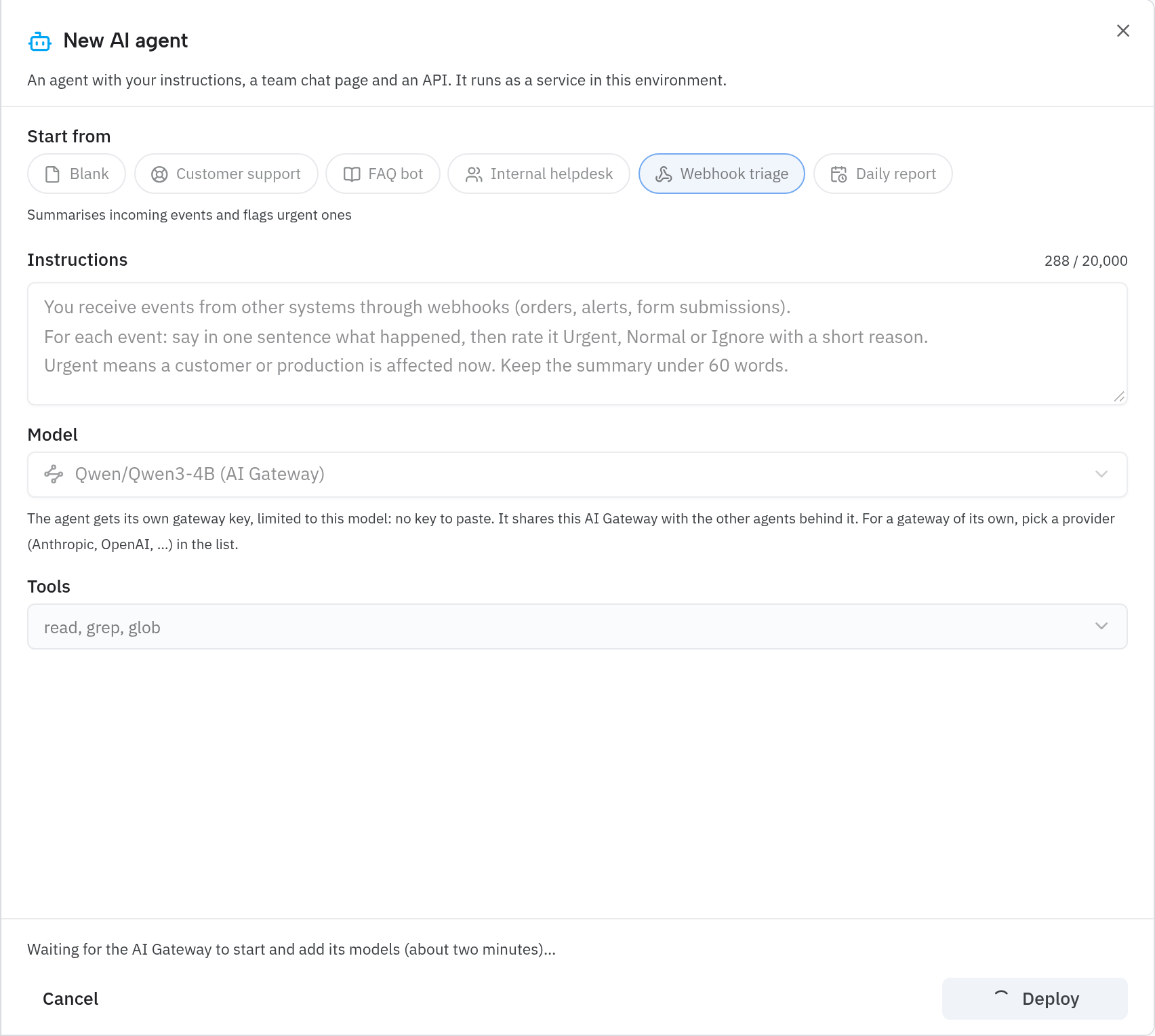
Keep the panel open until the agent appears. If you close it while the gateway starts, the gateway keeps starting. Open AI agent again and pick the gateway's model in Model. While it starts, it shows AI Gateway starting… (checked every 10 s).
With Webhook triage, the panel then shows the new webhook: ai-agent-2 is deploying. Its webhook:, its URL and Secret, each with Copy. Copy the secret now, because it isn't shown again. Done closes the panel.
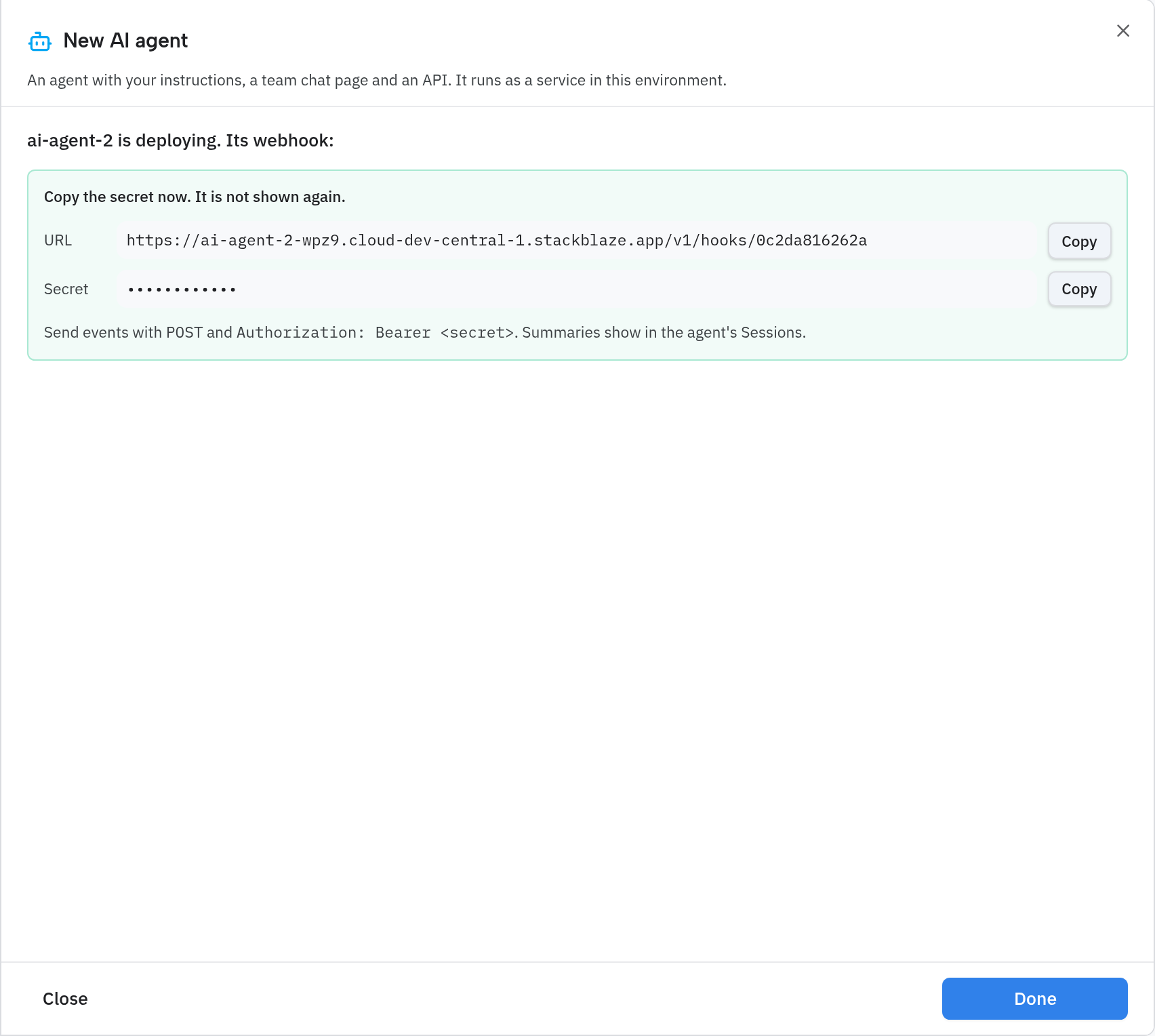
We sent that webhook a failed-payment event. The agent answered Urgent: Payment failed for customer C-311 ($49.00 USD) due to card decline after 3 retries. Need immediate customer support or refund process. See Start it from a webhook.
What it adds to your environment
The agent took about a minute to show Running. Before that, its card said Stopped.
In the Designer view, each agent is a service with open chat in place of an address. It comes with a PostgreSQL database for its chats (<agent>-db). An agent on a gateway is drawn with a line to it, and the gateway has a line to its model.
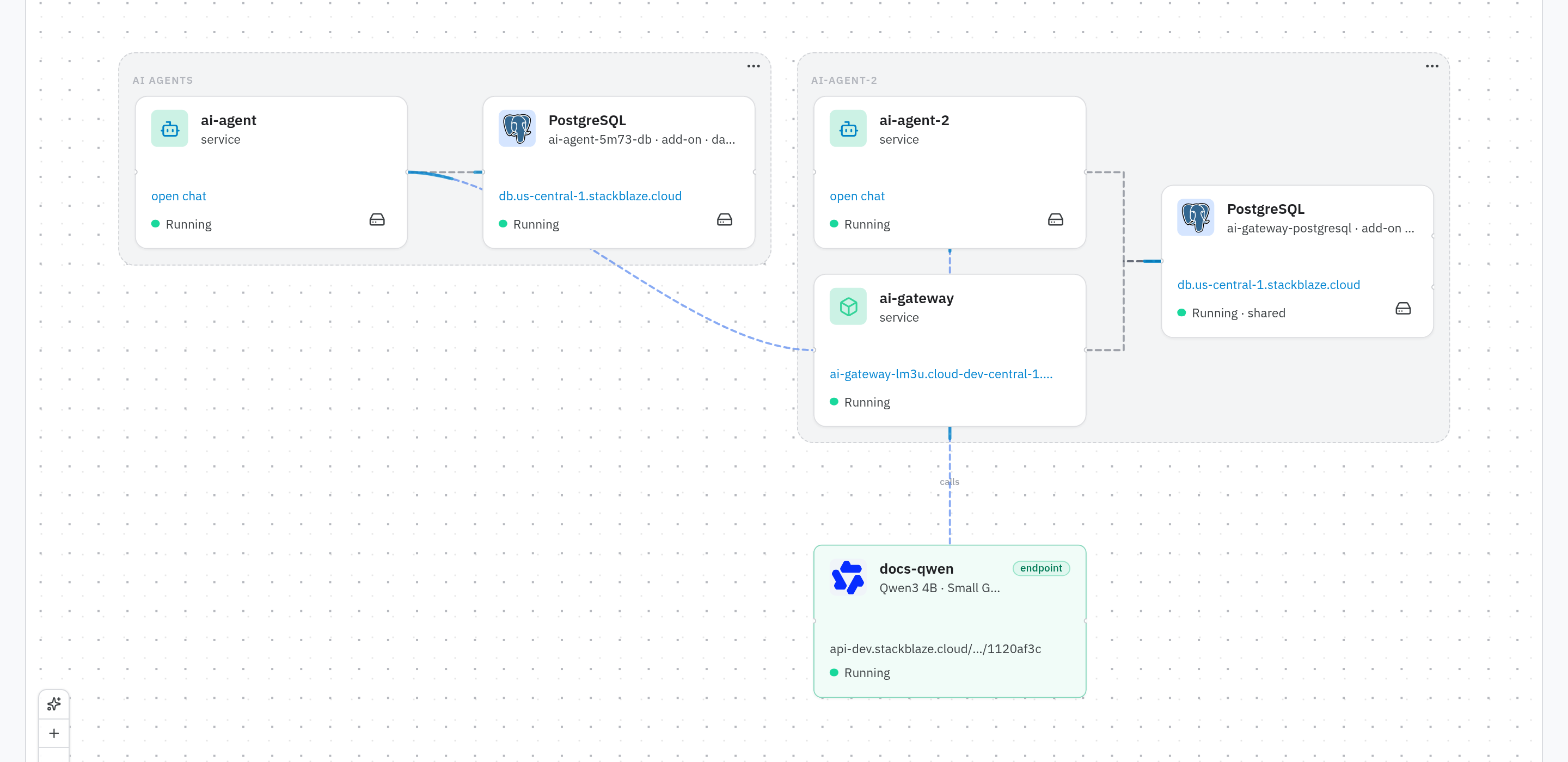
An agent deployed with its own gateway is grouped with it, under the agent's name. It has no database of its own: its chats go in the gateway's PostgreSQL, next to the gateway's own data. The card shows that database as shared.
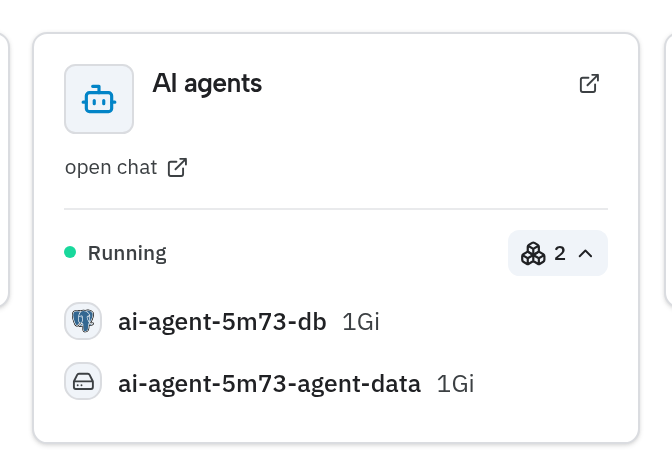
In the Apps view, the agents of an environment show as one AI agents card, with open chat and how many services it holds. Open the list to see the agent's database and its volume.
Next: chat with it and change it.
Limits
- AI agents are on in production. The platform can turn agents on per plan. Where they're off, creating one is refused, but existing agents keep running and can still be changed and deleted.
- Each agent has a 1 GB volume for its knowledge, skills, evals, optimization runs and the working files of its chats.
| What | Limit |
|---|---|
| Instructions | 20,000 characters |
| A message | 8,000 characters |
| A chat | 30 turns, and 120 seconds for each answer |
| Chats running at once | 5 per agent. An idle chat sleeps after 10 minutes and wakes with its history. |
| Chat history | Removed 90 days after a chat's last change |
| Knowledge | 10 MB per file, 200 files and 200 MB in all |
| Skills | 50 per agent. When to use it: 300 characters. Steps: 40,000 characters. |
| Integrations | 10 per agent |
| API keys | 20 per agent |
| Webhooks | 20 per agent. Bodies up to 64 KB, 60 calls a minute each. |
| Schedules | 20 per agent, each message up to 4,000 characters |
| Website widget | 20 sites. Per visitor: 10 messages a minute and 3 new chats a day. Per address: 60 messages and 10 new visitors a minute. |
| Evals | 20 per agent, 100 test cases and 20 checks each, 1 to 3 epochs, 300 trials and 600 seconds per trial. The last 20 runs of each eval are kept. |
| Optimizations | A budget of $1 to $500, one run at a time. The last 10 runs are kept. |
| AI Gateways | 20 per environment, 10 models each |
- An agent is a service: its instances, sleep mode and volumes follow your plan, like any service. On our Business plan test account, Settings → Scale offered up to 10 instances.
- Every chat uses tokens on the agent's model. With a provider, you pay the provider. With an AI model of your own, you pay for its GPU.
AI models (GPU)
Run an open model on its own GPU behind an OpenAI-compatible URL, from the catalog or any Hugging Face model.
Run and change your agent
Chat with your AI agent, change its instructions, model and tools and see the effect, read its sessions and logs, and rename, restart, pause or delete it.