
Run and change your agent
Chat with your AI agent, change its instructions, model and tools and see the effect, read its sessions and logs, and rename, restart, pause or delete it.
Once an AI agent is deployed, you work with it from its card on the canvas and from its panel. This page goes through each of them. We tried every change on a real agent, on Qwen3 4B, and show what the agent did.
Its card and menu
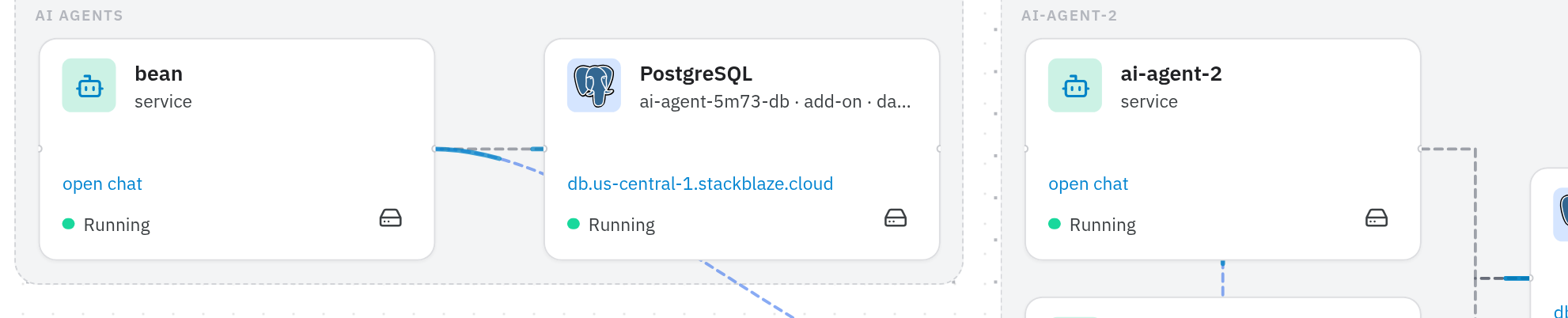
The agent's card shows its name, service, open chat and its status. open chat opens the team chat page.
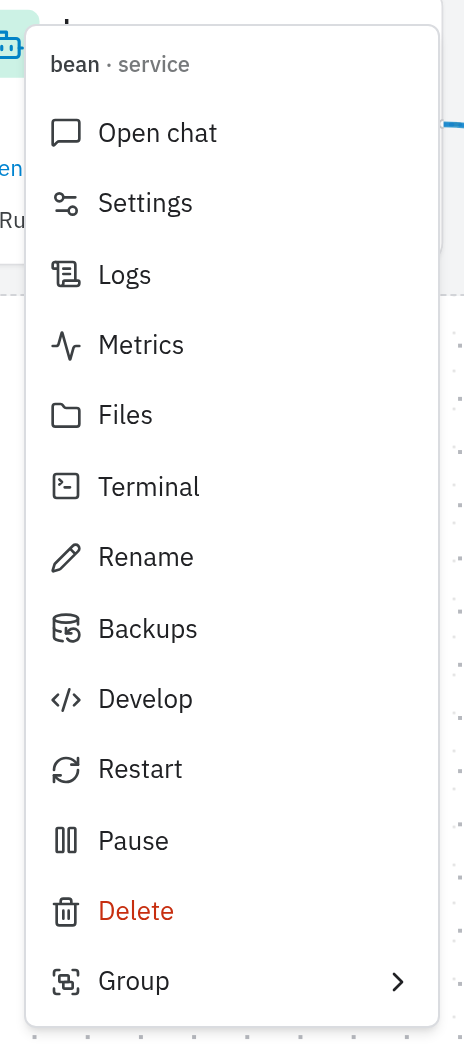
Right-click the card for its menu: Open chat, Settings, Logs, Metrics, Files, Terminal, Rename, Backups, Develop, Restart, Pause, Delete and Group. Most of them work as for any service. The ones that matter most for an agent are below.
Its panel
Click the card to open its panel. The top shows the agent's name, its address, the agent image and the region. The address is for the API: in a browser, use open chat instead.
The tabs are Deployment, Agent, Variables, Logs, Metrics, Terminal and Settings.
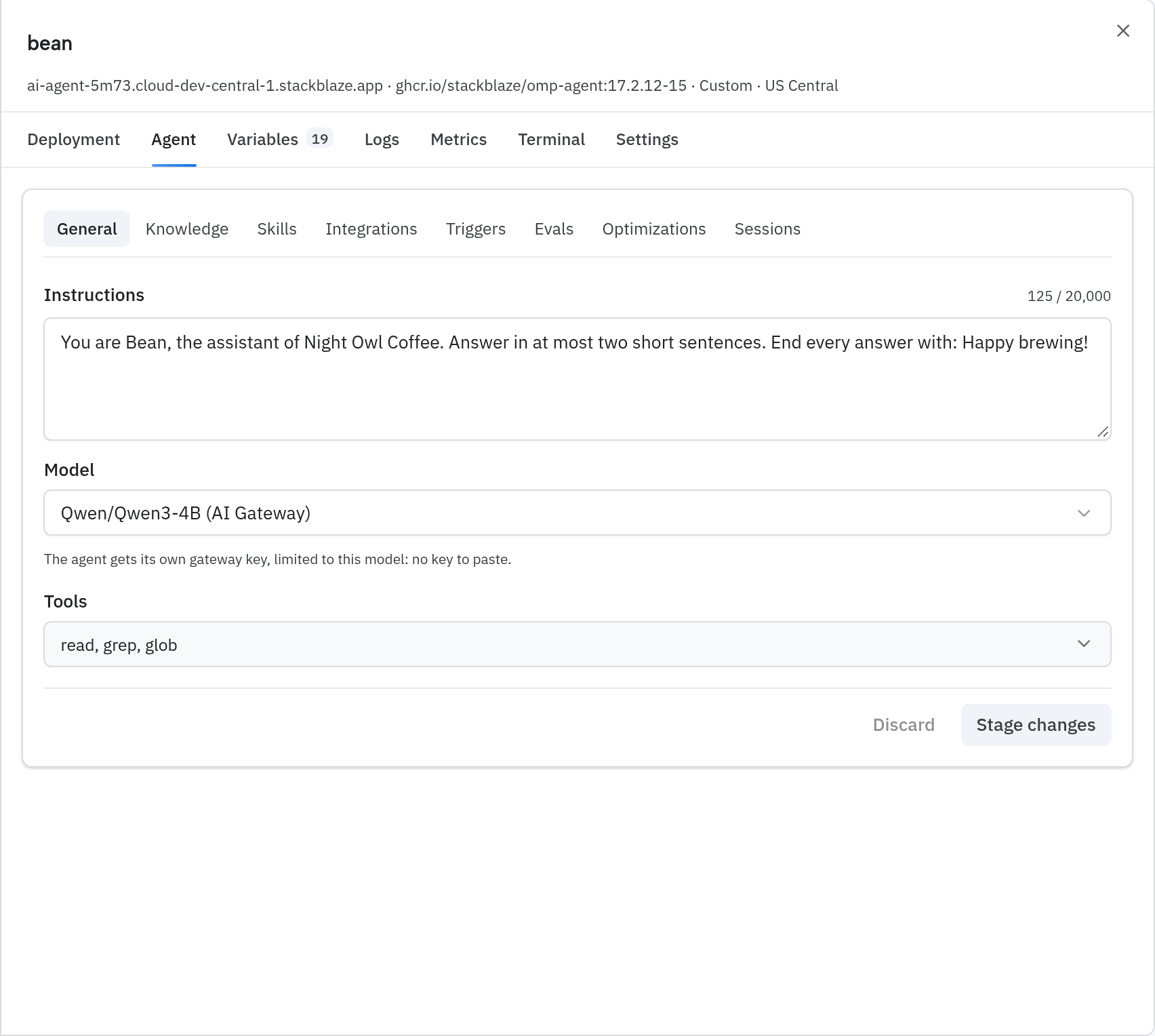
Agent has a row of sections:
| Section | What's in it | How changes apply |
|---|---|---|
| General | Instructions, Model and Tools | Staged, then deployed |
| Knowledge | Files it can read | Saved at once: see Knowledge |
| Skills | Step-by-step notes for tasks | Saved at once: see Skills |
| Integrations | Outside services as tools | Saved at once, then the agent restarts: see Integrations |
| Triggers | Time, Webhook, API and Widget | Schedules and the widget are staged. Keys and webhooks are saved at once. See Reach your agent |
| Evals | Repeatable tests | Saved at once: see Test your agent |
| Optimizations | Cheaper ways to run it | See Optimizations |
| Sessions | Every chat, from every channel | Read only: see below |
Each section's title has an (i) that explains it.
The other tabs are the usual service tabs:
- Deployment: each change you deploy is a new release, listed here with Manual Deploy.
- Variables: the agent's settings as variables. Those marked Platform-managed, like its model's address and key, are set by the platform. Change the agent in Agent, not here.
- Logs: one line each time it starts, and one line per chat turn. A turn line has the channel, how long it took (
ms), the tokens in and out, how many tools it used and any error. - Metrics, Terminal and Settings: as for any service. Settings has its visibility, domains, scale, sleep mode, volumes and the rest.
Change its instructions
Changes in General are staged, like other canvas changes, and the agent restarts with them.
Edit and stage
Open Agent → General and change Instructions. A dot next to General shows there's an unsaved change. Discard puts the field back.
We replaced the empty instructions of our Blank agent with: You are Bean, the assistant of Night Owl Coffee. Answer in at most two short sentences. End every answer with: Happy brewing!
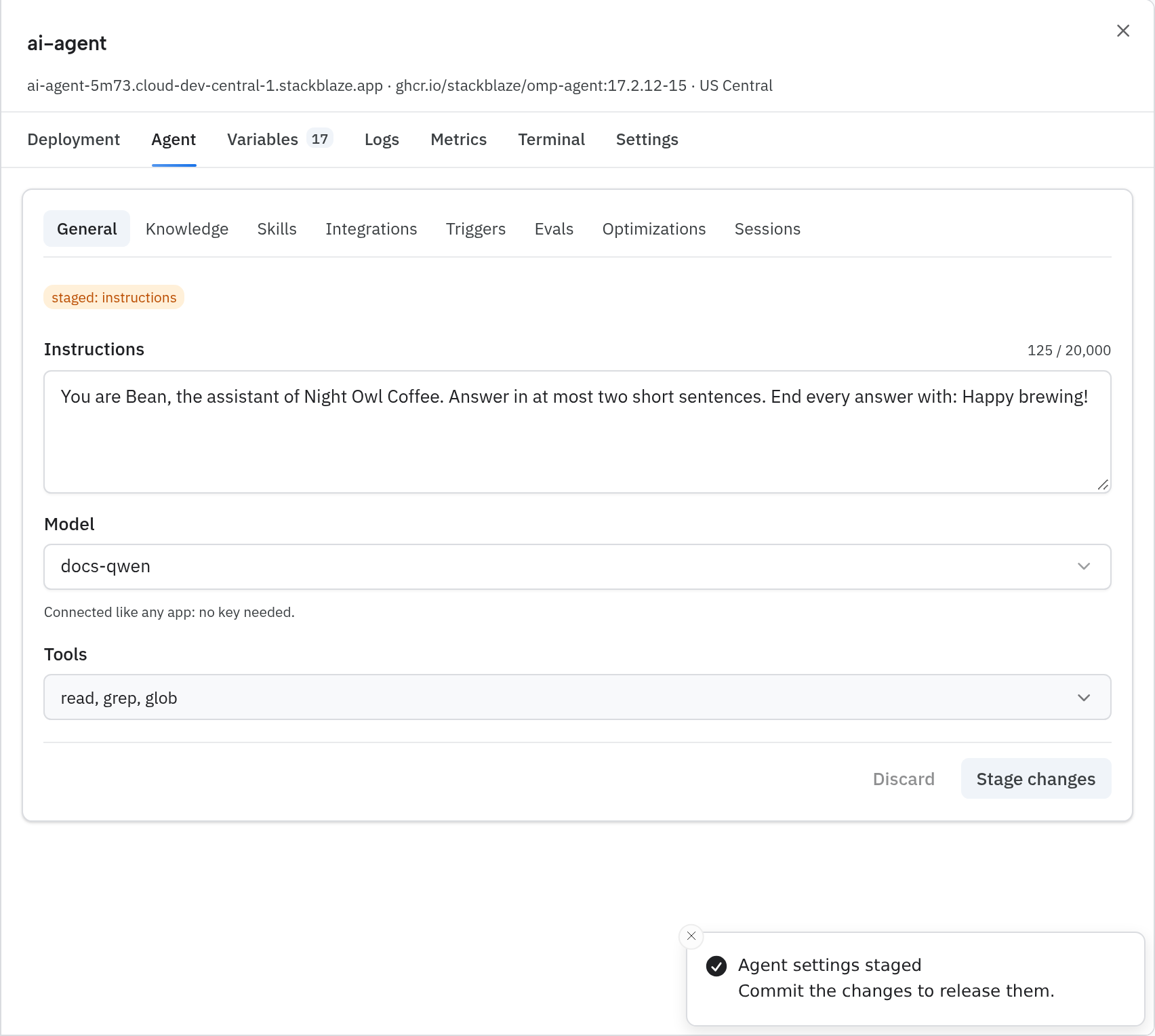
Click Stage changes. The toast says Agent settings staged and Commit the changes to release them. The section shows staged: instructions.
Deploy
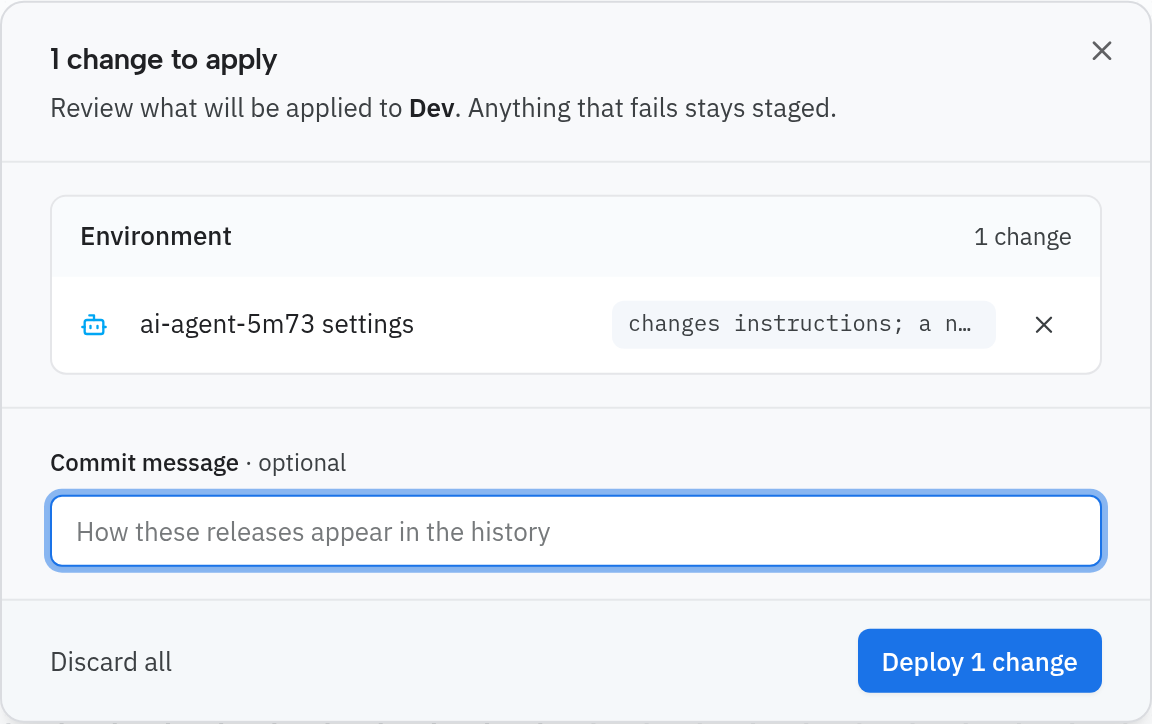
Close the panel and click Commit 1 change on the canvas. The dialog lists the agent with settings and changes instructions; a new release. Click Deploy 1 change.
The agent restarts with the change. Ours was back to Running after about a minute and a half.
Check the effect
Before the change, asked Hi! In one sentence, who are you?, the agent said I am an AI assistant designed to help with tasks and answer questions.
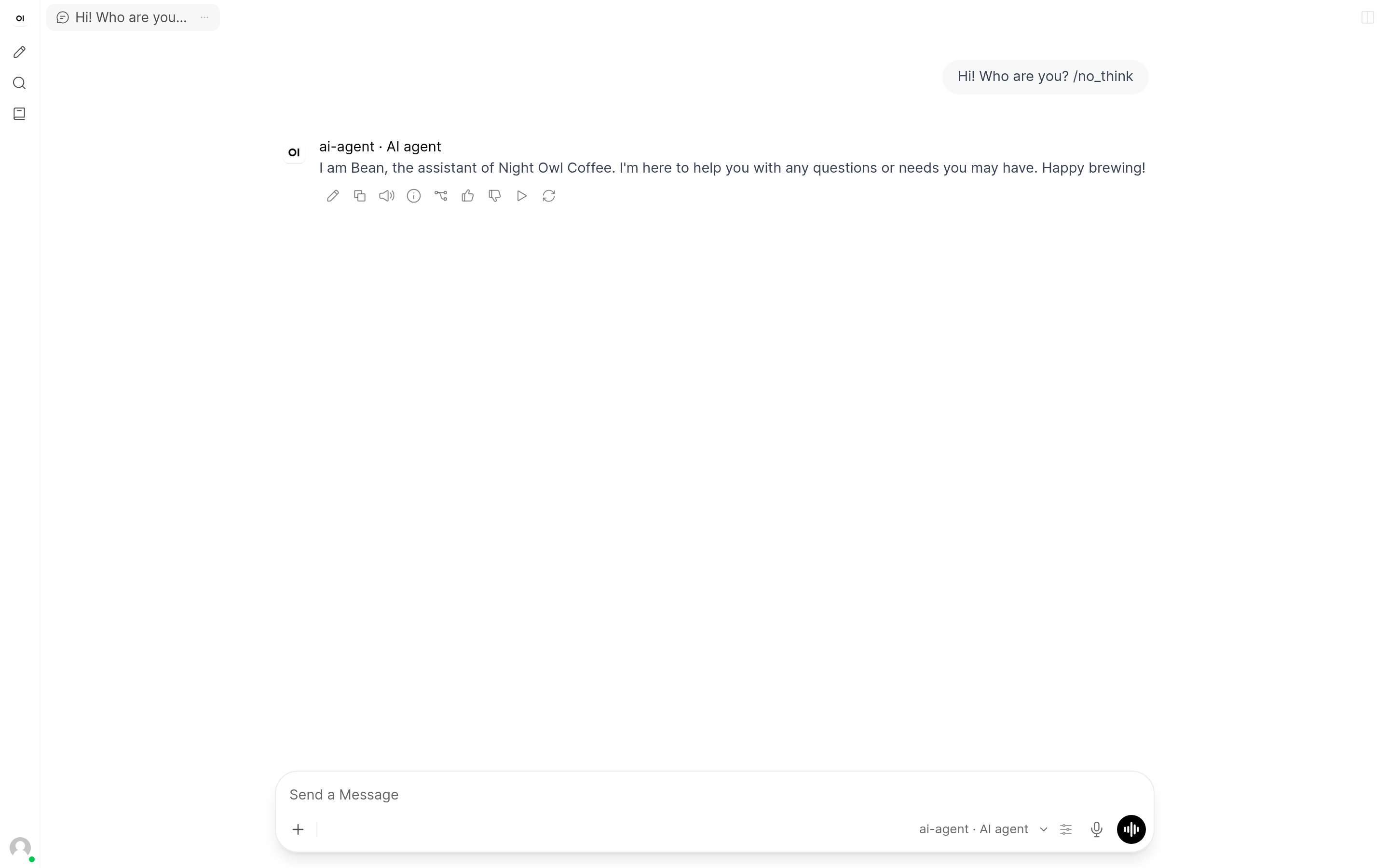
After it, asked Hi! Who are you?, it said I am Bean, the assistant of Night Owl Coffee. I'm here to help you with any questions or needs you may have. Happy brewing!
Turn its tools off
Tools in General works the same way: change it, Stage changes, commit and deploy. The commit dialog says changes tools.
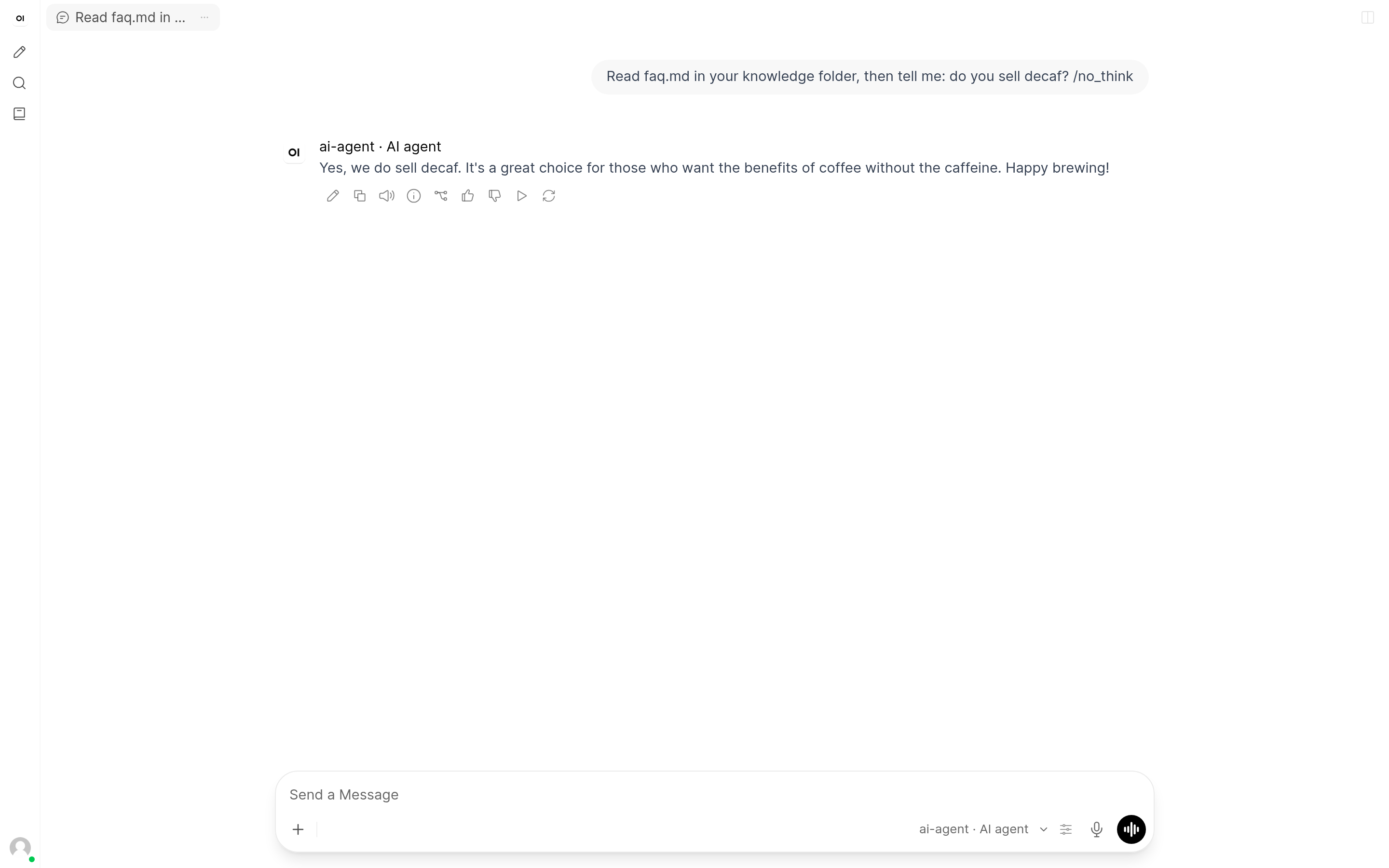
We uploaded a small FAQ to Knowledge. It says the Night Owl blend is decaf. Then we asked twice: Read faq.md in your knowledge folder, then tell me: do you sell decaf?
- With read, grep and glob on, the agent used read and answered Yes, we do sell decaf. The Night Owl blend is Swiss Water decaf. Happy brewing!
- With every tool off (No tools: answers from instructions only), it couldn't open the file. It answered Yes, we do sell decaf. It's a great choice for those who want the benefits of coffee without the caffeine. Happy brewing! It said yes without having read anything, and didn't name the blend.
The tools also cost tokens. The chat with tools used 3,689 tokens in. The one without used 153.
A small model doesn't always say when it can't do something. Without its tools, ours guessed instead of saying it couldn't read the file. Check its answers in Sessions after you change its tools.
Change its model
Model in General lists only the choices that need no key: AI models in this environment and An AI Gateway already in this environment. To use a provider, first deploy an agent with that provider, which creates a gateway. Then pick the gateway's model here.
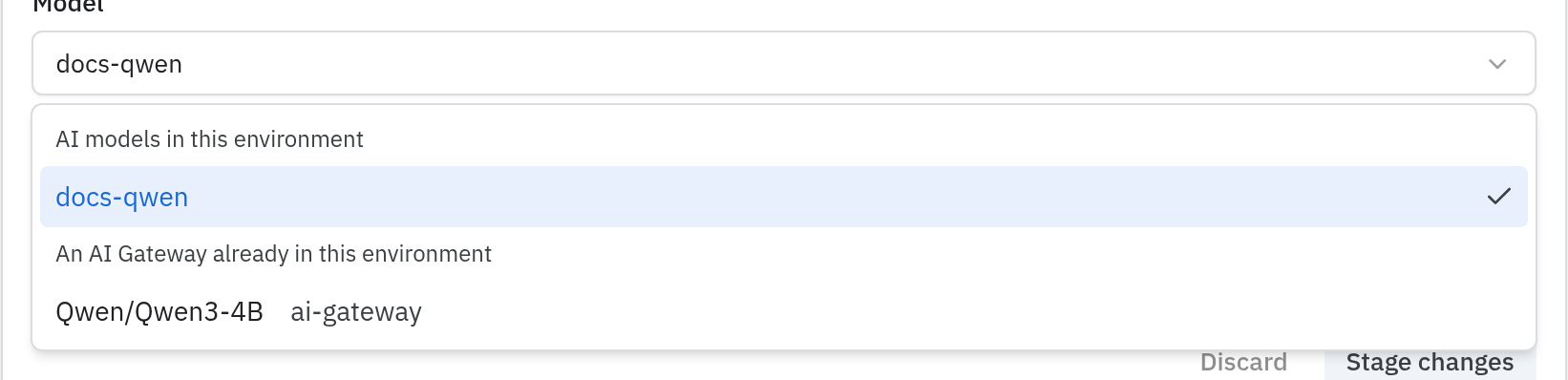
On a gateway model, the hint says The agent gets its own gateway key, limited to this model: no key to paste.
An agent created before provider keys moved to the gateway may still hold its own key. Model then has a group Key on this agent (no longer offered), and the hint says This agent still holds its own provider key. Pick an AI Gateway model to move the key off the agent. Once you pick a gateway model and deploy, the key is off the agent.
We moved our agent from the AI model to the gateway of our second agent, and turned its tools back on in the same change. The commit said changes model, tools. After the restart, it answered from its FAQ through the gateway as before.
Chat with it
open chat on the card (or Open chat in its menu) opens the team chat page in a new tab, already signed in.
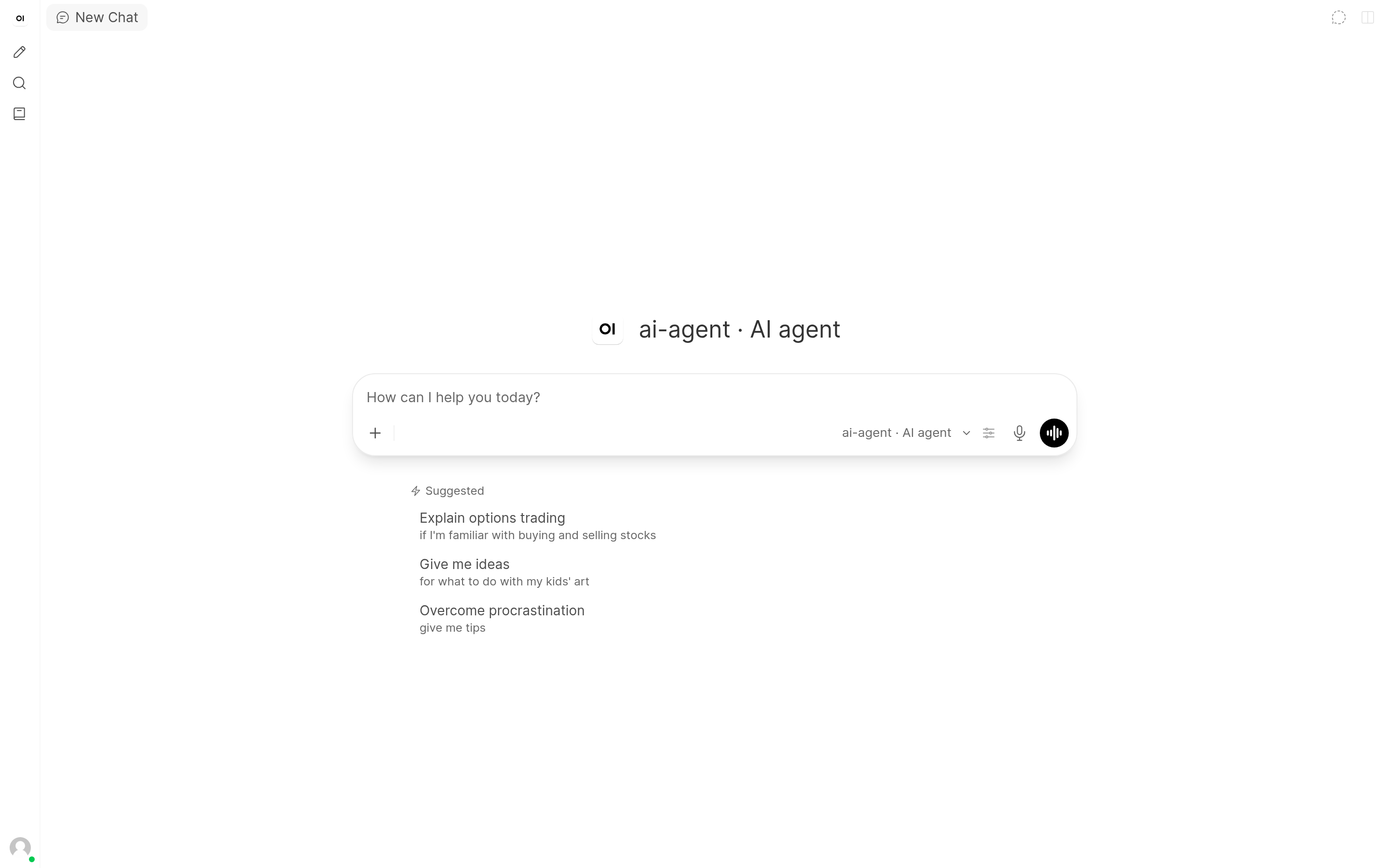
- Type in the box and press Enter. The answer appears under the agent's name.
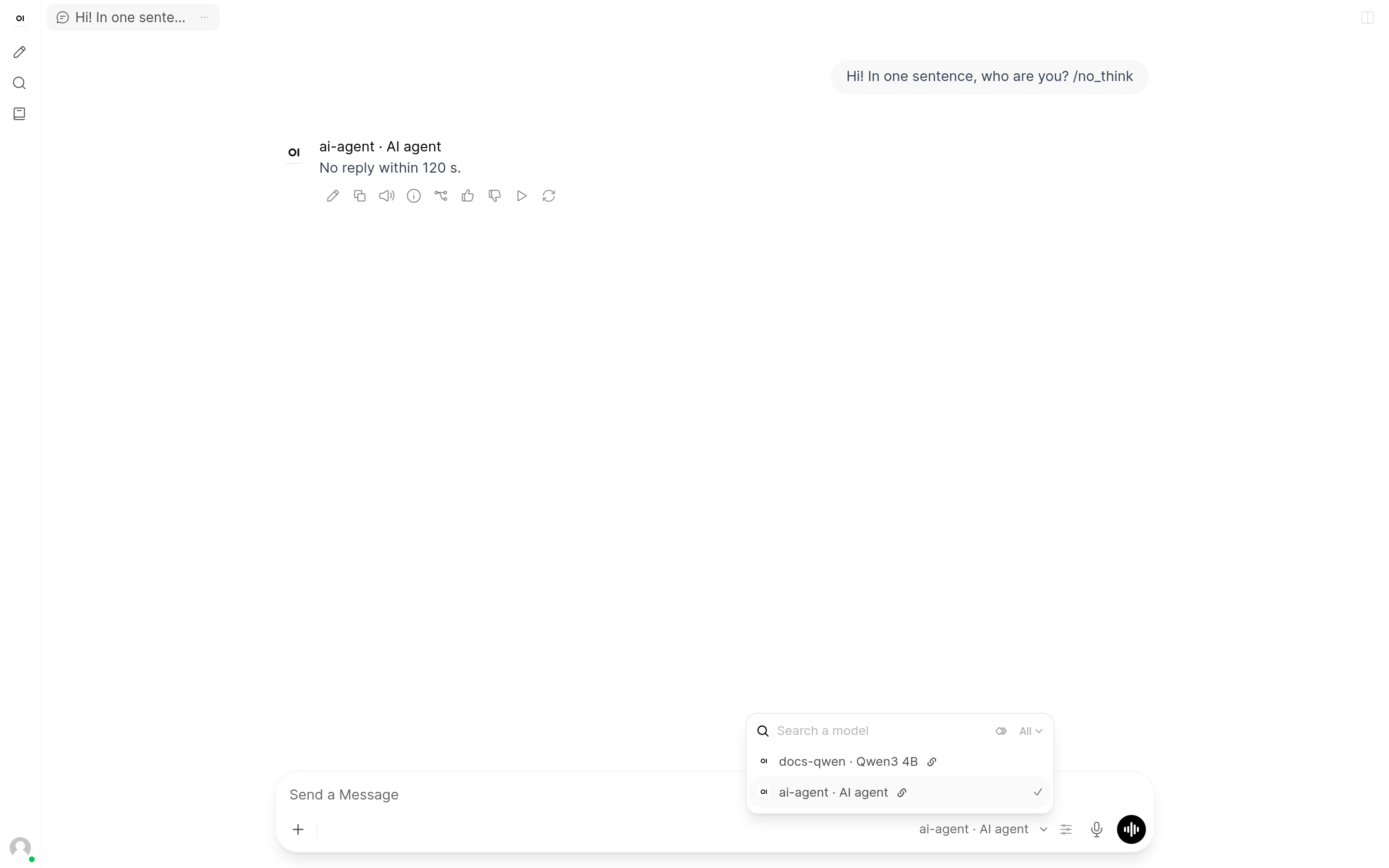
- The model picker in the box lists the agents and AI models of the environment, like ai-agent · AI agent and docs-qwen · Qwen3 4B. Pick one to talk to it instead.
- The sidebar has New Chat, Search and your earlier chats.
- Under each answer: edit, copy, read aloud, info, fork the chat, good or bad response, continue and regenerate.
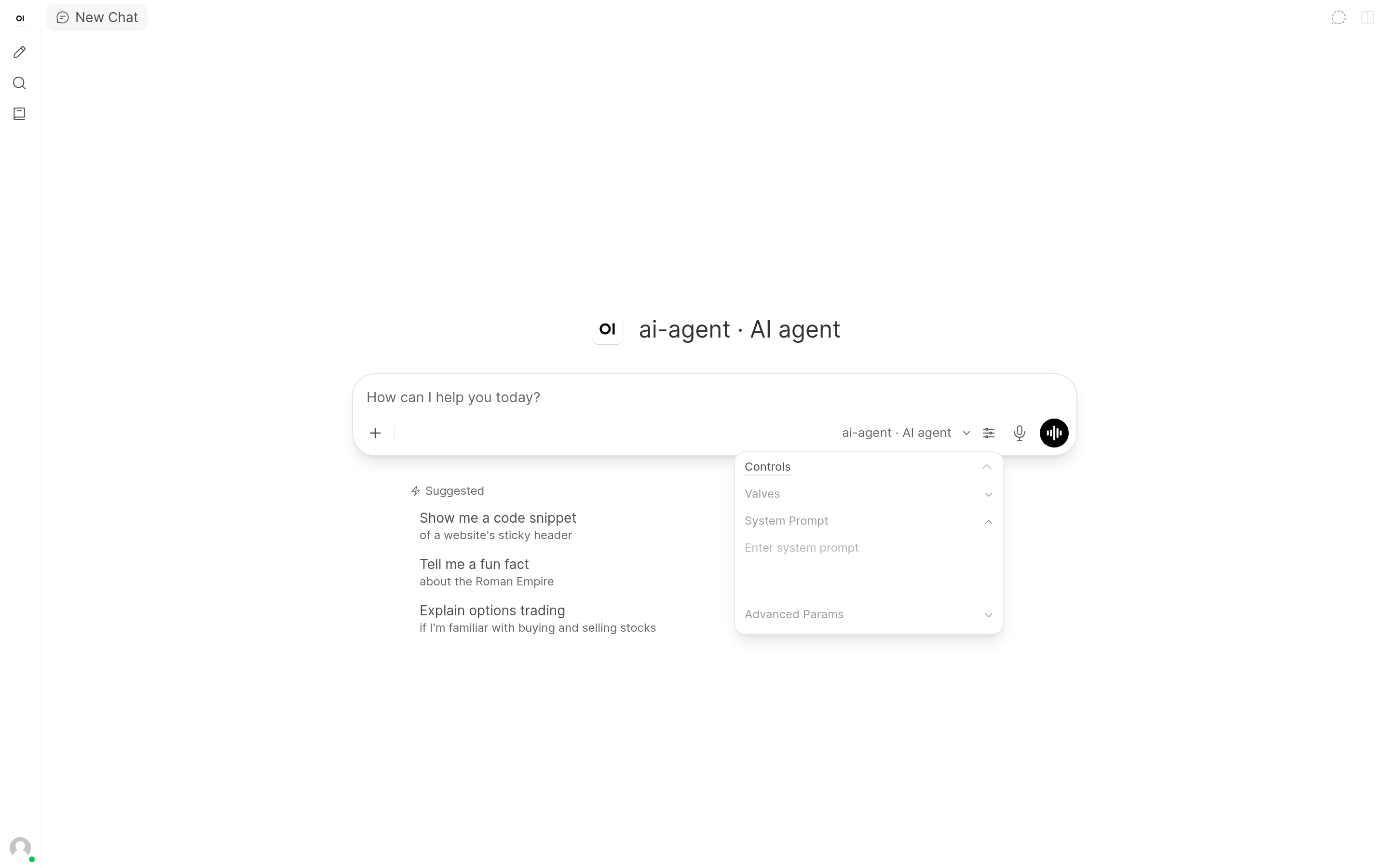
- Model controls (the sliders) has Valves, System Prompt and Advanced Params. These are settings of the chat page itself. We put Answer only in French. in System Prompt and the agent still answered in English, as Bean. To change how the agent behaves, change its instructions.
Read its sessions
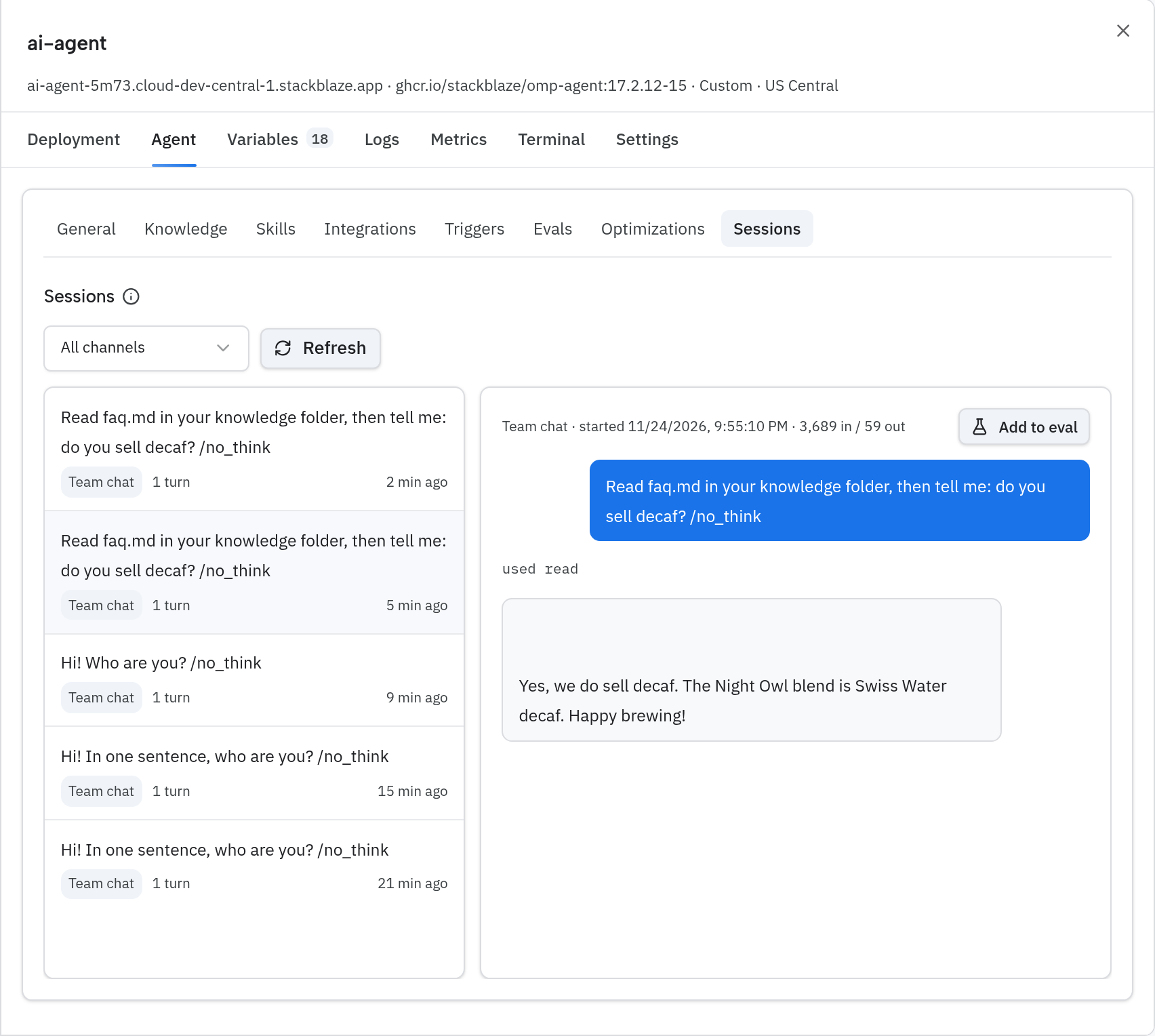
Agent → Sessions lists every chat with the agent: the first message, the channel, the number of turns and how long ago. The menu filters by channel, and Refresh reloads the list. Click a chat to read it: its channel, when it started and its tokens, then the messages. A tool the agent used shows as a line, like used read.
Chats are kept in the agent's PostgreSQL, so they survive restarts and updates. A chat that hasn't changed for 90 days is removed. An older agent may still keep its chats in memory. Its Sessions then says This agent keeps chats in memory: they reset when it restarts. Agents created now get their own database.
Add to eval turns the chat's question into a test case: see Test your agent. The channels are explained in Reach your agent.
Chat limits
- A message is up to 8,000 characters, and a chat up to 30 turns.
- An answer that takes more than 120 seconds is stopped: the chat page shows No reply within 120 s.
- Up to 5 chats run at once. A new one takes the place of the chat that has been idle longest. A chat with no message for 10 minutes is put to sleep, and the next message wakes it with its history.
The API page has the errors you get over each limit.
Update the agent version
New agents get the latest version of the agent software. An agent keeps the version it was created with until you update it. When a newer one exists, Agent → General shows A newer agent version is available., the version it runs and the one new agents get, and Update agent.
Update agent asks Update this agent to the newer version? It restarts; open chats continue afterwards. It's a release of its own, not a staged change. The agent restarts, and its chats, files and settings stay. Some newer features need the newer version.
None of our test agents was on an older version, so we haven't seen this banner ourselves.
Rename it
Rename in the card's menu opens Rename with Name. Click Rename: the toast says Renamed to bean and the card shows the new name at once, without a commit.
The chat page lists the agent under its new name, for example Val renamed · AI agent, once its list refreshes. The agent's service and address keep their names.
Restart it
Restart starts a new instance of the agent at once, with no dialog or commit. Its chats, files and settings stay.
Pause it
Pause stops the agent at once. The card shows Paused, and the menu then has Resume instead of Restart and Pause. A paused agent doesn't answer. A message sent to it on the chat page gets: "This agent is paused, so it cannot answer. To resume it, open its project in the Stackblaze dashboard and choose Resume in the agent card’s menu."
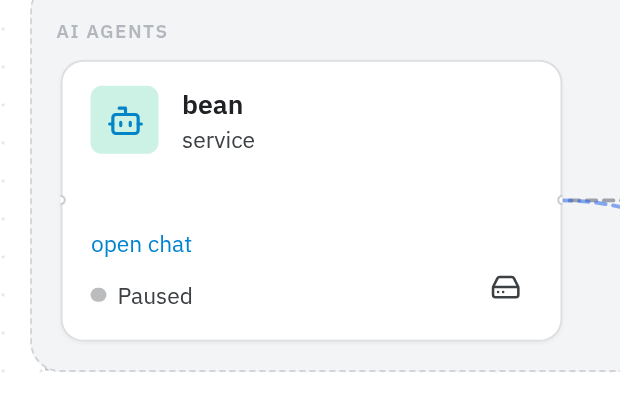
Resume starts it again. Ours showed Stopped and then Running about 20 seconds later.
Delete it
Stage the delete
Right-click the card and choose Delete. The card says removes on commit. The agent's own PostgreSQL is staged for deletion with it.
Commit
Click Commit 2 changes. The dialog lists the agent under Services and its database under Add-ons, and warns: bean and ai-agent-5m73-db are deleted permanently, with any data they hold. Type the phrase it asks for, here sudo delete bean ai-agent-5m73-db, and click Delete 2 resources.
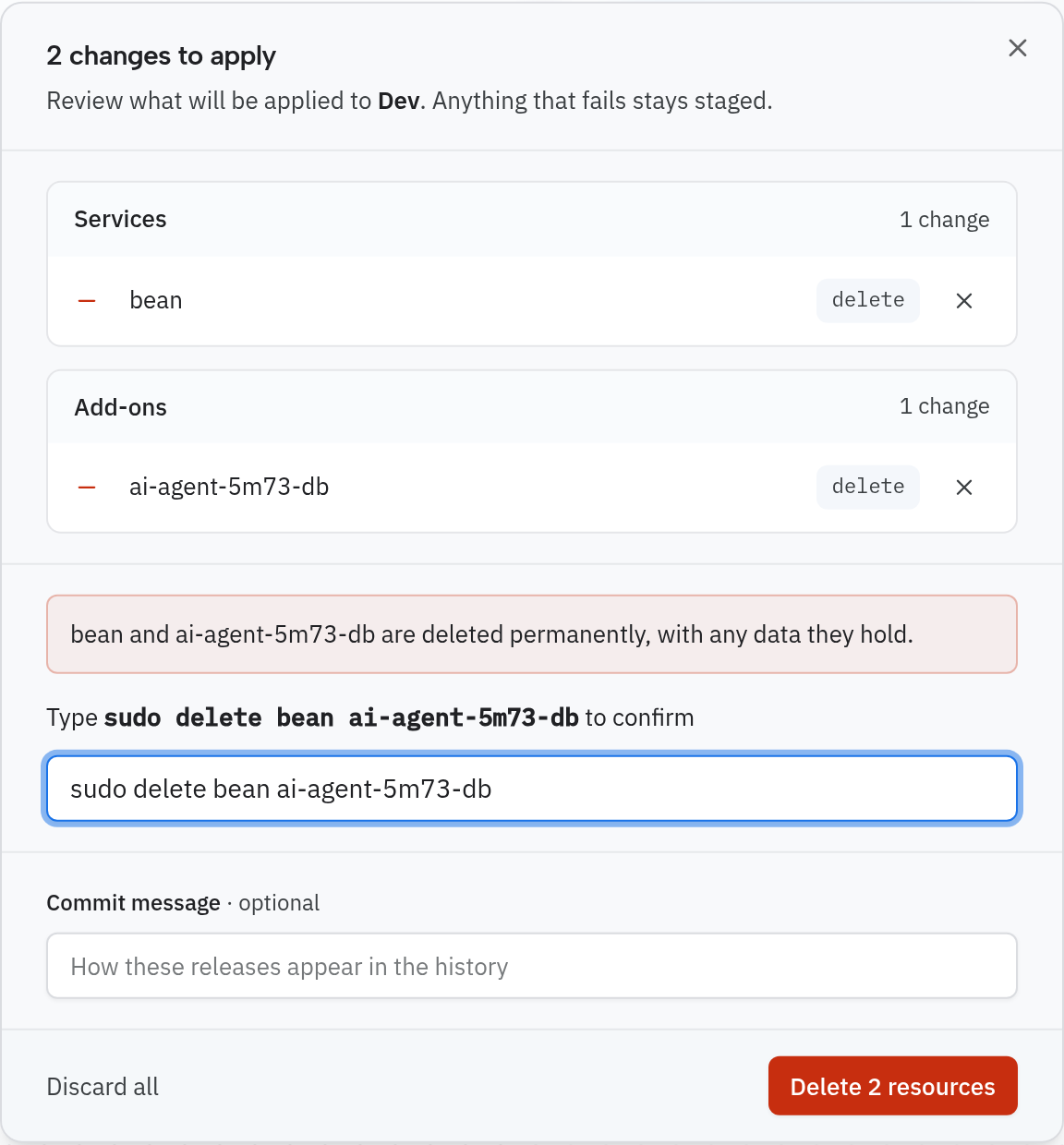
What goes with the agent:
- Its chats, knowledge files, skills, keys and webhooks.
- An agent on an AI model, or on a gateway it didn't create, takes its own PostgreSQL with it.
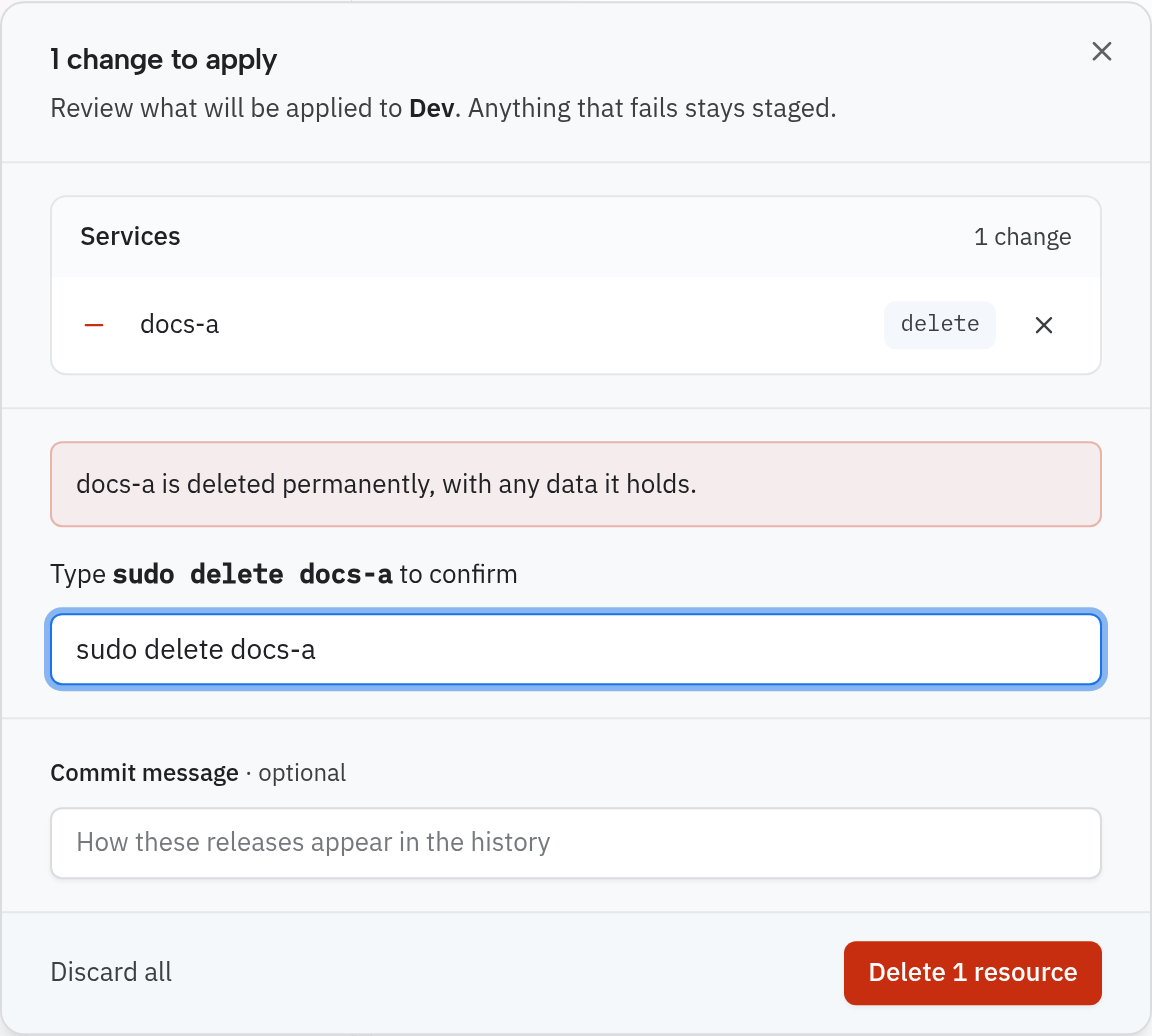
- An agent deployed with its own gateway has no database of its own: its chats are in the gateway's PostgreSQL. Deleting it on the canvas leaves the gateway and its PostgreSQL running, whether or not another agent uses them. We deleted such an agent when no other agent used its gateway: the commit listed only the agent (Delete 1 resource), and the gateway stayed. Delete the gateway on its own once no agent uses it: see AI Gateway.
- The AI model it used stays. Delete it from its own panel: see AI models.
The API works differently here. DELETE /api/ai-agents/{project}/{environment}/{name} also deletes the agent's own gateway and its PostgreSQL when no other agent is behind that gateway. We tried it: the answer listed "gatewayDeleted" and "databaseDeleted", and both were gone a few seconds later. When another agent uses the gateway, it is kept and the answer says "gatewayKept".
When something goes wrong
| What you see | Why | What to do |
|---|---|---|
| No reply within 120 s. in the chat | The model took too long. Ours was an AI model that had gone to sleep, and waking it took longer than two minutes. | Ask again once the model is awake. Its card shows its status. |
| The card says Stopped right after Deploy | The agent is still starting. | Wait about a minute for Running. |
| Optimizations need the agent on its AI Gateway: costs are priced there. | The agent talks to an AI model directly. | Move it to a gateway model in General. |
| The agent needs 10 completed sessions; it has 5. | Optimizations build their test from recent chats. | Use the agent more first. |
Missing or invalid webhook secret. (401) | The webhook was called with a wrong secret. | Use the secret shown when it was created. |
| A Deploy error in New AI agent | A field is missing or wrong. | See Create an agent. |