
Reach your agent
Put your AI agent on a website, call it from your code with an API key, start it from a webhook or on a schedule, and read every conversation in Sessions.
Besides the team chat page, an AI agent can be reached four ways: a chat bubble on your website, its API, a webhook and a schedule. You set them up in the agent's sheet, under Agent → Triggers, which has four tabs: Time, Webhook, API and Widget. Every conversation, whatever started it, shows in Agent → Sessions.
Click the agent's card on the canvas to open its sheet.
API keys and webhooks take effect as soon as you create or revoke them. When we tried it, a new key and a new webhook worked on the first call, and after revoking them both were refused within a second. An agent created before this change, or one that can't be reached at that moment, picks the change up when it restarts instead, which takes about a minute. Schedules and the widget are staged: click Stage changes, then deploy them from the canvas like any other change.
Call it from your code
Create an API key
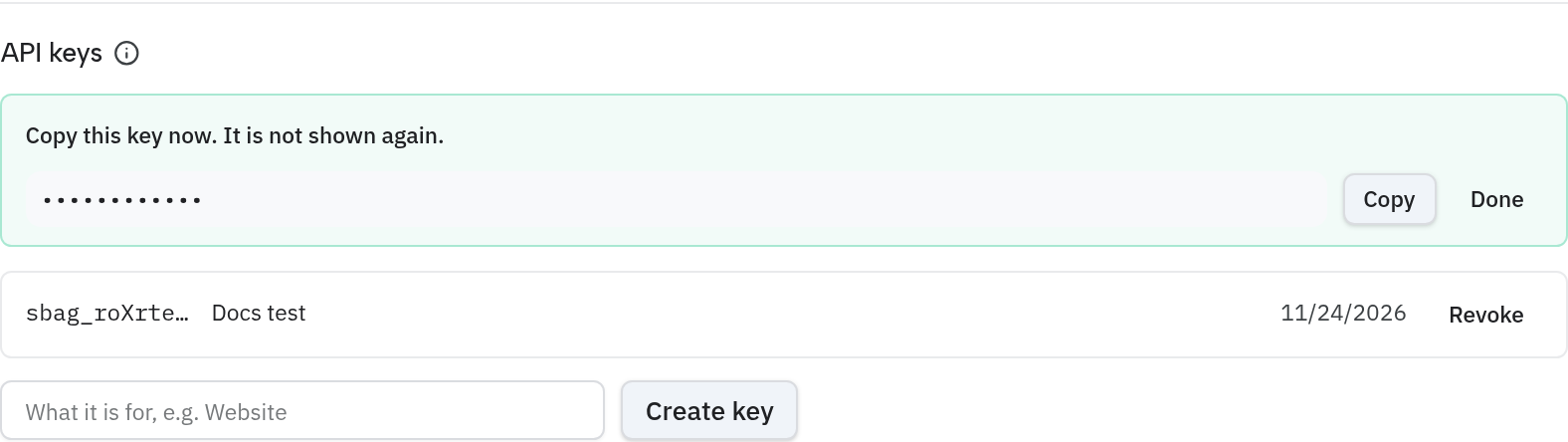
Go to Agent → Triggers → API. Type what the key is for (for example Website) and click Create key.

The key is shown once, with Copy and Done: copy it now, because it is not shown again. The list then shows the start of the key, its label, the day it was created and Revoke.
Start a chat
The agent's address is under its name at the top of the sheet. Send the key as a bearer token. POST /v1/chats starts a chat and returns its id:
curl -X POST https://<agent-address>/v1/chats \
  -H "Authorization: Bearer $AGENT_KEY" \
  -H "Content-Type: application/json" \
-d '{}'{"chat_id":"16daab6d-01a3-49a0-baa3-4108555339a1"}Without a valid key the answer is 401 with {"error":"Missing or invalid credentials."}.
Send a message
Post the message to the chat. The call returns when the agent has answered:
curl -X POST https://<agent-address>/v1/chats/<chat_id>/messages \
  -H "Authorization: Bearer $AGENT_KEY" \
  -H "Content-Type: application/json" \
-d '{"message":"Read faq.md in your knowledge folder, then tell me: do you sell decaf?"}'{"chat_id":"94f0c149-…","reply":"Yes, I do sell decaf. The Night Owl blend is Swiss Water decaf.","usage":{"input":3733,"output":56,"cached":0},"model":"gateway/Qwen/Qwen3-4B","error":null}The reply comes with the tokens it used (usage) and the model that answered. Send more messages to the same chat_id to continue the conversation. A body without message is refused with "message" is required.
GET /v1/chats/<chat_id> with the same key returns the chat: its channel (api), turns, tokens and every event, including the tools the agent used.
To save a call, put the first message in POST /v1/chats: -d '{"message":"Hello there"}' creates the chat and returns the reply in one answer. Add "stream": true to either call to get the answer as server-sent events. Streaming, the chat limits and every error are on AI agents API.
Revoke the key
Click Revoke next to the key and confirm Revoke sbag_…? Anything using it stops working. A toast says the key is revoked. Once the agent has restarted, calls with that key get 401.

API keys start with sbag_. StackBlaze keeps only a hash of each key, so a lost key can't be shown again: revoke it and create another. An agent has up to 20 API keys.
Start it from a webhook
A webhook lets another service start a chat: the agent gets the request body as its message.
Create a webhook
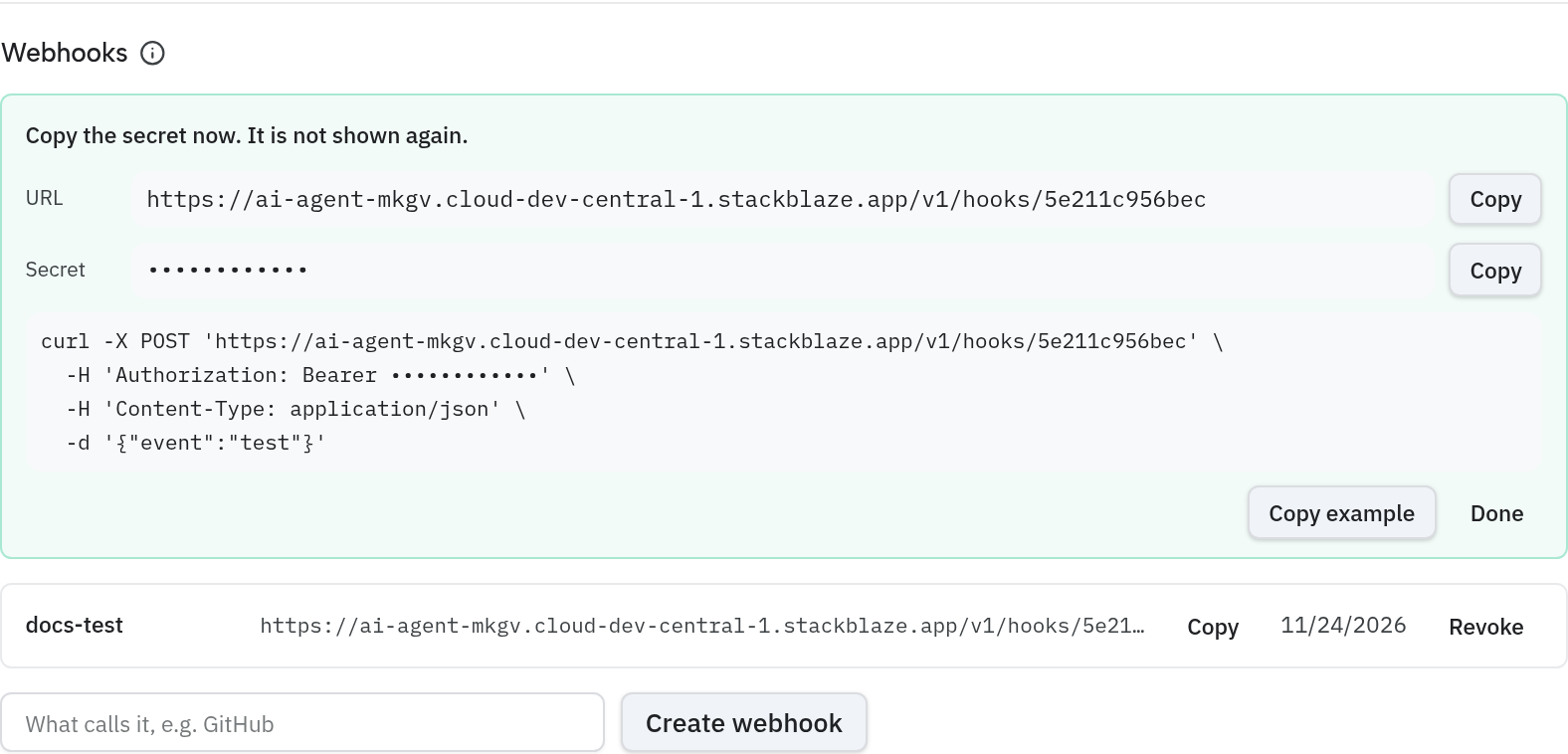
Go to Agent → Triggers → Webhook. Type what calls it (for example GitHub) and click Create webhook.
You see its URL and Secret, each with Copy, and a curl example with Copy example. The secret is shown once: copy it now.
Call it
Send a POST to the URL with the secret as a bearer token and any JSON body:
curl -X POST 'https://<agent-address>/v1/hooks/<id>' \
  -H 'Authorization: Bearer <secret>' \
  -H 'Content-Type: application/json' \
  -d '{"event":"order.refund_requested","order":"A-1042"}'
The webhook answers at once with 202 and the new chat's id, {"chat_id":"…"}, and the agent works on it in the background. Its message is A webhook "<id>" was received. followed by the body. The answer is in Sessions, on the Webhook channel.
A wrong secret gets 401 with {"error":"Missing or invalid webhook secret."}.
What else a webhook takes, as we tried it on a test agent:
-
The secret in its own header. A sender that can't set
Authorizationcan sendX-Agent-Webhook-Secret: <secret>instead. Secrets start withsbwh_. -
Any body. JSON, plain text or anything else, up to 64 KB. JSON is pretty-printed into the message, other text is passed as it is. A bigger body gets
413withRequest body too large. -
Wait for the answer. Add
?wait=trueto the URL. The call then returns200once the agent has answered, withchat_id,reply,usageanderror:curl -X POST 'https://<agent-address>/v1/hooks/<id>?wait=true' \ -H 'X-Agent-Webhook-Secret: <secret>' \ -H 'Content-Type: application/json' \ -d '{"event":"order.paid","id":7}'Most senders give up after a few seconds, so leave it off for them.
-
60 calls per minute. Each webhook takes up to 60 calls a minute. We sent 63: the last ones got
429withToo many calls to this webhook. Try again in a minute.and aRetry-Afterheader. Calls with a wrong secret don't count. -
Only
POST: aGETgets405withUse POST.A URL with an unknown webhook id gets404withNo such webhook.
An agent has up to 20 webhooks.
Revoke it
The list shows each webhook's label, its URL with Copy, the day it was created and Revoke. Click Revoke and confirm Revoke the webhook …? Calls to it stop working. Once the agent has restarted, the URL answers 404 with {"error":"No such webhook."}.

Run it on a schedule
A schedule sends the agent a message at set times, like a daily report. Each run is a new chat in Sessions.
Add a schedule
Go to Agent → Triggers → Time and click Add schedule. A schedule has:
- When: a cron expression with five fields (minute, hour, day, month, weekday): see Cron expressions. It starts at
0 9 * * 1-5. Presets fills in Every hour (0 * * * *), Every day at 09:00 (0 9 * * *), Weekdays at 09:00 (0 9 * * 1-5) or Every Monday at 09:00 (0 9 * * 1). - Time zone: the zone the times are in: UTC first, then every time zone your browser knows, like
Europe/Berlin. Times are local times in that zone, summer time included, so0 9 * * *inEurope/Berlinruns at 09:00 Berlin time all year. - On: turn it off to keep the schedule without running it.
- The message the agent gets, up to 4,000 characters.
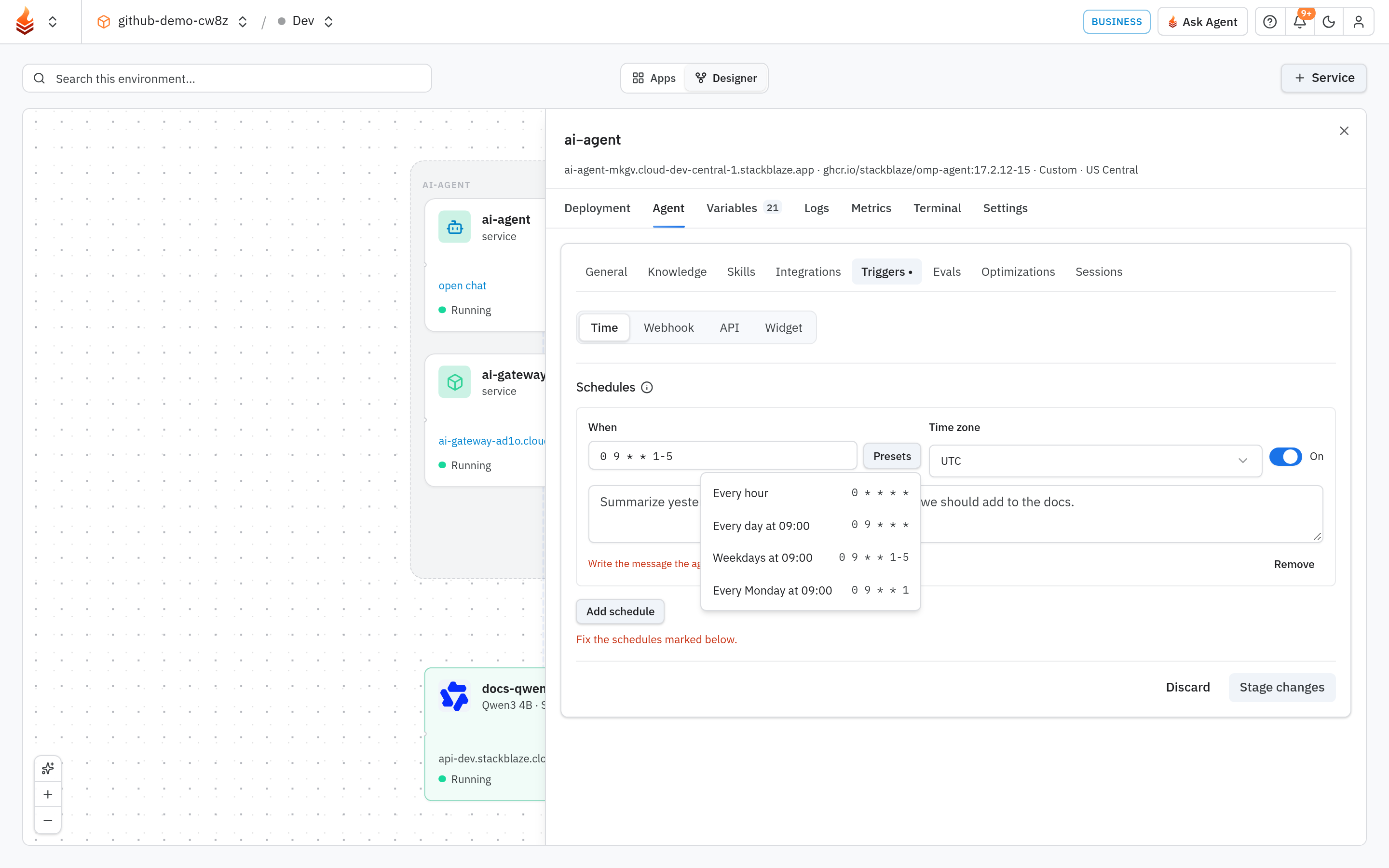
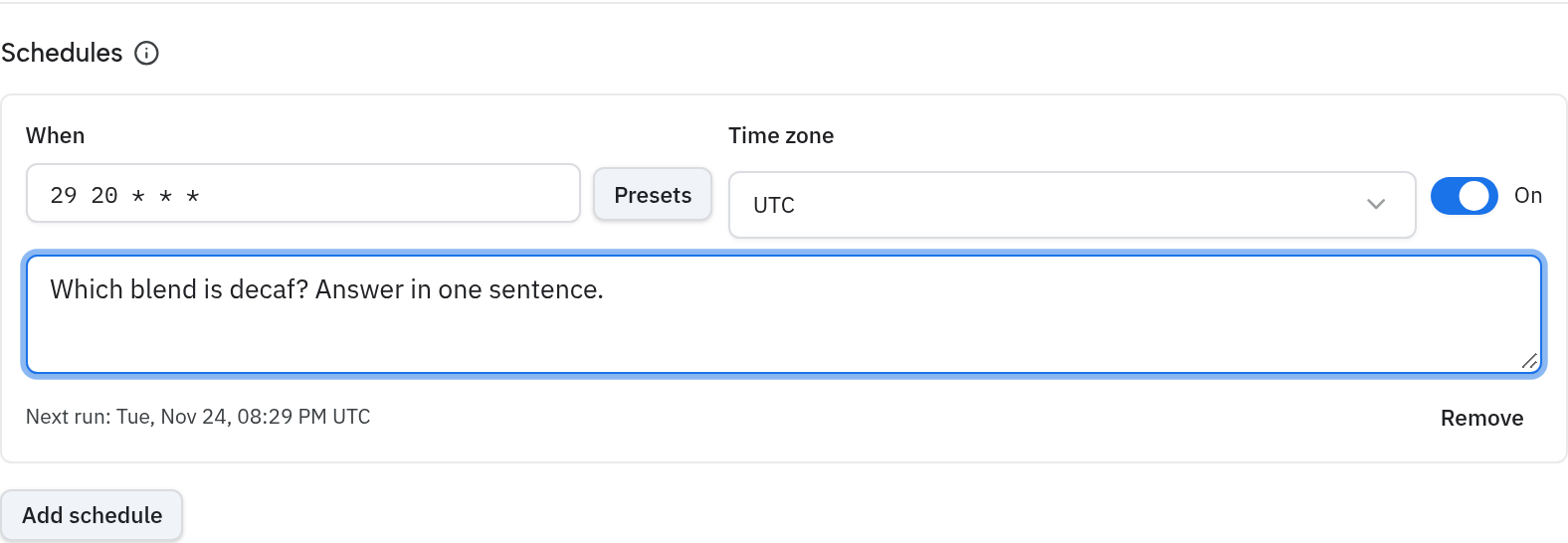
Under the message, the row shows the next run, for example Next run: Tue, Nov 24, 08:29 PM UTC. An expression without five fields shows Use 5 fields: minute hour day month weekday, like 0 9 * * 1-5. and an empty message shows Write the message the agent gets.
Deploy it
Click Stage changes. The toast says Agent settings staged. Close the sheet, click Commit 1 change on the canvas and Deploy 1 change.
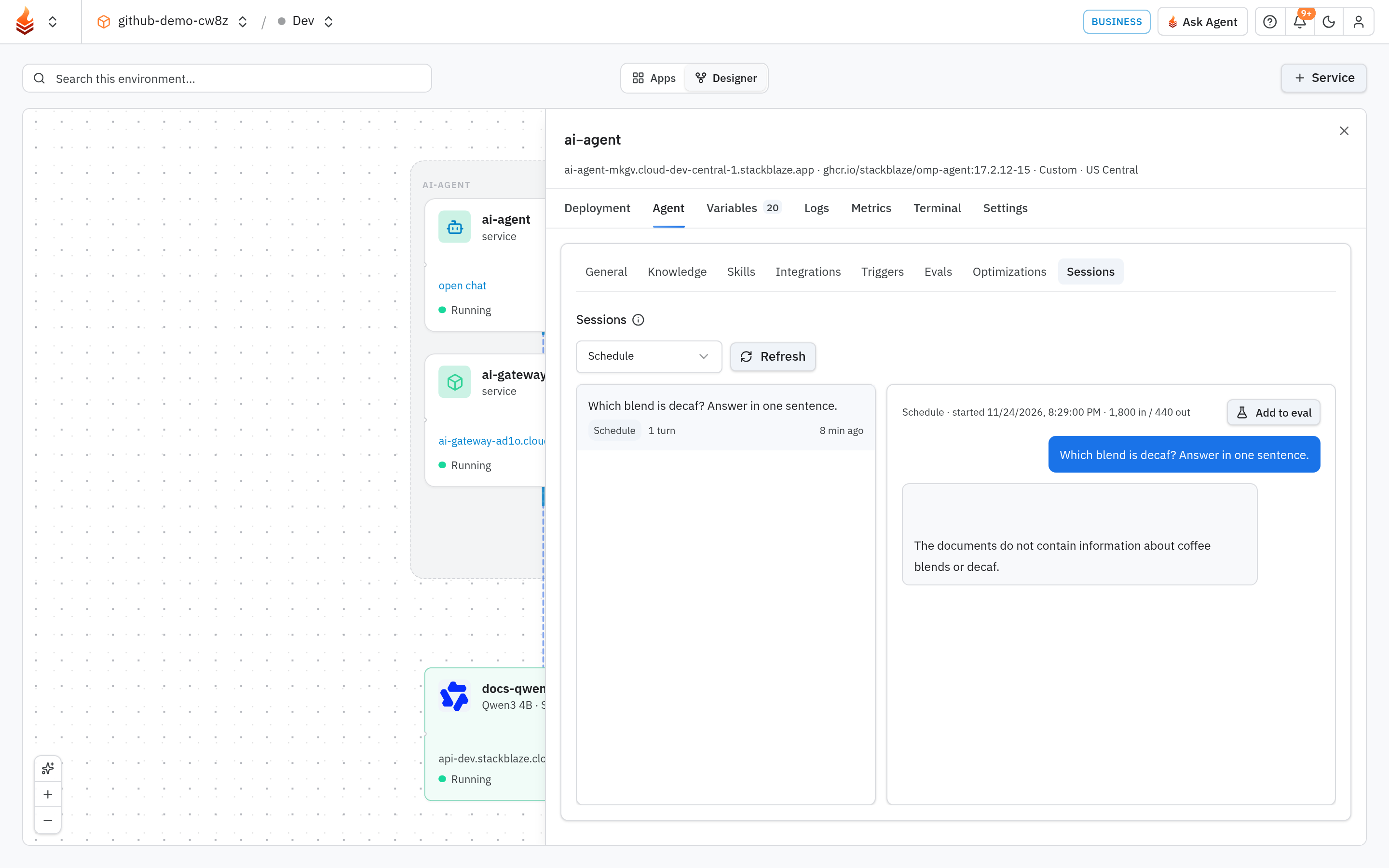
At the set time the run shows in Sessions on the Schedule channel, with the message and the agent's answer.
Remove it
Click Remove on the schedule, then Stage changes, and commit and deploy as before.
An agent has up to 20 schedules. A run is skipped while the previous run of the same schedule is still going.
Cron expressions
The five fields are minute (0–59), hour (0–23), day of the month (1–31), month (1–12) and day of the week (0–7, where both 0 and 7 are Sunday). Each field is one of these, or a comma list of them:
| Form | Example | Means |
|---|---|---|
* | * | Every value |
| A number | 9 | That value |
| A range | 1-5 | Monday to Friday, in the weekday field |
| A step | */15 | Every 15th value: minutes 0, 15, 30 and 45 |
| A range with a step | 0-30/10 | 0, 10, 20 and 30 |
| A list | 1,15 | The 1st and the 15th |
Names like MON or JAN aren't accepted, and neither are ?, L, W or #. A step needs * or a range in front of it: write 5-59/15, not 5/15. A field that doesn't fit says which one is wrong, for example The day of week field is not valid (0-7, *, lists, ranges, steps).
When both day fields are set, a day that matches either one runs. 0 9 1 * 1 runs on the 1st of the month and on every Monday. 0 9 * * 1 runs on Mondays only.
Put it on your website
The widget is a chat bubble for the visitors of your site.
Turn on the widget
Go to Agent → Triggers → Widget and turn on Website widget.

Turning on the widget makes the agent public. Visitors are anonymous, so while the widget is on, the agent has no shell or file-editing tools (bash, edit and write), and its integrations are off. Integrations then says Integrations are off while the website widget is on: a visitor could talk the agent into using them.
List your sites
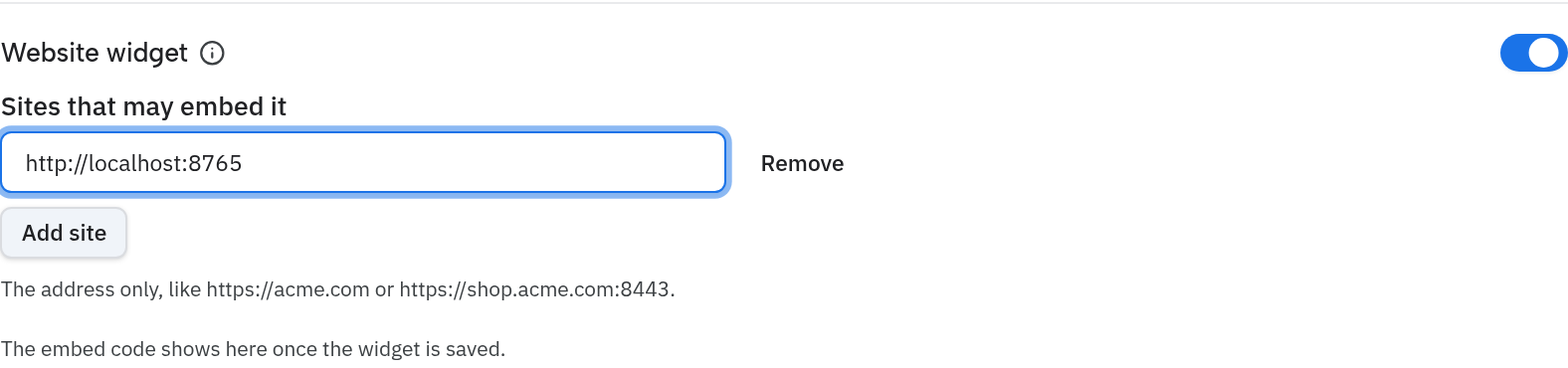
Under Sites that may embed it, type the address of each site that shows the bubble, and click Add site for another (up to 20). Remove takes a site off the list.
Give the address only: https:// and the host, with a port if it has one, like https://shop.acme.com:8443. http:// works only for localhost. The field explains what is wrong:
acme.com: Enter a site address, like https://acme.com.https://acme.com/shop: Only the site address: no path, like https://acme.com.
Click Stage changes, then commit and deploy from the canvas.
Paste the embed code
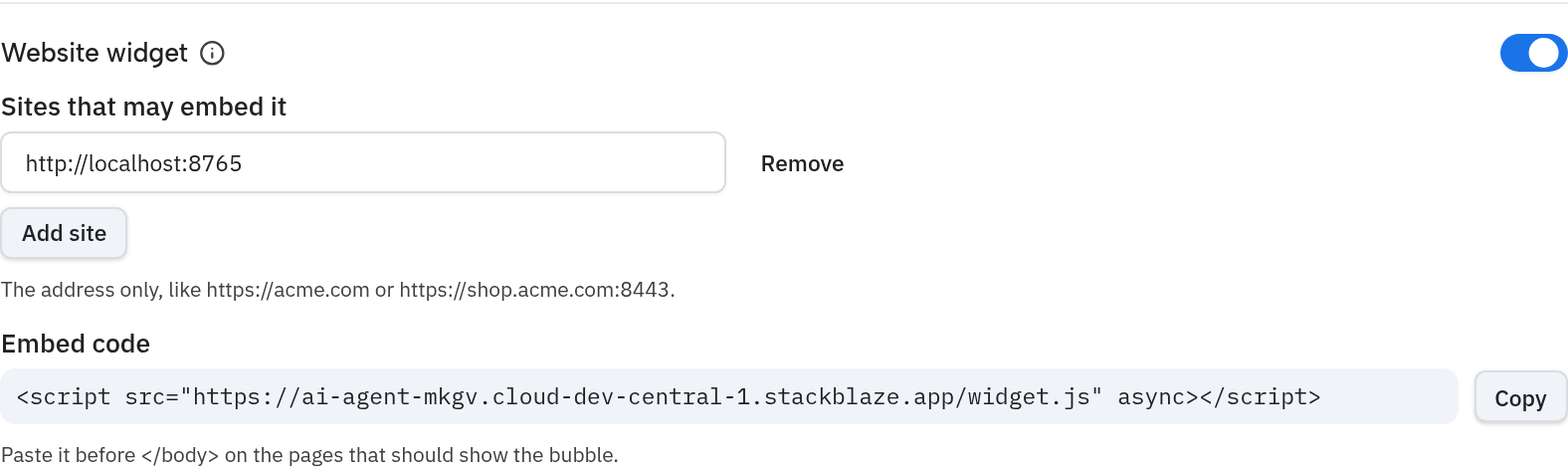
Once the change is deployed, Embed code shows the tag, with Copy:
<script src="https://<agent-address>/widget.js" async></script>Paste it before </body> on the pages that should show the bubble.
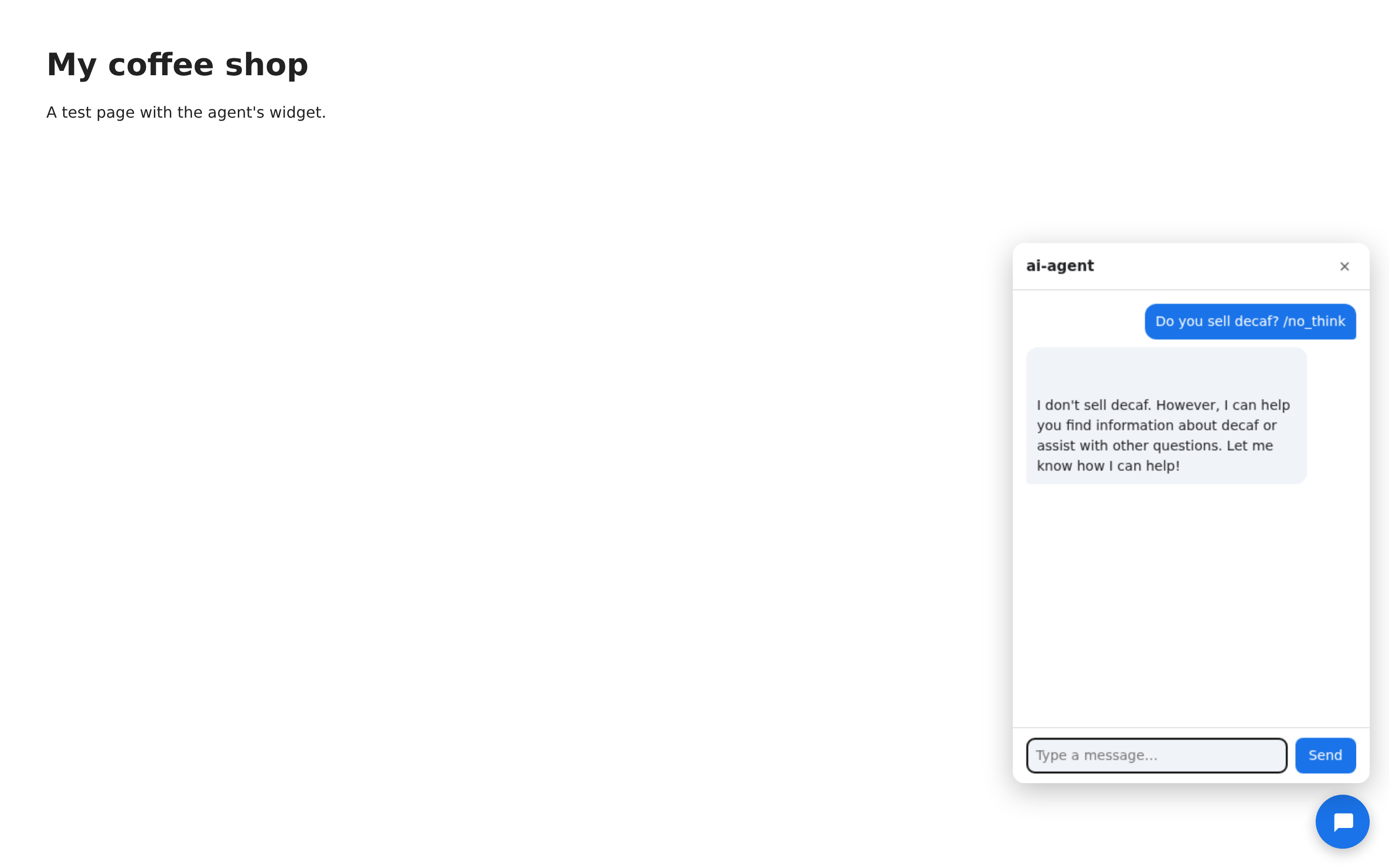
The bubble opens a chat panel with the agent's name, a Type a message… box and Send. On a site that is not on the list, the panel refuses to load.
How the widget keeps visitors apart and limits them:
- Each visitor gets an anonymous token for 24 hours, tied to your site. A visitor can only continue their own chats.
- A visitor can send 10 messages a minute and start 3 chats a day. From one address, at most 60 messages and 10 new visitors a minute. Over a limit, the widget's calls get
429. - A message is up to 8,000 characters, as on the API.
The widget doesn't change who can reach the agent's address: that's its visibility. The API and webhooks still need their key or secret.
To turn the widget off, turn off Website widget, stage the change and deploy it.
Read the sessions
Agent → Sessions lists every conversation, from every channel, newest first. Each row shows the first message, the channel, the number of turns and how long ago it was. Refresh reloads the list.
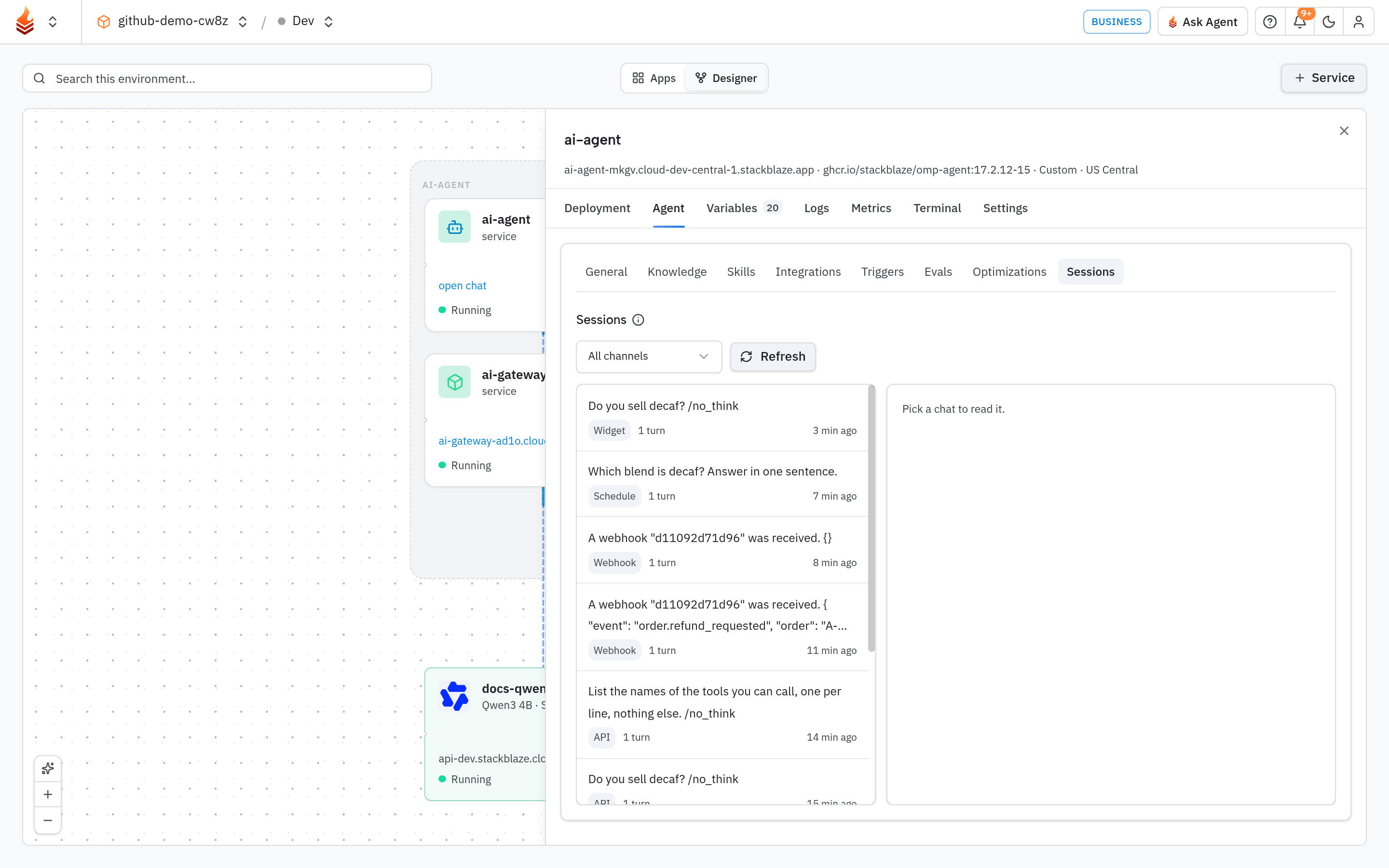
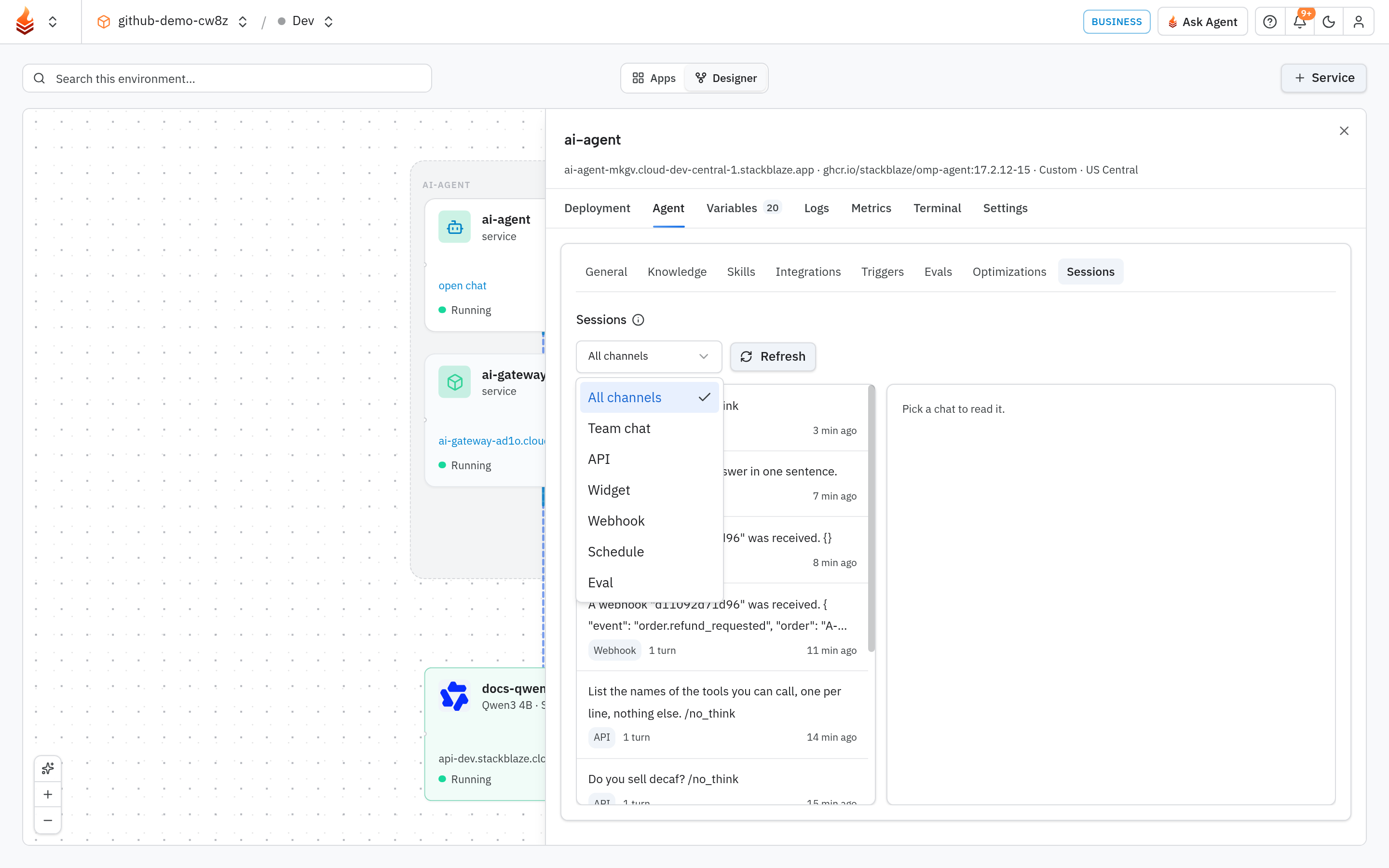
The list shows All channels, or one of them:
| Channel | Where the chat came from |
|---|---|
| Team chat | The team chat page (open chat) |
| API | A call with an API key |
| Widget | A visitor on your website |
| Webhook | A webhook call |
| Schedule | A schedule run |
| Eval | An eval trial, an eval judge, or an optimization run |
Click a chat to read it. The top line shows its channel, when it started and the tokens it used (in and out). The messages follow, with a line for each tool the agent used, such as used read. Add to eval turns the chat's first message into a test case: see Test your agent.
Run and change your agent
Chat with your AI agent, change its instructions, model and tools and see the effect, read its sessions and logs, and rename, restart, pause or delete it.
Knowledge, skills and integrations
Give your AI agent documents to answer from, step-by-step skills for particular tasks, and outside services it can use as tools.