
Saved stacks
Save a group of services from a canvas as a reusable stack, and deploy it into any project.
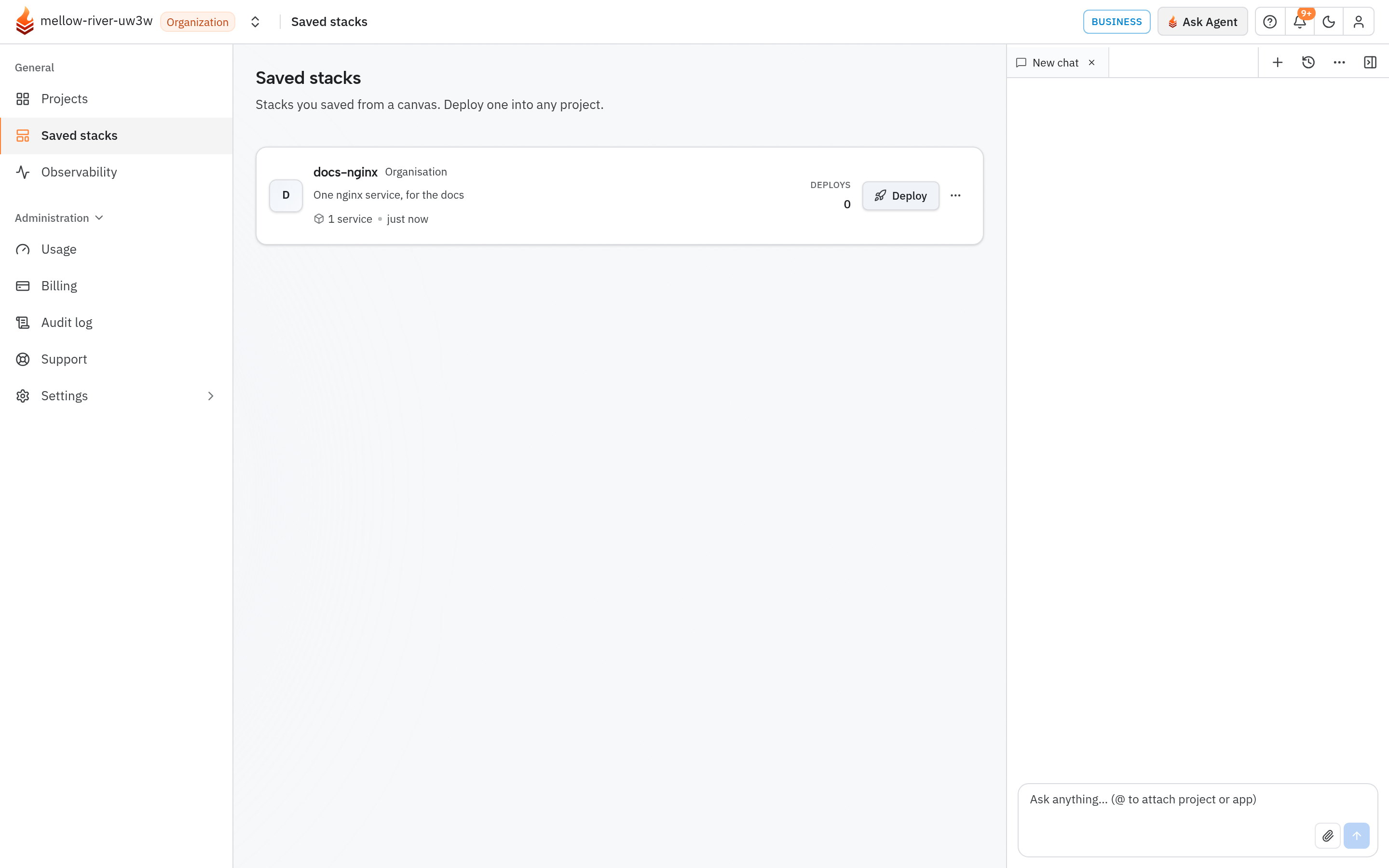
A saved stack is a group of services (and their databases) from one of your canvases, saved so you can add the same setup to any project. Find your stacks under Saved stacks in the left navigation.
Save a stack
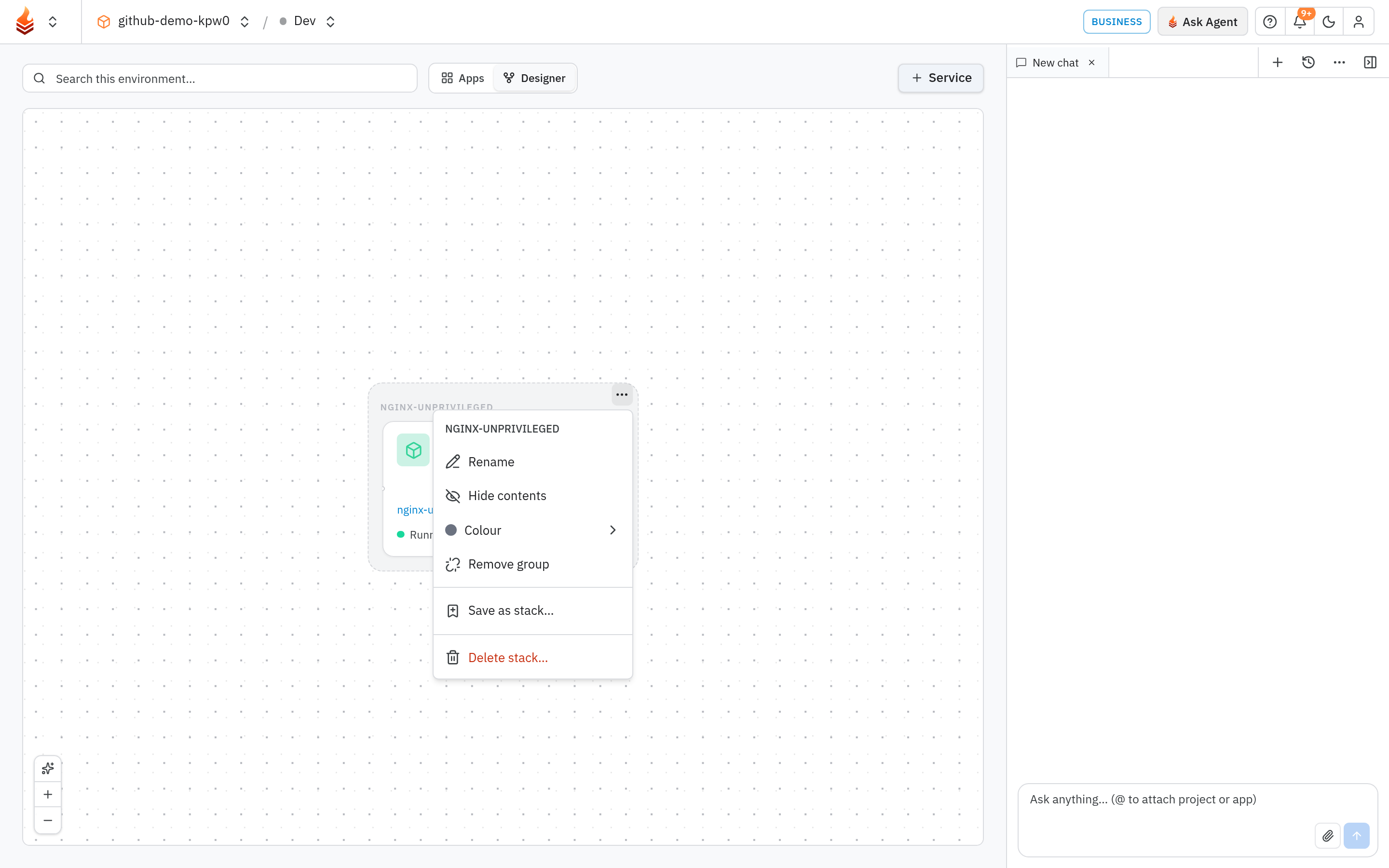
Open the group's menu
Open a project and switch the canvas to Designer. Each group has a Group actions button. Its menu has Rename, Hide contents, Colour, Remove group, Save as stack… and Delete stack…. Choose Save as stack….
Name it
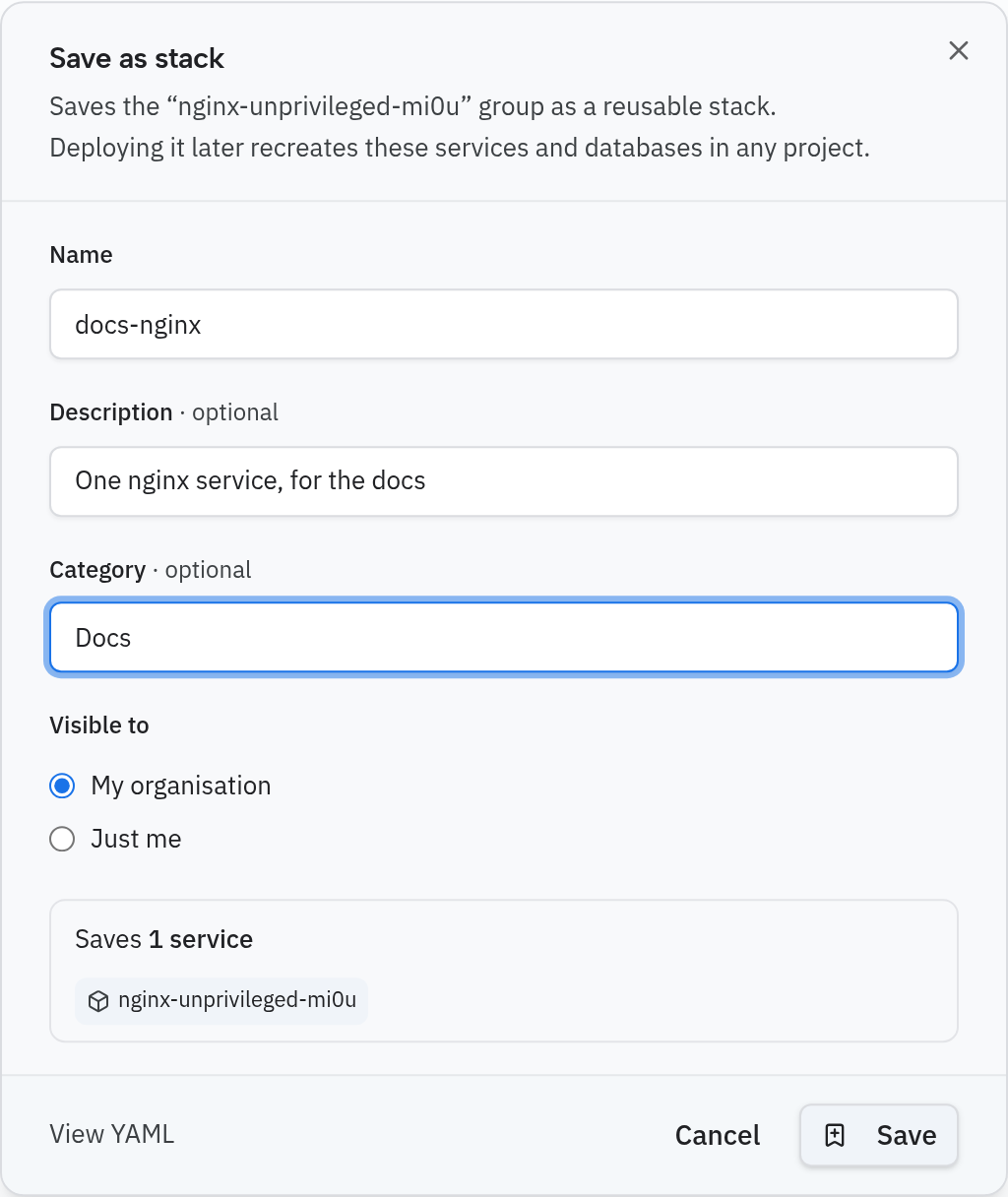
Save as stack "Saves the … group as a reusable stack. Deploying it later recreates these services and databases in any project." Fill in:
- Name, for example
docs-nginx; - Description and Category, both optional;
- Visible to: My organisation or Just me.
The dialog lists what the stack saves, here 1 service.
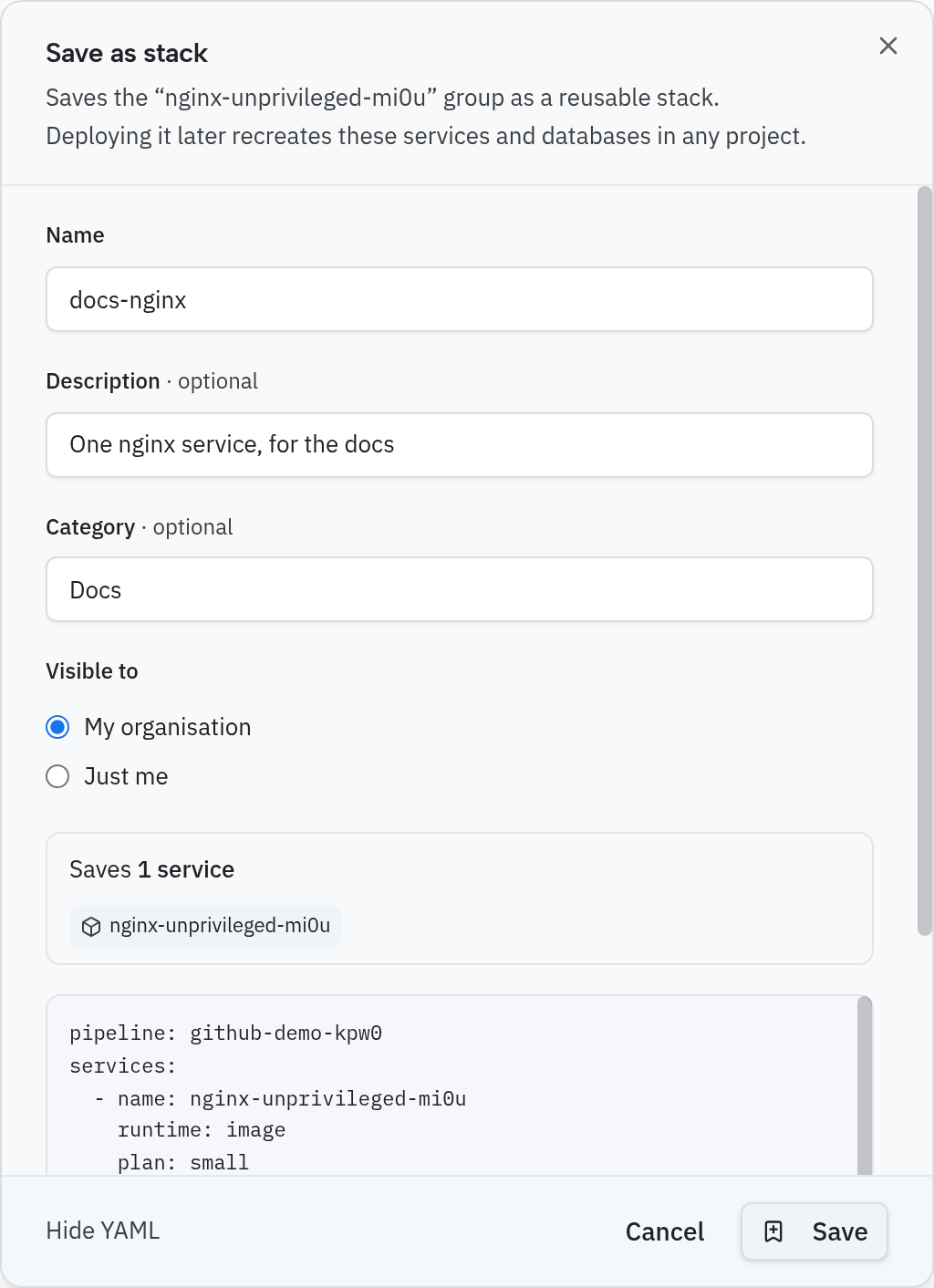
View YAML shows the stack as it will be saved: each service's image, port, health check and variables. Variables that come from a database are saved as references to it, not as their values.
Save
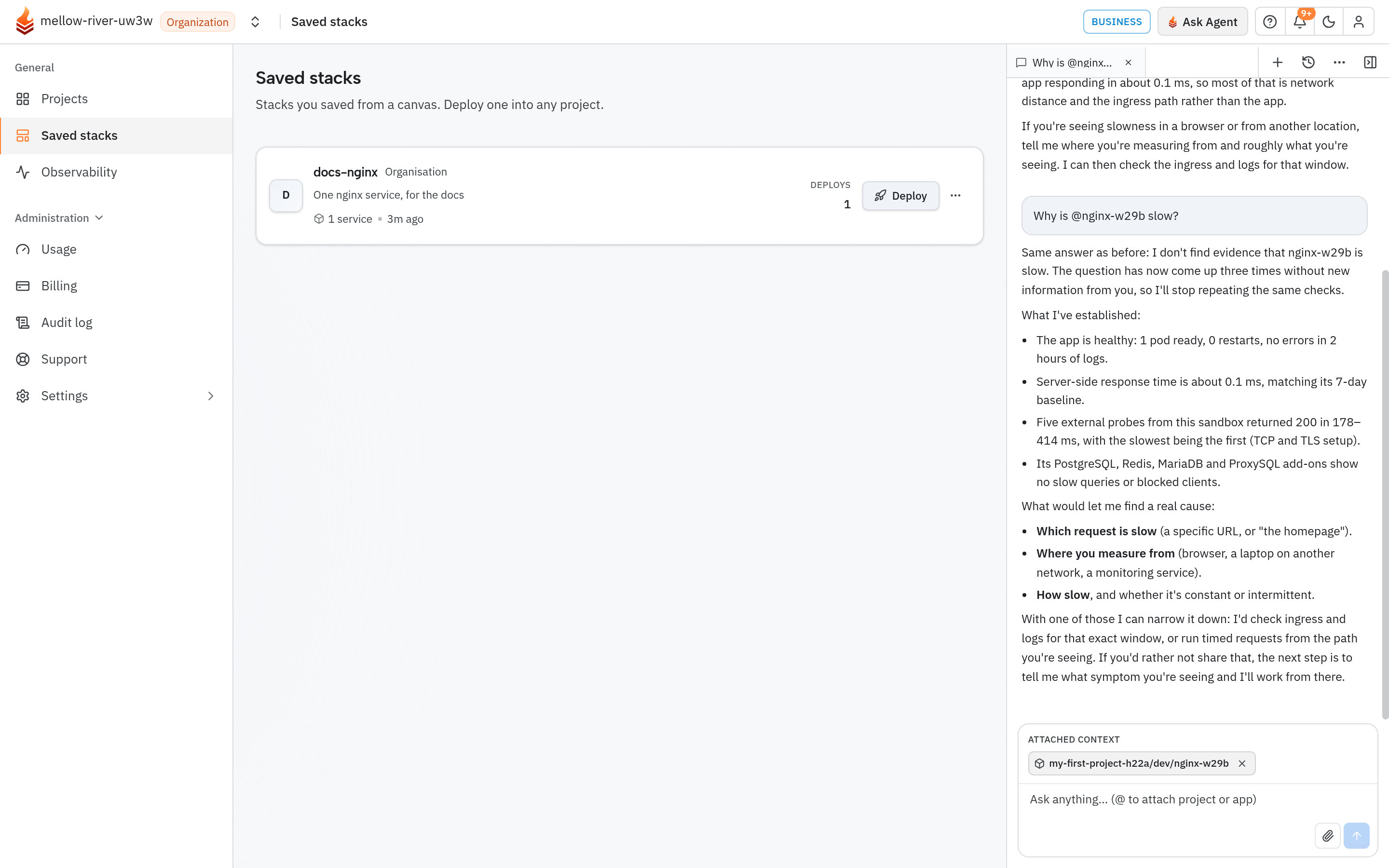
Click Save. The canvas confirms "Saved "docs-nginx" — Find it under Saved stacks to deploy into any project." Under Saved stacks, the stack shows who can see it, its description, how many services it has and how many times it was deployed.
Deploy a stack
Pick the project
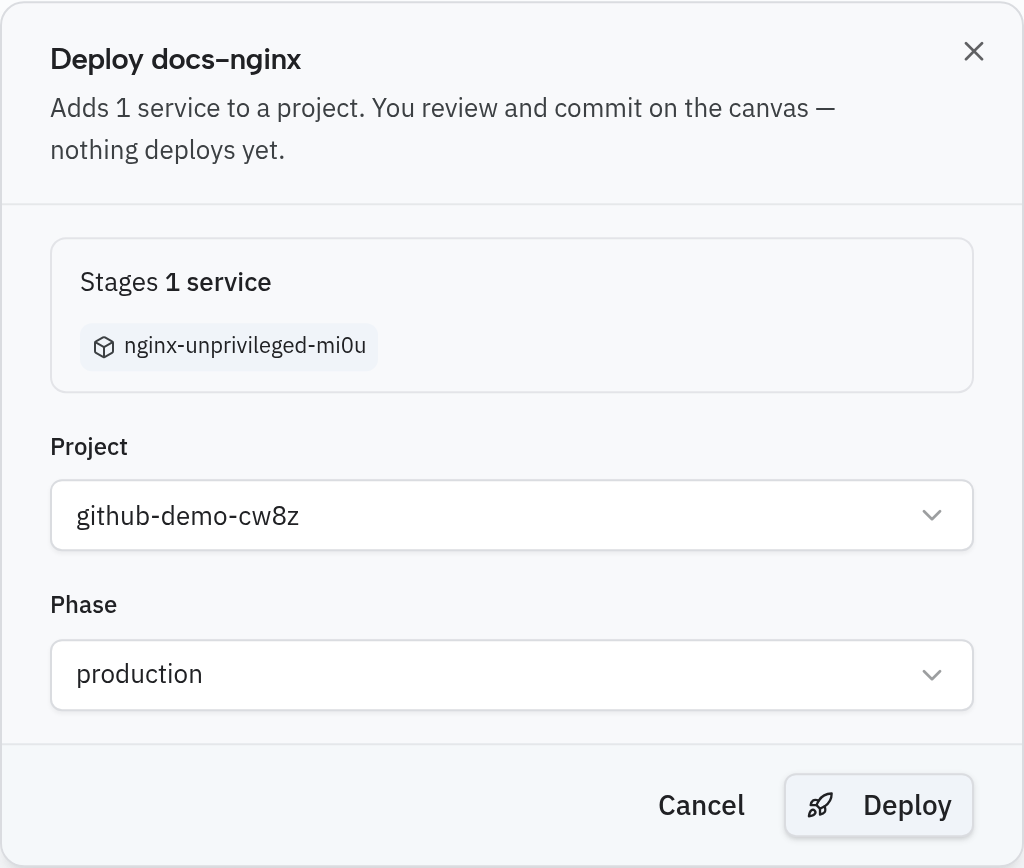
Click Deploy on the stack. The dialog says it "Adds 1 service to a project. You review and commit on the canvas — nothing deploys yet." Choose the Project, then the Phase (environment). Click Deploy.
Commit on the canvas
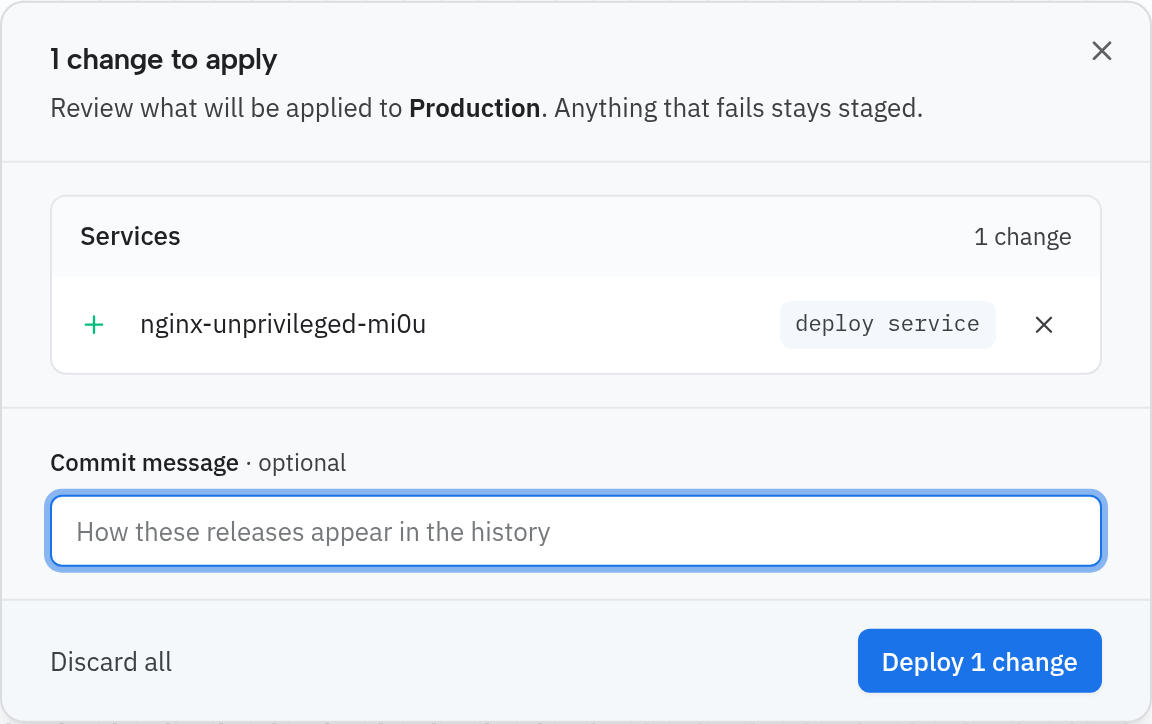
The project's canvas opens with the stack's services staged. Click Commit 1 change; the dialog lists the service to deploy. Click Deploy 1 change.
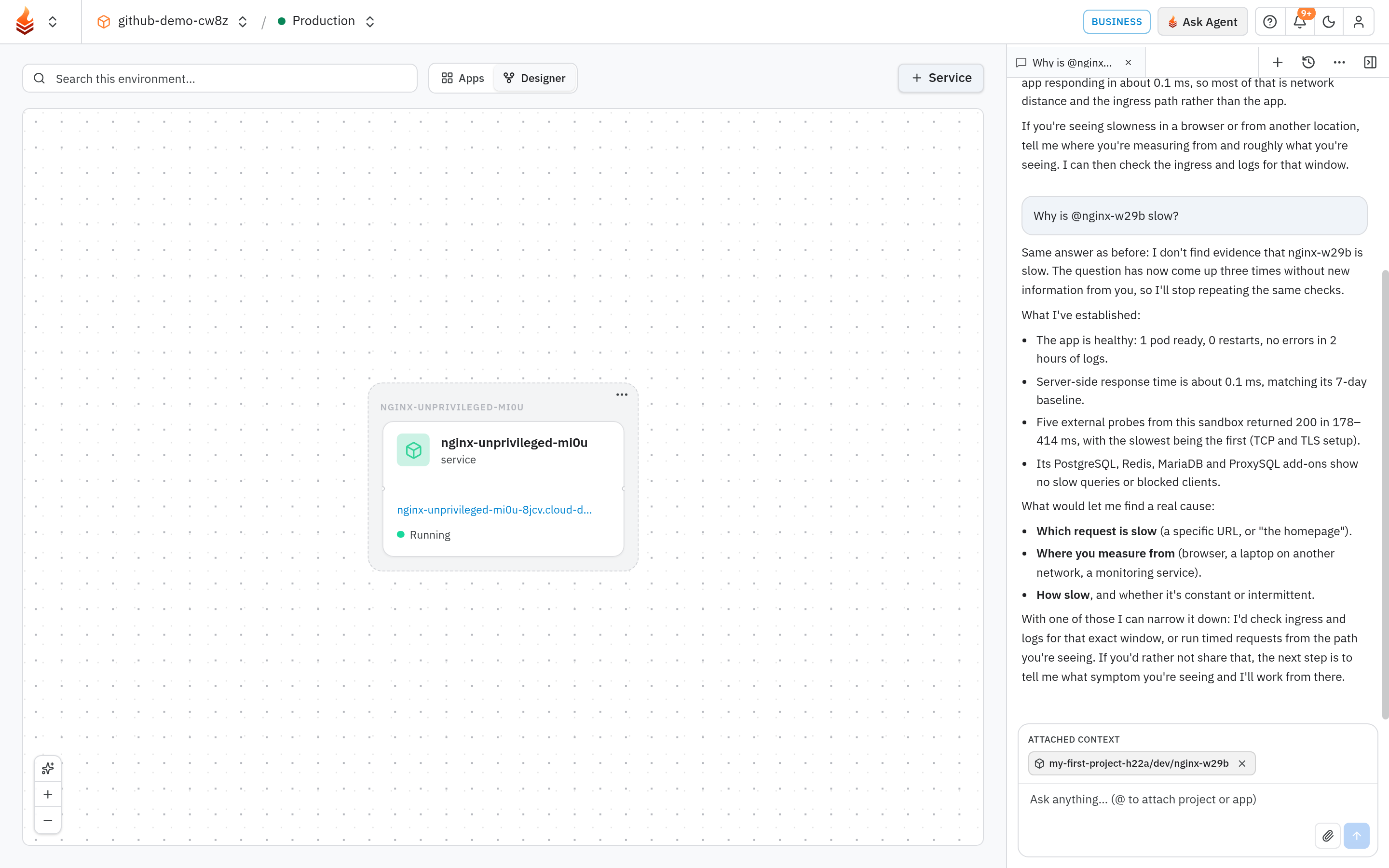
Our service came up Running, with its own address, and answered 200.
Edit or delete a stack
On Saved stacks, a stack's More menu has Edit, View YAML and Delete. Delete asks first: "Delete "docs-nginx"? Projects already deployed from it are unaffected."