
Project settings
A project's display name, environments, preview environments, Infrastructure as Code, ownership, shared variables, and deleting the project.
Open Project settings from the project name in the header: its menu has Project settings. The page has three tabs: General, Ownership & access and Shared variables.
General
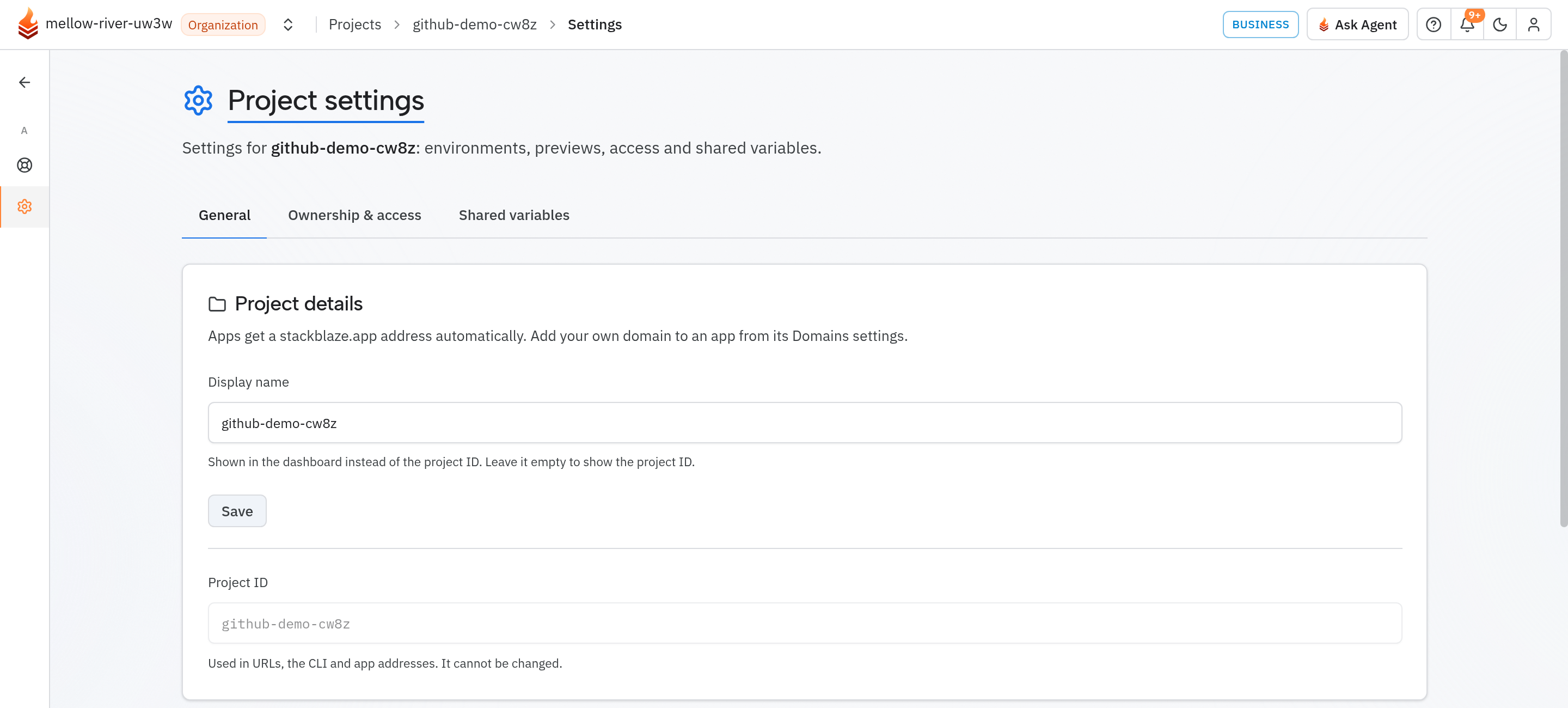
Project details
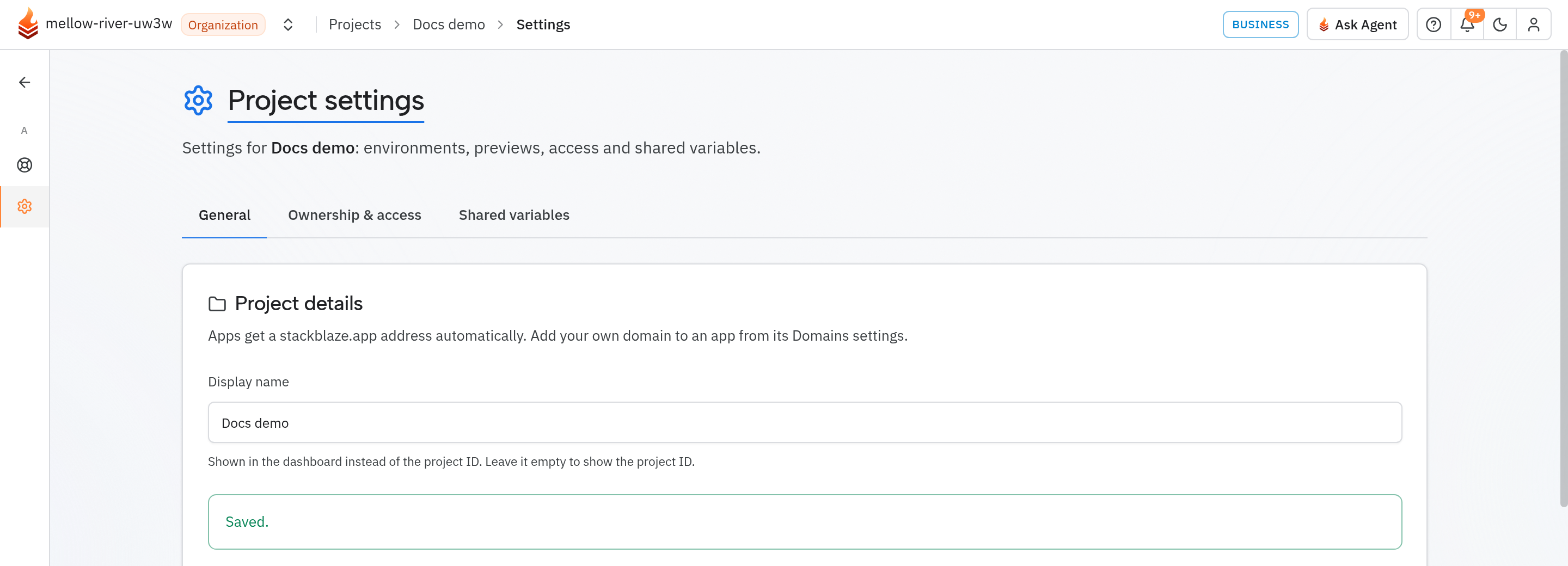
- Display name: "Shown in the dashboard instead of the project ID. Leave it empty to show the project ID." Type a name (up to 60 characters) and click Save. To remove it, empty the field and click Save again.
- Project ID: "Used in URLs, the CLI and app addresses. It cannot be changed." The field is read-only.
The card also notes that apps get a stackblaze.app address automatically; you add your own domain to an app from its Domains settings.
Environments
Switch Dev, Test, Stage and Production on or off and click Save changes. See Environments.
Preview environments
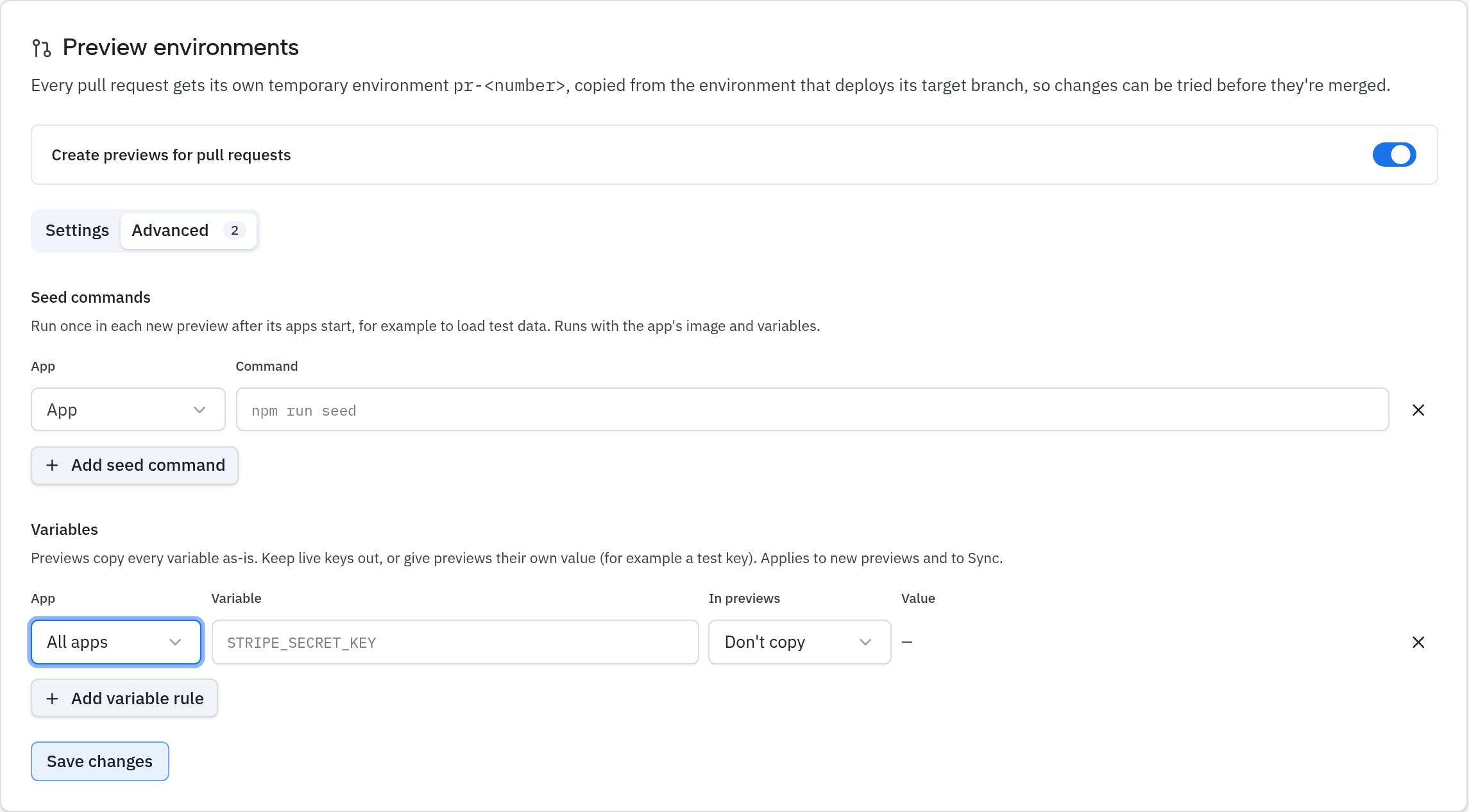
"Every pull request gets its own temporary environment pr-<number>, copied from the environment that deploys its target branch, so changes can be tried before they're merged."
Previews are part of the Pro and Business plans. Which environment a preview copies, which pull requests get one and the variables it adds are in How a preview is made.
Turn on Create previews for pull requests to show the options. They are in two tabs, Settings and Advanced. Click Save changes to apply them.
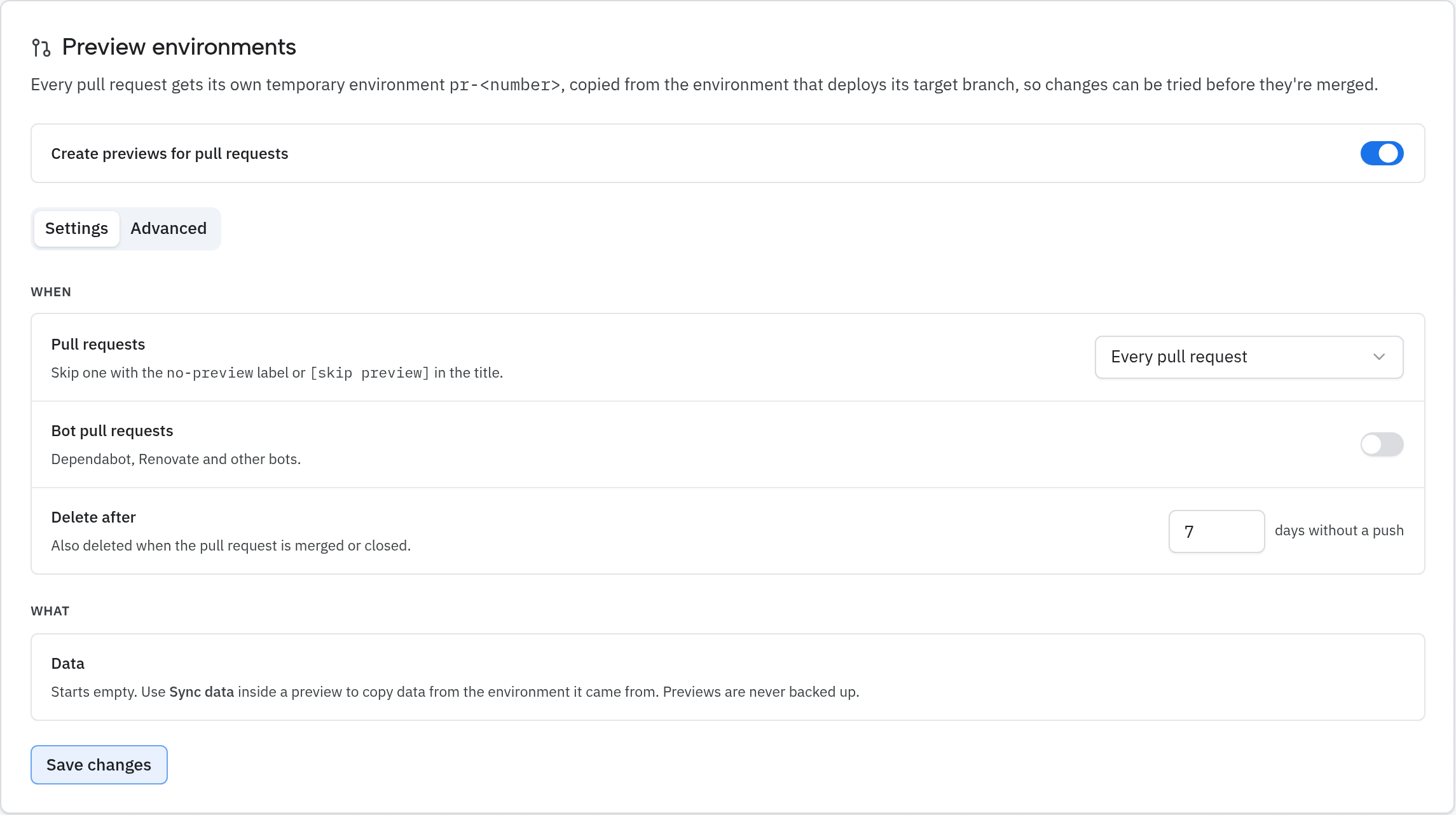
The Settings tab:
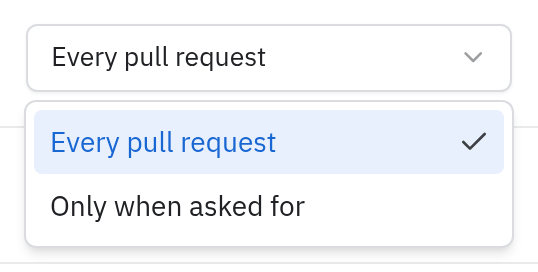
- Pull requests: Every pull request (the default) or Only when asked for.
- With Every pull request: "Skip one with the
no-previewlabel or[skip preview]in the title." - With Only when asked for: "Add the
previewlabel or put[preview]in the title. Removing the label deletes the preview."
- With Every pull request: "Skip one with the
- Bot pull requests: a switch, off by default. It covers "Dependabot, Renovate and other bots."
- Delete after n days without a push: 1 to 30 days; the default is 7. A preview is also deleted when its pull request is merged or closed.
- Data: "Starts empty. Use Sync data inside a preview to copy data from the environment it came from. Previews are never backed up."

The Advanced tab:
- Seed commands: "Run once in each new preview after its apps start, for example to load test data." Click Add seed command, pick the App and type the Command (for example
npm run seed). You can add up to 10. - Variables: "Previews copy every variable as-is. Keep live keys out, or give previews their own value (for example a test key)." Click Add variable rule, then choose the App (or All apps), type the Variable name, and pick In previews: Don't copy or Use this value (then type the value). Rules apply to new previews and to Sync.
Infrastructure as Code
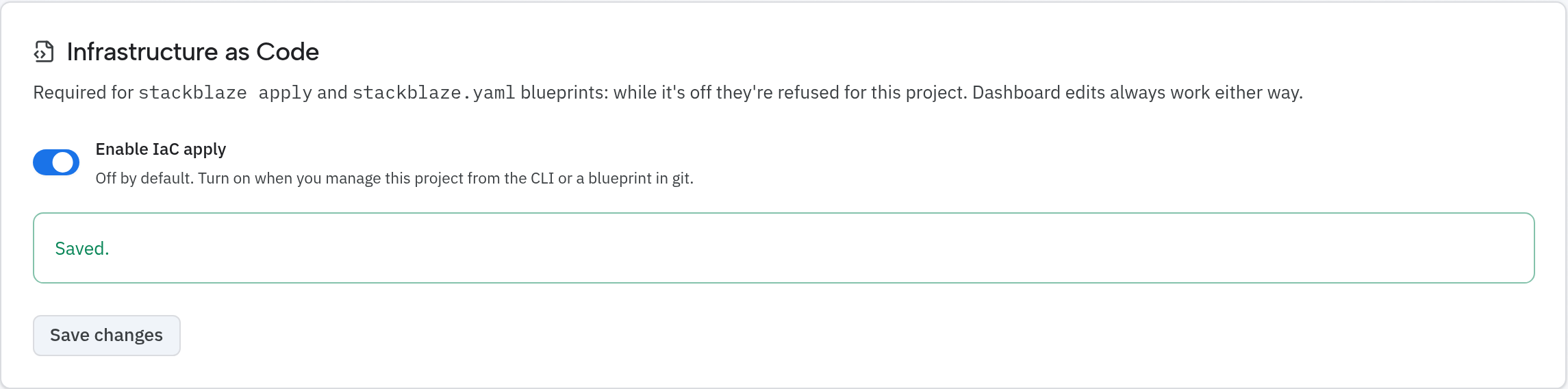
The Enable IaC apply switch is "Off by default. Turn on when you manage this project from the CLI or a blueprint in git." It is required for stackblaze apply and stackblaze.yaml blueprints: while it's off they're refused for this project. Dashboard edits work either way. Click Save changes after switching it.
Delete project
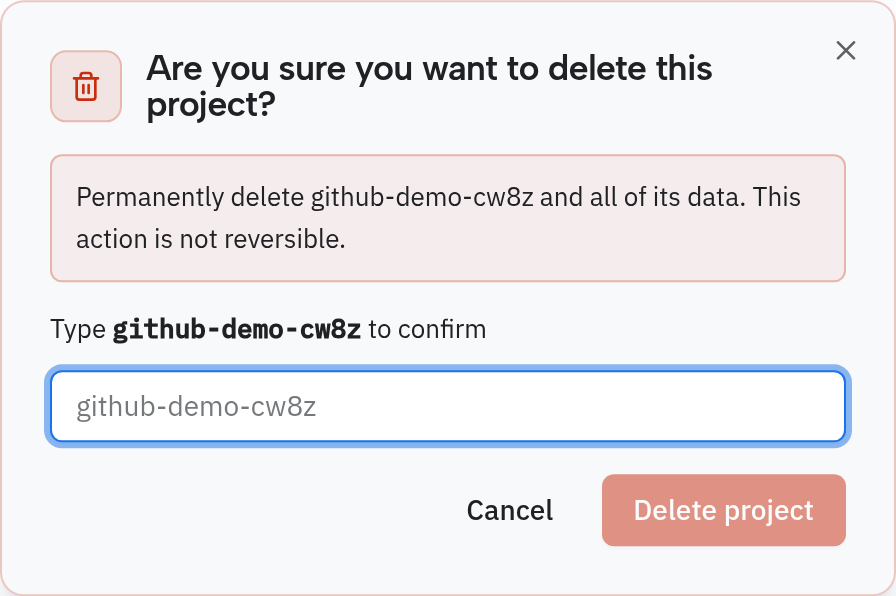
Danger zone: "Deleting the project removes every app, database and environment in it. This can't be undone." Click Delete project.

The dialog asks Are you sure you want to delete this project? and warns: "Permanently delete github-demo-cw8z and all of its data. This action is not reversible." Type the project's ID in the field (Type github-demo-cw8z to confirm); only then is Delete project enabled. Cancel closes the dialog and nothing is deleted.
Ownership & access
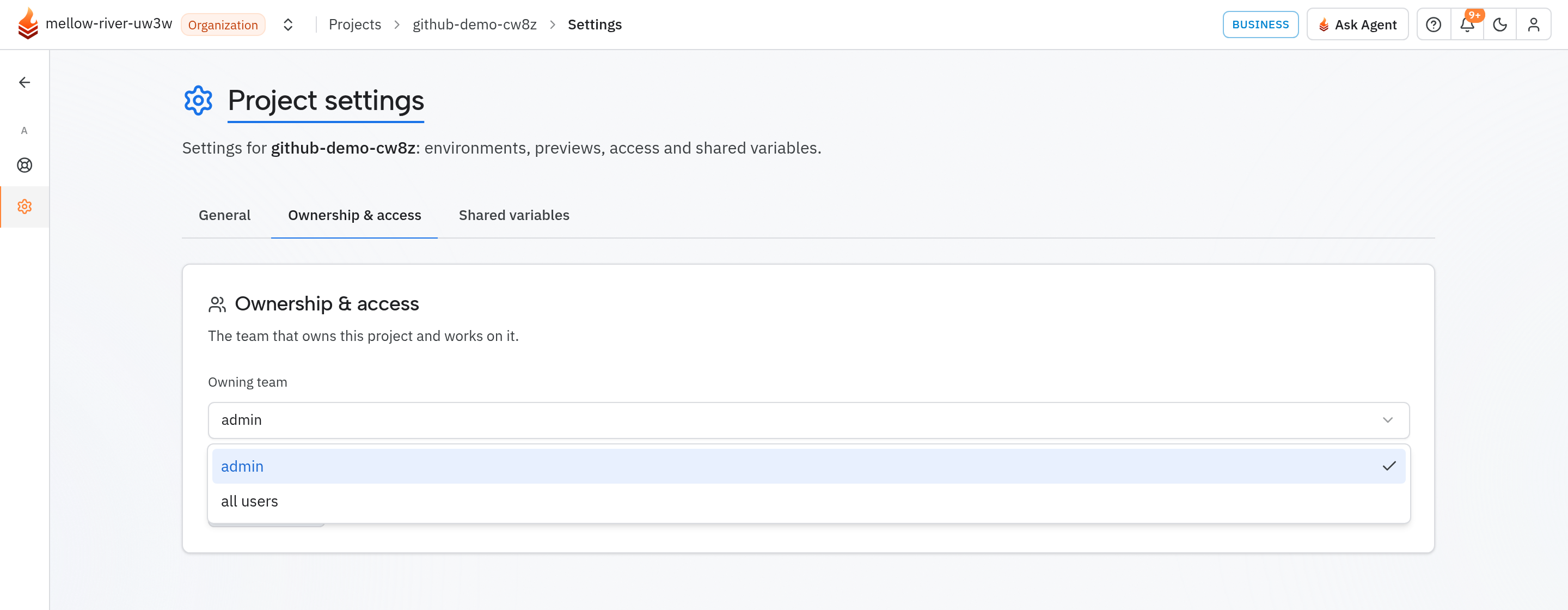
"The team that owns this project and works on it." Pick the Owning team and click Save changes. The menu lists your organization's teams.
"Members of this team get their team role on this project. Organization admins and members with organization-wide roles always have access."
Shared variables
A group is "a reusable set of variables (shared API keys, log settings) that any app in this project can link from its Variables tab." A new project has none.
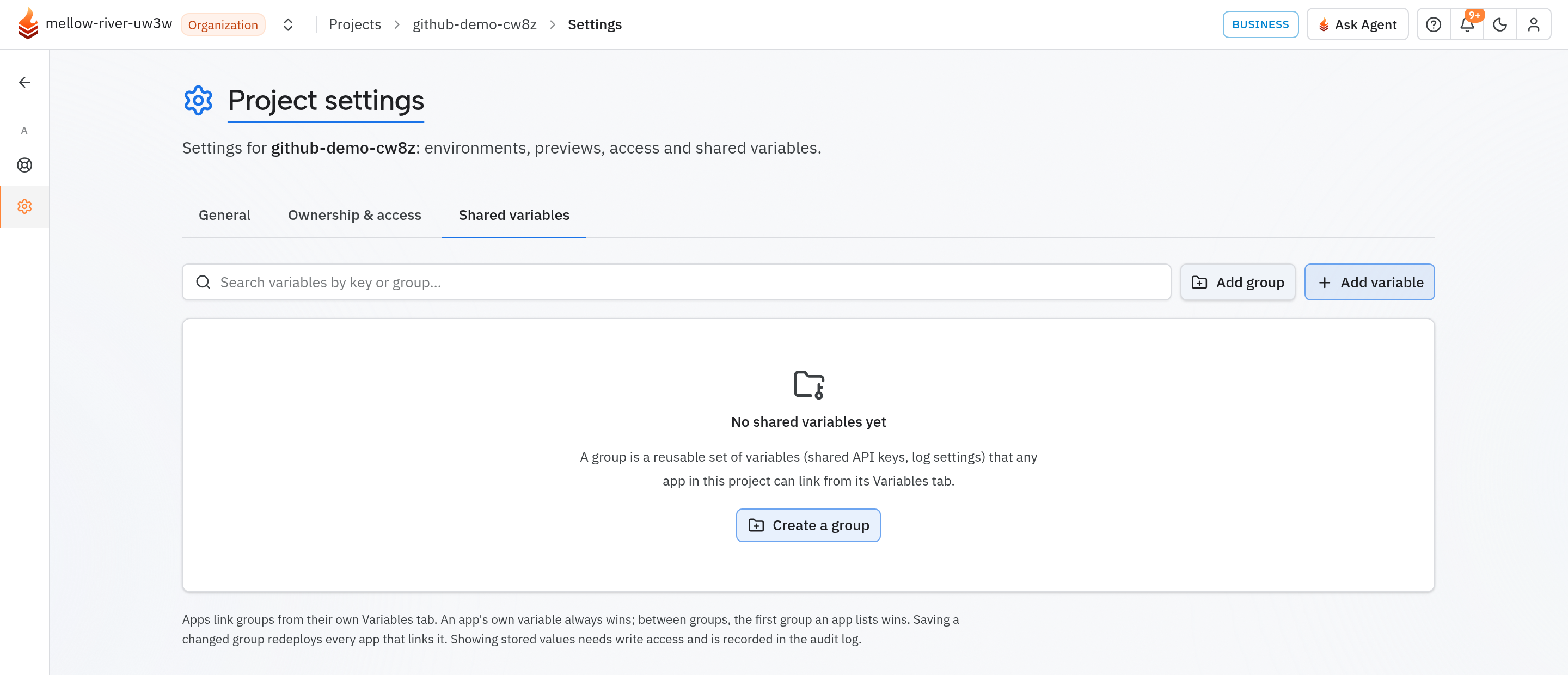
Add a group
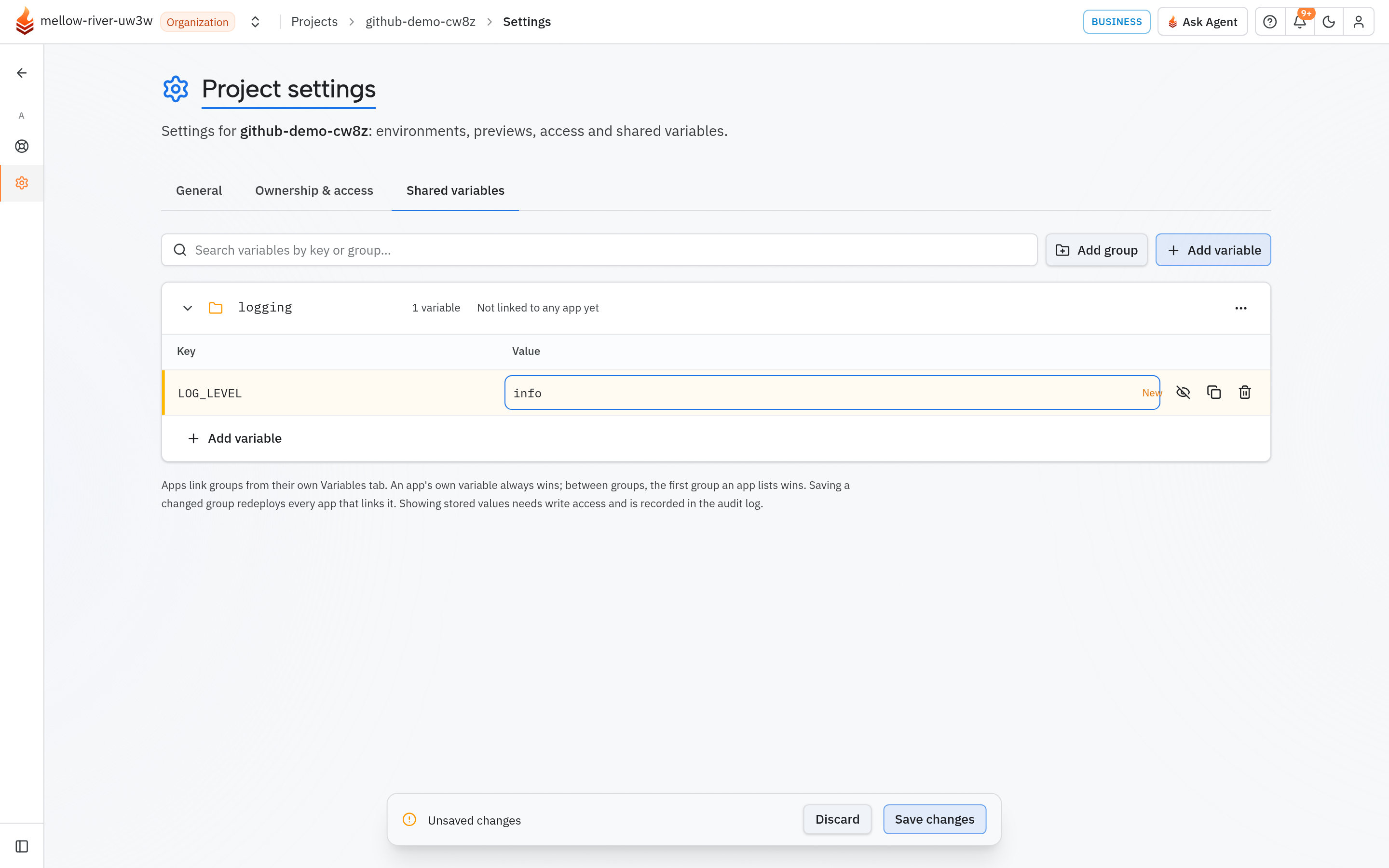
Click Add group (or Create a group). Click the group's name to change it, here logging. Under Key and Value, type the first variable, for example LOG_LEVEL = info. Add variable adds another row.
New and changed rows are marked New or Edited. A bar at the bottom says Unsaved changes, with Discard and Save changes.
Save
Click Save changes. The toast says "Shared variables saved. Linked apps are redeploying."
Each group shows how many variables it has and which apps link it ("Not linked to any app yet" until one does). In each row, you can show or hide the value, copy it, or delete the row. Use the search box to find a variable by key or group. Values are hidden until you show them; showing stored values needs write access and is recorded in the audit log.
The ⋯ menu of a group has Add variable and Delete group.

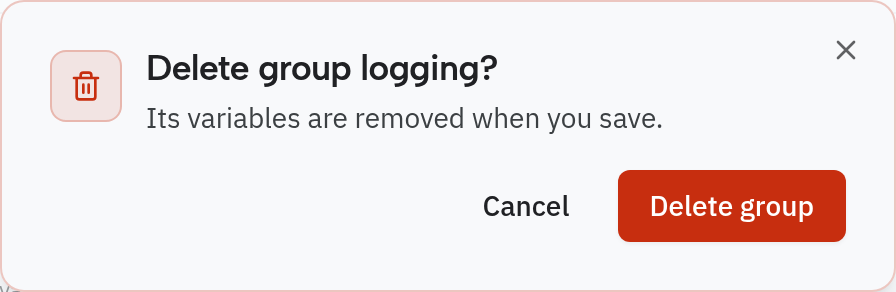
Delete group asks Delete group logging? ("Its variables are removed when you save."). Click Delete group, then Save changes.
How apps use groups: "An app's own variable always wins; between groups, the first group an app lists wins. Saving a changed group redeploys every app that links it." Link a group from the app's Variables tab (see Environment variables).