Deploy a template
Deploy a ready-made app from the template catalog. A template can add several services at once, such as an app and its database.
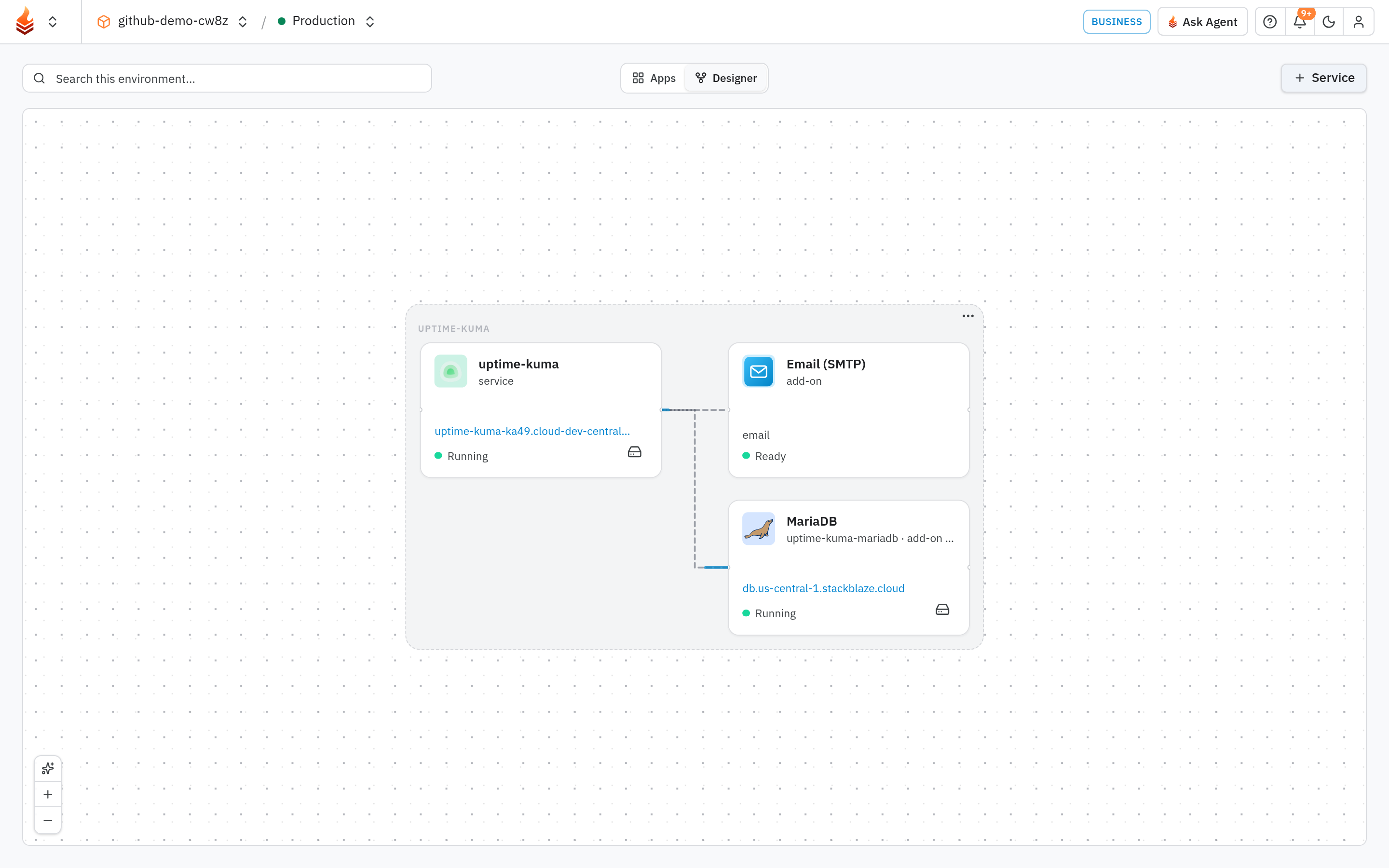
Templates are ready-made apps from the StackBlaze catalog. Picking one deploys it right away, with every service it needs. This guide uses uptime-kuma, which adds the app, a MariaDB database and an Email add-on.
Open the add menu
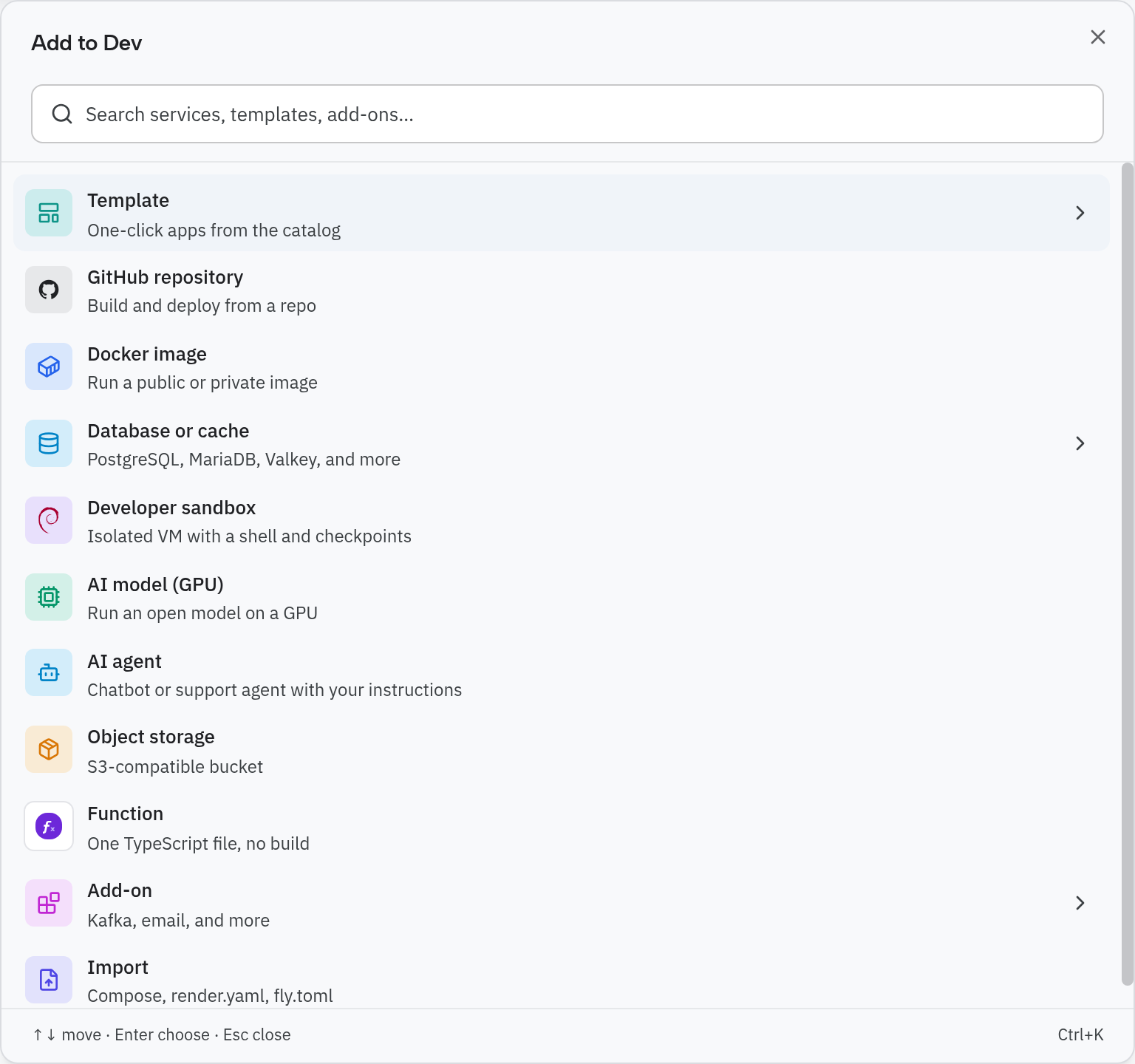
In your project, click + Service in the canvas toolbar (or press Ctrl+K). Pick Template ("One-click apps from the catalog").
Find the template
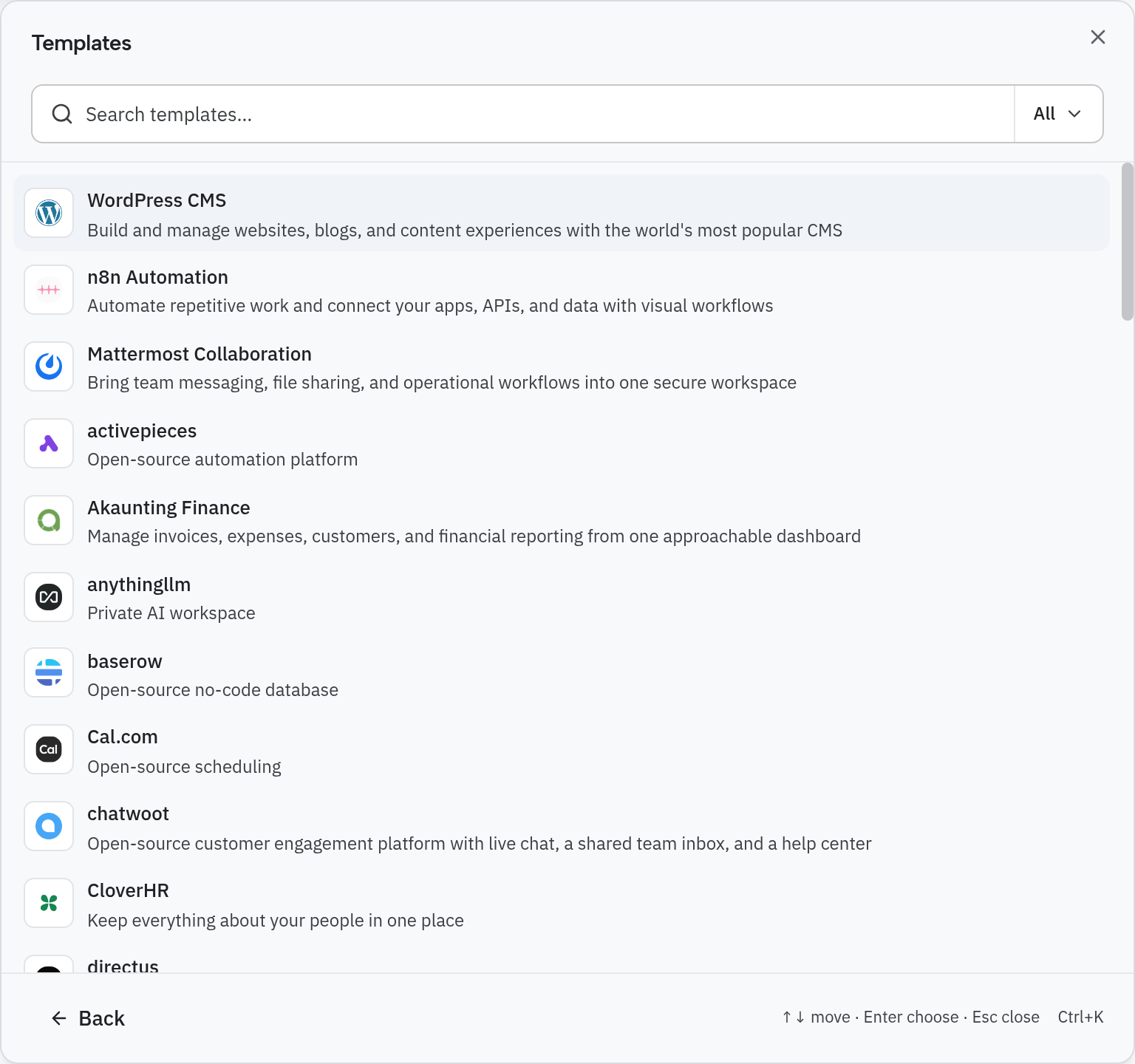
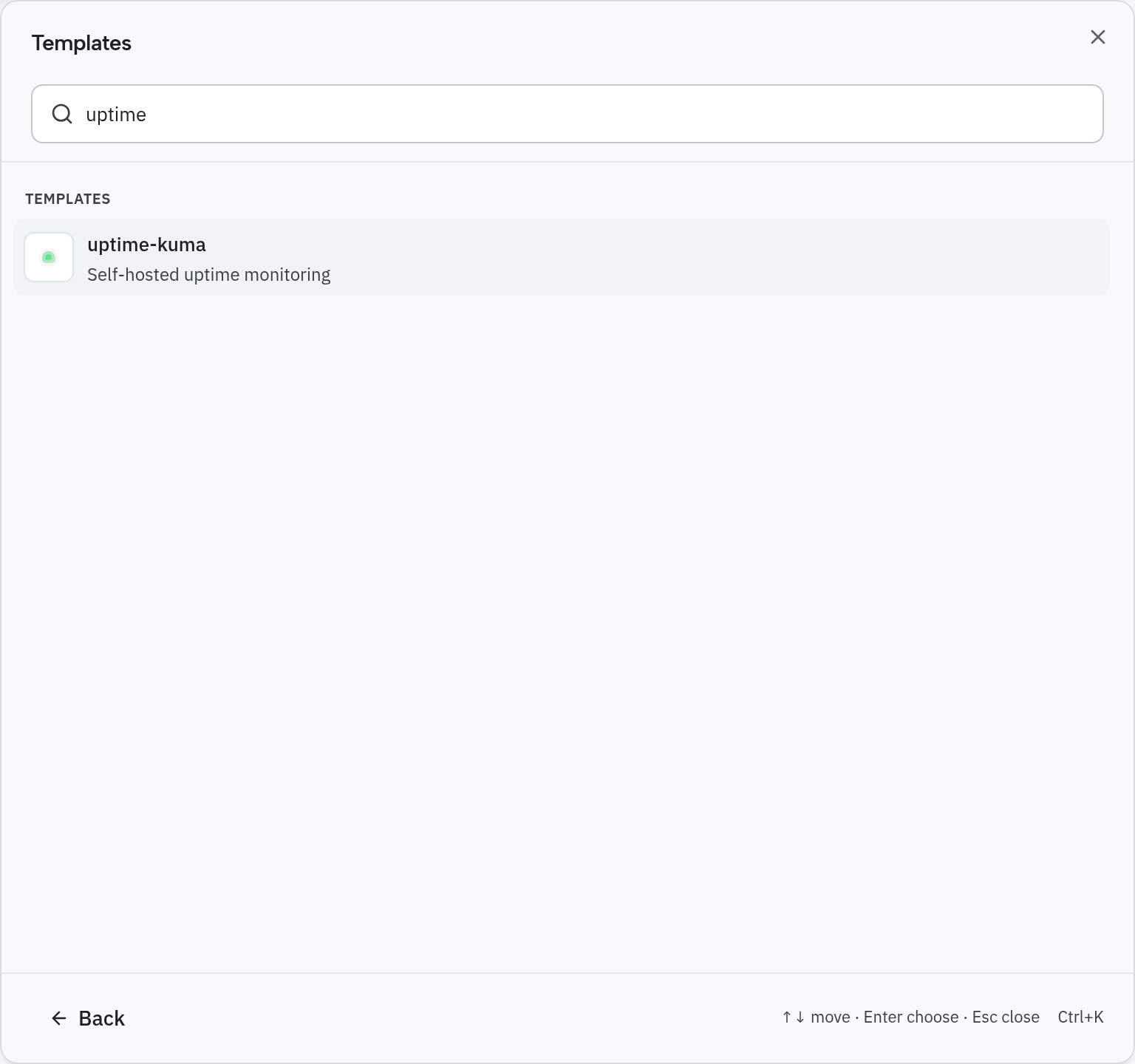
The Templates list opens. Scroll it, or type in Search templates. The All menu next to the search box filters the list.
Pick it
Click the template. There is no extra confirmation: StackBlaze deploys it at once. Every service the template needs appears on the canvas, marked Deploying.
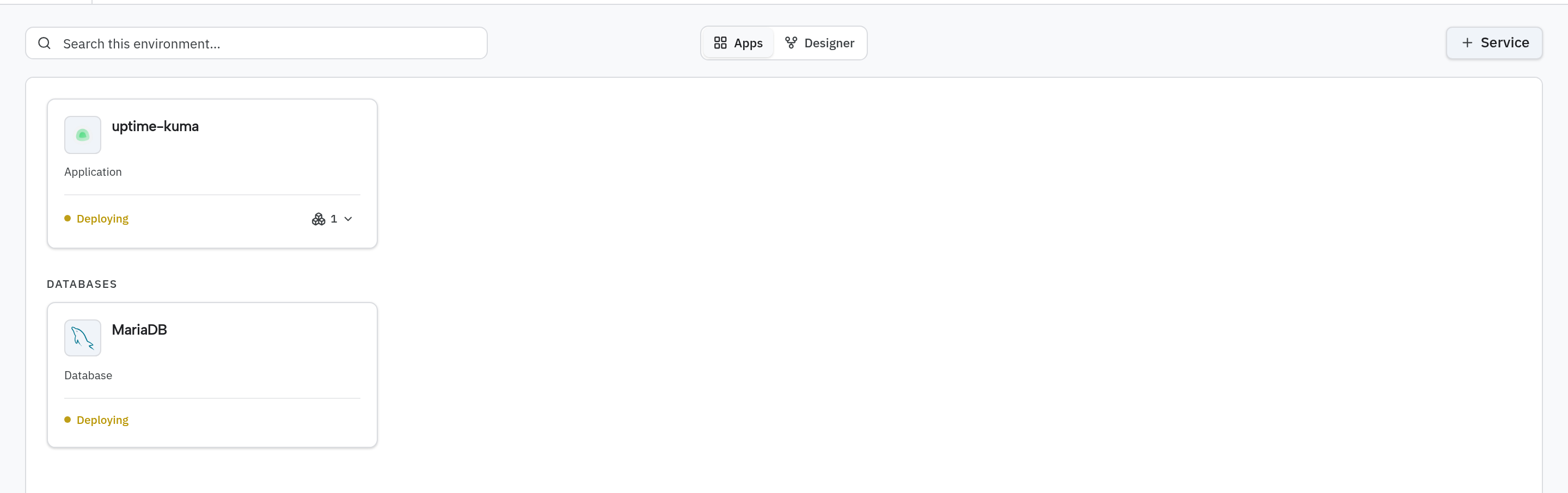
Wait for Running
When every service shows Running, the app card shows its public URL.
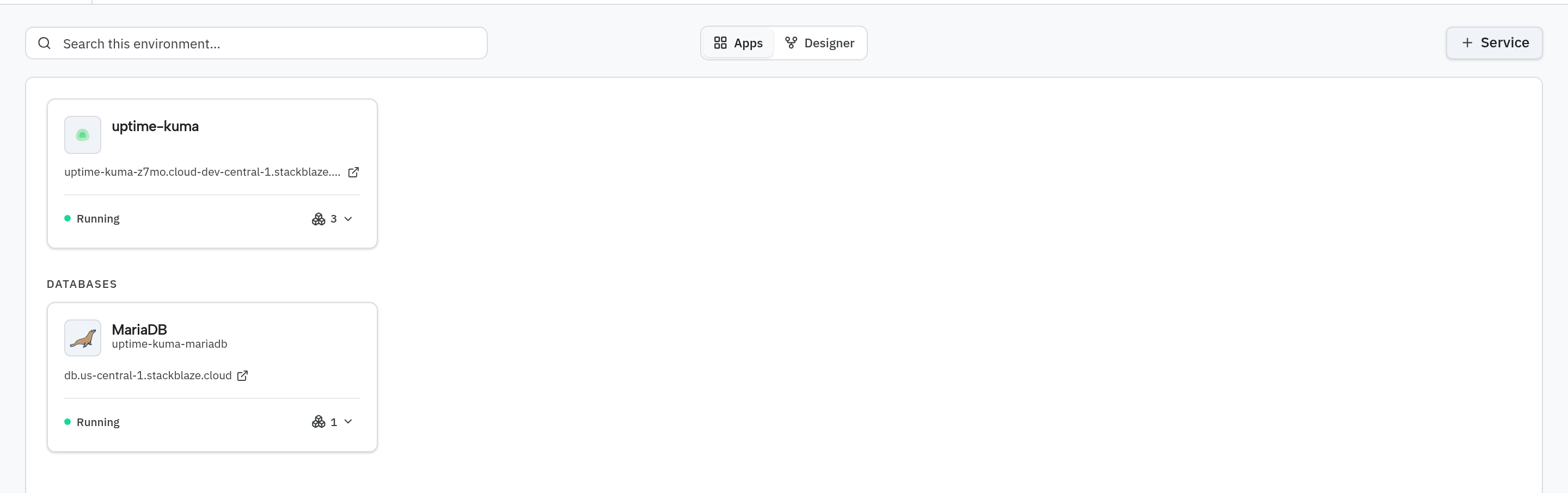
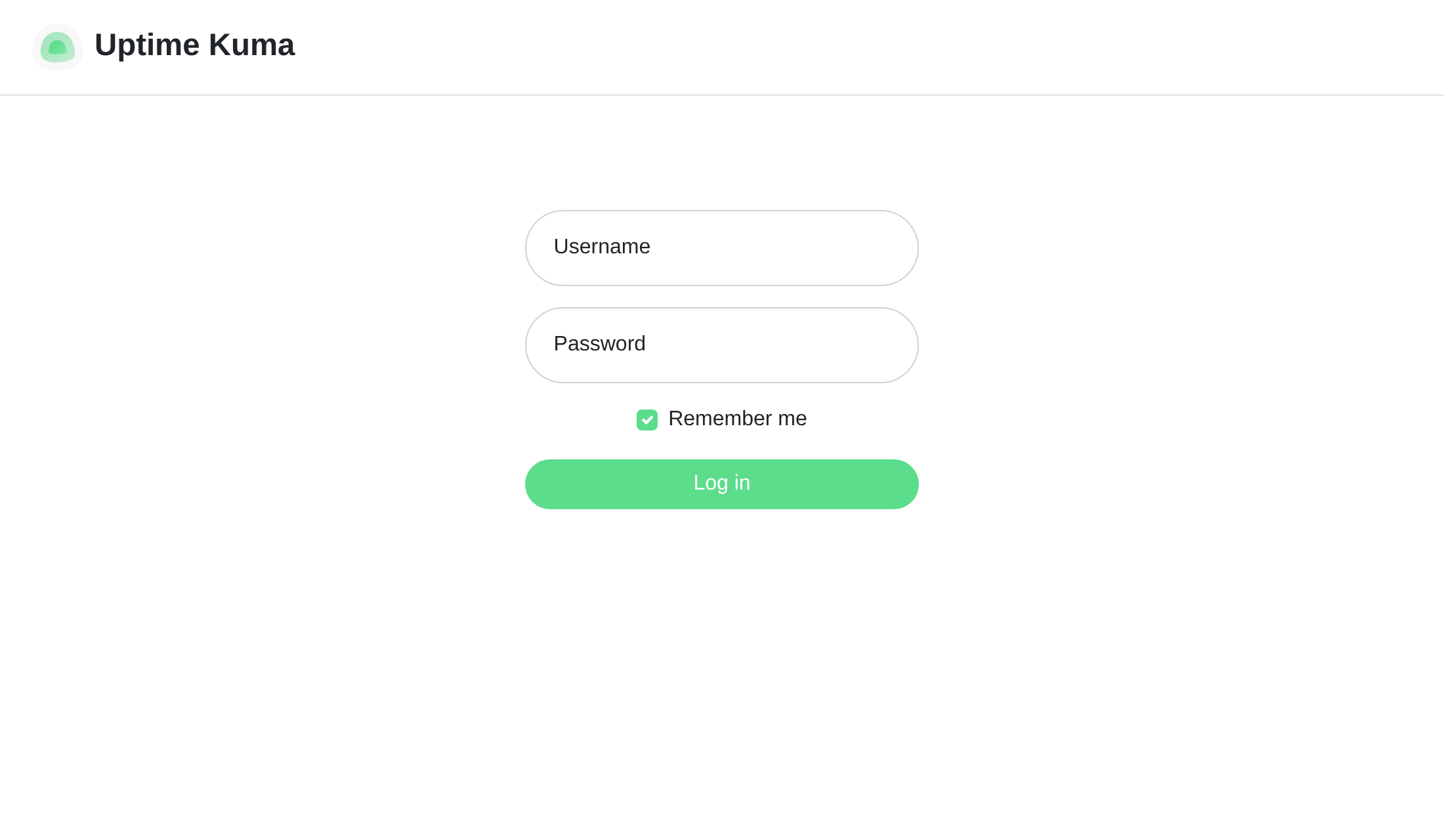
The services a template adds are ordinary services: open them on the canvas to change their variables and settings.
From a template's own page
Each template also has its own page, /new/template/<name>, for example /new/template/uptime-kuma. Links to a template from outside the dashboard lead there.
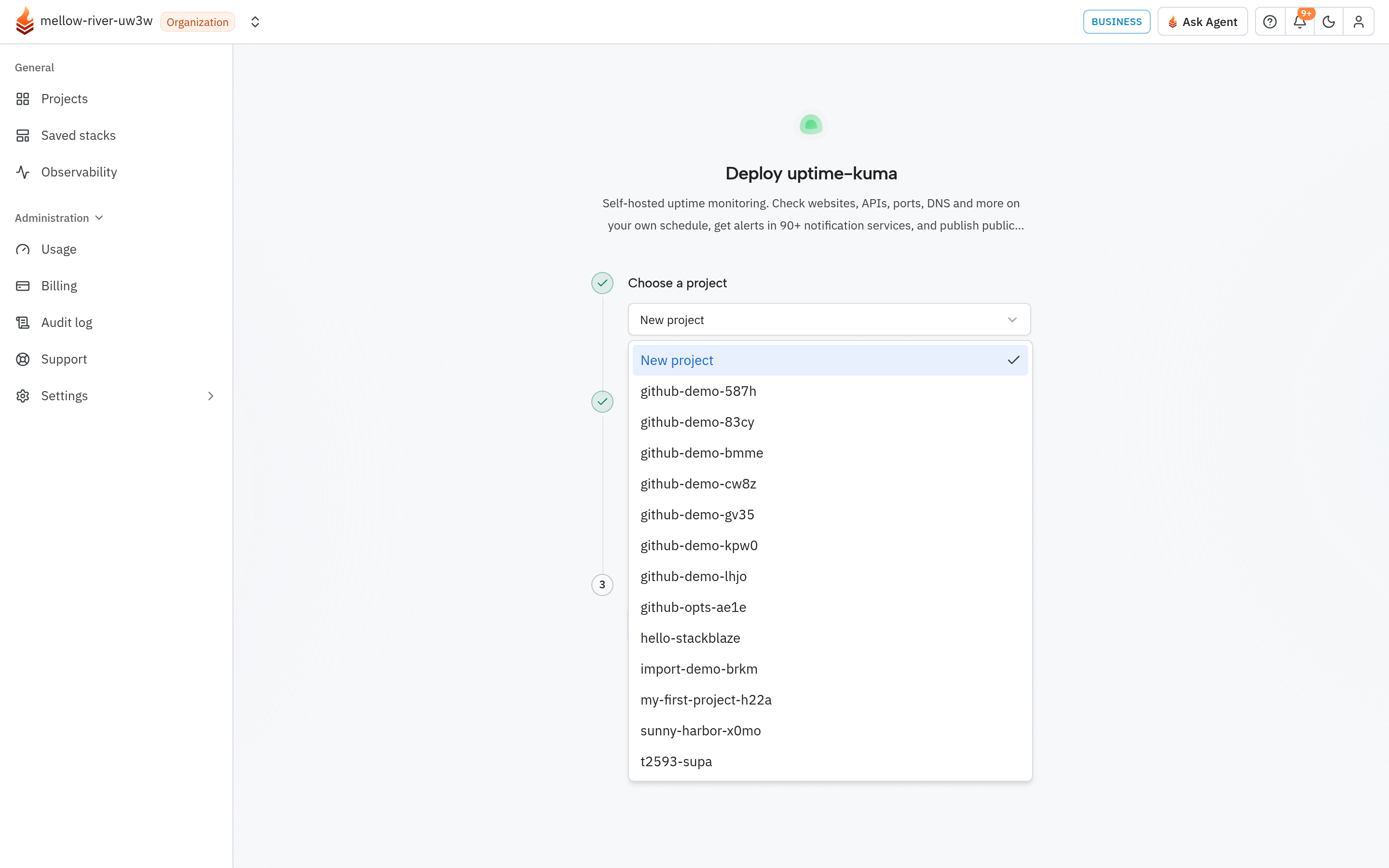
Choose a project
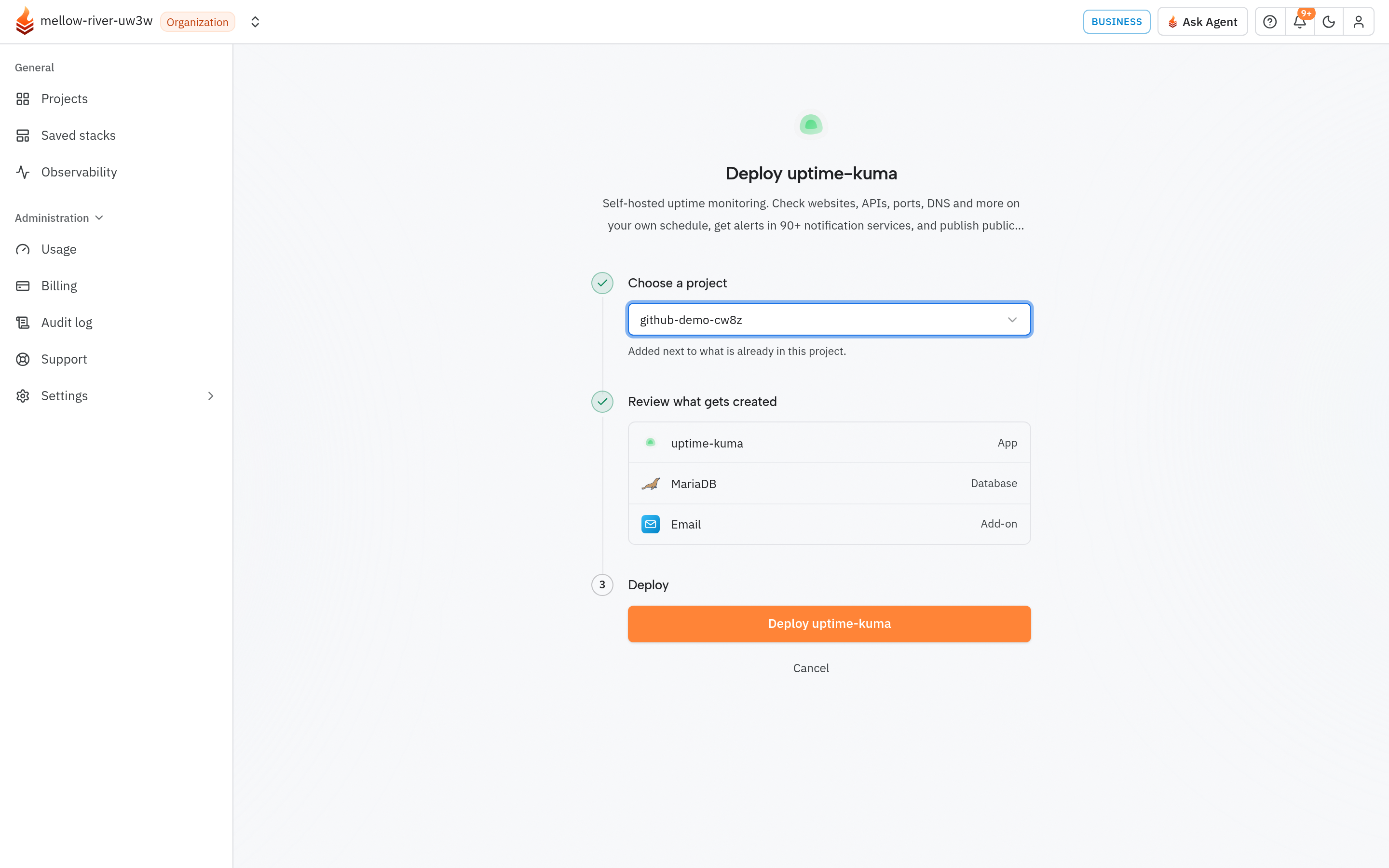
Deploy uptime-kuma describes the app. Under Choose a project, keep New project ("A new project in US Central.") or pick one of your projects ("Added next to what is already in this project.").
Review and deploy
Review what gets created lists everything the template adds, here uptime-kuma (App), MariaDB (Database) and Email (Add-on). Click Deploy uptime-kuma.
The project's canvas opens and the services start. Ours were all up within about a minute: the app and MariaDB Running, the Email add-on Ready.