
Service actions
Restart, pause, resume, rename or delete a running service from its card menu.
Every service card on the project canvas has a menu. Right-click the card to open it.
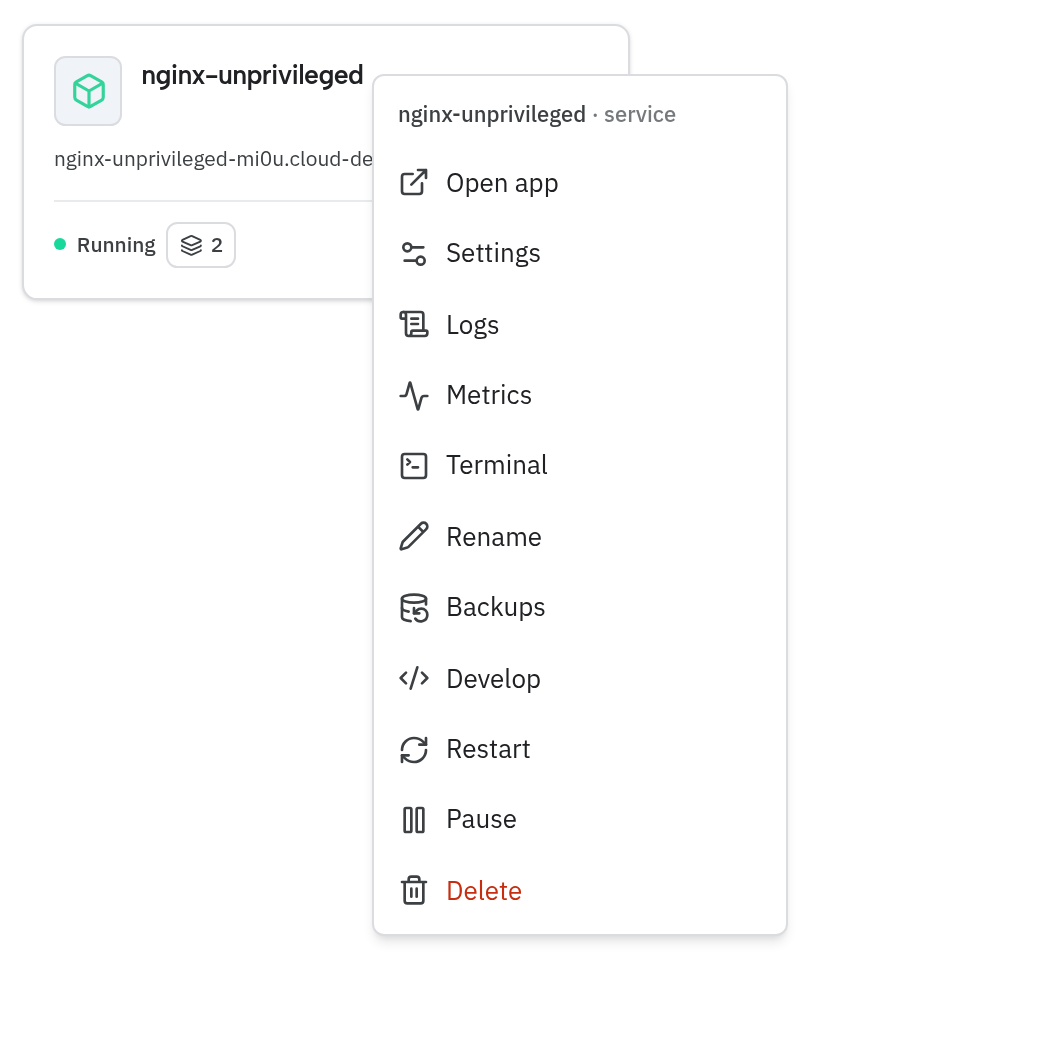
| Item | What it does |
|---|---|
| Open app | Opens the service's public URL in a new tab. Only there when the service has one. |
| Settings, Logs, Metrics, Terminal | Open the service panel on that tab. See Service settings, Logs, Metrics and Terminal and SSH. |
| Rename | Changes the name shown on the canvas. |
| Backups | Opens Backup and restore for the environment. See Environment backups. |
| Develop | Creates a developer sandbox for this service. See Developer sandbox. |
| Restart | Restarts the service without rebuilding it. |
| Pause / Resume | Stops the service's instances, or starts them again. |
| Delete | Stages the service for deletion. |
Restart
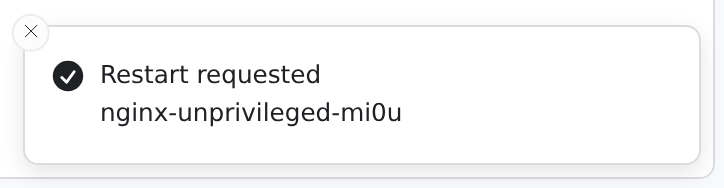
Click Restart. You see Restart requested, and the service's instances are replaced one by one with the same image and settings. Nothing is rebuilt. The card goes back to Running when the new instance is up.
From the CLI, stackblaze restart does the same.
Pause and resume
Pausing stops every instance of the service but keeps the service, its instance count and autoscaling settings, its volumes and its add-ons. It takes effect right away. There is no confirmation and nothing to commit.
Pause
Click Pause. You see App paused: "Pods stop now. Volumes and add-ons keep running."

The card now says Paused.
Resume
On a paused service, the menu shows Resume where Restart and Pause were.
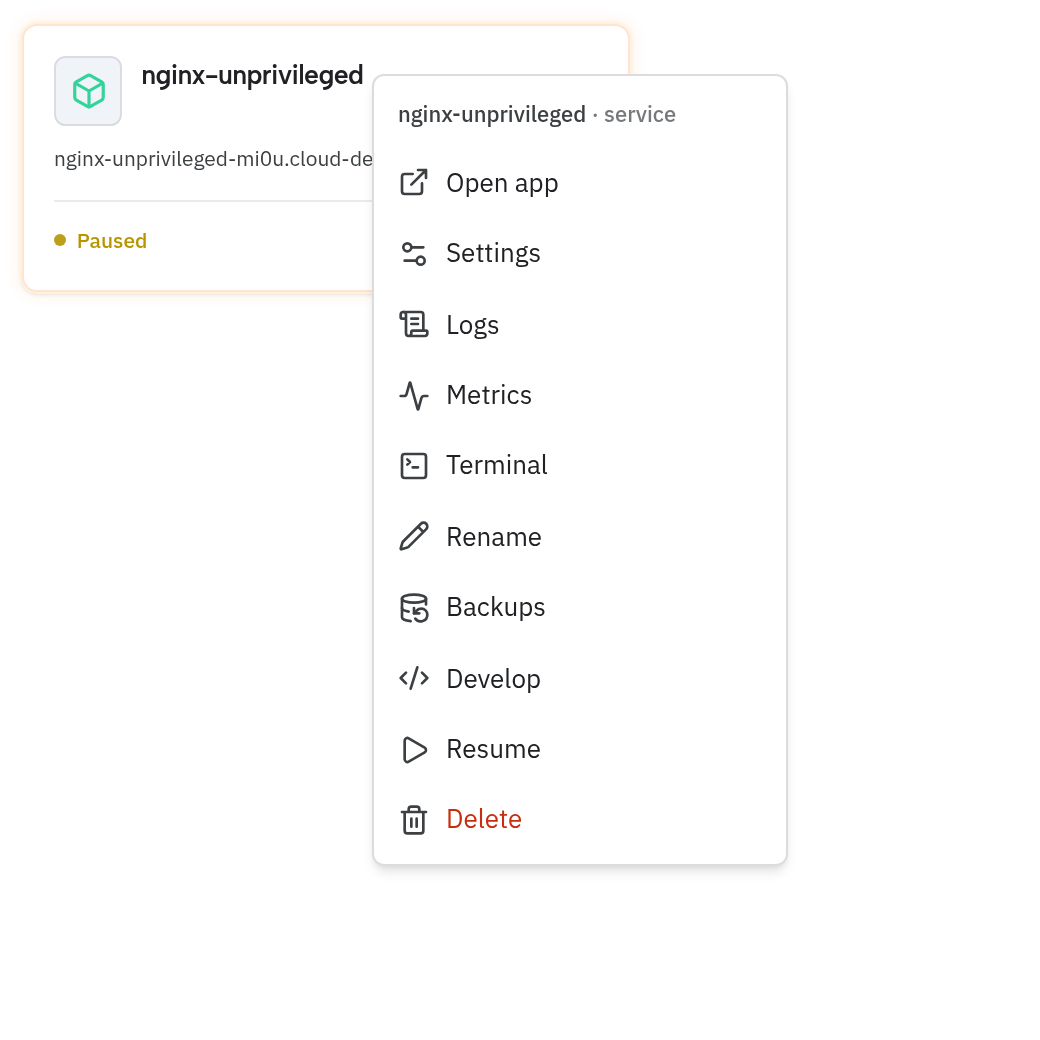
Click Resume. You see App resumed: "Starting with its saved instance and autoscaling settings." The card goes back to Running.

From the CLI, stackblaze down pauses the service and stackblaze resume resumes it. stackblaze down --help notes that compute stops billing while the service is paused, but volumes and add-ons keep running and billing.
Rename
Click Rename, type a new Name and click Rename. Cancel closes the dialog without changes.
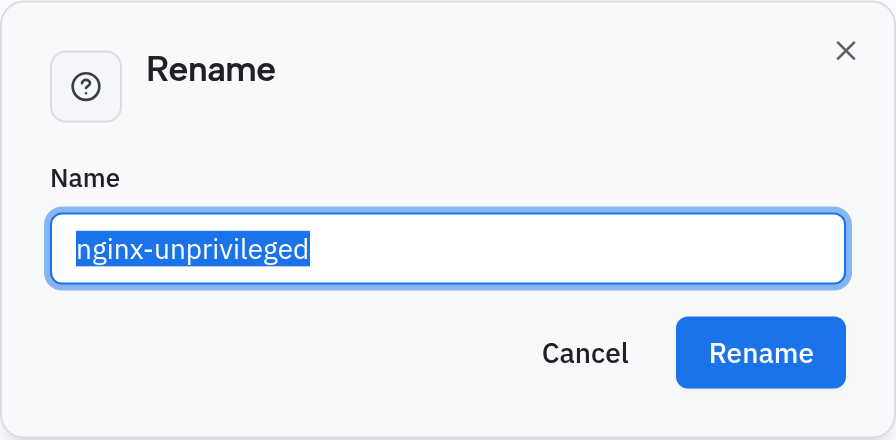
Only the name people see changes. The service's resource name, URL and data stay the same. If you clear the name, it goes back to the original one.
Delete
Deleting a service is a staged change, like any other change on the canvas. It is gated by a typed confirmation.
Stage the delete
Click Delete. There is no dialog yet. The card turns red and says Removes on commit, and Commit 1 change appears in the toolbar.

If the service was the last one using a database, that database is staged for removal too.
Review it
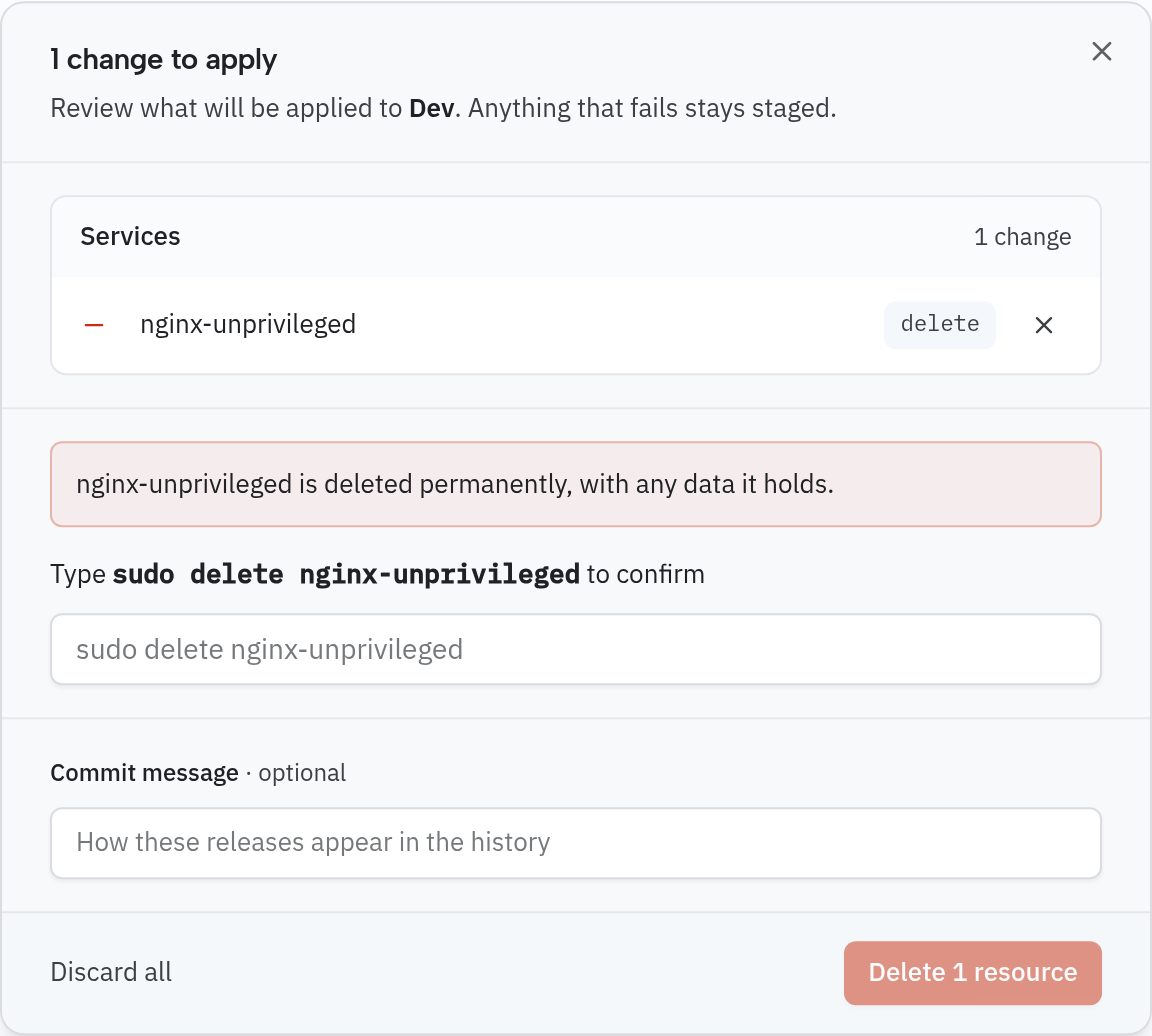
Click Commit 1 change. The dialog lists the service under Services with delete, and warns that it "is deleted permanently, with any data it holds".
To go ahead, type the phrase it shows (sudo delete nginx-unprivileged here) and click Delete 1 resource. That button stays disabled until the phrase matches.
Or cancel it
To keep the service, click Discard all (this drops every staged change), or click the × next to the row to unstage only that one. The card goes back to normal.