
Organizations
Switch organizations, change an organization's name and default region, and create a new organization.
An organization holds your projects, members, teams and billing. Its name is at the top left of the dashboard, next to the Organization badge.
The organization switcher
Click the arrows next to the organization name (Switch organization). The menu shows:
- Search organizations…: filters the list as you type.
- Current Organization: the one you're in, with a check mark.
- Create Organization: see below.
- Log Out.
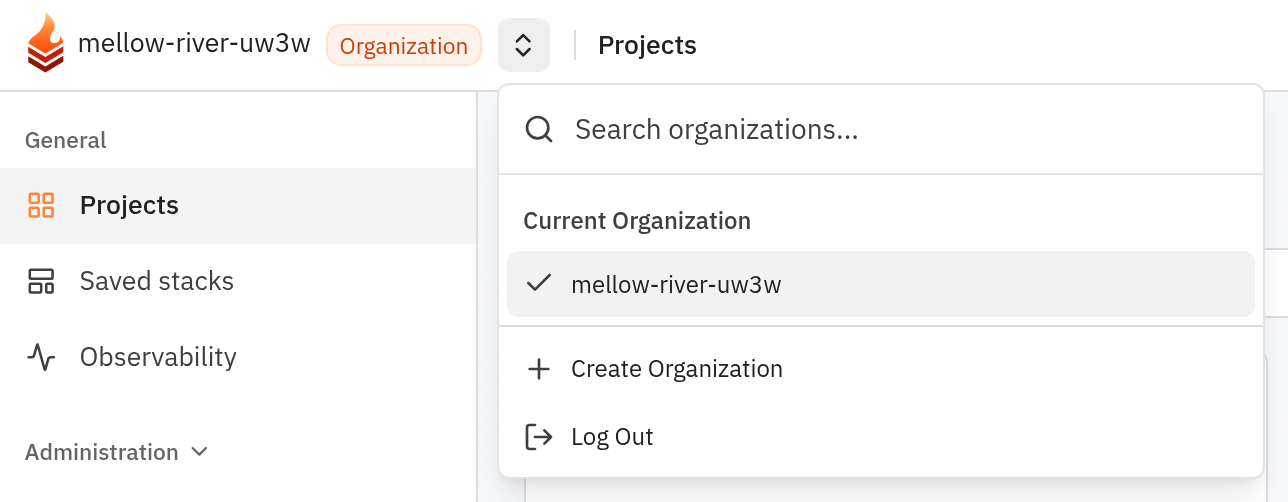
Click the organization name itself to go back to Projects.
Organization settings: General
Open Settings in the sidebar. General is the first page: "Your organization's name, ID and defaults for new projects."
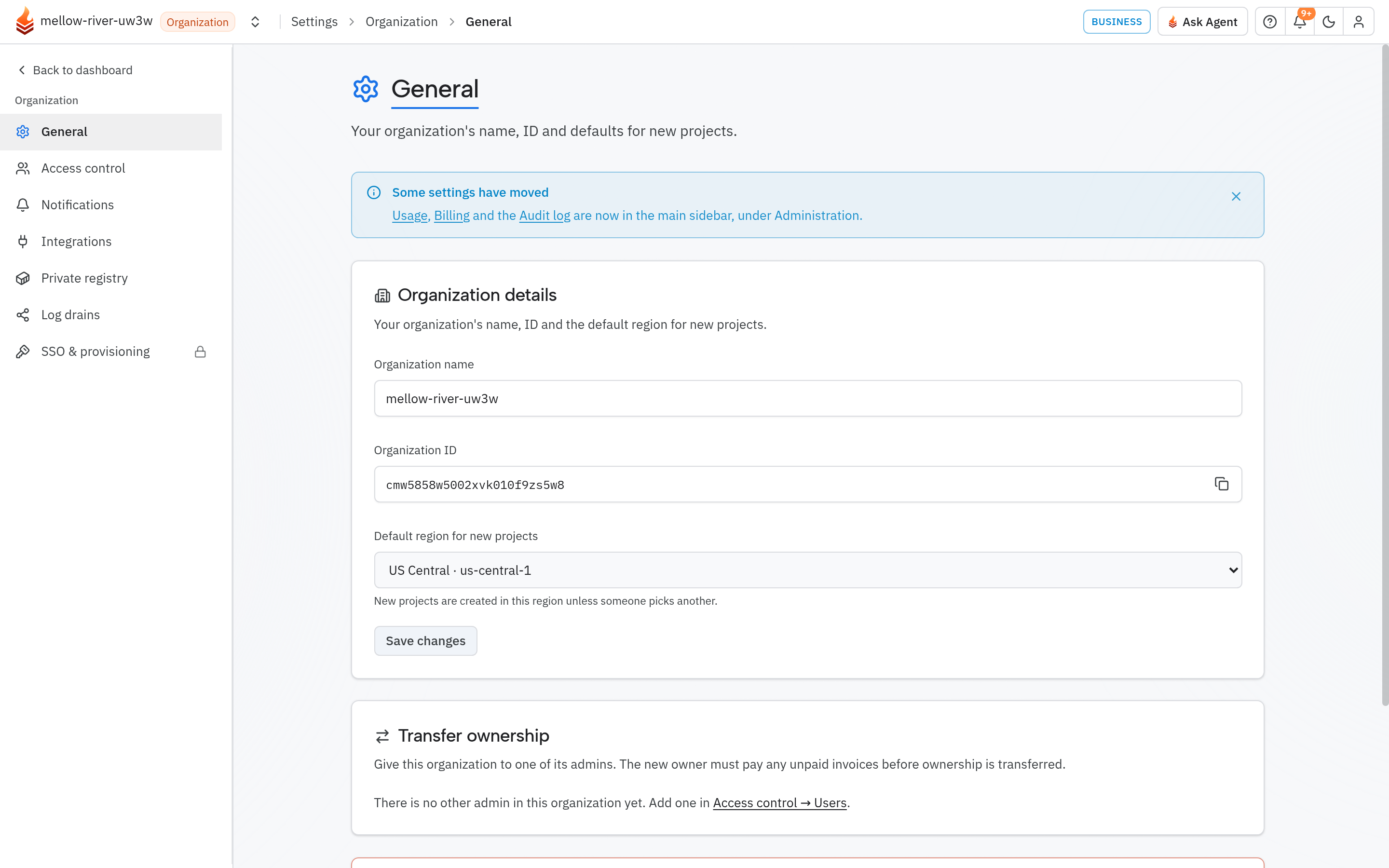
Organization details has:
- Organization name: change it and click Save changes. It can't be empty.
- Organization ID: read-only. The button next to it copies it.
- Default region for new projects: see Default region.
Save changes stays disabled until something changed.
Transfer ownership
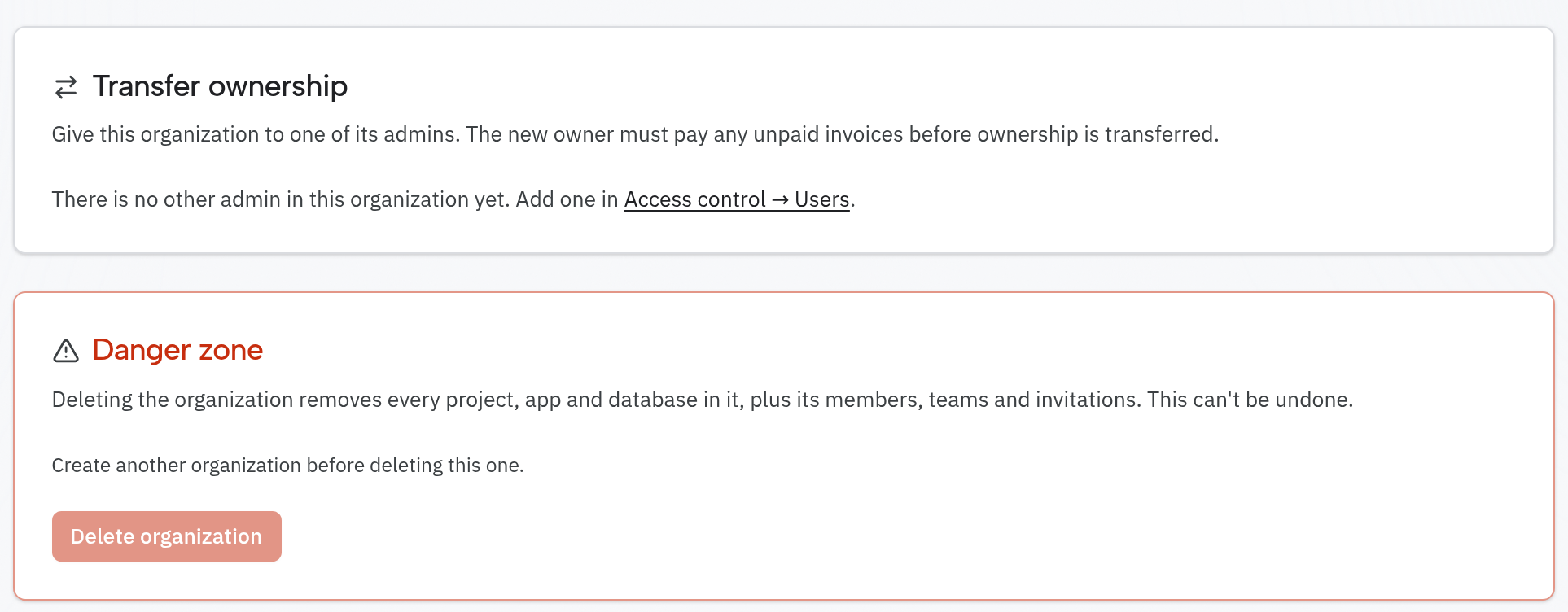
"Give this organization to one of its admins. The new owner must pay any unpaid invoices before ownership is transferred." Until the organization has another admin, the card says so and links to Access control → Users.
Delete organization
Danger zone: "Deleting the organization removes every project, app and database in it, plus its members, teams and invitations. This can't be undone." When this is your only organization, Delete organization is disabled with "Create another organization before deleting this one."
Default region
Default region for new projects lists each region as its name and slug, for example US Central · us-central-1. "New projects are created in this region unless someone picks another."
Pick a region
Choose another region and click Save changes.

New projects start there
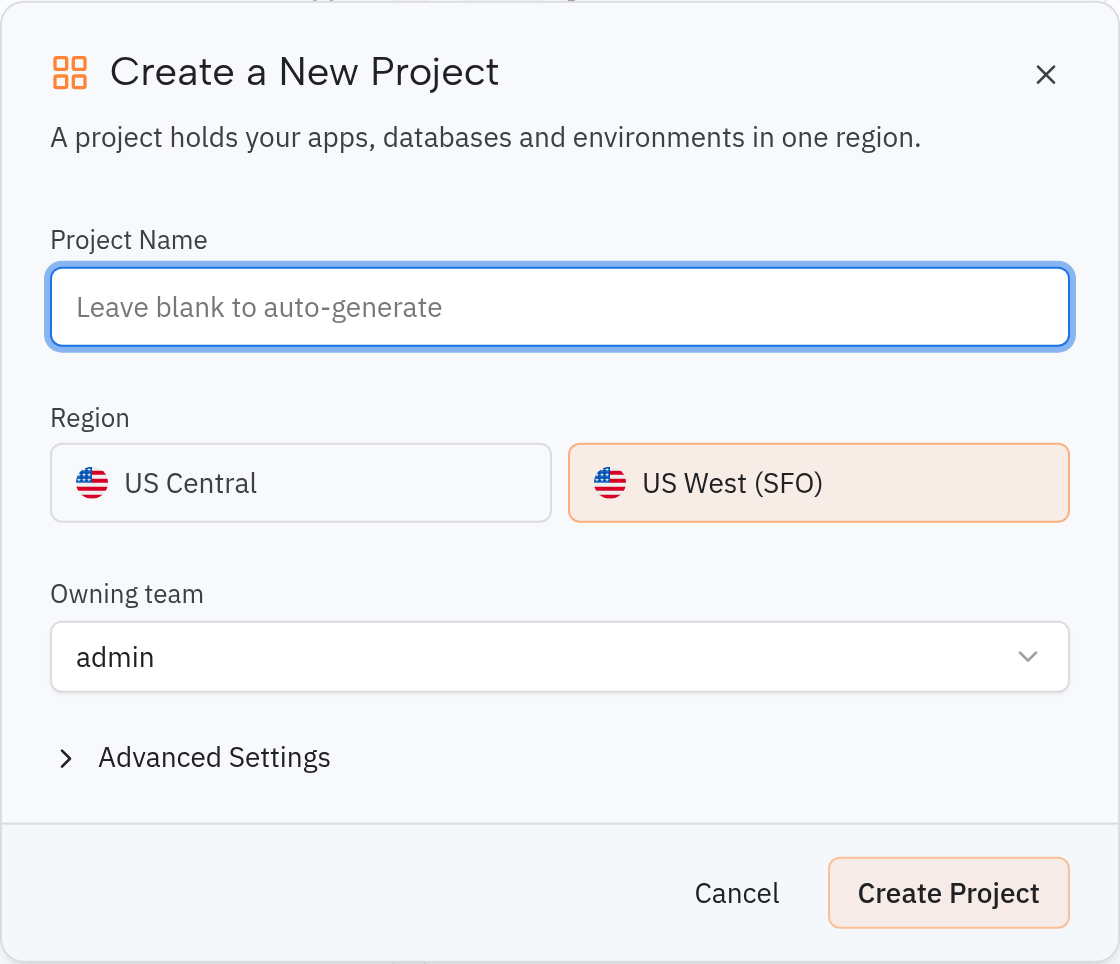
The Create a New Project dialog now preselects that region. You can still pick another one for each project.
Create an organization
Open the organization switcher and click Create Organization. (The address /workspaces/new opens the same dialog.) The new organization gets a generated name; you can change it afterwards in Settings → General.
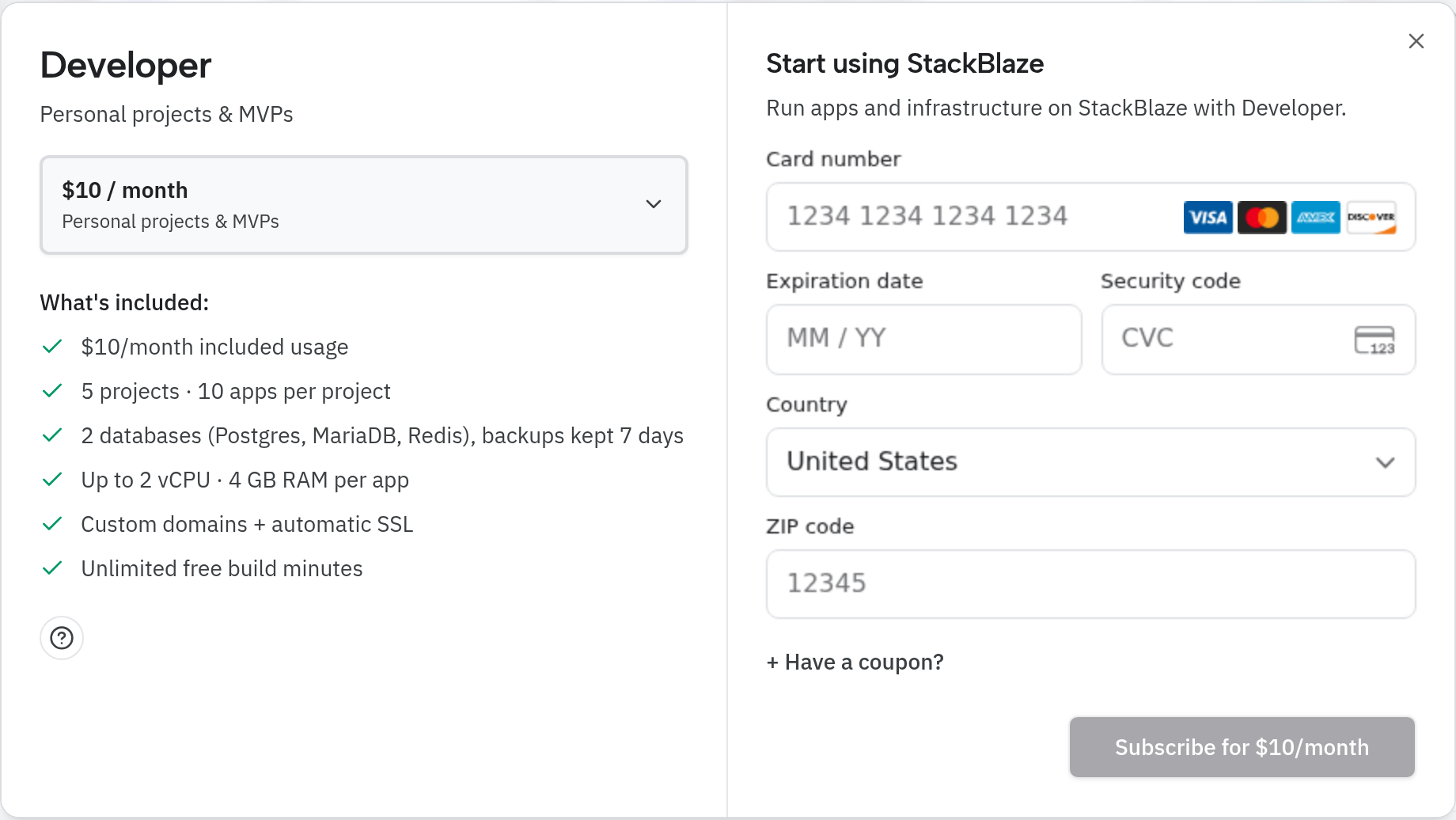
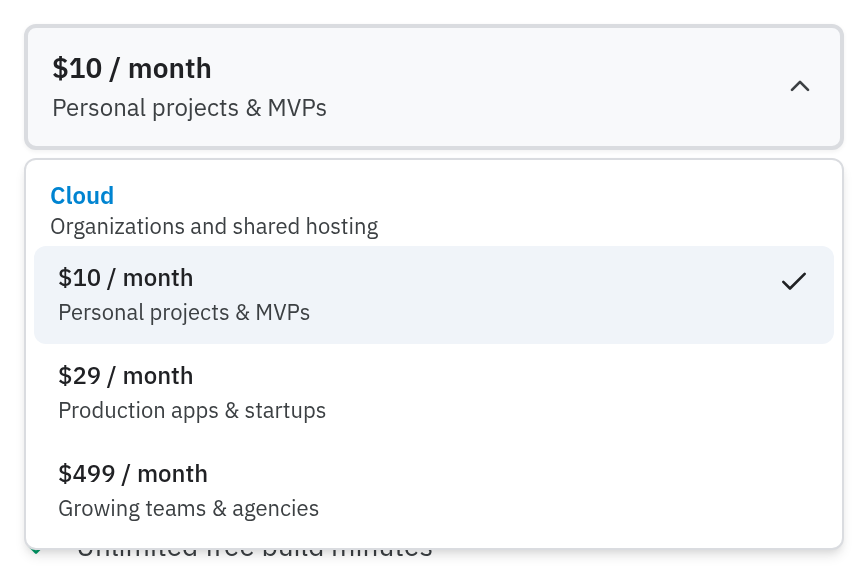
On the left, pick the plan. The menu lists the Cloud plans: $10 / month (Personal projects & MVPs), $29 / month (Production apps & startups) and $499 / month (Growing teams & agencies). Below it, What's included lists the selected plan's limits.
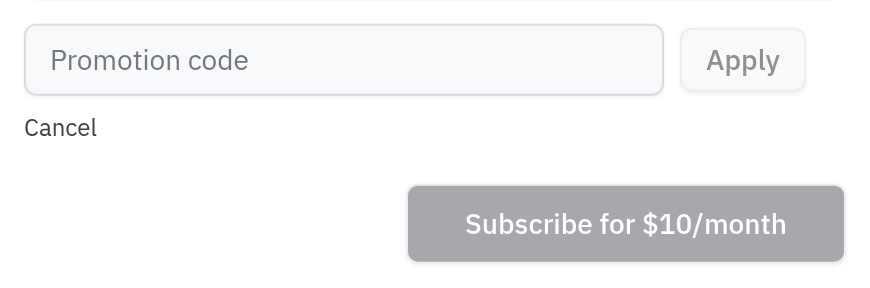
On the right, Start using StackBlaze holds the card details: Card number, Expiration date, Security code, Country and ZIP code. + Have a coupon? opens a Promotion code field with Apply. Subscribe for $10/month (the price follows the plan) stays disabled until the card details are complete.
The free trial is offered only for your first organization. Once you have one, a new organization needs a paid plan.
Close the dialog with × to leave without creating anything.