
Projects, environments and organizations
How organizations, projects, environments and services fit together, and every field of the Create a New Project dialog.
Everything you run on StackBlaze sits in four levels:
- An organization holds your projects, members, teams and billing. Its name is shown at the top left of the dashboard, with the Organization badge.
- A project holds your apps, databases and environments in one region.
- An environment is one copy of the project, such as Dev, Stage or Production. Each environment has its own services.
- A service is one thing that runs in an environment: an app, a database, an add-on, a scheduled task or a volume.
Projects
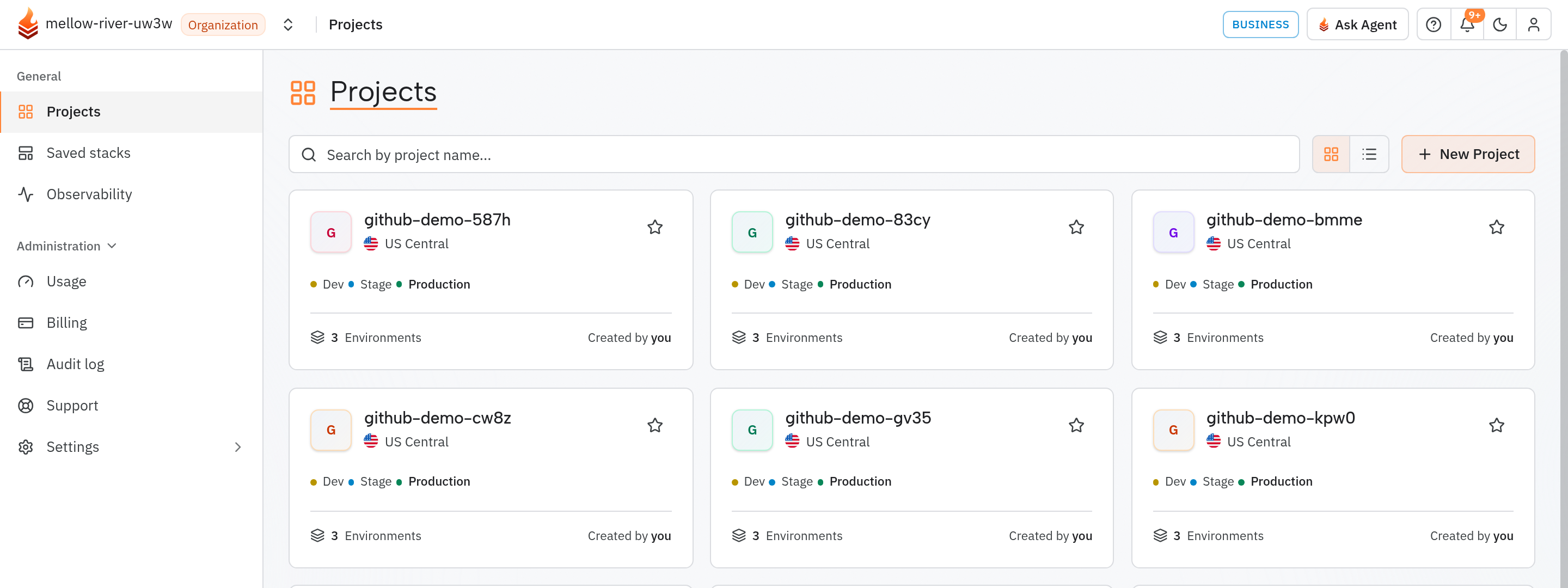
Projects in the sidebar lists the projects of the current organization. Each card shows the project's name, its region (for example US Central), its environments, how many there are and who created it.
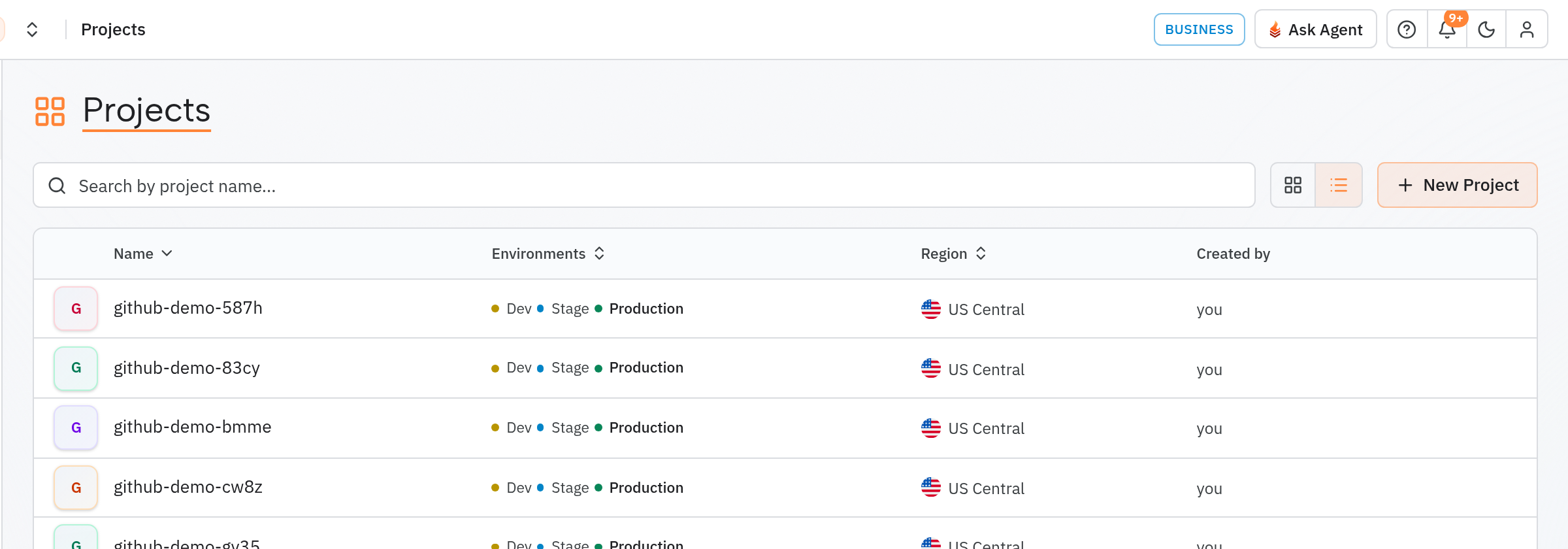
Next to the search box (Search by project name…), two buttons switch between Grid view and List view. The list shows the same projects as a table, with the columns Name, Environments, Region and Created by. Below it you can choose 12, 24 or 48 per page.
Environments and services
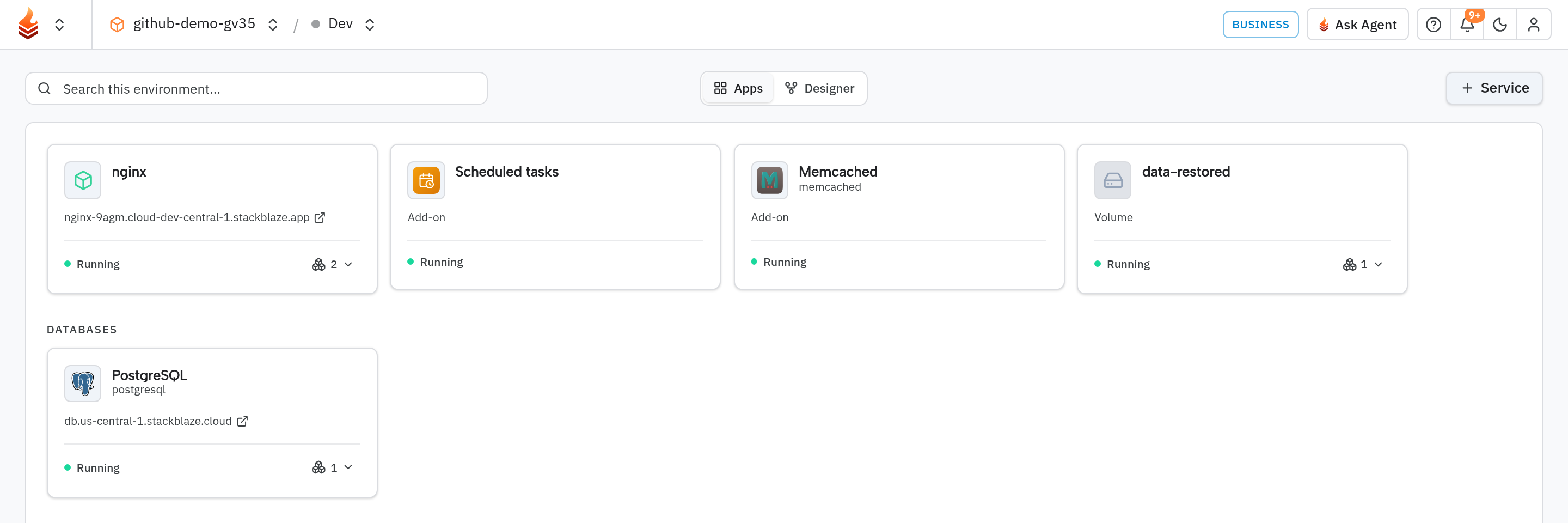
Open a project to see one of its environments. The header shows where you are: the project, then the environment. Each name has its own switcher (see Environments).
The canvas below lists that environment's services: apps, add-ons and volumes at the top, and Databases under them. Another environment of the same project has its own services.
Create a project
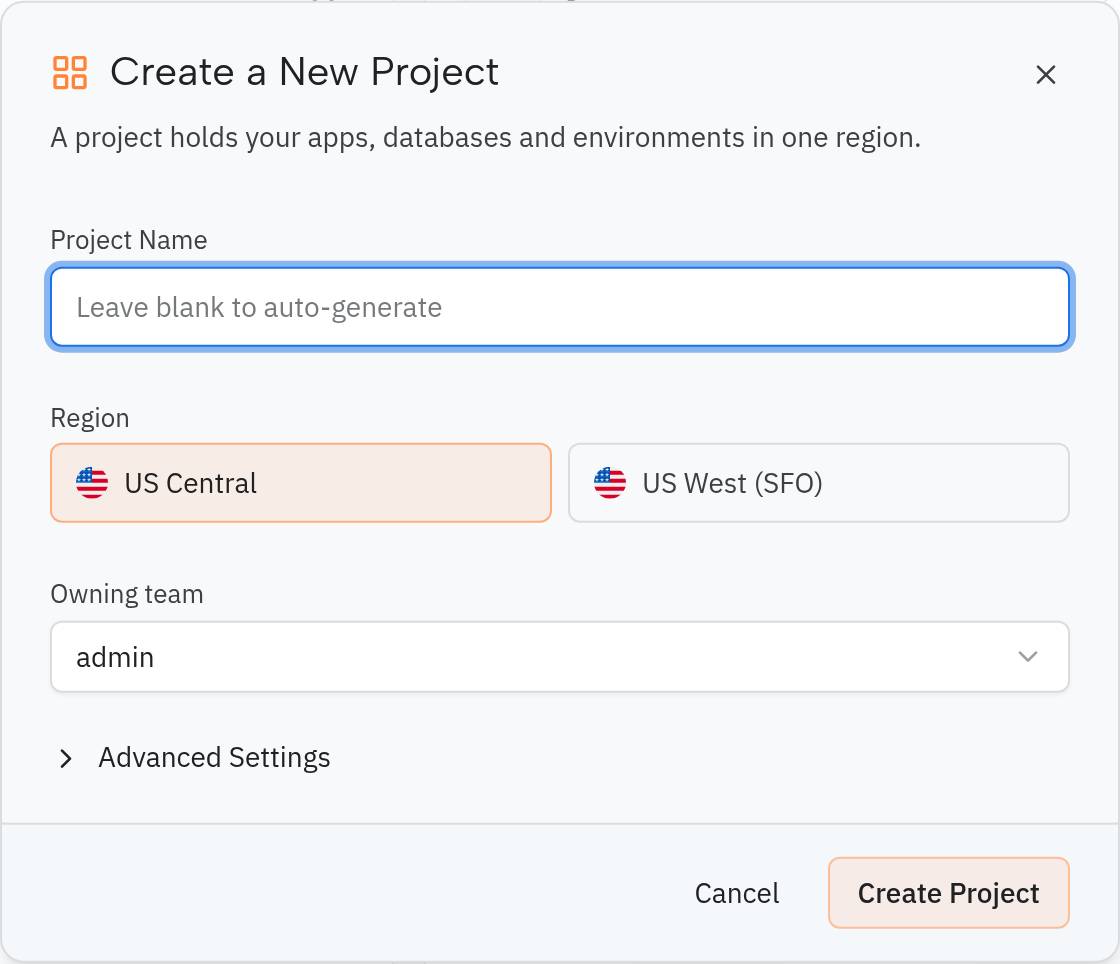
On Projects, click New Project. The Create a New Project dialog opens: "A project holds your apps, databases and environments in one region."
Project Name
Type a name, or leave the field empty: the placeholder says Leave blank to auto-generate, and the project then gets a generated name. The name can be up to 60 characters long.
While you type, the dashboard checks the name. A name that is already used shows "A project with this name already exists." and Create Project stays disabled.
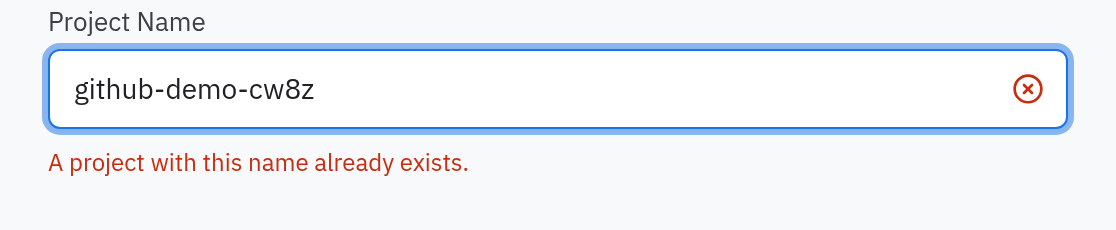
The project's name is its ID: it is used in URLs, the CLI and app addresses, and it can't be changed later. You can give it a Display name in Project settings.
Region
Pick the region the project runs in. Each region is a button with its flag; the selected one is highlighted. The dialog preselects your organization's Default region for new projects (see Organizations).
Everything in a project runs in its region. Project settings has no region field: choose it here.
Owning team
Choose the team that owns the project. The menu lists your organization's teams. Members of that team get their team role on the project; you can change it later under Ownership & access.
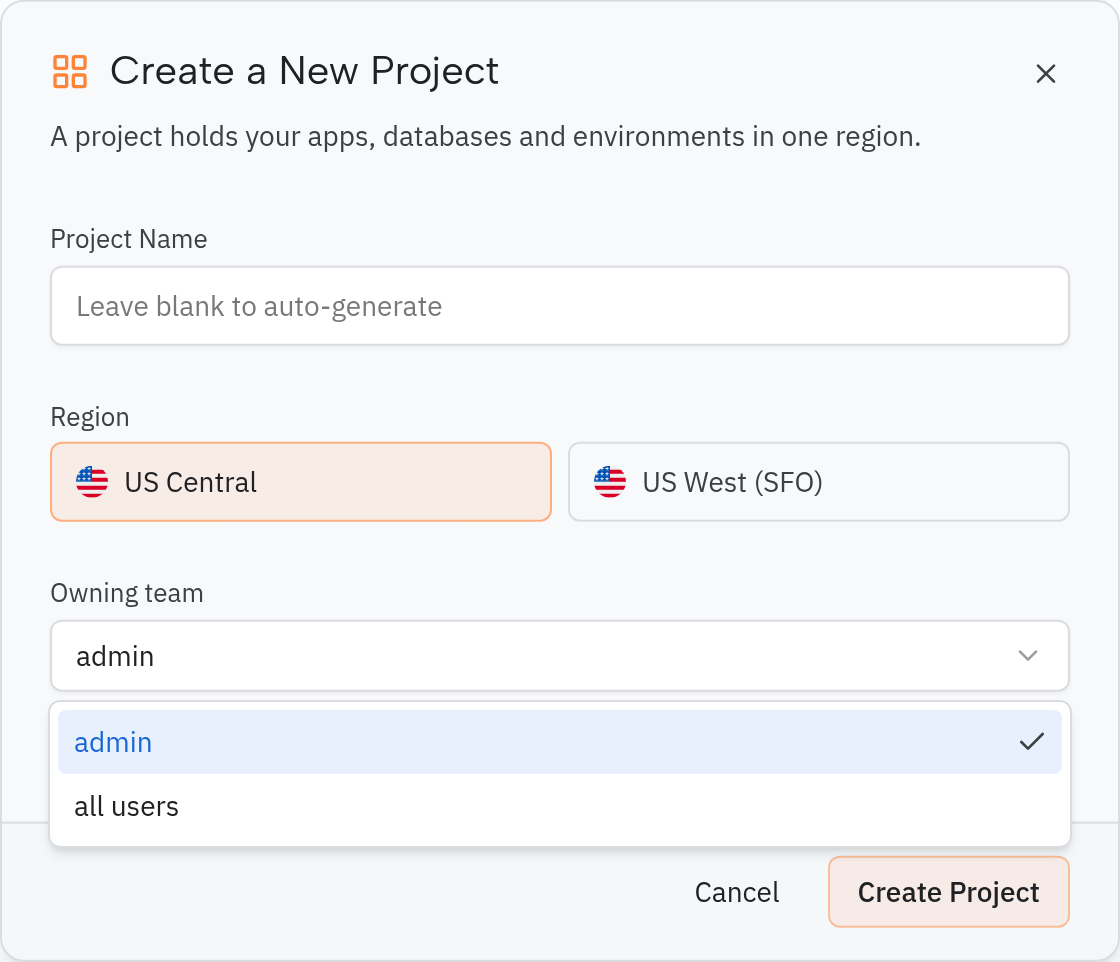
Environments (Advanced Settings)
Click Advanced Settings to choose the project's environments:
- Review apps (pull requests): off by default
- Development: on
- Staging: on
- Production: on
At least one must be ticked; with none, Create Project is disabled. You can add and remove environments later.
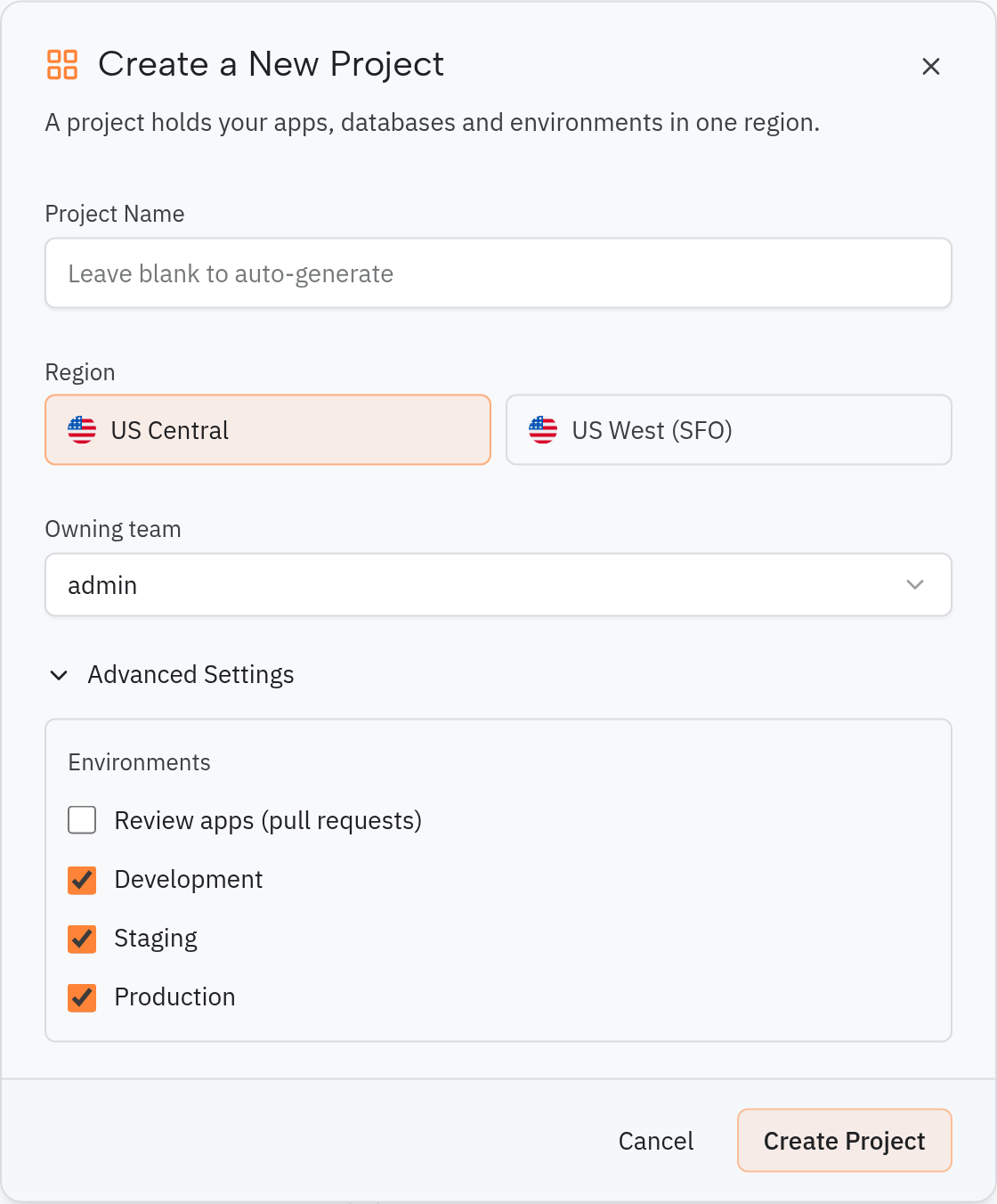
Create Project
Click Create Project. The dashboard opens the new project's canvas. Cancel or the × closes the dialog without creating anything.
Regions
A region is where a project's apps and databases run. On production, the regions are US Central (us-central-1), US East (us-east-1) and US West (SFO) (us-west-1). The screenshots on these pages come from a test system that offers two of them.
- Each project runs in one region, chosen when you create it.
- The project card shows its region.
- New projects start in the organization's default region unless you pick another.
- How many regions your organization can use depends on its plan.
To list the regions from a terminal, run stackblaze regions.
Next
- Environments: switch, add and remove them.
- Project settings: display name, previews, access, shared variables, delete.
- Organizations: switch, rename, set the default region, create one.