
Environments
Switch between a project's environments, and add or remove Dev, Test, Stage and Production.
An environment is one copy of a project, such as Dev, Stage or Production. Each environment has its own services, variables and addresses. A new project starts with Dev, Stage and Production unless you chose others when you created it.
Switch environments
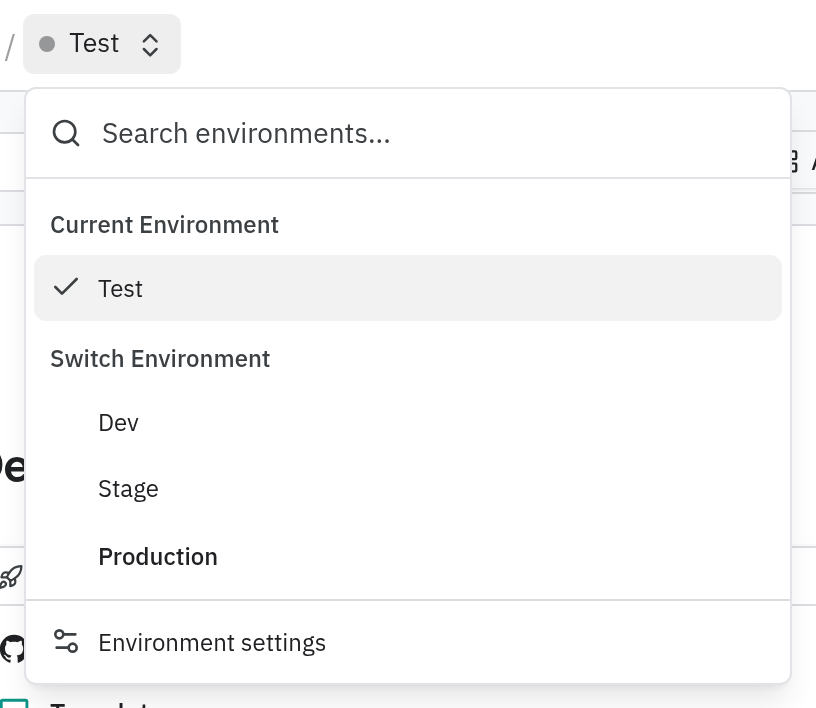
In a project, the header shows the project and the current environment. Click the environment name to open its menu:
- Search environments…: filters the list as you type.
- Current Environment: the one you're in.
- Switch Environment: the project's other environments.
- Environment settings: opens the project's environment settings.
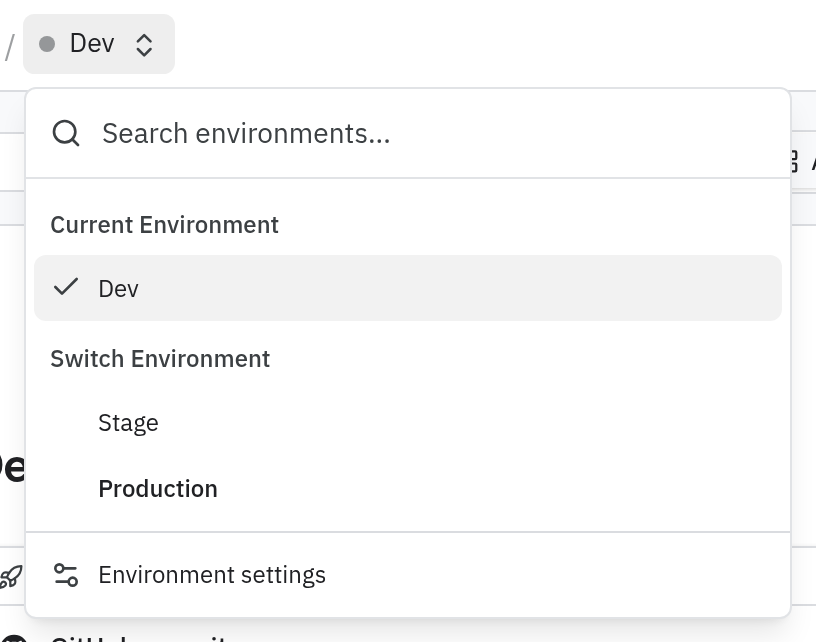
Click another environment, for example Stage. The canvas now shows that environment's services, and the header shows its name.

The project name in the header has the same kind of menu, to switch to another project. It also has All projects and Project settings.
Add an environment
Environments are switched on and off in Project settings → General → Environments. Open it with Environment settings in the environment menu.
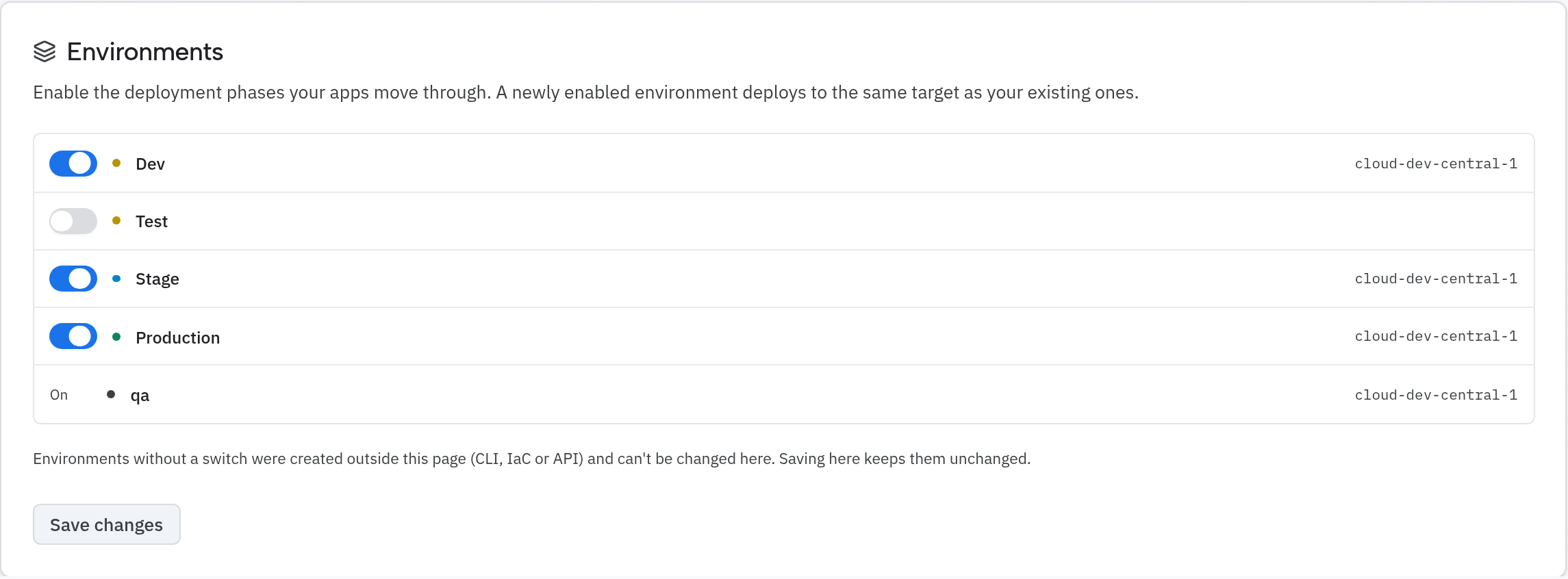
The card lists four environments, each with a switch: Dev, Test, Stage and Production. An environment that is on shows where it runs on the right.
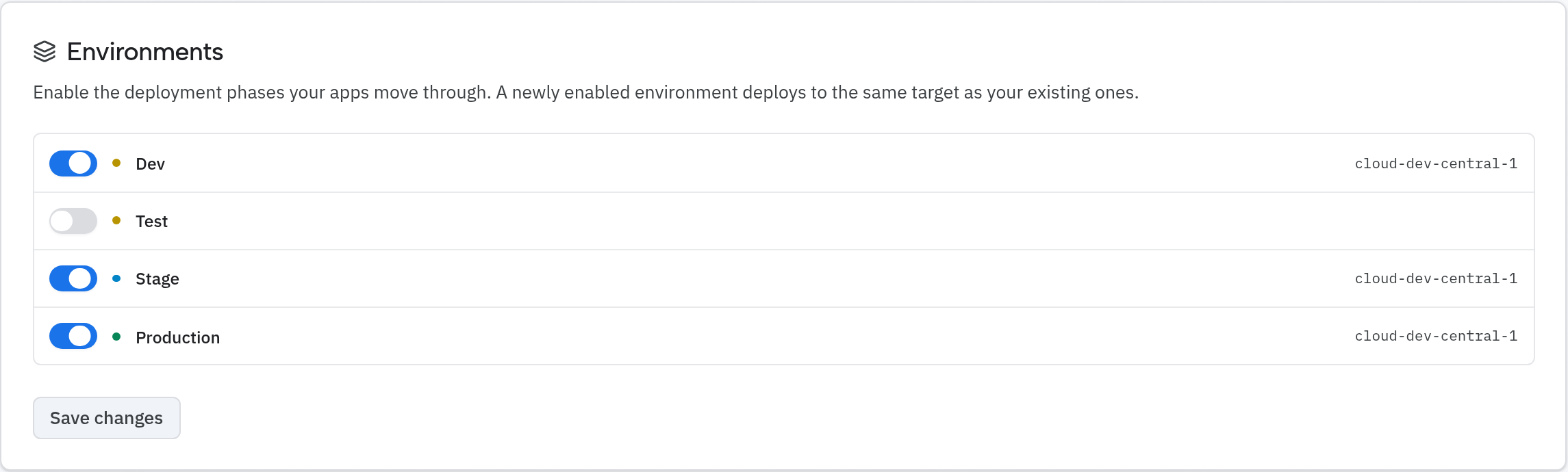
Turn it on
Turn on the switch of the environment you want, here Test. "A newly enabled environment deploys to the same target as your existing ones."
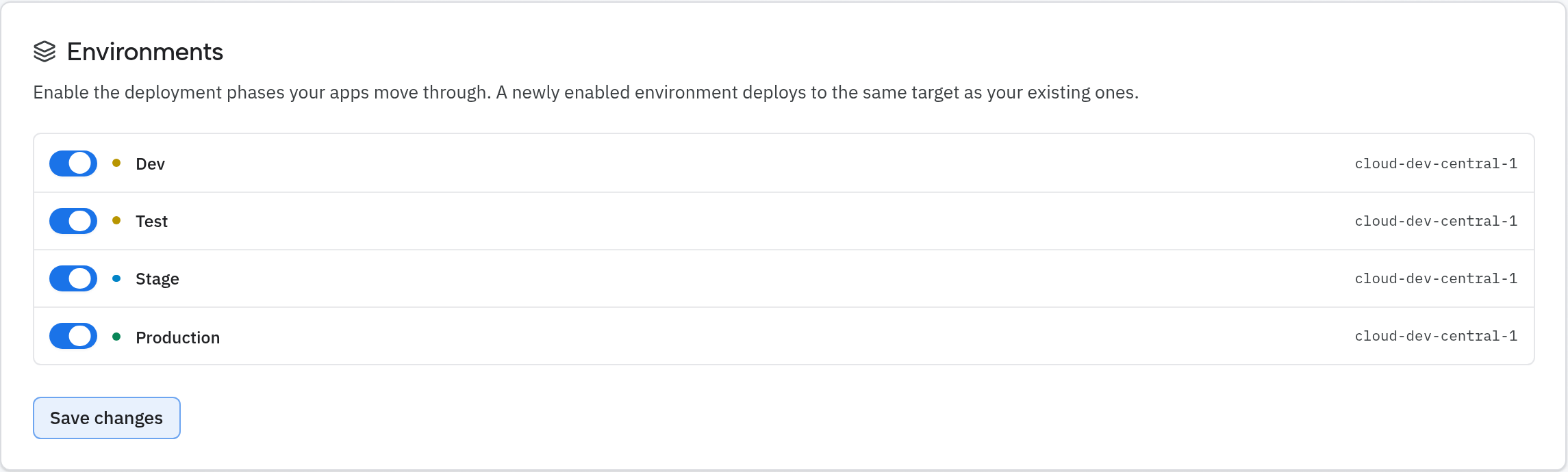
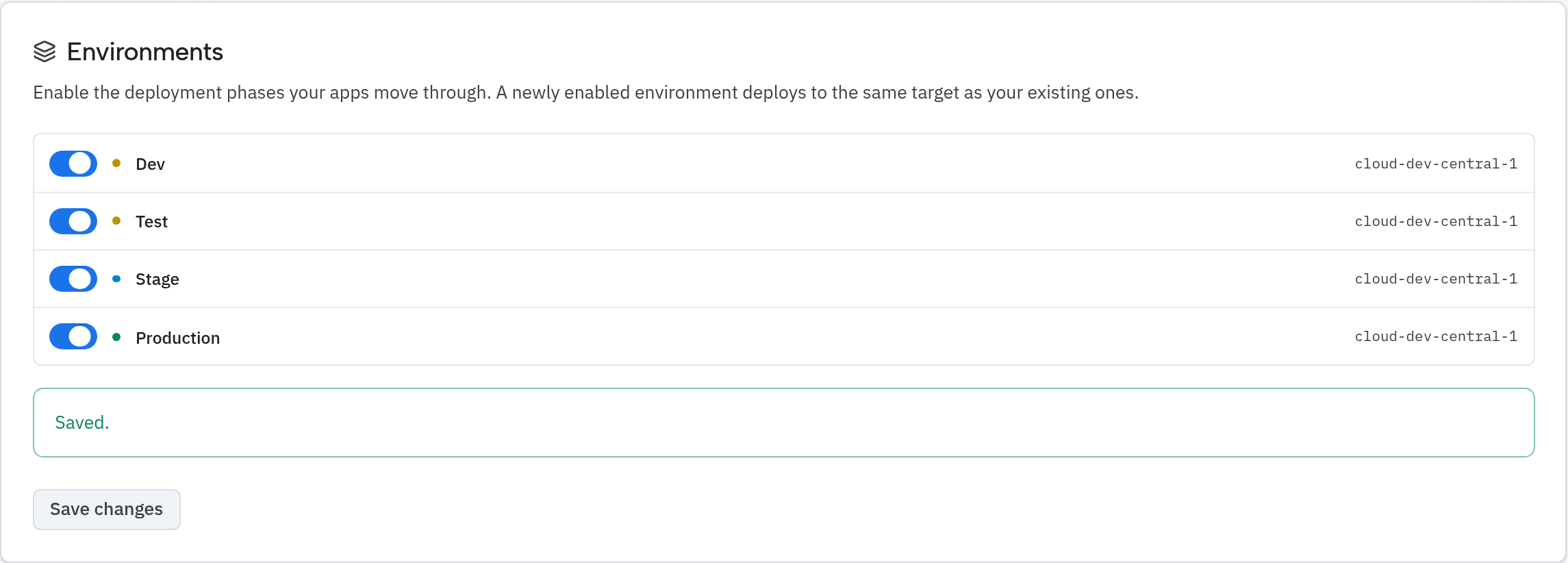
Open it
The new environment is now in the environment menu. It starts empty.
Remove an environment
Turn off its switch and click Save changes. The card shows Saved. and the environment is gone from the environment menu. In this example the environment is empty.
Environments made with the CLI
You can also add an environment with any name from the CLI, with stackblaze phases create (for example stackblaze phases create qa). The dashboard lists it in the environment menu like the others.
In Environments it has no switch. It shows On or Off instead, with the note "Environments without a switch were created outside this page (CLI, IaC or API) and can't be changed here. Saving here keeps them unchanged." Remove it from the CLI with stackblaze phases delete.
Preview environments
With previews turned on, every pull request gets its own temporary environment, pr-<number>. These are listed under Previews in the environment menu. See Preview environments.
Rename an environment
Environments can't be renamed. To use another name, add a new environment and remove the old one.