Sign up and sign in
Create a StackBlaze account and sign in with GitHub, Google, a passkey, your email and password, an emailed code, or SSO.
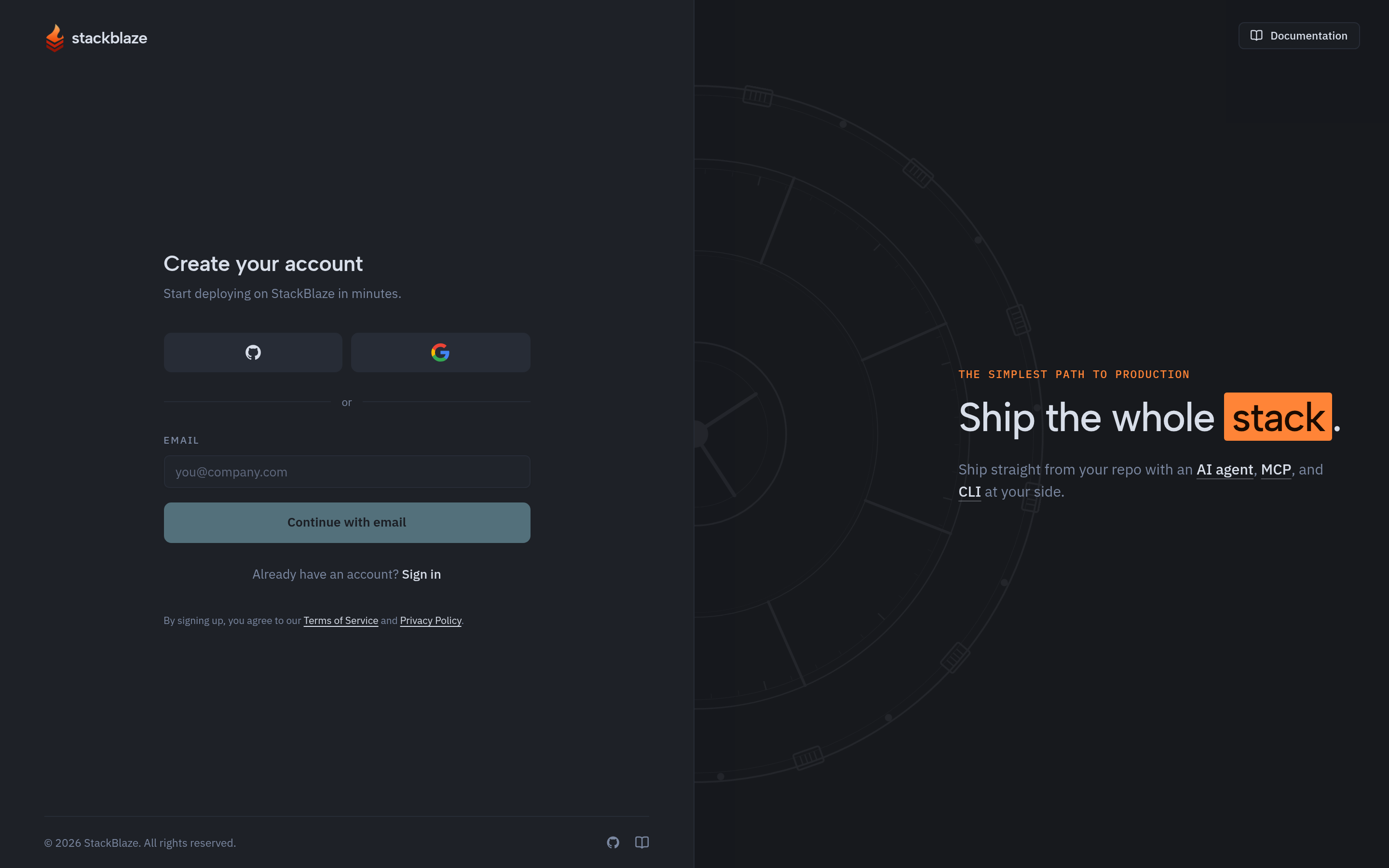
Create an account
Go to the dashboard's Create your account page (Sign up on the sign-in page). Sign up with Continue with GitHub, Continue with Google, or your email and Continue with email.
Sign in
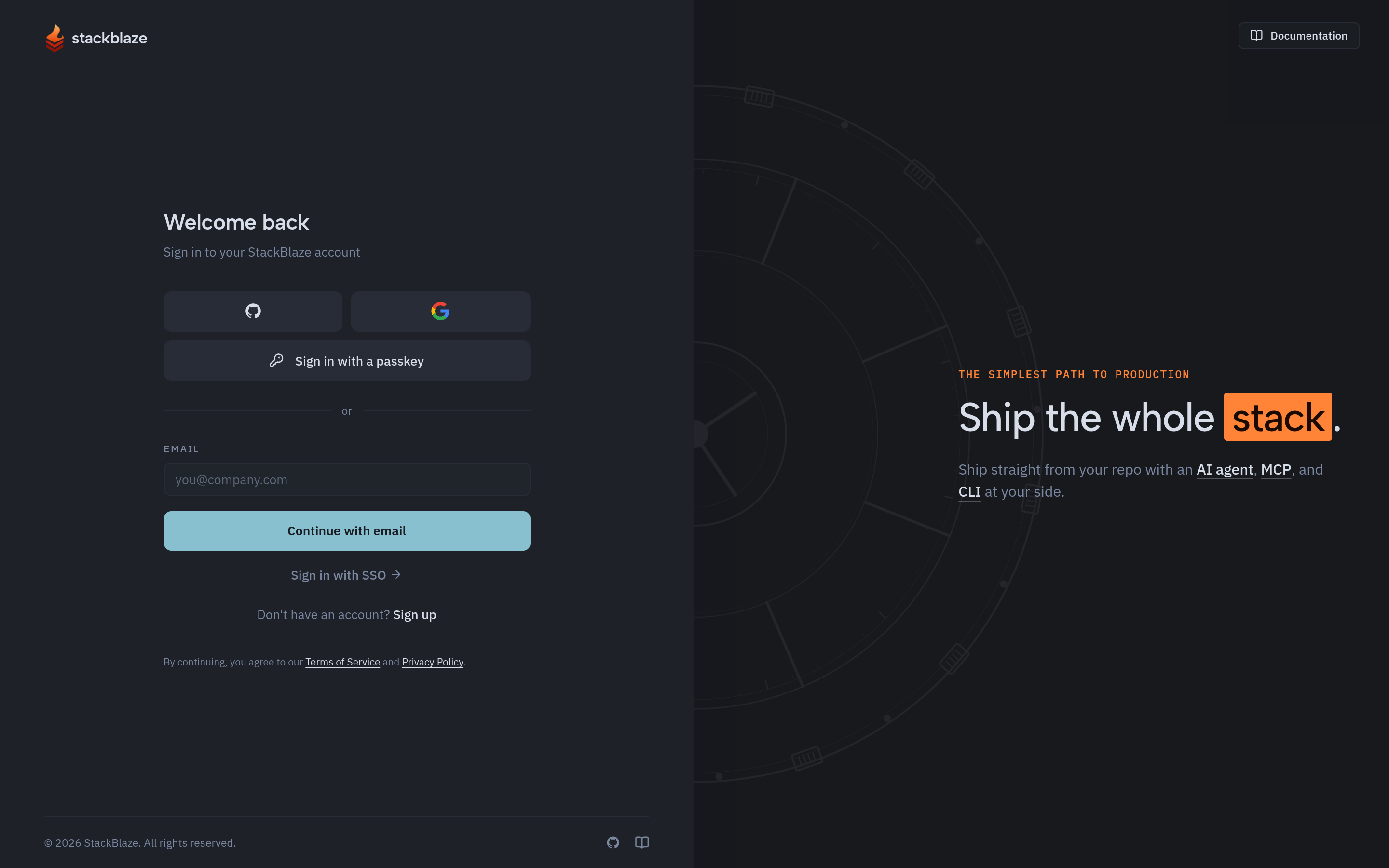
Welcome back offers every way in:
- Continue with GitHub or Continue with Google;
- Sign in with a passkey, if you added one (see Account security);
- your email, then Continue with email;
- Sign in with SSO, for organizations that set up single sign-on.
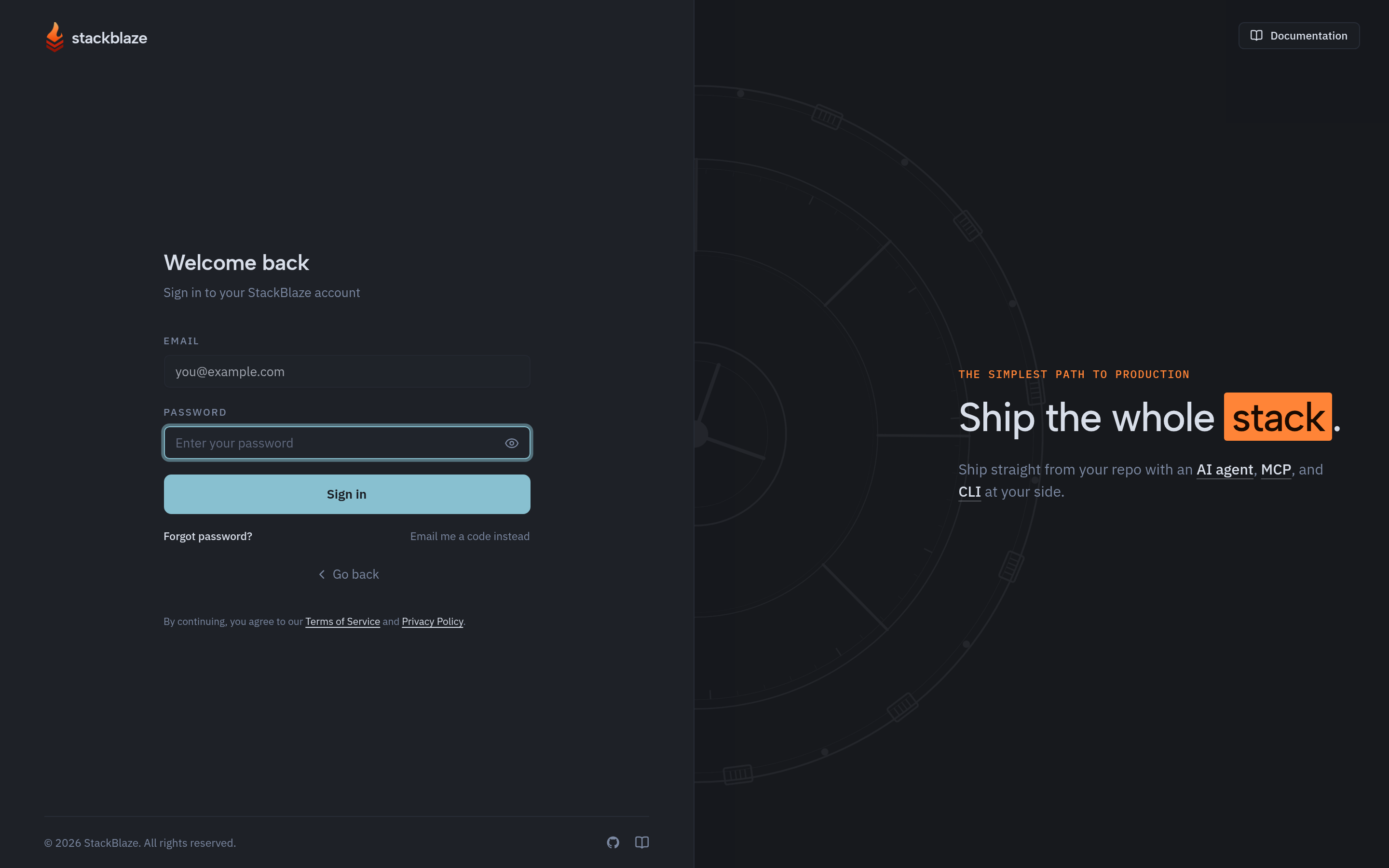
With email, the next step asks for your Password and Sign in. Email me a code instead sends a 6-digit code to your inbox to type in instead of a password. Go back returns to the first step.
If you turned on two-factor authentication, the Two-factor authentication step comes next, after the password or the emailed code alike. Enter the 6-digit code from your authenticator app and click Verify & sign in. A wrong code shows "Incorrect code. Try again." If you have a passkey too, you can use it here instead.
Lost your phone? Click Lost your phone? Use a recovery code and type one of your recovery codes (they look like xxxxx-xxxxx). Each code works once; a used or wrong one shows "That recovery code didn't work. Each code works once." Use your authenticator app switches back. See Account security.
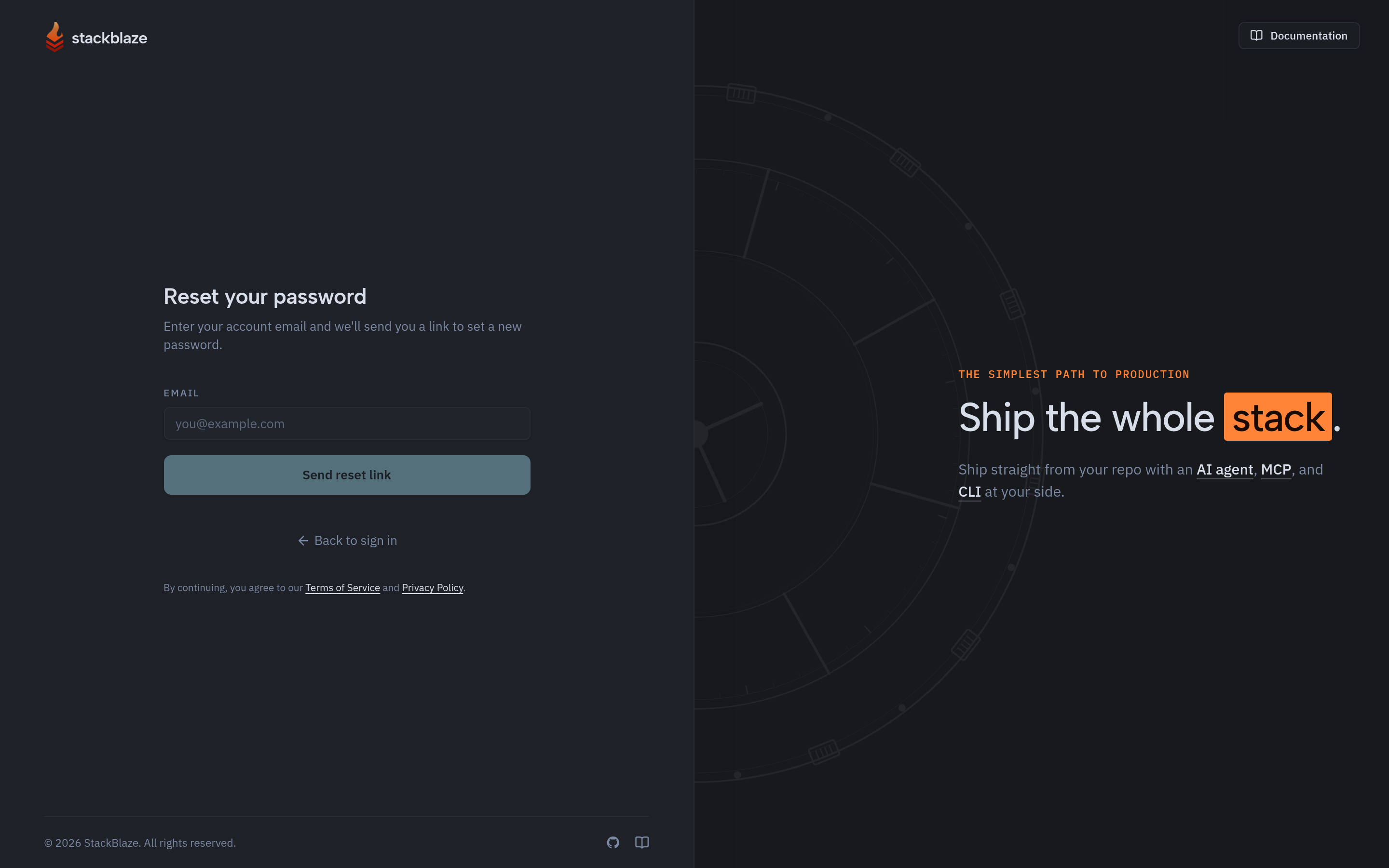
Forgot your password
Forgot password? opens Reset your password: enter your account email and click Send reset link. The email has a link to set a new password.