The canvas
Your environment's services on one page, and how changes are staged, committed and deployed.
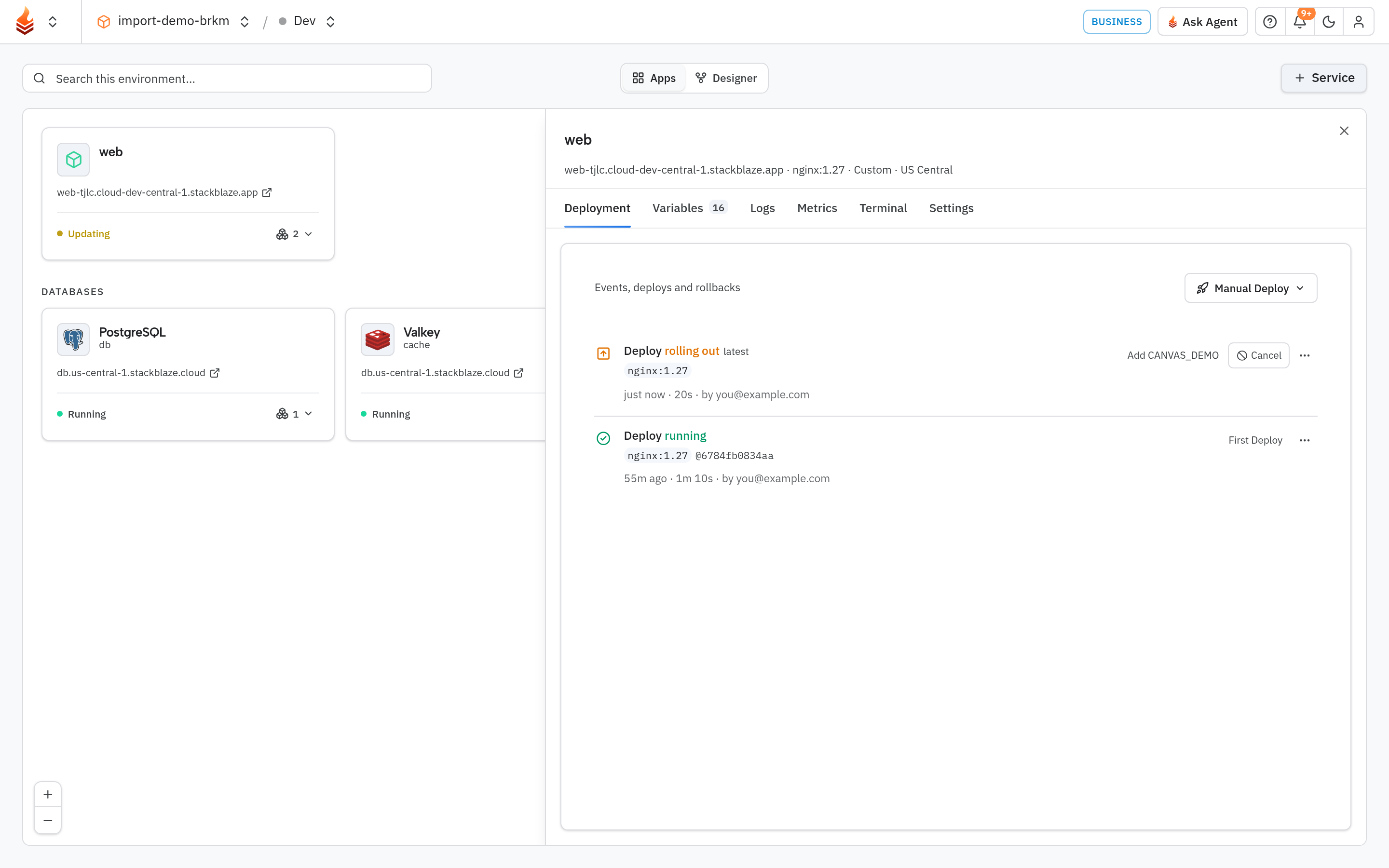
Each environment of a project opens on its canvas: every app, database and add-on in that environment, with its status. The canvas is also where changes wait until you deploy them.
Apps and Designer
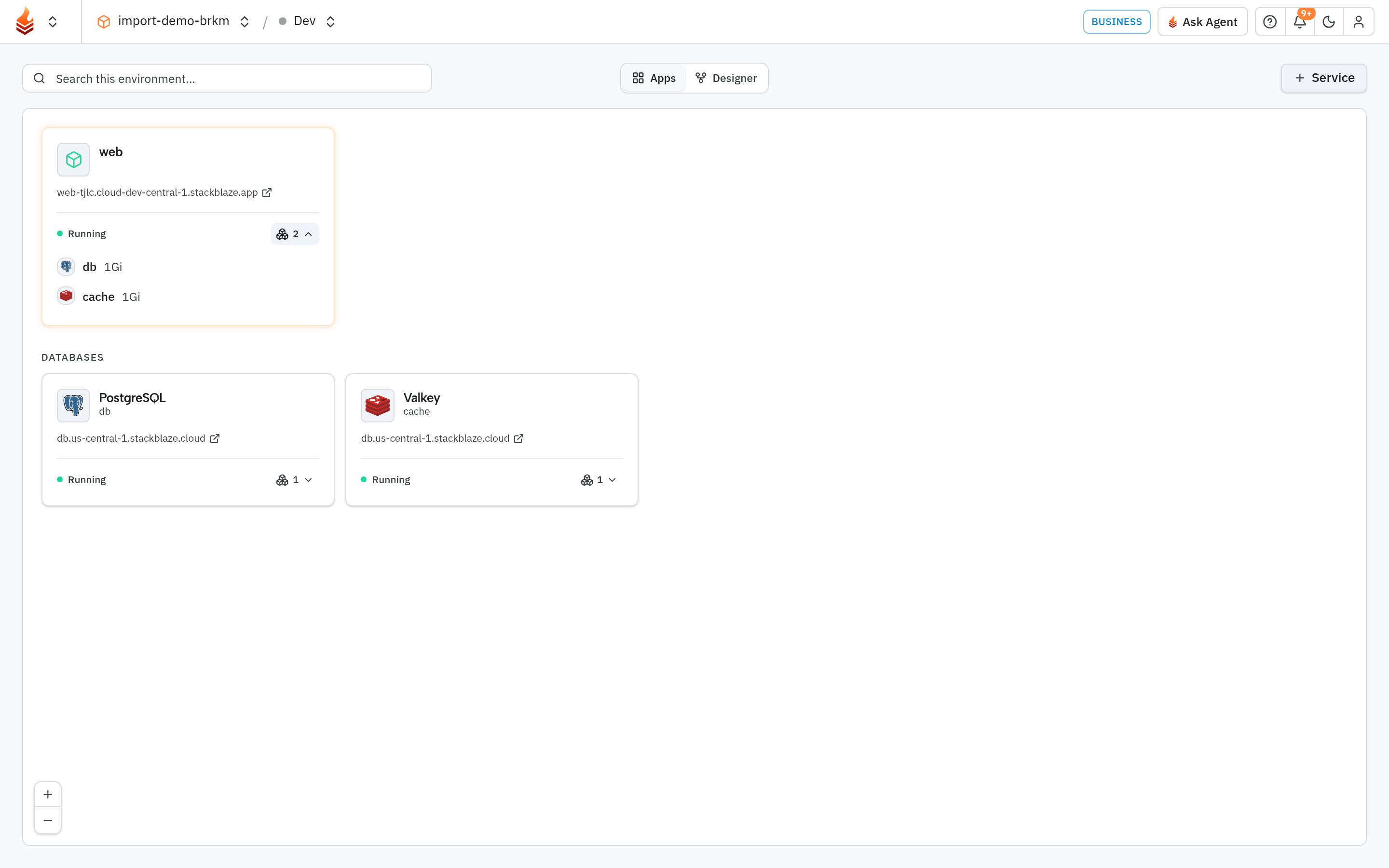
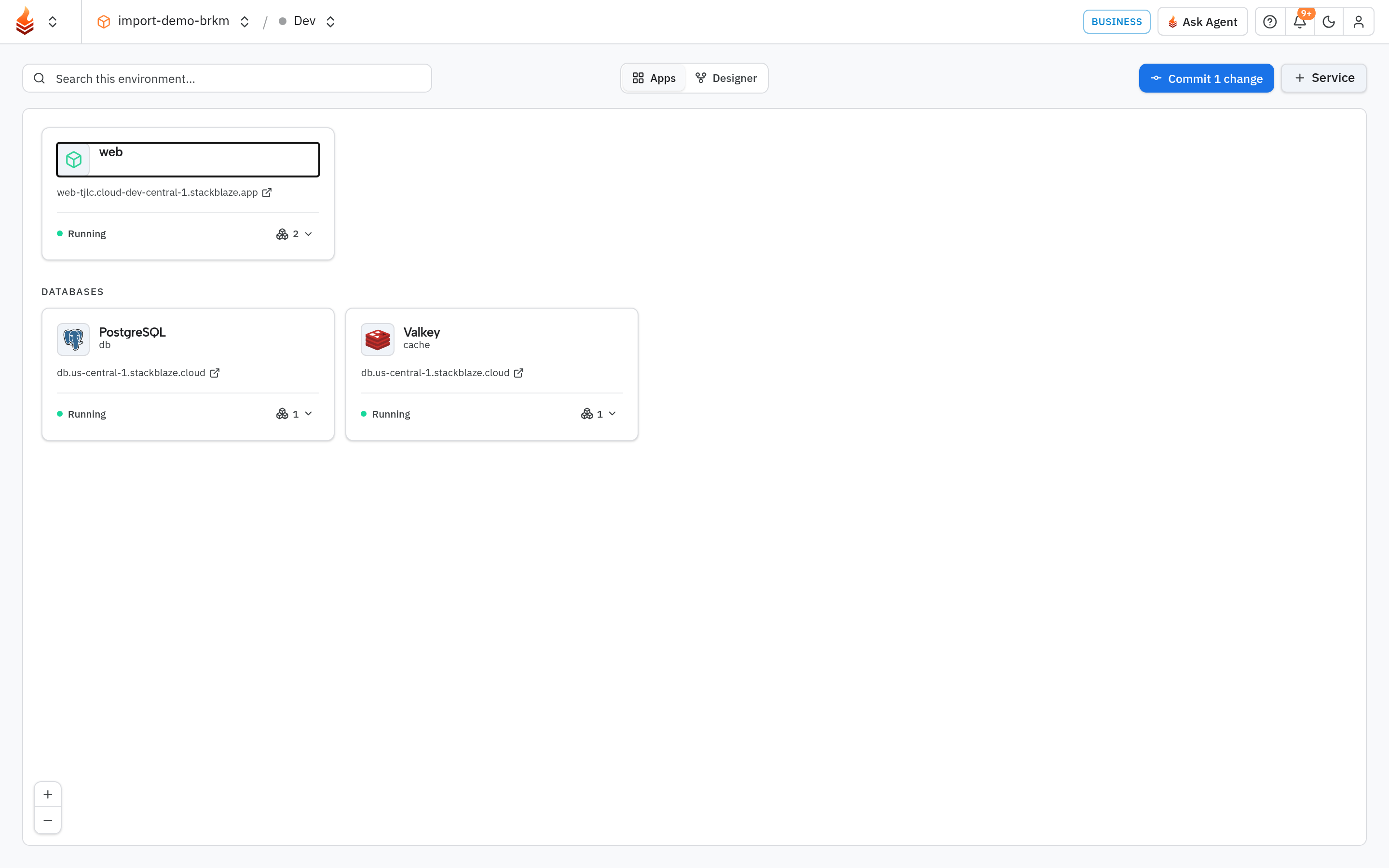
Apps shows a card per service. Databases and caches are listed under Databases.

Each card shows the service's name, its address and its status (Running, Ready to deploy, Staged, …). On an app card, the number with an arrow opens the databases the app is connected to, with their disk sizes.
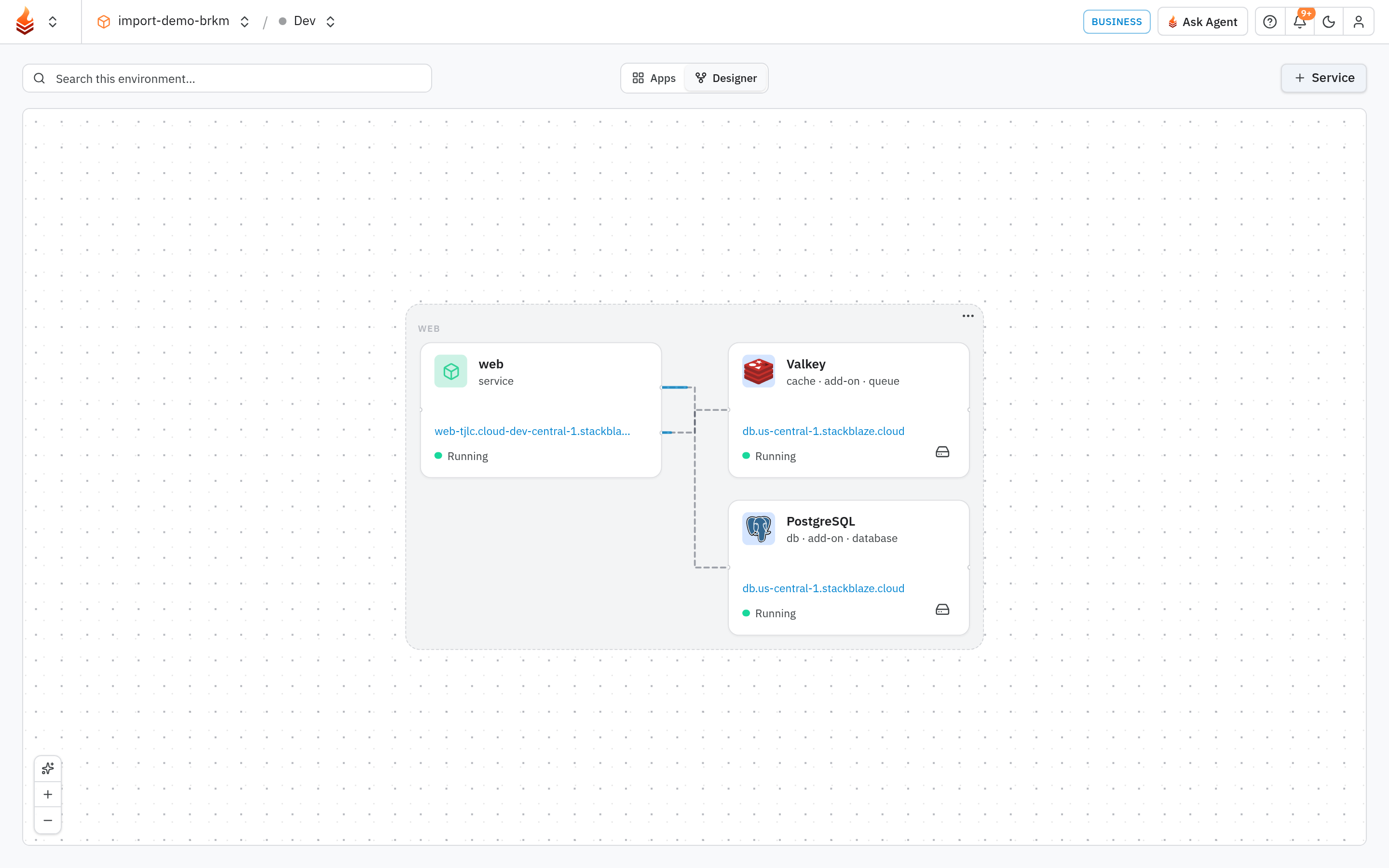
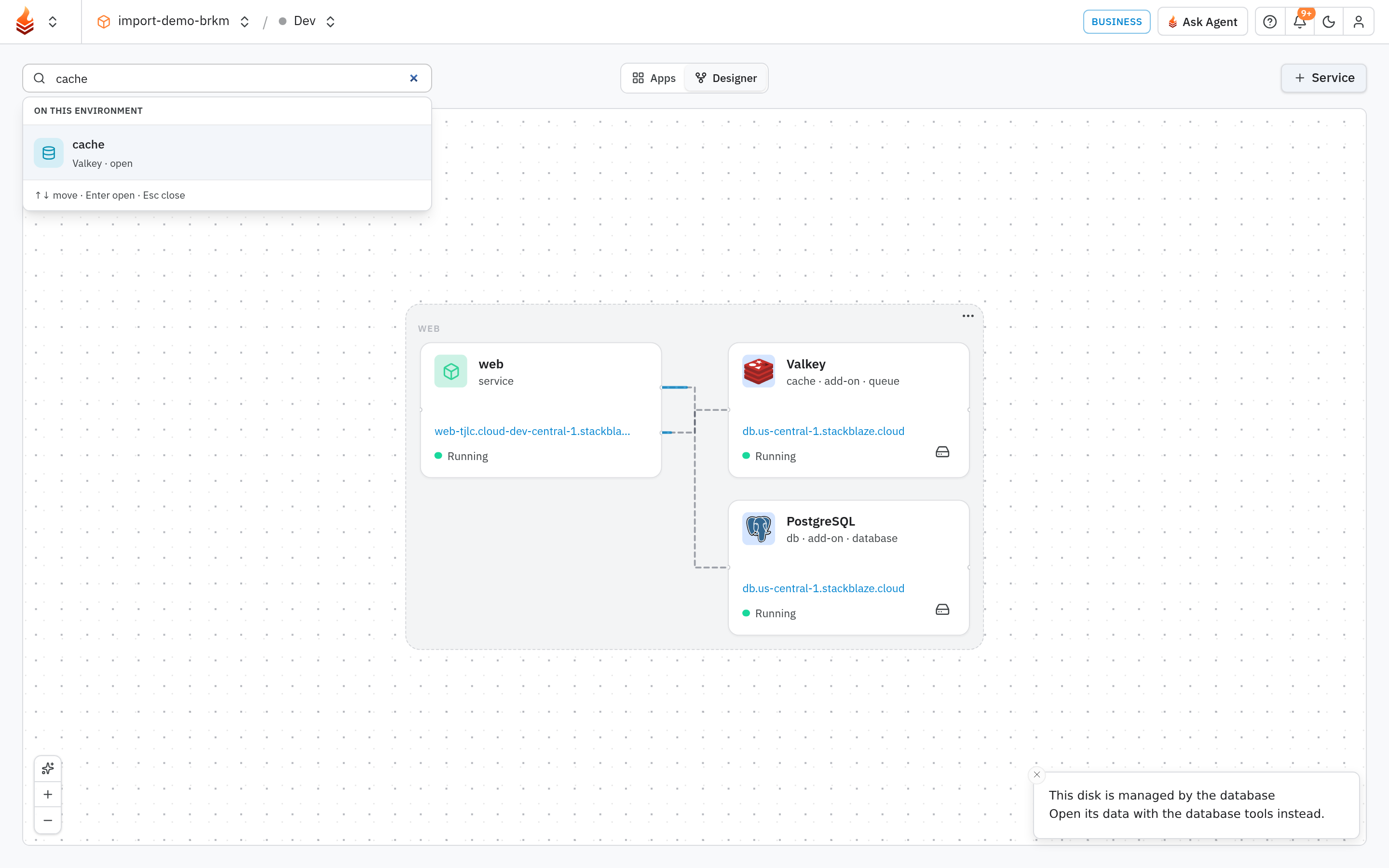
Designer draws the same services as a diagram, with lines from each app to the databases it uses. Services are kept together in groups. The buttons at the bottom left are Tidy up (re-run the automatic layout), Zoom in and Zoom out.
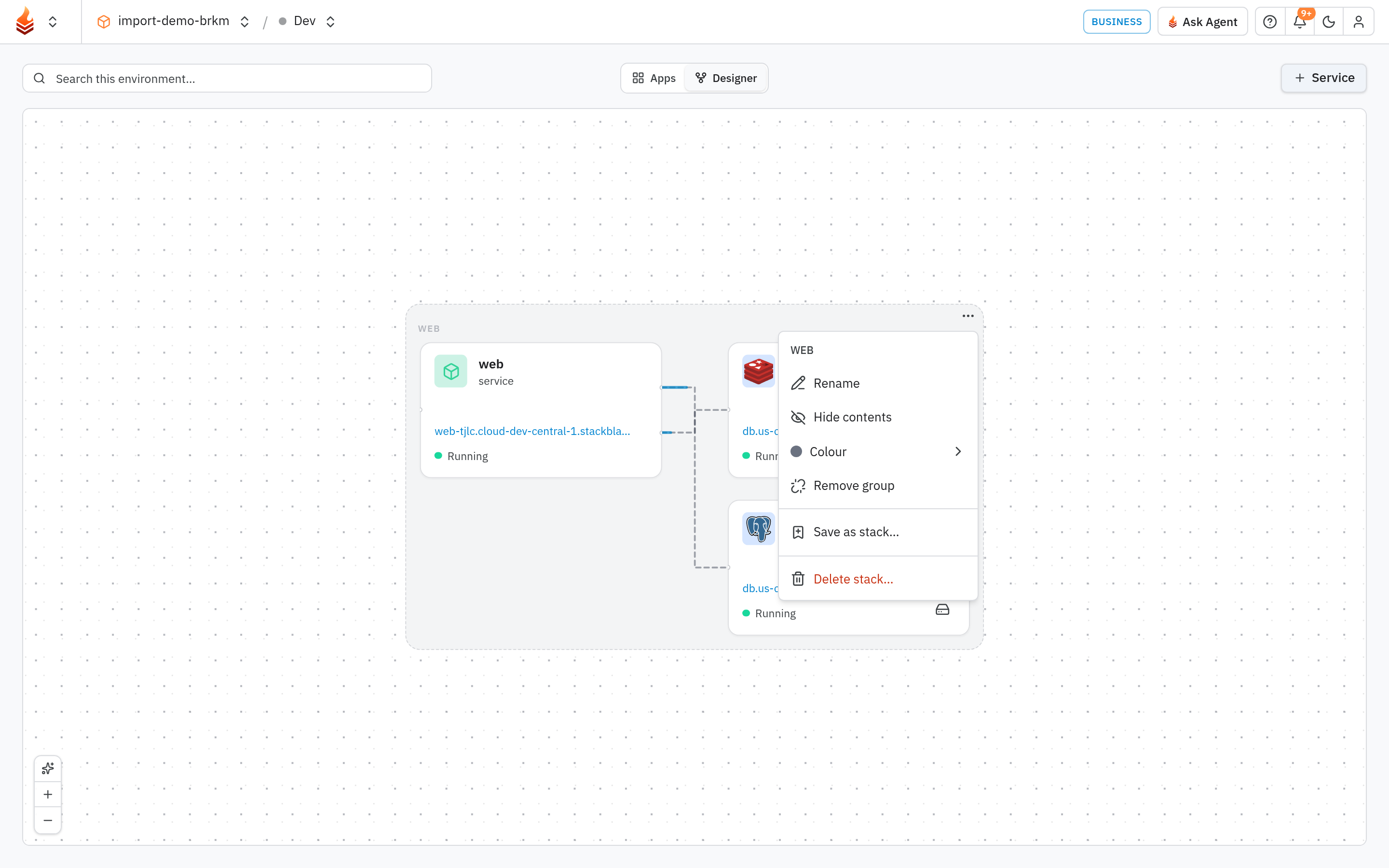
A group's … menu has Rename, Hide contents, Colour, Remove group, Save as stack… and Delete stack….
Groups
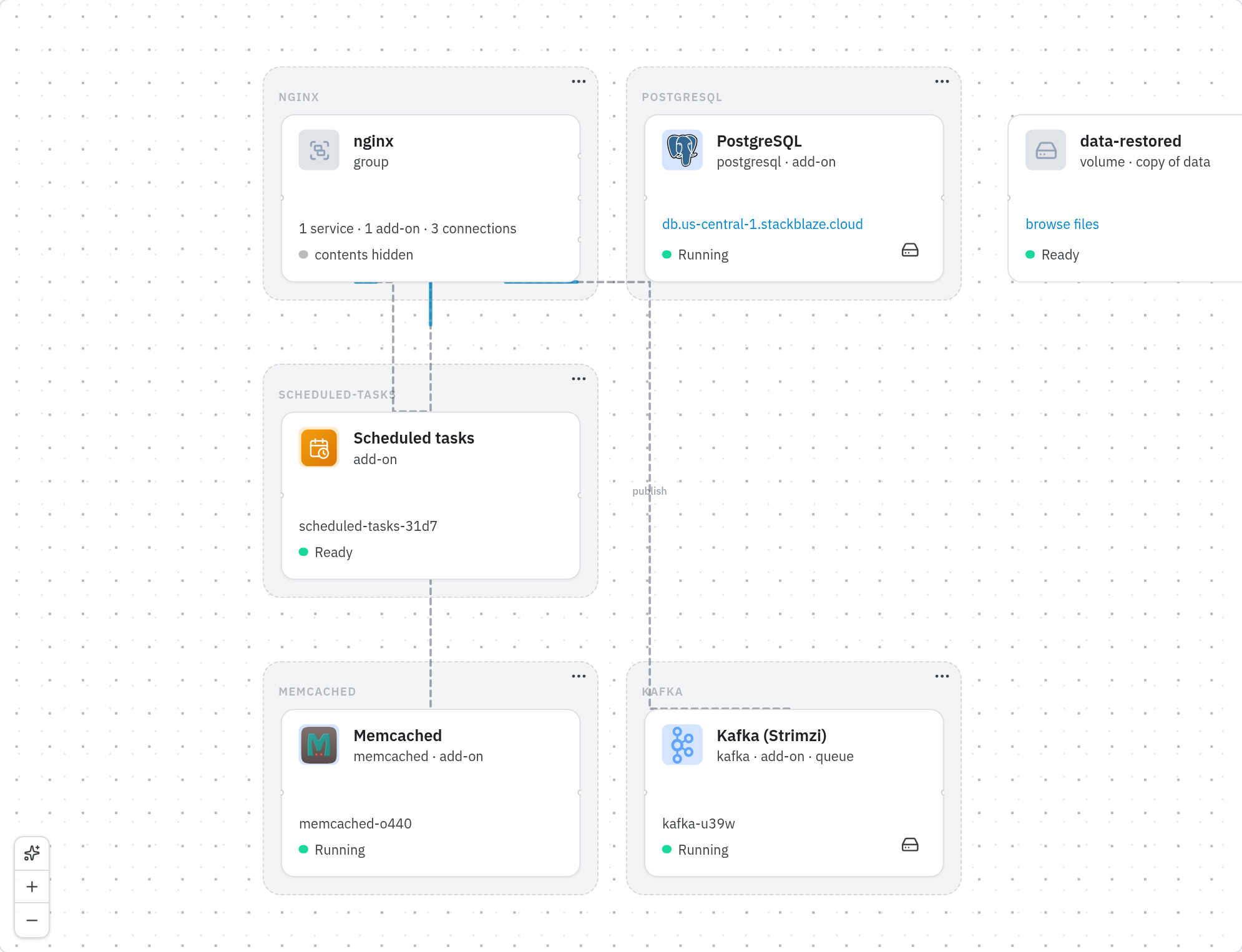
Cards sit in groups. Here the NGINX group holds the nginx service and its Email (SMTP) add-on, and PostgreSQL, Memcached, Kafka and the scheduled tasks each have a group of their own.
Hide contents in a group's … menu folds it into one card that counts what's inside, here "1 service · 1 add-on · 3 connections", with contents hidden. Its lines stay, drawn from the folded card. Show contents in the same menu opens it again.
Lines
A line joins a service to each database and add-on it's connected to. A line from a Kafka add-on is labelled with what it does, such as publish.
Card menus
Right-click a card for its menu. The first line names the card and its kind. A service's menu has Open app, Settings, Logs, Metrics, Files, Terminal, Rename, Backups, Develop, Restart, Pause, Delete and Group, which opens a submenu.
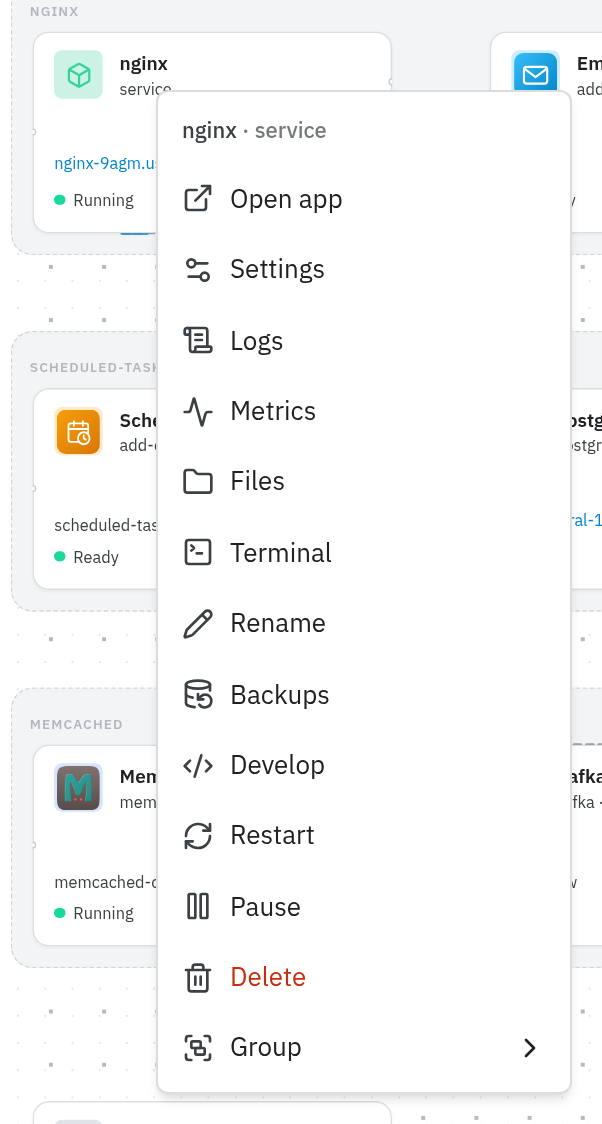
Other cards have fewer items:
| Card | Menu |
|---|---|
| PostgreSQL | Open SQL console, Open dashboard, Settings, Logs, Metrics, Rename, Backups, Group, Delete |
| Memcached, Kafka | Open dashboard, Settings, Logs, Metrics, Rename, Group, Delete |
| Email (SMTP), Scheduled tasks | Open dashboard, Rename, Group, Delete |
| A volume | Browse files, Rename, Delete |
New cards before they deploy
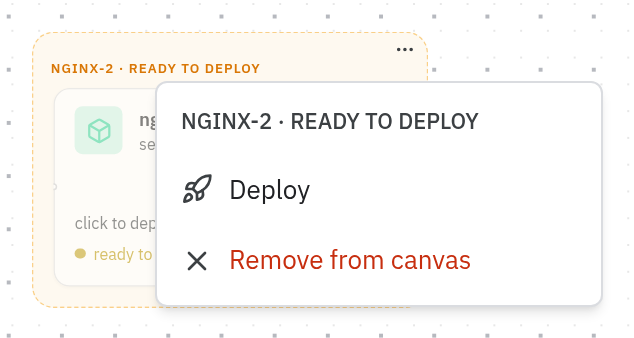
Something you add with + Service first appears as a dashed card marked ready to deploy: it's on the canvas only, and nothing runs yet. Its right-click menu has Deploy and Remove from canvas. Remove from canvas drops it, and nothing was created.
Tidy up
Tidy up lays the groups out again in three columns, left to right: apps that only call other services, then services that other apps call, then AI models and what serves them. The columns come from the lines, not from names. Tall columns wrap into a new column.
Card status
A card's last line shows its status, for example Running, Updating (a new version is rolling out), Ready for an add-on that has nothing to run, ready to deploy for a new card, or Staged for a change waiting to be committed.
The disk icon on a database card shows its volume. A database's disk is "managed by the database": to look at its data, use the database tools (see PostgreSQL).
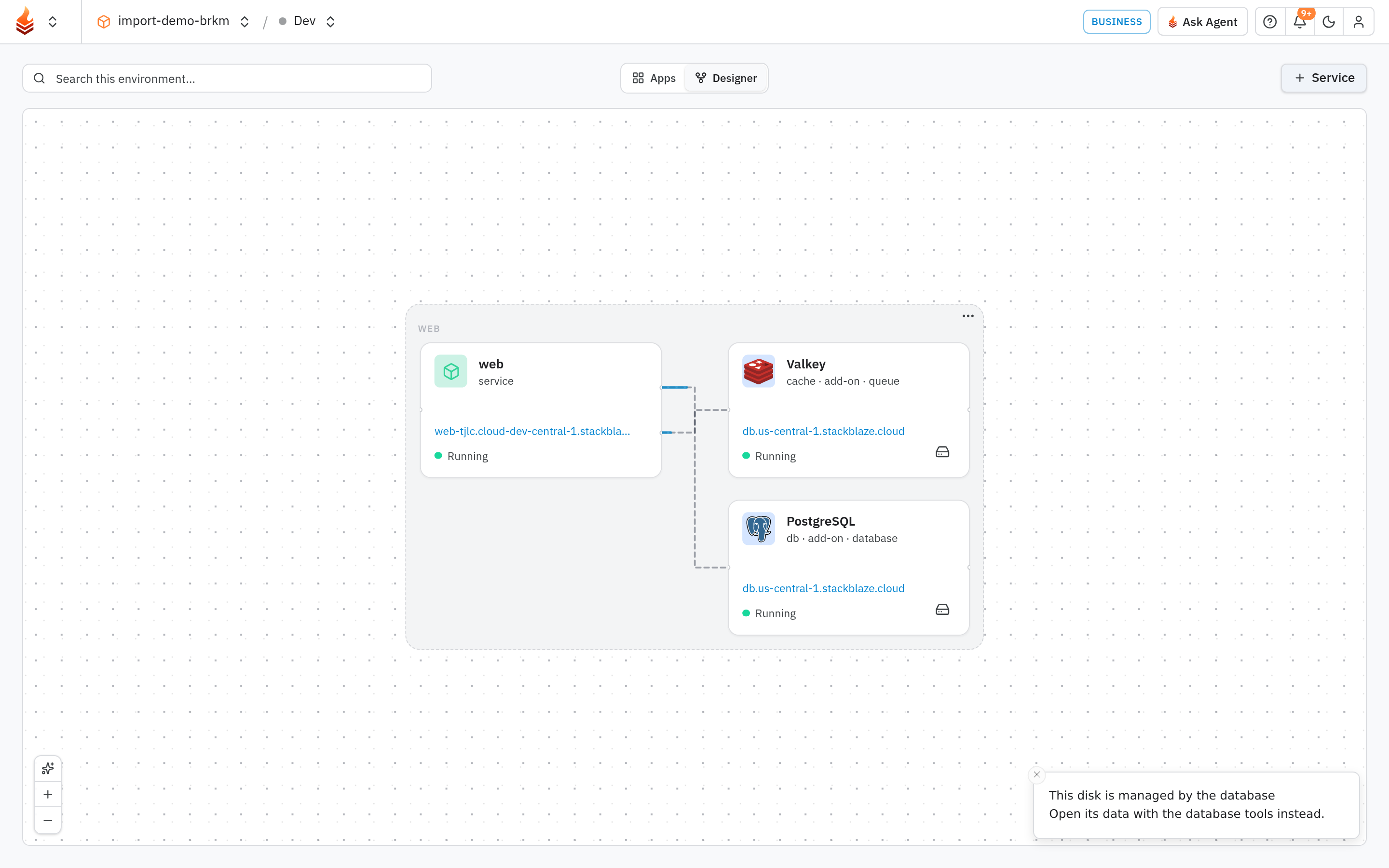
Search this environment… finds a service by name. Pick a result, or use the arrow keys and Enter, to open it.
Add to the environment
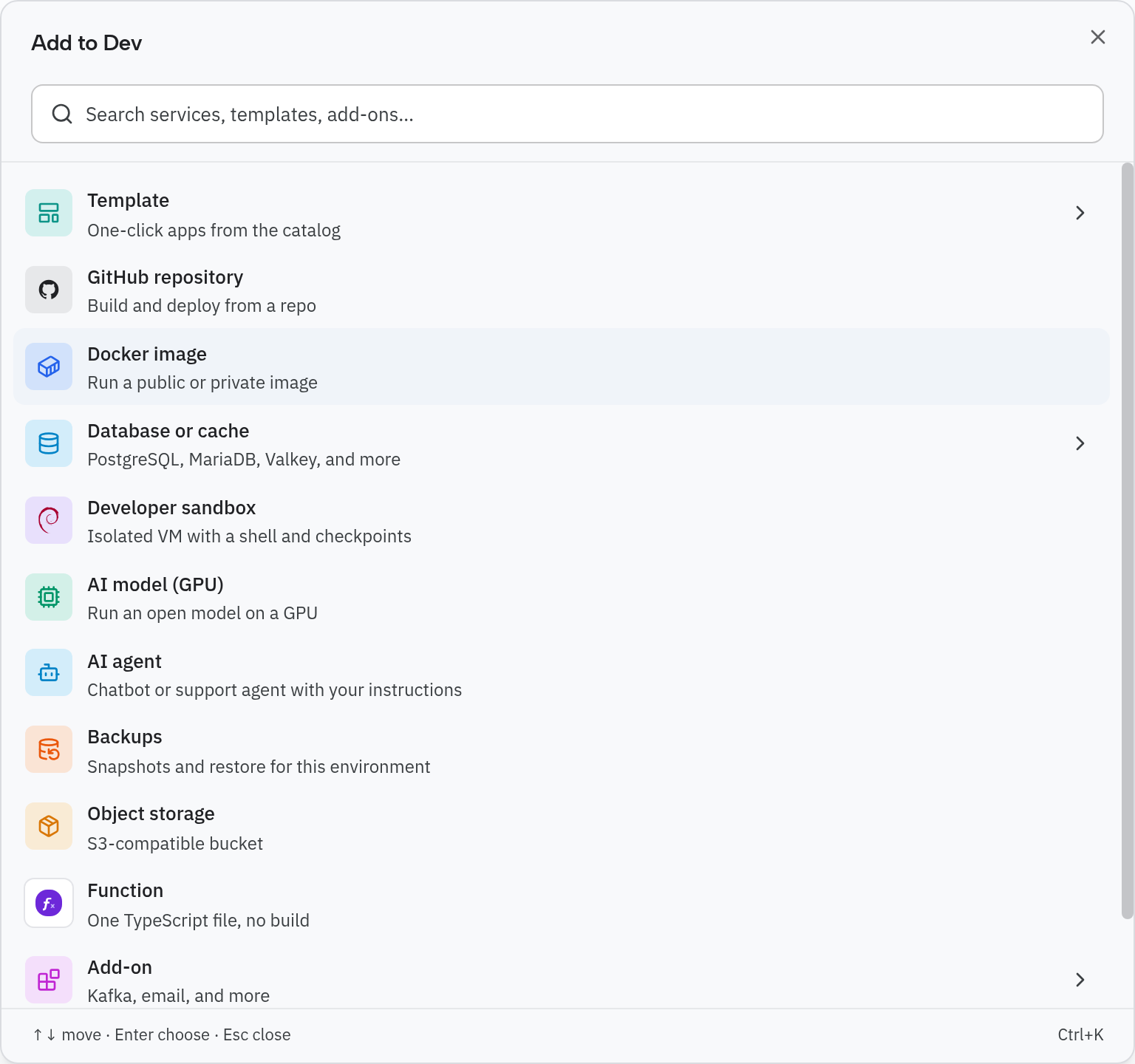
+ Service, at the top right, opens Add to environment. What each item adds:
| Item | Adds | See |
|---|---|---|
| Template | one-click apps from the catalog | Templates |
| GitHub repository | an app built from a repository | Deploy from GitHub |
| Docker image | an app from a public or private image | Deploy a Docker image |
| Database or cache | PostgreSQL, MariaDB, Valkey and more | Databases |
| Developer sandbox | an isolated VM with a shell and checkpoints | Developer sandboxes |
| AI model (GPU) | an open model on a GPU | AI models |
| AI agent | a chatbot or support agent with your instructions | AI agents |
| Function | one TypeScript file, no build | Functions |
| Add-on | email, scheduled tasks, Memcached, ProxySQL | Add-ons |
| Import | services from a Compose file, render.yaml, fly.toml or stackblaze.yaml | Import |
| Backups | snapshots and restore for the environment, once it has something in it | Environment backups |
Staged changes
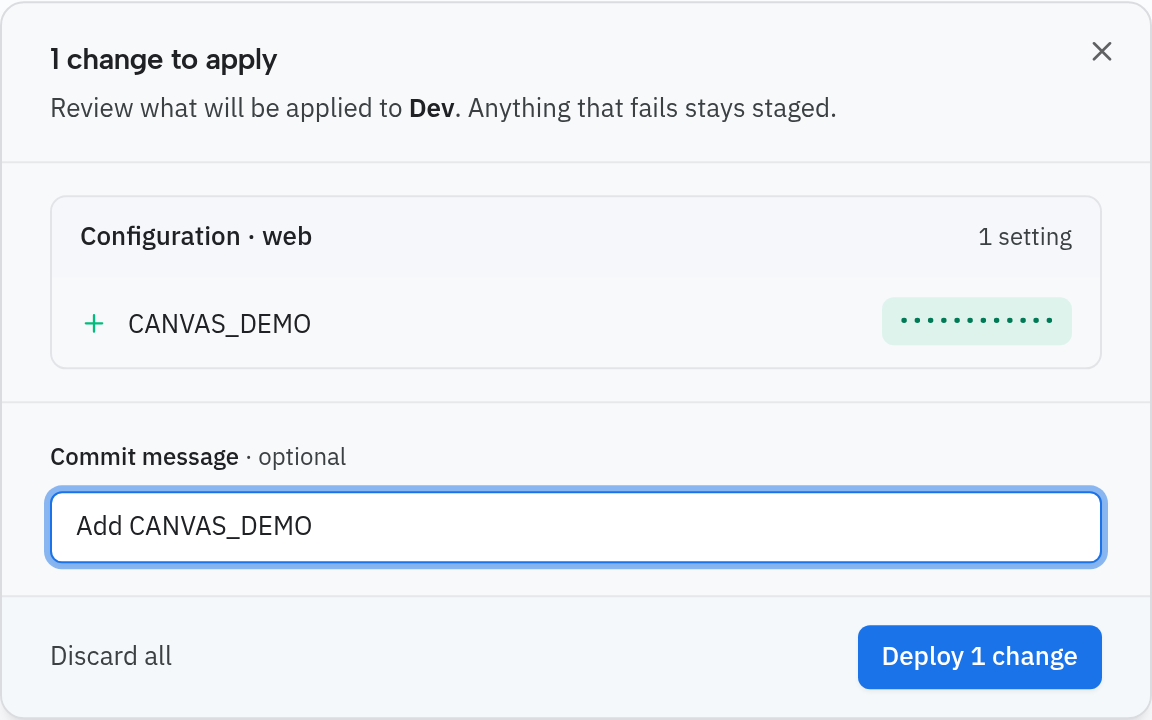
Most changes you make to a running service, such as a new variable, are not applied straight away. They are staged, and the toolbar shows Commit N change(s).
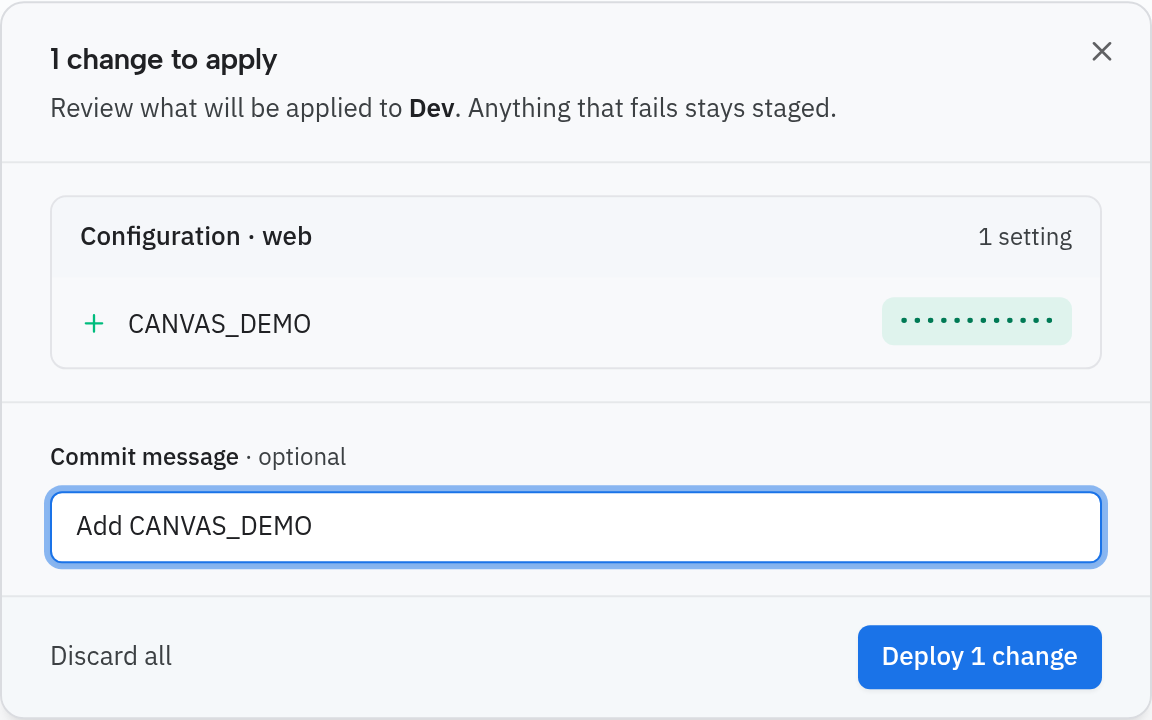
Click it to see what will be applied to the environment: here Configuration · web, one setting. Then:
- Deploy N change(s) applies them. "Anything that fails stays staged."
- Commit message (optional) is shown in the service's Deployment history.
- Discard all drops every staged change, with no confirmation. Nothing is applied.
After Deploy, the service's Deployment tab shows the rollout with your message.